
1. Introduction
Thank you for choosing the Driauto 7-Inch Single Din Car Stereo. This manual provides essential information for the proper installation, operation, and maintenance of your new car stereo. Please read this manual thoroughly before use to ensure optimal performance and safety.
Text Description: This video provides a general product overview of the Driauto 7-Inch Single Din Car Stereo, highlighting its key features and design. It showcases the device's interface and various functionalities.
2. Safety Information
- Always operate the device safely and in accordance with local traffic laws.
- Do not attempt to install or repair the unit yourself if you are not qualified. Consult a professional installer.
- Avoid prolonged exposure to direct sunlight or extreme temperatures.
- Keep the unit away from water and moisture.
- Ensure all wiring is correctly connected to prevent short circuits or damage.
3. Package Contents
Verify that all items are present in the box:
- 1 x Android Player
- 1 x Power Cable
- 1 x USB Cable
- 1 x GPS Antenna
- 1 x Rear Camera Cable
- 1 x RCA Cable
- 1 x User Manual
- 2 x Mounting bracket
- 1 x Radio Antenna
- 1 x Microphone
- 1 x Backup camera

Text Description: This image displays the complete packaging list for the Driauto 7-Inch Single Din Car Stereo, including the main unit, various cables (power, USB, RCA, rear camera), antennas (GPS, radio), mounting brackets, user manual, microphone, and backup camera. It also shows the unit's dimensions.
4. Product Overview
The Driauto 7-Inch Single Din Car Stereo is designed to enhance your driving experience with advanced features and connectivity.
Key Features:
- 7-inch IPS Touchscreen (1024*600 resolution)
- Android 15 Operating System with MT8163 Chipset
- 2GB RAM + 64GB ROM
- Wireless CarPlay & Android Auto
- iOS/Android Mirror Link
- Built-in DSP (Digital Sound Processor)
- GPS Navigation with Built-in Offline Maps
- WiFi Connectivity
- Bluetooth Hands-free Calling and Music Streaming (Version 4.1)
- FM/RDS Radio (MT6625LN Radio chip)
- Backup Camera Support (AHD/CVBS)
- Steering Wheel Controls
- Split Screen Functionality
- 7-Color Button Lights
- Dual USB Interface

Text Description: This image illustrates the core connectivity features of the Driauto car stereo: Wireless/Wired CarPlay, Android Auto, and Mirror Link. It shows how iOS and Android devices can connect to the unit for seamless integration.
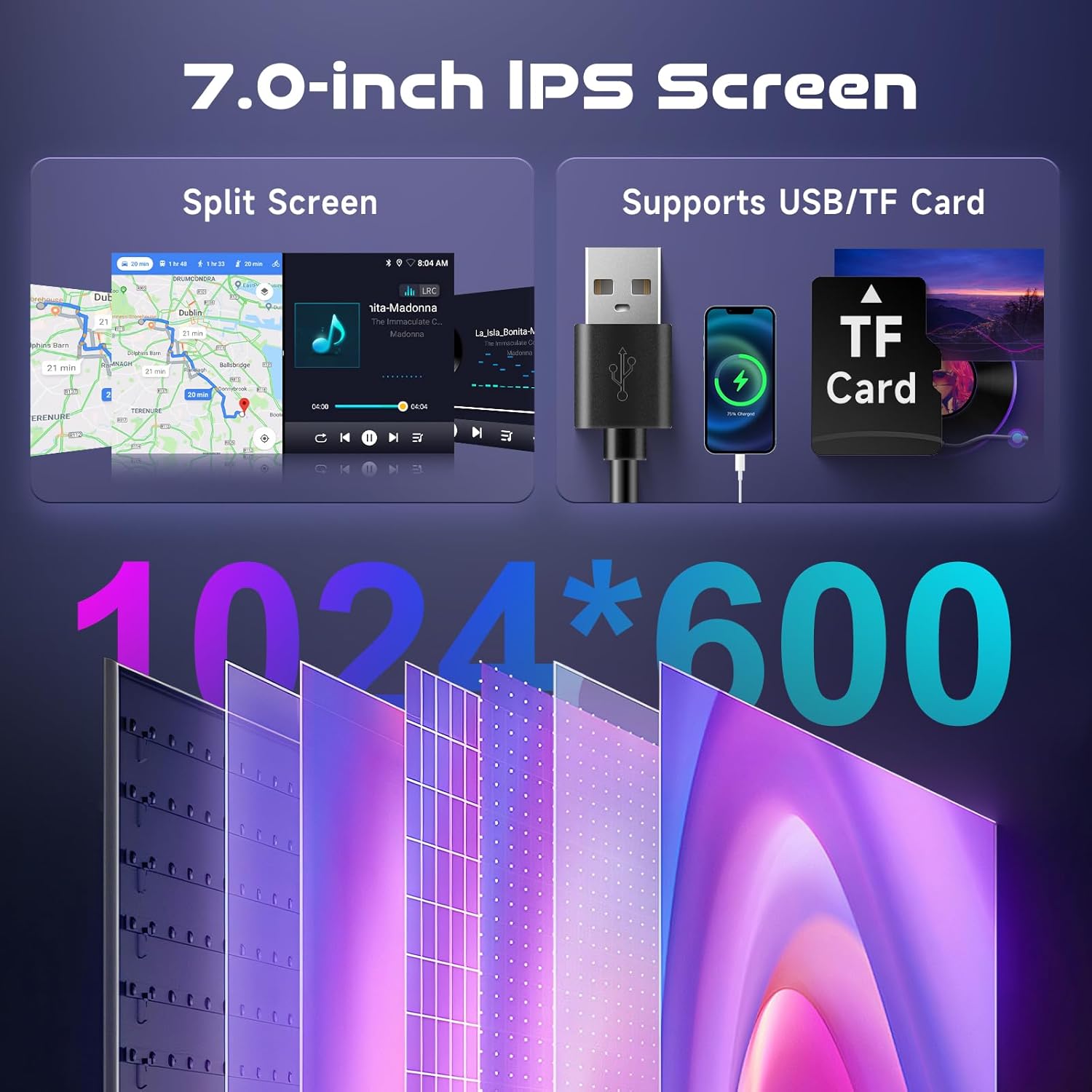
Text Description: This image highlights the 7.0-inch IPS screen of the Driauto car stereo, demonstrating its Split Screen capability for multitasking and support for USB/TF cards for media playback. The screen resolution of 1024*600 is also emphasized.

Text Description: This image showcases the GPS and WiFi connection capabilities of the Driauto car stereo. It also illustrates the performance of the Android system with 4GB RAM and 64GB ROM, indicating smooth operation.

Text Description: This image details the various control options and features of the Driauto car stereo, including Steering Wheel Controls for safe operation, a Rear View Camera with HD and Wide Angle capabilities, customizable 7-color Button Lights, and the Manual Retraction mechanism for the screen.
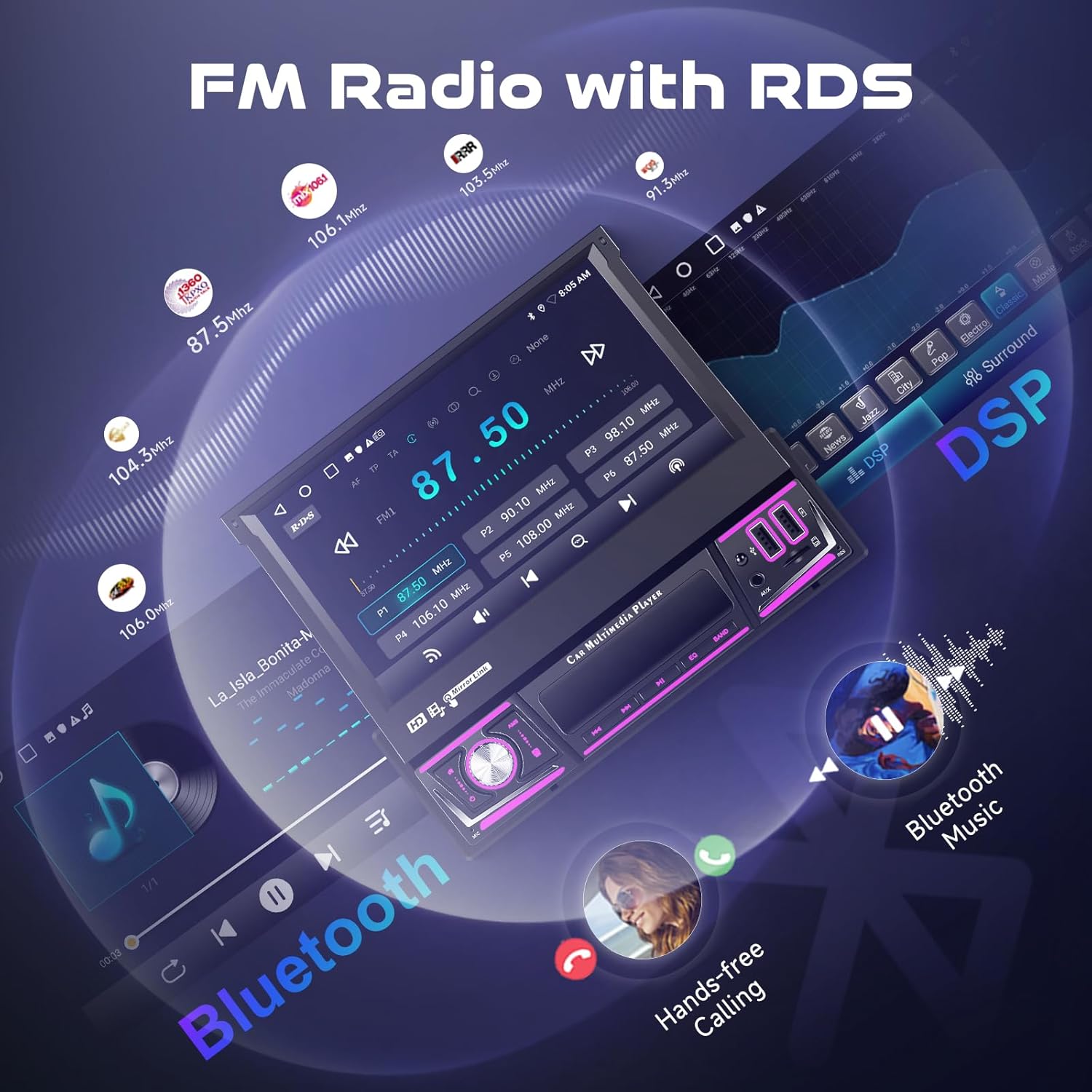
Text Description: This image highlights the FM Radio with RDS (Radio Data System) functionality of the Driauto car stereo, showing various frequency options. It also emphasizes Bluetooth connectivity for music streaming and hands-free calling.
5. Setup
5.1. Removing the Original Car Stereo
Before installing your new Driauto car stereo, you will need to carefully remove the existing unit from your vehicle's dashboard. This process may vary depending on your vehicle's make and model. Always use appropriate tools to avoid damaging your dashboard or the original stereo.
Text Description: This video demonstrates the process of removing an original car stereo from a vehicle's dashboard. It shows the use of prying tools to detach trim panels and screwdrivers to unfasten the old unit, followed by disconnecting its wiring harnesses.
5.2. Wiring Connections
Refer to the wiring diagram provided in your user manual and on the unit itself for detailed connections. Ensure all wires are securely connected to their corresponding ports.
- Power Cable: Connect the main power harness to your vehicle's power supply.
- RCA Input/Output: For external amplifiers, subwoofers, or other audio/video devices.
- Camera Input: Connect the rear view camera cable here.
- GPS Antenna: Connect the GPS antenna and place it in a location with a clear view of the sky.
- USB Cables: Connect the provided USB cables for media playback and smartphone connectivity.
- Radio Antenna: Connect your vehicle's radio antenna.
- Microphone: Connect the external microphone for clear hands-free calls.
5.3. Rear View Camera Wiring (Optional)
If you are installing the included backup camera, connect the video cable to the 'Camera Input' on the stereo. The red wire from the camera power cable should be connected to the positive pole of the reverse light cable, and the black wire to ground. The reversing trigger line (usually a thin pink or brown wire from the stereo harness) should be connected to the reversing light signal to automatically display the camera feed when reversing.
5.4. Installing the Driauto Car Stereo
Once all connections are made, carefully slide the Driauto car stereo into the single din slot. Secure it using the provided mounting brackets and screws. Reattach any removed trim panels.
Text Description: This video continues the installation process, showing how to attach mounting brackets to the new car stereo, connect the power cables, rear view camera cable, USB cables, and GPS antenna. It then demonstrates docking the power cable and inserting the GPS antenna before securing the unit in the dashboard and performing a functional test.
6. Operating Instructions
6.1. Power On/Off
Press the power button (usually a physical button or a soft button on the screen) to turn the unit on or off. A long press may be required for power off.
6.2. Touchscreen Interface
Navigate through menus and applications by tapping or swiping on the 7-inch IPS touchscreen. The interface is intuitive and similar to a smartphone.
6.3. Radio Function
Select the 'Radio' icon from the main menu. You can manually tune to stations or use the auto-scan feature to find available FM/RDS stations. Use the touch controls or physical knobs for volume and tuning.
6.4. Bluetooth Connectivity
To pair your smartphone:
- Go to the 'BT' (Bluetooth) menu on the stereo.
- Enable Bluetooth on your smartphone and search for available devices.
- Select 'Carplay BT' (or similar name) from the list on your phone.
- Enter the PIN code (default is 0000) if prompted.
- Once connected, you can make/receive calls and stream music wirelessly.
6.5. Wireless CarPlay & Android Auto
After pairing your phone via Bluetooth, select the 'CarPlay' or 'Android Auto' icon from the main menu. Follow the on-screen prompts to establish a wireless connection. This allows you to access your phone's navigation, music, messages, and other apps directly on the stereo screen.
6.6. Mirror Link
Select the 'Mirror Link' option to duplicate your smartphone's screen onto the car stereo display. This feature supports both iOS and Android devices.
6.7. GPS Navigation
Access the 'Maps' application from the main menu. The unit comes with built-in offline maps. You can also use online navigation apps via CarPlay/Android Auto or by connecting to WiFi.
6.8. Steering Wheel Controls
The unit supports external steering wheel controls. If your vehicle has existing steering wheel controls, they may be compatible. An additional steering wheel remote is included for convenient control of volume, track changes, and calls without taking your hands off the wheel.
6.9. Media Playback (USB/TF Card)
Insert a USB drive into one of the dual USB ports or a TF card into the designated slot. The unit will automatically detect and allow you to browse and play audio or video files.
6.10. DSP Settings
Access the 'DSP' (Digital Sound Processor) settings to customize your audio experience. Adjust equalizer settings, balance, fader, and other sound parameters to your preference.
7. Maintenance
- Cleaning: Use a soft, dry cloth to clean the screen and unit. Avoid abrasive cleaners or solvents.
- Software Updates: Periodically check the manufacturer's website for software updates to ensure optimal performance and access to new features.
- Temperature: Avoid exposing the unit to extreme temperatures, which can affect its lifespan.
8. Troubleshooting
- No Power: Check all power connections, including the ignition switch wire and ground wire. Ensure the vehicle's fuse is not blown.
- No Sound: Verify speaker connections. Check volume levels and DSP settings. Ensure the correct audio source is selected.
- Bluetooth Not Connecting: Ensure Bluetooth is enabled on both the stereo and your phone. Delete previous pairings and try reconnecting. Check the PIN code.
- CarPlay/Android Auto Not Working: Ensure your phone's operating system is up to date. Try connecting with a different USB cable if using a wired connection. Re-pair Bluetooth for wireless connection.
- Rear Camera Not Displaying: Check the camera video cable connection and the reversing trigger line connection. Ensure the camera is receiving power.
- Touchscreen Unresponsive: Try restarting the unit. If the issue persists, perform a factory reset (refer to the user manual for the factory setting keyword: 000000).
9. Specifications
- Screen Material: IPS
- System: Android 15
- Chipset: MT8163
- Screen Size: 7 inch
- Memory: 2GB (RAM) + 64GB (ROM)
- Screen Resolution: 1024*600
- Radio Chip: MT6625LN
- Power Output: 4*45W
- Bluetooth Version: 4.1
- Work Temperature: -20℃ - 75℃
- Power Amplifier Chip: YD7388
- Radio Band: FM/RDS
- Reversing Input: AHD/CVBS
- Maps: Built-in offline maps
- USB: Double USB interface
- Audio Format: APE/FLAC/WAV/MP3/WMA etc
- Video Format: MKV/RMVB/AVI/MP4/MDV etc
- Picture Format: PNG/JPEG/JPG/GIF/WBMP/BNP etc
- Factory Setting Keyword: 000000
10. Warranty and Support
The Driauto 7-Inch Single Din Car Stereo comes with a 2-year warranty. For technical support, troubleshooting assistance, or warranty claims, please contact Driauto customer service through the retailer where you purchased the product or visit the official Driauto website for contact information.