
1. Introduction
The MP Mobile Pixels Trio 3 Pro is a triple portable monitor designed to expand your laptop's display capabilities. Featuring two 14.1-inch QHD 1400P displays, it offers enhanced screen real estate for multitasking and productivity. The unit includes a built-in kickstand for versatile positioning and supports single USB-C cable connectivity with 65W pass-through charging.
Key Features:
- Triple Screen Expansion: Transform your laptop into a triple-screen workstation with two attachable QHD 1400p displays.
- Ultra-Portable Design: Lighter, thinner, and stronger with a built-in kickstand that also functions as a protective cover.
- Single-Cable Connectivity: Connects with one USB-C cable for video, data, and power. Dual USB-C ports support 65W pass-through charging.
- Four Flexible Viewing Modes: Supports Landscape, Portrait, Collaboration, and Presentation modes.
- Eye-Care Display & Wide Compatibility: 1400p IPS display with reduced blue light, compatible with macOS and Windows without requiring drivers.

Image: The Trio 3 Pro connected to a laptop, displaying a triple-screen setup.
2. What's in the Box
Verify that all items are present in the package:
- Trio 3 Pro Dual Portable Monitors (x1)
- USB-C Cable (x1)
- USB-C to USB-A Adapter (x1)
- Laptop Mounting Magnets (x4)
- User Guide (x1)
3. Setup Instructions
Follow these steps to set up your Trio 3 Pro monitor:
- Attach Mounting Magnets: Apply the provided mounting magnets to the back of your laptop screen. Ensure they are evenly spaced and secure.
- Connect Monitors: Align the Trio 3 Pro monitors with the magnets on your laptop. The monitors will magnetically attach to the back of your laptop screen.
- Cable Connection: Use the included USB-C cable to connect the Trio 3 Pro to your laptop. The monitors support a single-cable setup for both video and power. If your laptop only has USB-A ports, use the provided USB-C to USB-A adapter.
- Power and Charging: If your laptop requires additional power or you wish to use the 65W pass-through charging feature, connect your laptop's power adapter to one of the Trio 3 Pro's dual USB-C ports.
- Initial Display Configuration: Once connected, your laptop should automatically detect the new displays. You may need to adjust display settings (e.g., extend, duplicate, resolution) in your operating system's display preferences. The Trio 3 Pro is plug-and-play for macOS and Windows, requiring no additional drivers.
- Using the Built-in Kickstand: For freestanding use or enhanced stability, deploy the built-in kickstand located on the back of the central monitor unit. This allows the monitors to stand independently or provide additional support when attached to a laptop.

Image: Illustration of the single-cable setup for Mac and Windows compatibility.
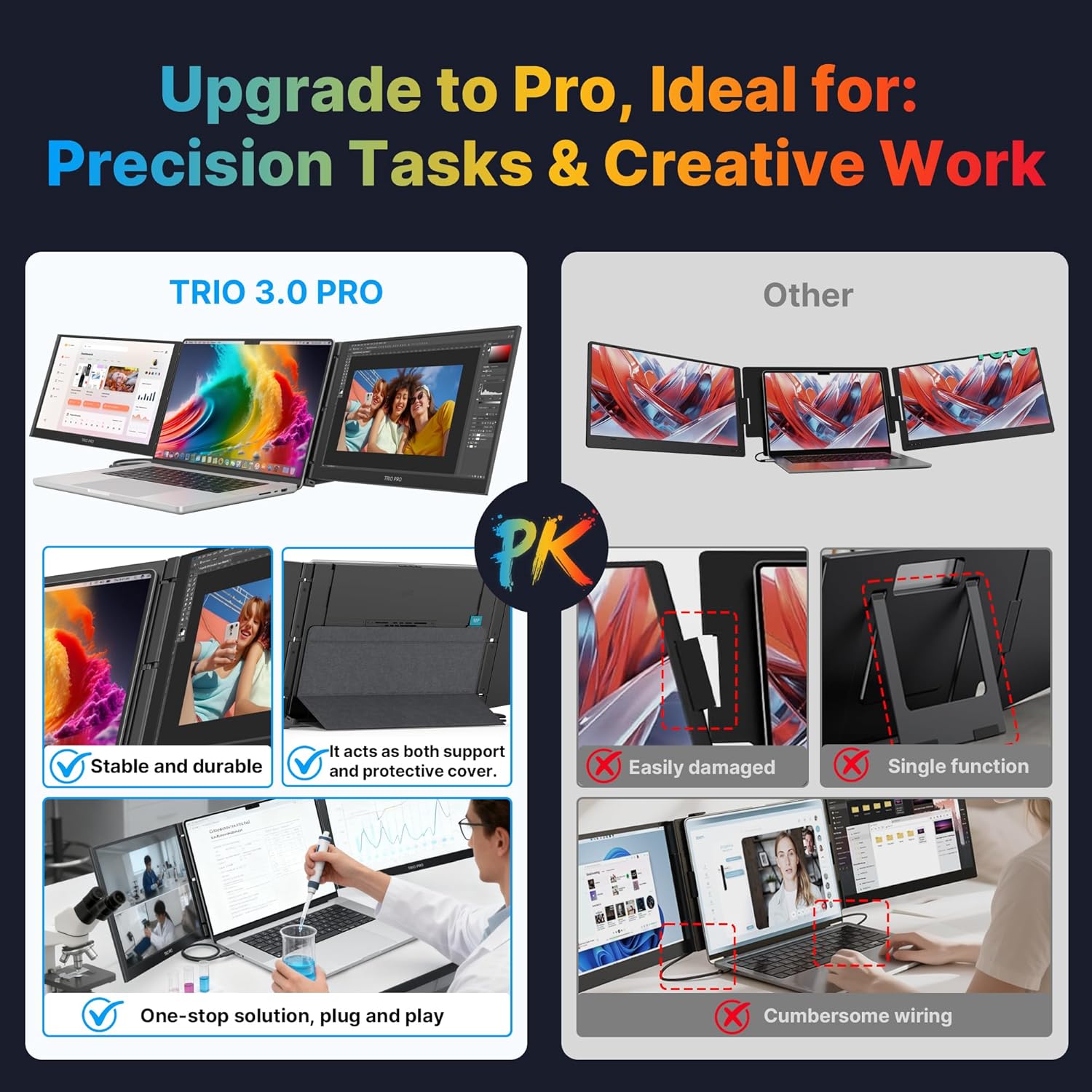
Image: The built-in kickstand provides stable support for the monitors.
Video: An official product video demonstrating the setup and triple-screen functionality of the Trio 3 Series.
4. Operating Instructions
The Trio 3 Pro offers various modes to enhance your workflow:
Viewing Modes:
- Landscape Mode: Standard horizontal orientation for extended desktop space.
- Portrait Mode: Rotate screens vertically for coding, document review, or long web pages.
- Collaboration Mode: Rotate screens to face away from your laptop, allowing easy content sharing with others.
- Presentation Mode: Position screens for a clear view during presentations or group work.

Image: The Trio 3 Pro in Presentation Mode, ideal for sharing content during meetings.

Image: A user utilizing the triple screens for real-time data, charts, and news feeds.
Pass-Through Charging:
The dual USB-C ports on the Trio 3 Pro support 65W pass-through charging. This allows you to power your laptop and other devices through the monitor, reducing the need for multiple power adapters.
Eye-Care Display:
The 1400p IPS display is designed with reduced blue light emission to ensure comfortable viewing during extended use.
5. Specifications
| Feature | Detail |
|---|---|
| Product Dimensions | 14.1 x 0.98 x 9.5 inches |
| Item Weight | 4.23 pounds |
| Manufacturer | Mobile Pixels |
| Item Model Number | 101-1004P06 |
| Standing Screen Display Size | 14.1 Inches |
| Aspect Ratio | 16:10 |
| Resolution | 2240 x 1400 Pixels (QHD) |
| Image Brightness | 300 nits |
| Total USB Ports | 2 (USB-C) |
| Screen Surface Description | Matte |

Image: Visual representation of the 14.1-inch screen size and 1400p QHD resolution.
6. Maintenance
Proper care ensures the longevity and performance of your Trio 3 Pro monitor:
- Cleaning the Screens: Use a soft, lint-free cloth to gently wipe the screens. Avoid using abrasive cleaners, alcohol, or ammonia-based solutions, as these can damage the display surface.
- General Cleaning: For the exterior, use a slightly damp cloth. Ensure no moisture enters the ports or internal components.
- Storage: When not in use, fold the monitors and store them in a protective sleeve or case to prevent scratches and impacts. The built-in cover provides initial protection.
- Cable Care: Handle USB-C cables carefully. Avoid bending them sharply or pulling them forcefully from the ports, which can cause damage to the connectors or the monitor's ports.

Image: The Trio 3 Pro folded, demonstrating its compact and portable design for easy transport.
7. Troubleshooting
If you encounter issues with your Trio 3 Pro, refer to the following common solutions:
- No Display on Monitors:
- Ensure all USB-C cables are securely connected to both the Trio 3 Pro and your laptop.
- Verify your laptop's display settings are configured to extend or duplicate displays.
- Try connecting the monitors to different USB-C ports on your laptop, if available.
- Restart your laptop.
- Power Issues / Monitors Not Turning On:
- Check that the USB-C cable is providing sufficient power. If using pass-through charging, ensure your laptop's power adapter is connected to one of the Trio 3 Pro's USB-C ports.
- Ensure the monitors are receiving power from the laptop or an external power source.
- Poor Image Quality / Incorrect Resolution:
- Adjust the display resolution and scaling settings in your laptop's operating system preferences.
- Ensure the correct display mode (e.g., extend, duplicate) is selected.
- Monitors Not Recognized by Laptop:
- Disconnect and reconnect all USB-C cables.
- Restart your laptop.
- Check for any available software updates for your operating system or the monitor. The Trio 3 Pro is designed to be driver-free for most modern macOS and Windows systems.
8. Warranty and Support
The Mobile Pixels Trio 3 Pro comes with a standard manufacturer's warranty. An additional 6 months warranty may be available for new purchases. For detailed warranty information, product registration, and technical assistance, please refer to the official Mobile Pixels website or contact their US-based customer service.
For further support, visit the MP Brand Store.

Image: Mobile Pixels company logo.