
1. Introduction
The Uniview UAC-T122-AF28LM is a 2MP high-definition analog turret security camera designed for reliable surveillance in various environments. This camera features ColorHunter technology for 24/7 full-color imaging, a built-in microphone for audio capture, and versatile 4-in-1 video output compatibility (TVI/AHD/CVI/CVBS) for integration with existing DVR systems. Its robust IP67-rated housing ensures durability in outdoor conditions.
2. Product Features
- 2MP High-Definition Imaging: Captures clear 1080P video resolution.
- ColorHunter Technology: Provides 24/7 full-color night vision using a warm white light illuminator up to 40m (131ft).
- 4-in-1 Video Output: Supports TVI, AHD, CVI, and CVBS formats, switchable via OSD menu.
- Built-in Microphone: Records high-quality audio over coaxial cable (requires compatible DVR).
- Wide Viewing Angle: Equipped with a 2.8mm fixed lens for broad area coverage.
- IP67 Weatherproof: Durable metal housing resistant to water and dust.
- Extreme Temperature Operation: Functions reliably from -30°C to 60°C (-22°F to 140°F).
- 4kV Surge Protection: Safeguards the device against electrical spikes.
3. Setup and Installation
3.1 Package Contents
Verify that all components are present:
- UAC-T122-AF28LM Turret Camera
- Mounting Screws and Wall Plugs
- Installation Template
- User Manual (this document)
3.2 Mounting the Camera
The camera is designed for wall mounting. Use the provided installation template to mark drill holes. Secure the camera firmly to the mounting surface using the supplied screws and wall plugs.
Note: Ensure the mounting surface can support the camera's weight and is free from obstructions.
3.3 Wiring and Connections
Connect the camera to your Digital Video Recorder (DVR) using a coaxial cable. The camera requires a DC 12V power supply (not included, typically supplied by the DVR or a separate adapter).
The camera supports 4-in-1 video output. If your DVR requires a specific video format (TVI, AHD, CVI, or CVBS), you may need to switch the camera's output mode via the On-Screen Display (OSD) menu. This is typically done by accessing the OSD menu through your DVR's controls.
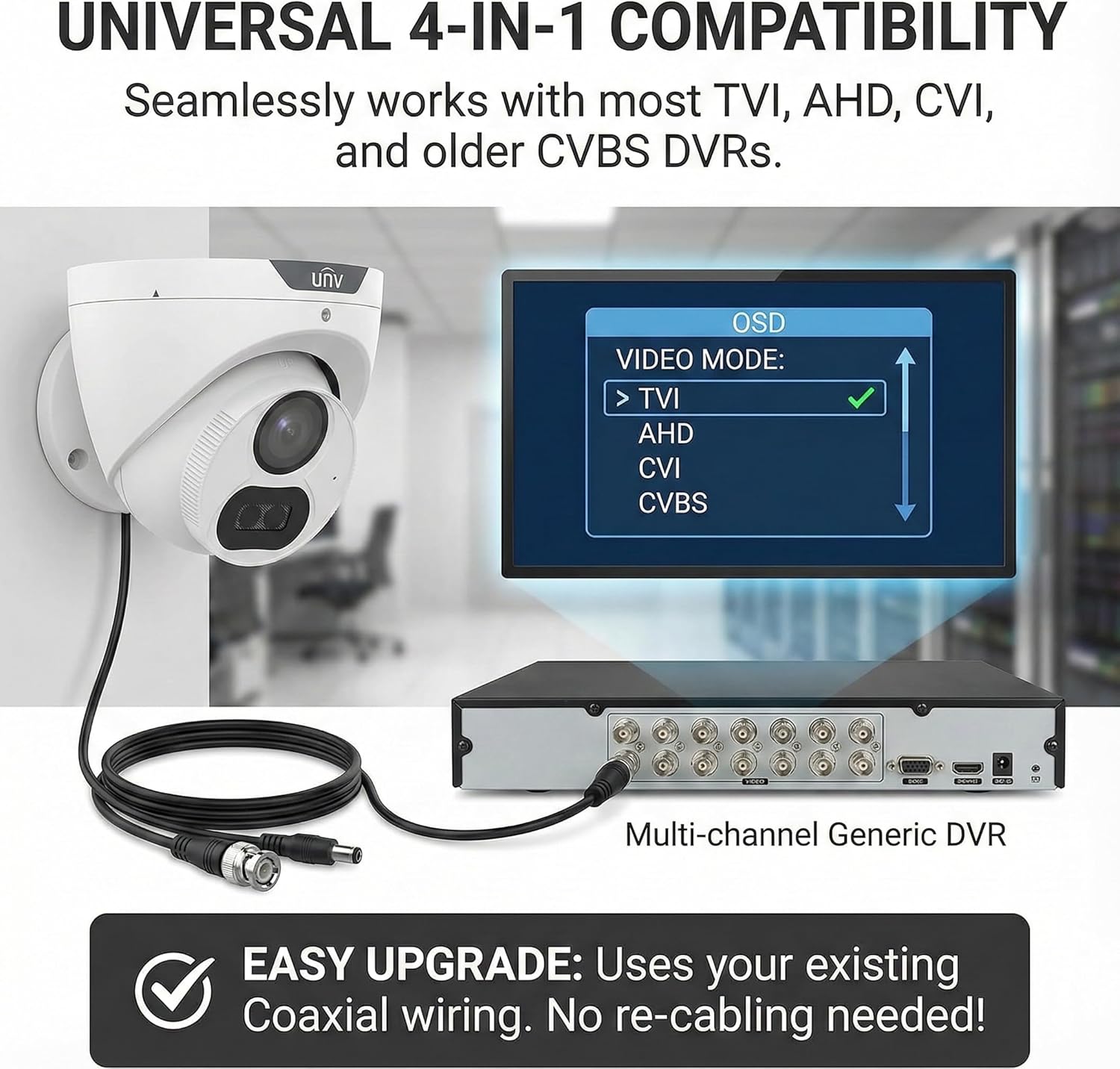
Image: The camera's 4-in-1 compatibility allows seamless integration with various DVR systems. The OSD menu provides options to switch between TVI, AHD, CVI, and CVBS video modes, ensuring compatibility with your existing coaxial infrastructure.
4. Operating Instructions
4.1 Powering On
Once connected to a compatible DVR and powered, the camera will automatically begin operation. Refer to your DVR's manual for initial setup and channel configuration.
4.2 Night Vision (ColorHunter Technology)
The UAC-T122-AF28LM utilizes ColorHunter technology to provide full-color video even in low-light or complete darkness. Unlike traditional IR cameras that switch to black and white, this camera employs a warm white light illuminator to capture vivid color details 24/7. This feature is crucial for identifying specific details like clothing colors or vehicle characteristics at night.
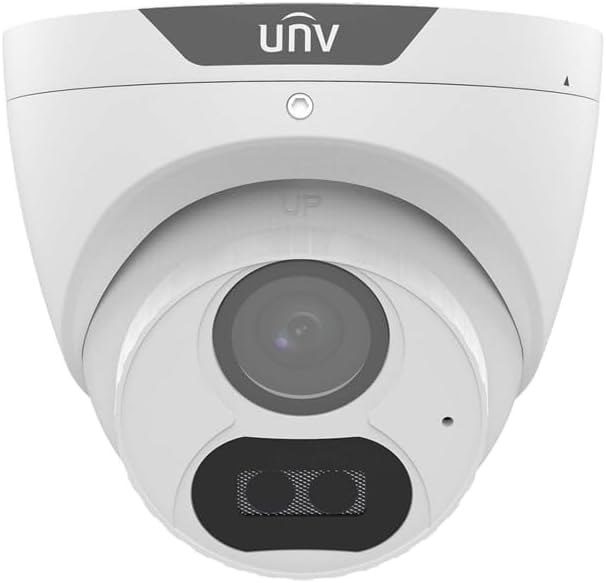
Image: A visual comparison demonstrating the superior clarity and detail of 24/7 full-color night vision provided by the ColorHunter technology, as opposed to standard black and white infrared night vision.
4.3 Audio Monitoring
The camera includes a built-in microphone for audio surveillance. To utilize this feature, your DVR must support audio-over-coaxial (AoC) functionality. Consult your DVR's manual for instructions on enabling and recording audio.
4.4 Motion Detection
While the camera provides the video feed, motion detection and alert functionalities are typically configured through your connected DVR system. Refer to your DVR's user manual for setting up motion detection zones, sensitivity, and notification preferences.

Image: This illustration shows how the camera's video feed can be used by a DVR system to detect motion and trigger real-time notifications to a connected device, enhancing security monitoring.
5. Maintenance
5.1 Environmental Durability
The camera features an IP67 rating, indicating high resistance to dust and water ingress. It is designed to operate effectively in harsh weather conditions, including rain, snow, and extreme temperatures ranging from -30°C to 60°C (-22°F to 140°F).

Image: The camera's IP67 weatherproof rating ensures reliable operation in challenging outdoor environments, protecting it from water, dust, and extreme temperatures.
5.2 Cleaning
To maintain optimal image clarity, periodically clean the camera lens and housing. Use a soft, damp cloth. Avoid abrasive cleaners or solvents that could damage the surface or lens coating.
5.3 Surge Protection
The camera is equipped with 4kV surge protection to shield it from electrical spikes and power fluctuations, enhancing its longevity and reliability. However, it is recommended to use appropriate surge protectors for your entire surveillance system.
6. Troubleshooting
- No Video Output:
- Check all cable connections (coaxial and power).
- Ensure the camera is receiving adequate DC 12V power.
- Verify the camera's video output mode matches your DVR's input settings via the OSD menu.
- Poor Image Quality:
- Clean the camera lens.
- Check coaxial cable for damage or interference.
- Ensure sufficient lighting for optimal ColorHunter performance.
- No Audio:
- Confirm your DVR supports audio-over-coaxial (AoC).
- Check DVR settings to ensure audio recording is enabled for the camera's channel.
7. Specifications
| Feature | Specification |
|---|---|
| Model Name | UAC-T122-AF28M-W |
| Sensor | 1/2.9-inch 2MP CMOS |
| Resolution | 1920 x 1080 (1080P) |
| Lens | 2.8mm Wide Angle Fixed Lens |
| Night Vision | White Light up to 40m (131ft) - Full Color |
| Audio | Built-in Microphone |
| Video Output | TVI/AHD/CVI/CVBS (Switchable) |
| Power | DC 12V (+/- 25%) |
| Working Environment | -30°C to 60°C (-22°F to 140°F) |
| Ingress Protection | IP67 (Water and Dust Resistant) |
| Surge Protection | 4kV |
| Mount Type | Wall Mount |
| Color | White |
8. Warranty and Support
8.1 Warranty Information
This product is covered by a 3-year manufacturer warranty. This warranty protects against defects in materials and workmanship under normal use. Please retain your proof of purchase for warranty claims.
8.2 Technical Support
For technical assistance, troubleshooting beyond this manual, or warranty inquiries, please contact your retailer or the manufacturer's customer support. Refer to the product packaging or manufacturer's website for contact details.


