
Introduction
This manual provides detailed instructions for the installation, operation, and maintenance of your Inefala Android 15 Car Radio. This 7-inch touchscreen unit is designed for Hyundai Tucson and IX35 models manufactured between 2009 and 2015, offering advanced features such as Wireless CarPlay, Android Auto, GPS navigation, Wi-Fi connectivity, Bluetooth 5.0, FM/RDS radio, and support for a reversing camera.
Please read this manual thoroughly before installation and use to ensure proper functionality and to maximize your experience with the device.
Setup and Installation
1. Compatibility Check
Before proceeding with installation, verify that your vehicle's central control panel matches the compatible configuration. This product supports only Option A as shown in the image below.

Image: Car Models Attention. This image illustrates two types of central control panels. Option A, marked with a green check, shows a compatible panel with a specific radio unit design. Option B, marked with a red cross, shows an incompatible panel with a different button layout and radio unit design. Ensure your vehicle's dashboard matches Option A for proper fitment.
2. Package Contents
Please check the package for the following components:
- 1 x Inefala Android Car Player
- 1 x Power Cable
- 1 x GPS Antenna
- 1 x Antenna Adapter
- 1 x RCA Cable
- 1 x Input Cable for Rear Camera
- 2 x USB Cables
- 1 x Canbus Decoder
- 1 x Original USB Cable
- 1 x User Manual (English)
- Installation Tool (if included)

Image: Product Size and Package List. This image displays the dimensions of the car radio unit (26.8cm width, 14.0cm height) and visually lists the included accessories: Power Cable, Installation Tool, GPS Antenna, RCA Cable, Camera Input, USB Cable, Radio Antenna, Canbus, AHD Rear Camera, and Microphone.
3. Installation Procedure
Professional installation is recommended for this car radio. Incorrect installation can lead to damage to the unit or your vehicle's electrical system. The general steps involve:
- Carefully remove the original car radio unit from the dashboard.
- Connect the provided power cable, GPS antenna, RCA cables, and other necessary wiring to the corresponding ports on the new Inefala unit and your vehicle's harness. Ensure all connections are secure.
- If installing a reversing camera, route the camera cable to the rear of the vehicle and connect it to the camera input on the car radio.
- Mount the new car radio securely into the dashboard opening.
- Test all functions (power, audio, radio, GPS, Bluetooth, CarPlay/Android Auto, reversing camera) before fully reassembling the dashboard.
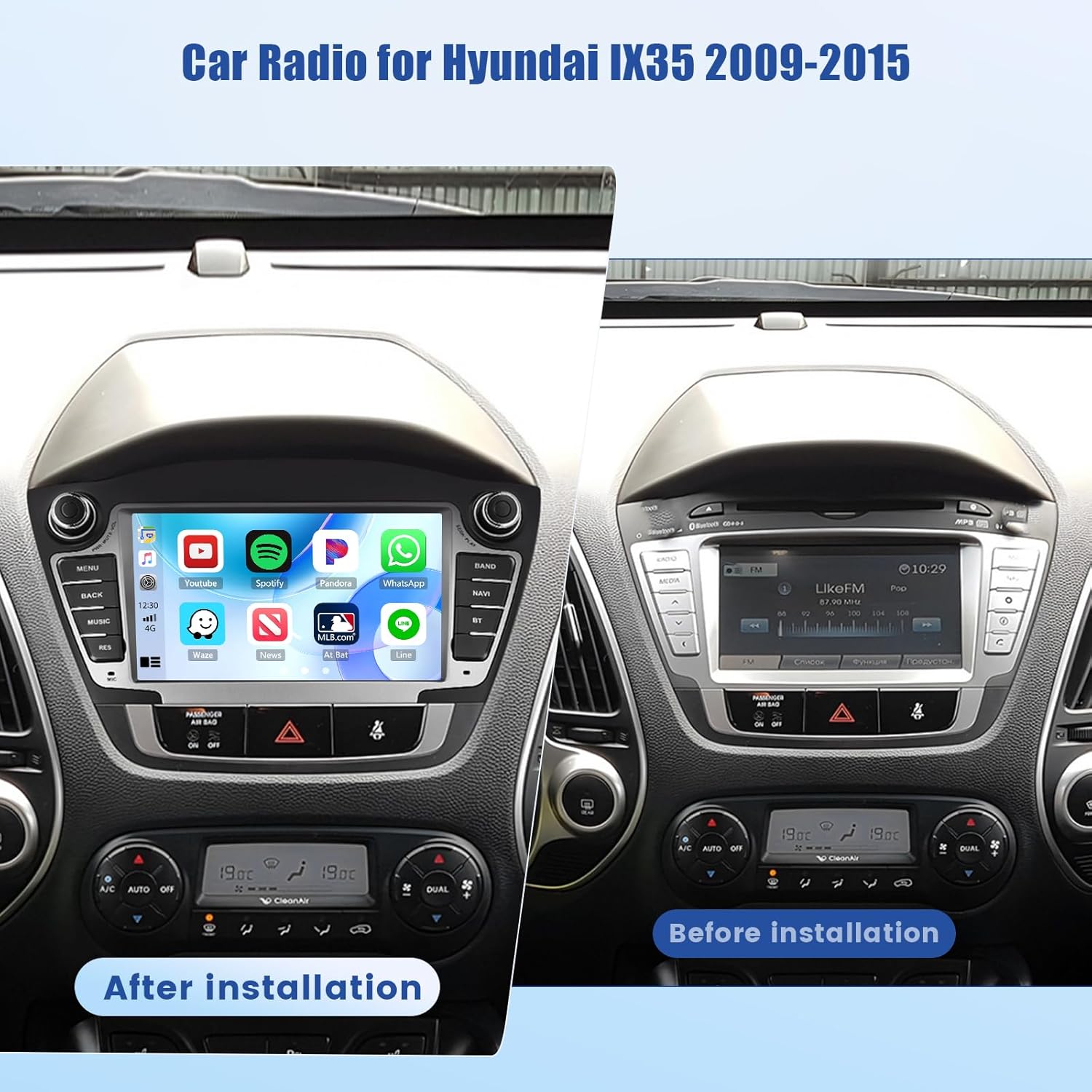
Image: Before and After Installation. This image displays a Hyundai IX35/Tucson dashboard. The left side shows the Inefala Android 15 Car Radio installed, displaying a modern interface with app icons. The right side shows the original car radio unit before installation, indicating the visual transformation after upgrading.
Operating Instructions
1. Basic Operation
The unit powers on automatically with the vehicle's ignition. Use the physical buttons or the touchscreen interface to control volume, switch modes (Radio, Media, BT, NAV), and access settings.
2. Touchscreen Interface
The 7-inch HD IPS touchscreen provides a clear and responsive interface. Navigate through menus and applications by tapping, swiping, and pinching. The unit supports split-screen functionality, allowing two applications to run side-by-side.
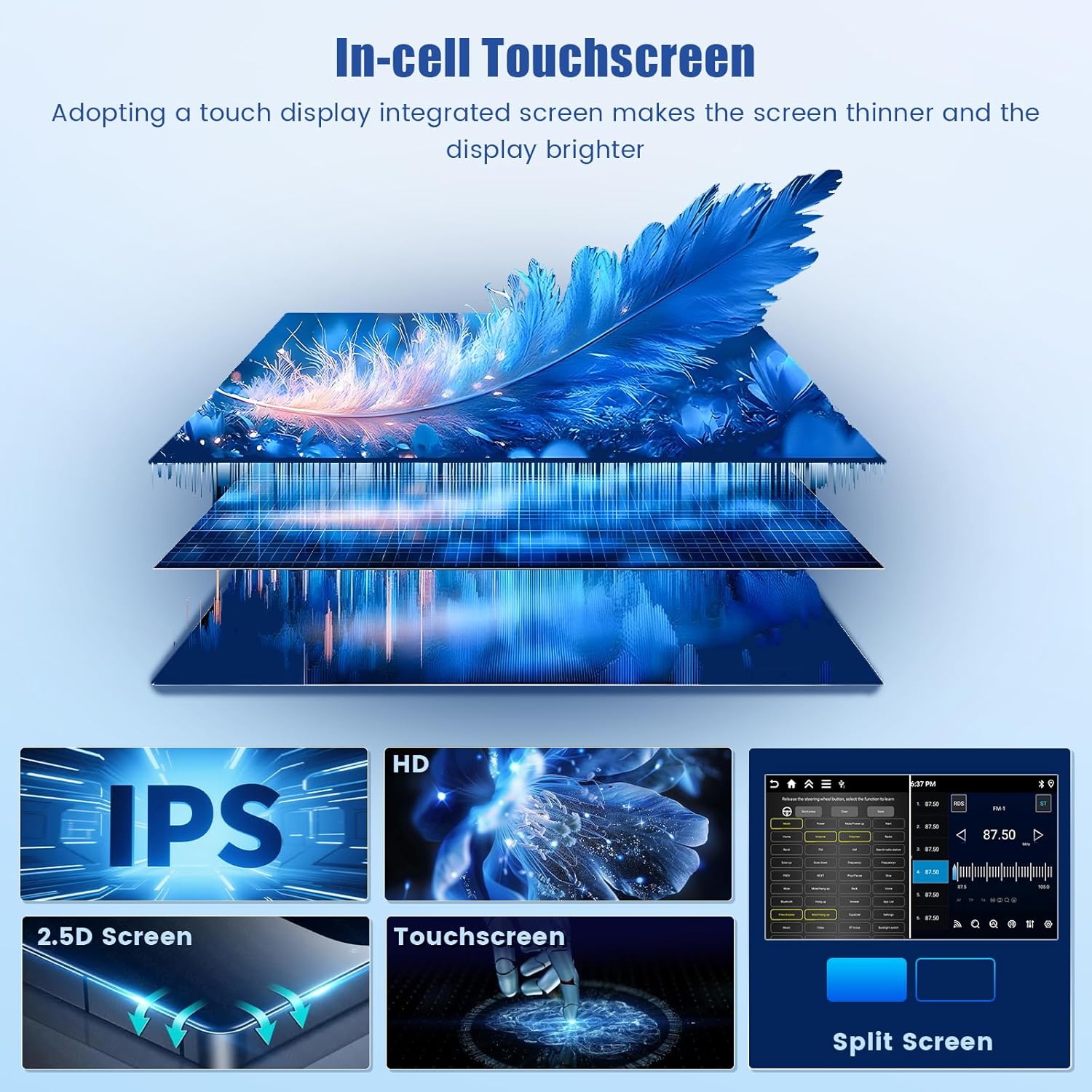
Image: In-cell Touchscreen Technology. This image highlights the advanced display features: In-cell Touchscreen for a thinner and brighter screen, IPS technology for wide viewing angles, a 2.5D curved screen edge, and the responsive multi-touch capability. It also shows the split-screen function, allowing two applications to be displayed simultaneously.
3. Wireless CarPlay and Android Auto
Connect your smartphone wirelessly to access CarPlay (for iPhone) or Android Auto (for Android devices). This allows seamless integration of navigation, music, calls, and messaging apps directly on the car radio screen.
- Ensure Bluetooth and Wi-Fi are enabled on your smartphone.
- On the car radio, select the CarPlay or Android Auto application.
- Follow the on-screen prompts to pair your device.

Image: CarPlay & Android Auto & Mirror Link. This image shows the car stereo display with various app icons, indicating support for CarPlay and Android Auto. Below, it illustrates how an iPhone and an Android phone can mirror their screens to the car radio, enabling access to smartphone features directly on the unit.
4. Bluetooth 5.0 Connectivity
Pair your smartphone via Bluetooth for hands-free calling and audio streaming.
- Go to the Bluetooth settings on the car radio.
- Enable Bluetooth on your phone and search for available devices.
- Select the car radio from the list and confirm pairing.
5. FM/RDS Radio
Access your favorite radio stations with the built-in FM/RDS tuner. RDS (Radio Data System) provides additional information such as station name and traffic announcements.
- Select the 'Radio' application from the main menu.
- Use the scan function to find available stations or manually tune to a frequency.
- Save preferred stations as presets for quick access.
6. GPS Navigation and Wi-Fi
The unit features integrated GPS for accurate navigation. It supports both offline maps (pre-downloaded) and online maps (requiring an internet connection for real-time data).
- Connect to a Wi-Fi hotspot (e.g., from your smartphone) to enable online navigation, real-time traffic updates, and access to online streaming services or app downloads.
- To download offline maps, ensure a stable Wi-Fi connection and follow the instructions within the navigation application.

Image: GPS Navigation and Wi-Fi Connection. This image displays a navigation map with route information, demonstrating the built-in GPS module's capability for accurate guidance. Below, it shows a collection of app icons and a Wi-Fi symbol, illustrating the unit's ability to connect to the internet for online content, updates, and app downloads.
7. EQ Settings (DSP)
Utilize the Digital Sound Processor (DSP) to customize audio output. Adjust equalizer settings, balance, and fader to enhance sound quality and create a personalized listening experience.

Image: Bluetooth 5.0 Connection, FM/RDS Radio, EQ Settings. This image presents three distinct interfaces: a Bluetooth screen showing a phone call in progress, an FM radio interface displaying station frequencies and signal strength, and an EQ settings screen with various audio adjustment options like sound field and frequency bands.
8. Backup Camera and Steering Wheel Control
When the vehicle is shifted into reverse gear, the display automatically switches to the rear view camera feed, providing assistance for safer parking and maneuvering.
The unit supports steering wheel controls, allowing you to manage functions such as volume adjustment, track skipping, and answering calls without taking your hands off the wheel. Configuration may be required in the settings menu.
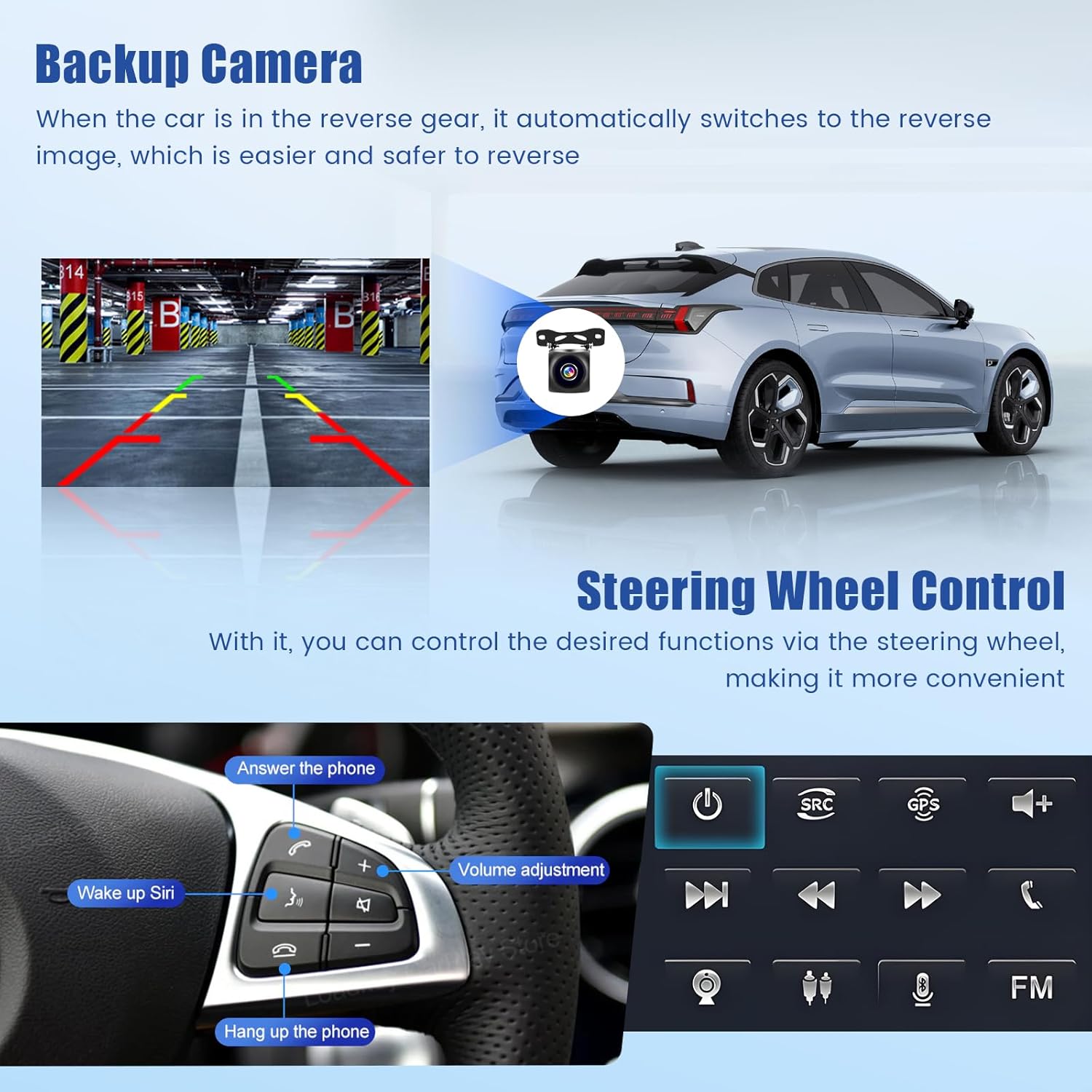
Image: Backup Camera and Steering Wheel Control. This image shows a car's rear view with parking guidelines overlaid, indicating the functionality of the backup camera. Below, it displays a steering wheel with various control buttons, highlighting features like answering calls, volume adjustment, and voice assistant activation.
Maintenance
To ensure the longevity and optimal performance of your car radio, follow these maintenance guidelines:
- Cleaning: Use a soft, dry cloth to clean the screen and exterior. For stubborn smudges, a slightly damp cloth with a mild, non-abrasive cleaner can be used, but avoid spraying liquids directly onto the unit.
- Software Updates: Periodically check for available software updates through the system settings. Updates can improve performance, add new features, and fix bugs. Ensure a stable internet connection during updates.
- Temperature: Avoid exposing the unit to extreme temperatures for extended periods. The operating temperature range is -20°C to 75°C.
Troubleshooting
If you encounter issues with your Inefala car radio, refer to the following common troubleshooting steps:
- No Power: Check all power connections and fuses. Ensure the vehicle's ignition is on.
- No Sound: Verify volume levels, check speaker connections, and ensure the correct audio source is selected. Check EQ settings for any extreme adjustments.
- GPS Signal Loss: Ensure the GPS antenna is properly installed and has a clear view of the sky. Check GPS settings for any disabled features.
- Bluetooth Connection Issues: Ensure Bluetooth is enabled on both the car radio and your smartphone. Delete previous pairings and attempt to re-pair.
- Touchscreen Unresponsive: Try restarting the unit. If the issue persists, a factory reset might be necessary. The factory setting keyword is 1234.
- System Freezes/Slow Performance: Close unnecessary applications. Clear cache from time to time. A system restart or factory reset may resolve persistent issues.
For issues not covered here, please contact customer support.
Specifications
| Feature | Specification |
|---|---|
| System | Android 15 |
| Chipset | 8257 |
| Screen Size | 7 Inches |
| Memory (RAM + ROM) | 6GB RAM + 128GB ROM |
| Display Resolution | 1280 x 720 |
| Radio Chip | 8035 |
| Power Output | 4 x 45W |
| Bluetooth Version | 5.0 |
| Working Temperature | -20°C to 75°C |
| Power Amplifier Chip | YD7388 |
| Radio Band | FM/RDS |
| Video Output | Supported |
| Reverse Input | AHD/CVBS |
| Maps | Integrated offline maps (Internet connection required for data download) |
| USB Interface | Dual USB |
| Audio Formats | APE/FLAC/WAV/MP3/WMA etc. |
| Video Formats | MKV/RMVB/AVI/MP4/MDV etc. |
| Image Formats | PNG/JPEG/JPG/GIF/WBMP/BNP etc. |
| Factory Setting Keyword | 1234 |
| Supported Languages | Chinese, English, French, Italian, Korean, Japanese, Arabic, Spanish, Portuguese, Russian, Turkish, Vietnamese, Hebrew, Polish, German |
| Item Weight | 1.74 Kilograms |
| Model Number | Inefala-A4511H1MI2-EU60 |
Warranty and Support
For warranty information, please refer to the documentation provided with your purchase or contact your retailer. For technical support, troubleshooting assistance beyond this manual, or inquiries about replacement parts, please contact Inefala customer service through their official website or the contact information provided with your product.