1. Introduction
This manual provides detailed instructions for the installation and maintenance of the Generic Laptop Bottom Case, designed for various HP Pavilion 15-FC series models. This component serves as a protective enclosure for the internal hardware of your laptop. Please read this guide thoroughly before proceeding with any installation steps to ensure proper handling and compatibility.
Important: Before purchasing and installing, carefully verify your laptop's specific model number to ensure compatibility. This bottom case is compatible with HP Pavilion 15-FC0271UA, 15-FC0272AU, 15-FC0272LA, 15-FC0273LA, 15-FC0274NG, 15-FC0276LA, 15-FC0278LA, and 15-FC0279LA models.
2. Safety Information
- Always disconnect the laptop from its power source and remove the battery (if removable) before beginning any disassembly or installation.
- Use appropriate tools for laptop repair to prevent damage to screws or components.
- Work in a clean, well-lit, and static-free environment. Consider using an anti-static wrist strap.
- Handle all components with care to avoid bending, scratching, or breaking delicate parts.
- Keep track of all screws and small parts, noting their original locations for reassembly.
- If you are unsure about any step, seek professional assistance.
3. Package Contents
Upon opening the package, please verify that all items are present and undamaged.
- Generic Laptop Bottom Case for HP Pavilion 15-FC Series (Silver)
- (Note: Screws or additional tools are typically not included and should be retained from your original laptop or acquired separately if needed.)
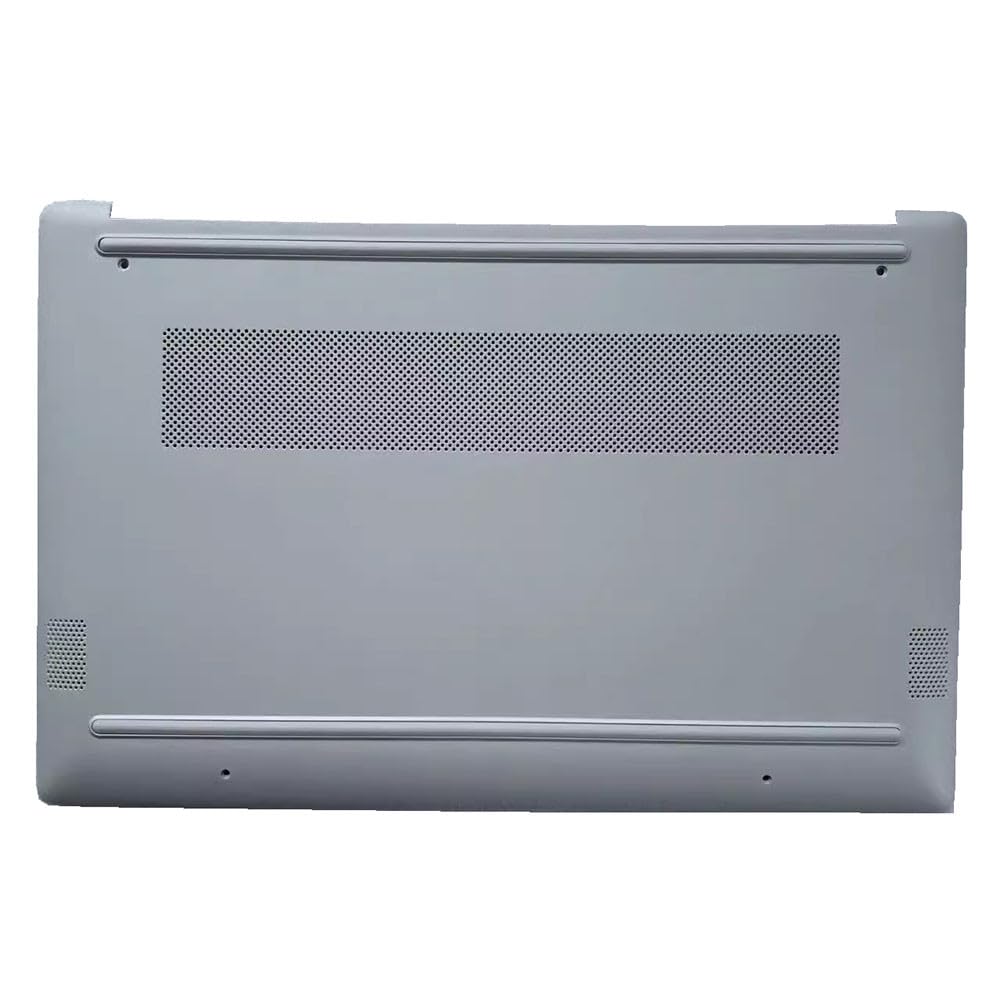
Image showing the replacement laptop bottom case for HP Pavilion 15-FC series models. This is the primary component included in the package.
4. Installation Guide
4.1. Pre-Installation Checks
- Compatibility: Confirm that the new bottom case matches your specific HP Pavilion 15-FC series model.
- Tools: Gather necessary tools, typically a small Phillips head screwdriver and a plastic prying tool (spudger).
- Workspace: Prepare a clean, flat, and well-lit surface.
4.2. Disassembly of Old Bottom Case
- Power Off: Shut down your laptop completely and disconnect the AC adapter.
- Remove Battery: If your laptop has an external, removable battery, remove it. For internal batteries, disconnect the battery connector from the motherboard after opening the case.
- Remove Screws: Carefully unscrew all visible screws on the bottom of the laptop. Pay attention to screw lengths and locations, as they may vary. Store them in an organized manner.
- Pry Open: Using a plastic prying tool, gently separate the old bottom case from the main chassis. Start from a corner or edge and work your way around, releasing any clips.
- Detach: Once all clips are released and screws removed, carefully lift and remove the old bottom case.
4.3. Installation of New Bottom Case
- Position New Case: Align the new bottom case with the laptop's chassis.
- Secure Clips: Gently press down around the edges of the new bottom case until you hear or feel the internal clips engaging. Ensure a snug fit.
- Reinstall Screws: Replace all screws into their original positions. Do not overtighten, as this can strip the threads or crack the plastic.
- Reconnect Battery: If you disconnected an internal battery, reconnect its cable to the motherboard. If you removed an external battery, reinsert it.
4.4. Post-Installation Checks
- Visual Inspection: Check that the new bottom case is securely attached and there are no gaps or loose areas.
- Functionality Test: Power on the laptop to ensure it boots correctly. Check for any unusual noises or issues.
5. Function
The laptop bottom case is a passive component that provides structural integrity and protection for the internal components of your HP Pavilion 15-FC series laptop. It helps to dissipate heat, protects against dust and physical damage, and provides mounting points for various internal parts and external feet.
6. Maintenance
- Cleaning: Periodically clean the exterior of the bottom case with a soft, dry, or slightly damp cloth. Avoid harsh chemicals or abrasive materials.
- Handling: Avoid dropping the laptop or subjecting it to excessive force, as this can damage the bottom case and internal components.
- Ventilation: Ensure that the ventilation grilles on the bottom case are not obstructed to allow for proper airflow and cooling.
7. Troubleshooting
- Case Does Not Fit Properly:
- Double-check that you have the correct bottom case for your specific HP Pavilion 15-FC model.
- Ensure all internal components are correctly seated and not obstructing the case.
- Verify that all clips are aligned before pressing the case into place.
- Loose Screws After Installation:
- Ensure all screws are reinstalled in their correct positions and tightened appropriately (do not overtighten).
- If a screw hole is stripped, consider using a slightly larger screw if possible, or a thread repair solution.
- Laptop Not Powering On After Installation:
- Immediately disconnect power. Reopen the laptop and verify that the internal battery connector (if applicable) is securely attached to the motherboard.
- Check for any loose cables or components that might have been dislodged during the installation.
8. Specifications
| Brand | Generic |
| Compatible Models | HP Pavilion 15-FC0271UA, 15-FC0272AU, 15-FC0272LA, 15-FC0273LA, 15-FC0274NG, 15-FC0276LA, 15-FC0278LA, 15-FC0279LA |
| Item Model Number | 15-FC0272AU Bottom Case (representative model number for the series) |
| Product Dimensions | 43 x 18 x 7 cm |
| Item Weight | 1.3 Kilograms |
| Color | Silver |
9. Warranty Information
This product comes with a 90-day warranty from the date of purchase. This warranty covers manufacturing defects. It does not cover damage resulting from improper installation, misuse, accidents, or unauthorized modifications. Please retain your proof of purchase for warranty claims.
10. Customer Support
If you encounter any issues during installation, have questions about compatibility, or experience problems with the product, please contact the seller directly through the platform where you made your purchase. Provide your order number and a detailed description of the issue for prompt assistance.
For additional resources, you may refer to online laptop repair guides or seek assistance from a certified technician.


