
1. Introduction
This manual provides comprehensive instructions for the assembly, operation, and maintenance of your eodme Fluted L Shaped Executive Desk. Please read all instructions carefully before beginning assembly and retain this manual for future reference. This desk is designed for home office environments, offering a spacious work surface, integrated storage, and convenient power outlets.
2. Safety Information
- Always follow assembly instructions carefully.
- Ensure all connections are secure before use.
- Do not overload the desk or drawers beyond their specified weight capacities.
- Keep small parts away from children during assembly.
- Use the desk on a flat, stable surface to prevent tipping.
- When accommodating a vertical CPU tower in the cabinet, ensure the door is open for adequate ventilation and heat dissipation.
- Avoid exposing the desk to excessive moisture or direct sunlight.
3. Package Contents
Verify that all components are present before beginning assembly. If any parts are missing or damaged, please contact customer support.
- Desk panels and frame components
- 6 drawer components (including 1 file drawer)
- Monitor stand components
- Power outlet unit (2 AC outlets, 1 USB port, 1 Type-C port)
- Hardware kit (screws, dowels, drawer slides, handles, etc.)
- Assembly instructions

Figure 3.1: Exploded view of desk components and dimensions. This image illustrates the various parts of the desk, including the main desktop sections, drawer units, monitor stand, and individual drawer components, along with their respective measurements.
4. Setup and Assembly
Assembly of this desk requires two people. Please ensure you have sufficient space and all necessary tools before starting. Assembly tools are not included.
4.1 Preparation
- Clear a spacious area for assembly.
- Lay out all parts and hardware, comparing them against the included parts list.
- Gather necessary tools (e.g., screwdriver, hammer).
4.2 Assembly Steps
Refer to the detailed step-by-step assembly instructions provided in your package. Each part is labeled to facilitate the process.
- Assemble the main desk frame according to the diagrams.
- Install the drawer slides onto the cabinet frames.
- Assemble each drawer and attach the handles.
- Insert the assembled drawers into their respective cabinets.
- Attach the monitor stand to the designated area on the desktop.
- Install the built-in charging station into its cutout.
- Ensure all screws are tightened and the desk is stable.

Figure 4.1: Assembled desk in a room. This image shows the complete desk setup, highlighting its L-shaped configuration and overall appearance once assembled.
5. Operating Instructions
5.1 Using the Built-in Charging Station
The desk includes a convenient charging hub to power your devices.
- Locate the charging station on the desktop.
- Plug the desk's power cord into a standard wall outlet.
- Connect your devices to the 2 AC outlets, 1 USB port, or 1 Type-C port as needed.

Figure 5.1: Charging station detail. This image provides a clear view of the integrated power outlets, including AC, USB, and Type-C ports, demonstrating how devices can be connected for charging.
5.2 Utilizing the Monitor Stand
The elevated monitor stand helps improve posture and reduce neck strain during long work sessions.
- Place your monitor(s) directly on the stand.
- The space beneath the stand can be used for keyboard, mouse, or other small items.

Figure 5.2: Ergonomic monitor stand. This image highlights the benefits of the elevated monitor stand for maintaining proper posture and reducing strain during computer use.
5.3 Storage Features
The desk offers various storage options to keep your workspace organized.
- Storage Drawers: Use the 5 utility drawers for office supplies, documents, and personal items.
- File Drawer: The large file drawer is designed to hold letter and A4 size files.
- Adjustable Storage Cabinet: The cabinet features an adjustable shelf, allowing you to customize the storage space for larger items or a vertical CPU tower. Remember to keep the cabinet door open for ventilation if a CPU is stored inside.

Figure 5.3: Storage drawers. This image details the three main storage drawers, including the dedicated file drawer, showcasing their capacity and organization.
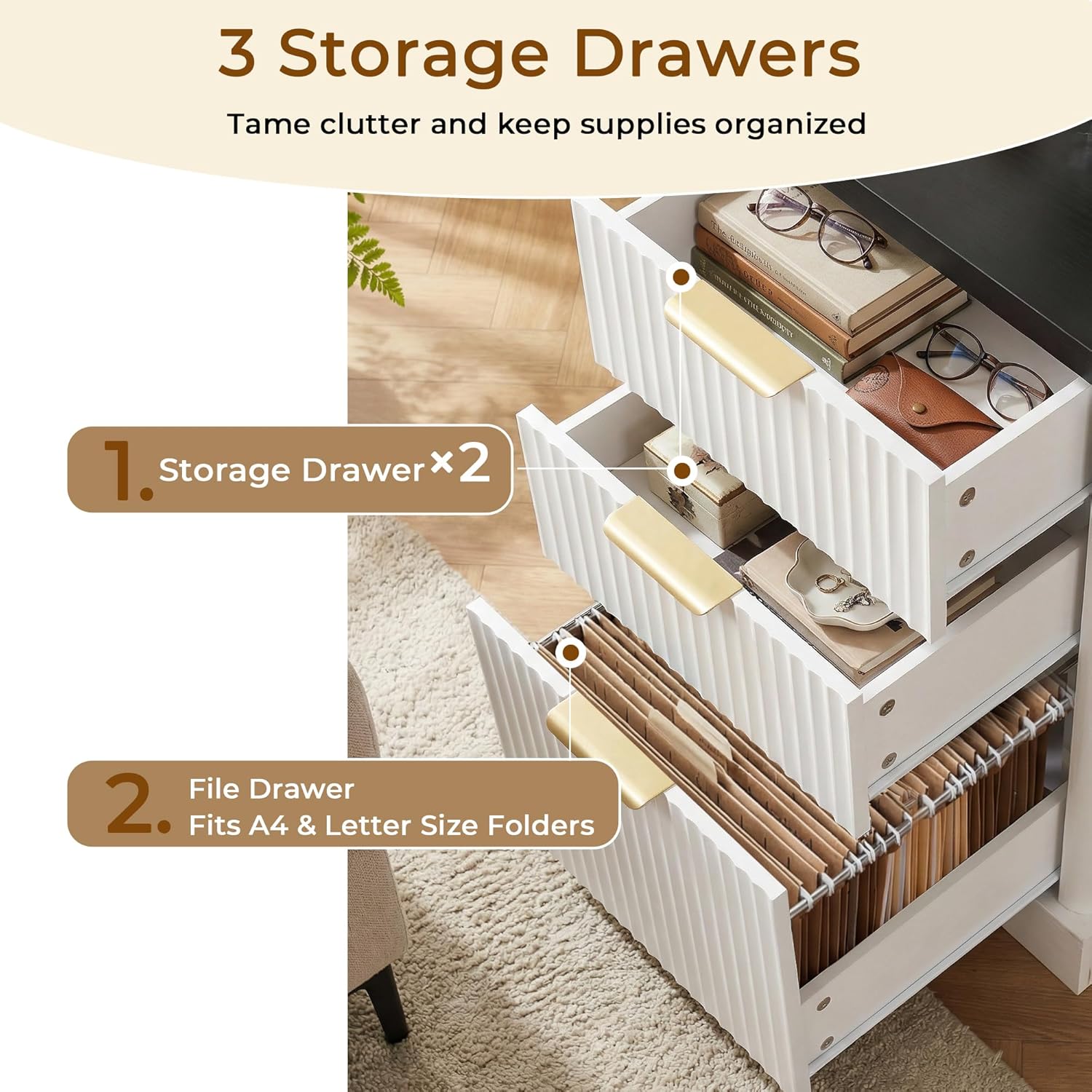
Figure 5.4: Storage cabinet with adjustable shelf. This image illustrates the interior of the storage cabinet, highlighting the adjustable shelf feature for flexible storage solutions.
6. Maintenance
To ensure the longevity and appearance of your eodme executive desk, follow these maintenance guidelines:
- Cleaning: Wipe the desk surfaces with a damp cloth, then immediately dry with a clean, dry cloth. Avoid abrasive cleaners or harsh chemicals that may damage the finish.
- Spills: Clean up spills immediately to prevent staining or damage to the wood.
- Drawer Slides: Periodically check drawer slides for smooth operation. If they become stiff, a small amount of silicone lubricant can be applied.
- Hardware: Occasionally check and tighten any loose screws or fittings to maintain stability.
7. Troubleshooting
If you encounter any issues with your desk, refer to the following common solutions:
| Problem | Possible Cause | Solution |
|---|---|---|
| Desk is wobbly or unstable | Loose hardware; uneven floor | Check and tighten all screws. Ensure the desk is on a level surface; use furniture pads if necessary. |
| Drawers do not slide smoothly | Misaligned slides; debris in tracks; overloaded drawer | Ensure drawer slides are correctly installed and aligned. Clean tracks of any debris. Reduce drawer contents if overloaded. |
| Charging station not working | Desk not plugged in; faulty outlet; overloaded circuit | Verify the desk's power cord is securely plugged into a working wall outlet. Test the wall outlet with another device. Avoid plugging too many high-power devices into the charging station simultaneously. |
If the problem persists after attempting these solutions, please contact eodme customer support.
8. Specifications
| Feature | Detail |
|---|---|
| Model | B0G8Y4WBH2 |
| Brand | eodme |
| Dimensions (D x W x H) | 21" x 59.2" x 36" |
| Color | White (with black desktop) |
| Material | High-quality MDF, Wood, Metal |
| Tabletop Weight Capacity | 250 lbs |
| Drawer Weight Capacity | 35 lbs (each) |
| Shelf Weight Capacity | 55 lbs |
| Number of Drawers | 6 (5 utility, 1 file) |
| Number of Cabinets | 1 (with adjustable shelf) |
| Charging Station | 2 AC Outlets, 1 USB Port, 1 Type-C Port |
| Special Features | L-Shaped Design, Elevated Monitor Stand, Adjustable Shelf, Built-In USB Outlet, Scratch Resistant |
| Assembly Required | Yes (2 people recommended) |

Figure 8.1: Desktop surface overview. This image provides a top-down perspective of the desk, illustrating its large workspace and key attributes such as stability, water resistance, and ease of cleaning.
9. Warranty and Support
Your eodme Fluted L Shaped Executive Desk comes with a limited warranty. Please refer to the warranty information included in your package for specific terms and conditions.
For any questions, missing parts, or assistance with assembly or operation, please contact eodme customer support. We are committed to providing excellent after-sales service.
Contact Information: Please refer to the contact details provided in your product packaging or visit the official eodme website for support.