
1. Introduction
This manual provides detailed instructions for the installation, operation, and maintenance of your MAHVEC 10.4-inch Single Din Car Stereo. Please read this manual thoroughly before using the product to ensure proper functionality and safety. Keep this manual for future reference.
2. Safety Information
- Ensure the vehicle's engine is off and the parking brake is engaged before installation.
- Disconnect the vehicle's battery negative terminal before starting any wiring to prevent electrical shorts.
- Consult a professional installer if you are unsure about any part of the installation process.
- Do not operate the device in a way that distracts you from driving. Always prioritize road safety.
- Avoid exposing the unit to extreme temperatures, direct sunlight for prolonged periods, or excessive moisture.
3. Setup and Installation
3.1 Packing List
Verify that all items are present in the package:

Image: Overview of the MAHVEC car stereo's dimensions and included accessories, such as power cable, horn cable, microphone, user manual, mounting brackets, and camera.
- MAHVEC 10.4-inch Car Stereo Unit
- Power Cable
- Horn Cable
- Microphone
- User Manual
- Mounting Brackets
- Backup Camera (if included in package)
3.2 Product Dimensions
Refer to the image above for detailed dimensions of the head unit and screen to ensure compatibility with your vehicle's dashboard.
3.3 Wiring Diagram
Proper wiring is crucial for the stereo's functionality. Follow the diagram carefully for connections including power, speakers, and the backup camera.

Image: Detailed wiring diagram showing connections for the car stereo, including power (RED: +12V(in), Black: GND(in)), reversing light positive, and backup camera connections (trigger wire, camera power source, rear view camera).
- Power Connection: Connect the red wire to the vehicle's ACC (switched 12V) and the yellow wire to the constant 12V supply. Connect the black wire to ground.
- Speaker Connections: Connect the speaker wires according to the color codes provided on the wiring harness. Ensure correct polarity.
- Backup Camera: Connect the camera's power to the reversing light positive. Connect the camera's video output to the 'CAM IN' or 'REVERSE IN' port on the stereo. The trigger wire (often labeled 'BACK' or 'REVERSE') from the stereo should be connected to the reversing light positive to automatically switch to the camera view when reversing.
- Antenna: Connect the radio antenna to the designated port.
3.4 Mounting
Use the provided mounting brackets to secure the single din unit into your vehicle's dashboard. Ensure the unit is firmly in place before reassembling the dashboard trim.
4. Operating Instructions
4.1 10.4-inch 2.5D Rotation Touchscreen
The stereo features a large, high-resolution 2.5D display. The screen supports manual rotation, allowing you to switch between landscape and portrait modes for optimal viewing of different content.
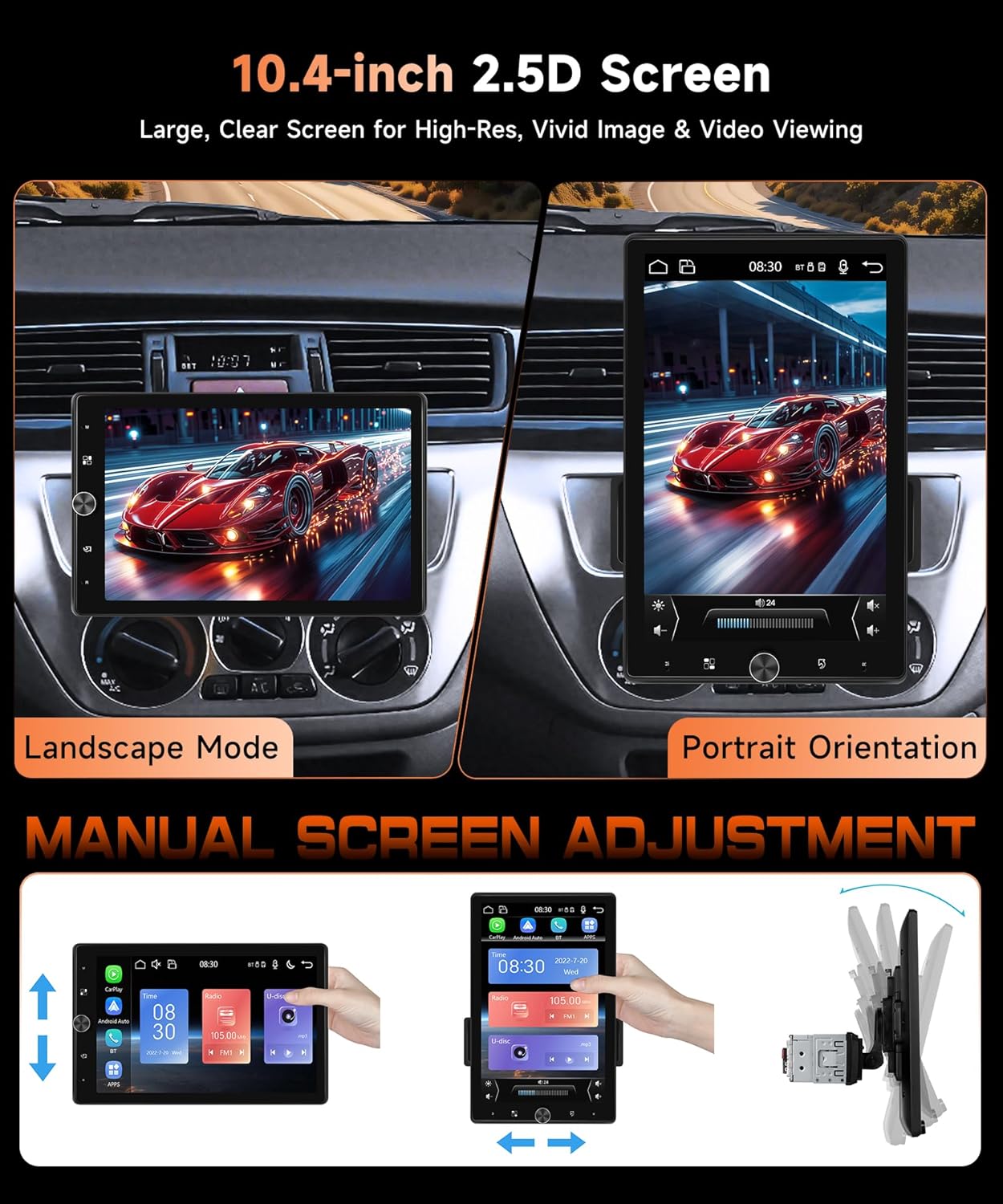
Image: Demonstrates the MAHVEC car stereo's 10.4-inch 2.5D screen, showing its ability to manually rotate between landscape and portrait orientations for flexible content viewing.
4.2 Wireless/Wired CarPlay & Android Auto
Connect your smartphone via Bluetooth for wireless CarPlay or Android Auto, or use a USB cable for a wired connection. This allows access to navigation, music, calls, and messages directly from the stereo's display.

Image: Illustrates the MAHVEC car stereo's interface with Wireless CarPlay and Android Auto, showing navigation, music playback, and voice control features like 'Hey Siri, Play Music' and 'Hi Google, Call John'.
4.3 Backup Camera Functionality
The stereo supports CVBS/AHD 720P auto-switching backup cameras. When the vehicle is in reverse, the display automatically shows a clear wide-angle view with auxiliary guidelines for safer parking and maneuvering.
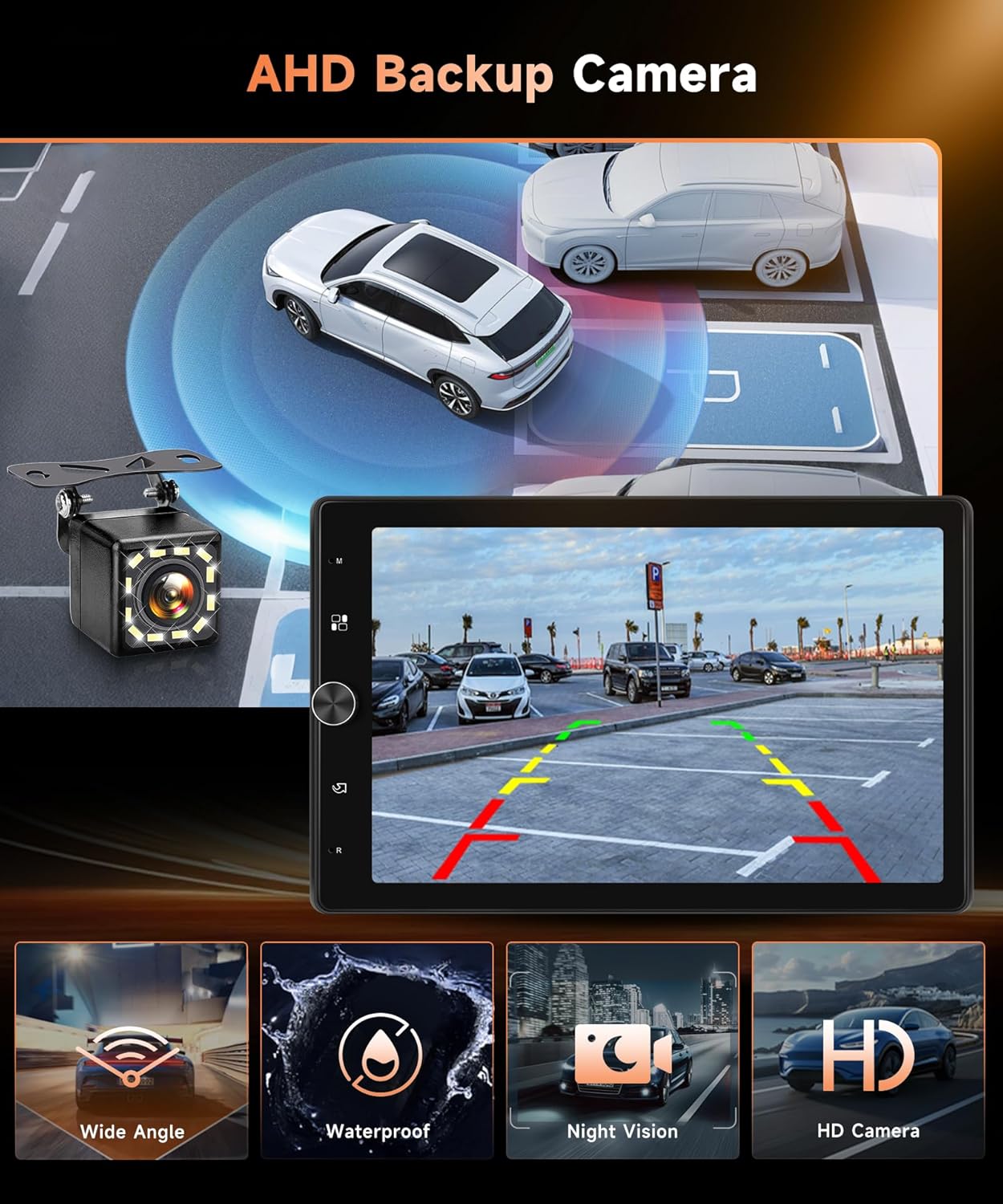
Image: Shows the MAHVEC car stereo displaying a clear, wide-angle view from an AHD backup camera with parking guidelines, highlighting features like wide angle, waterproof design, night vision, and HD camera quality.
4.4 Steering Wheel Control (SWC)
Connect your vehicle's steering wheel controls to the stereo to manage functions like volume adjustment, track skipping, and answering calls without taking your hands off the wheel. Refer to your vehicle's wiring diagram for SWC connections.
4.5 Bluetooth Connectivity
The built-in dual-channel Bluetooth allows for hands-free calling, contact synchronization, audio streaming, and voice control. Pair your phone through the stereo's Bluetooth settings.

Image: Displays various features of the MAHVEC car stereo, including Bluetooth pairing, Steering Wheel Control (SWC) setup, 16-band Equalizer (EQ) settings, and FM/RDS radio interface with preset stations.
4.6 Screen Mirroring
Utilize the screen mirroring feature to cast your smartphone's display onto the car stereo. This allows you to view apps, games, and other content from your phone directly on the larger screen and control it via the stereo's touchscreen.

Image: Shows the MAHVEC car stereo's screen mirroring capability, displaying a smartphone's content (a motorcycle image) on the larger stereo screen, indicating support for USB and Wi-Fi connections.
4.7 FM/RDS Radio & EQ Adjuster
Access FM/RDS radio stations for real-time traffic updates, news, and weather forecasts. The unit includes 18 preset stations for quick access. Customize your audio experience using the built-in EQ adjuster to fine-tune sound quality according to your preferences.
5. Maintenance
- Cleaning the Screen: Use a soft, lint-free cloth to gently wipe the touchscreen. Avoid abrasive cleaners or solvents.
- General Cleaning: Keep the unit free from dust and debris. Use a dry cloth for the main body.
- Software Updates: Periodically check the manufacturer's website for any available software updates to ensure optimal performance and new features.
6. Troubleshooting
6.1 No Power
- Check all power connections (ACC, constant 12V, ground) for secure contact.
- Verify the vehicle's fuse for the stereo is not blown.
- Ensure the vehicle's battery has sufficient charge.
6.2 No Sound
- Check speaker wire connections for correct polarity and secure contact.
- Ensure the volume is not muted or set to minimum.
- Verify that the correct audio source is selected.
6.3 Screen Not Responding
- Perform a soft reset by pressing the reset button (if available) or by turning the vehicle's ignition off and on.
- Ensure the screen is clean and free from debris.
6.4 CarPlay/Android Auto Not Connecting
- For wireless connection, ensure Bluetooth is enabled on your phone and paired with the stereo.
- For wired connection, try a different USB cable. Ensure the cable is a data transfer cable, not just a charging cable.
- Check your phone's settings to ensure CarPlay/Android Auto is enabled and allowed for the device.
7. Specifications
| Brand | MAHVEC |
| Model | B0G8G4LG3B |
| Screen Size | 10.4 inches |
| Screen Type | 2.5D Rotation Touchscreen |
| Connectivity Technology | Bluetooth, USB |
| Special Features | Wireless CarPlay, Android Auto, Built-In Bluetooth, Rotation Touchscreen, Mirror Link, SWC, FM/RDS Radio, Backup Camera Support, EQ Adjuster |
| Compatible Devices | Smartphone |
| Audio Output Mode | Stereo |
8. Warranty and Support
For warranty information, technical support, or service inquiries, please contact MAHVEC customer support through their official website or the retailer where the product was purchased. Please have your model number (B0G8G4LG3B) and purchase details ready when contacting support.