
Introduction
Thank you for choosing the XO Poppy 4-in-1 Power Station. This device combines a wireless charging station for phones, a dedicated charger for smartwatches and wireless earbuds, and a digital alarm clock, all within a compact design. This manual provides instructions for setup, operation, and maintenance to ensure optimal performance and longevity of your device.
Package Contents
Please check the package for the following items:
- XO Poppy 4-in-1 Power Station (Model PY-STCT-LWD)
- USB Charging Cable
- User Manual
Product Overview
Familiarize yourself with the components of your 4-in-1 Power Station.
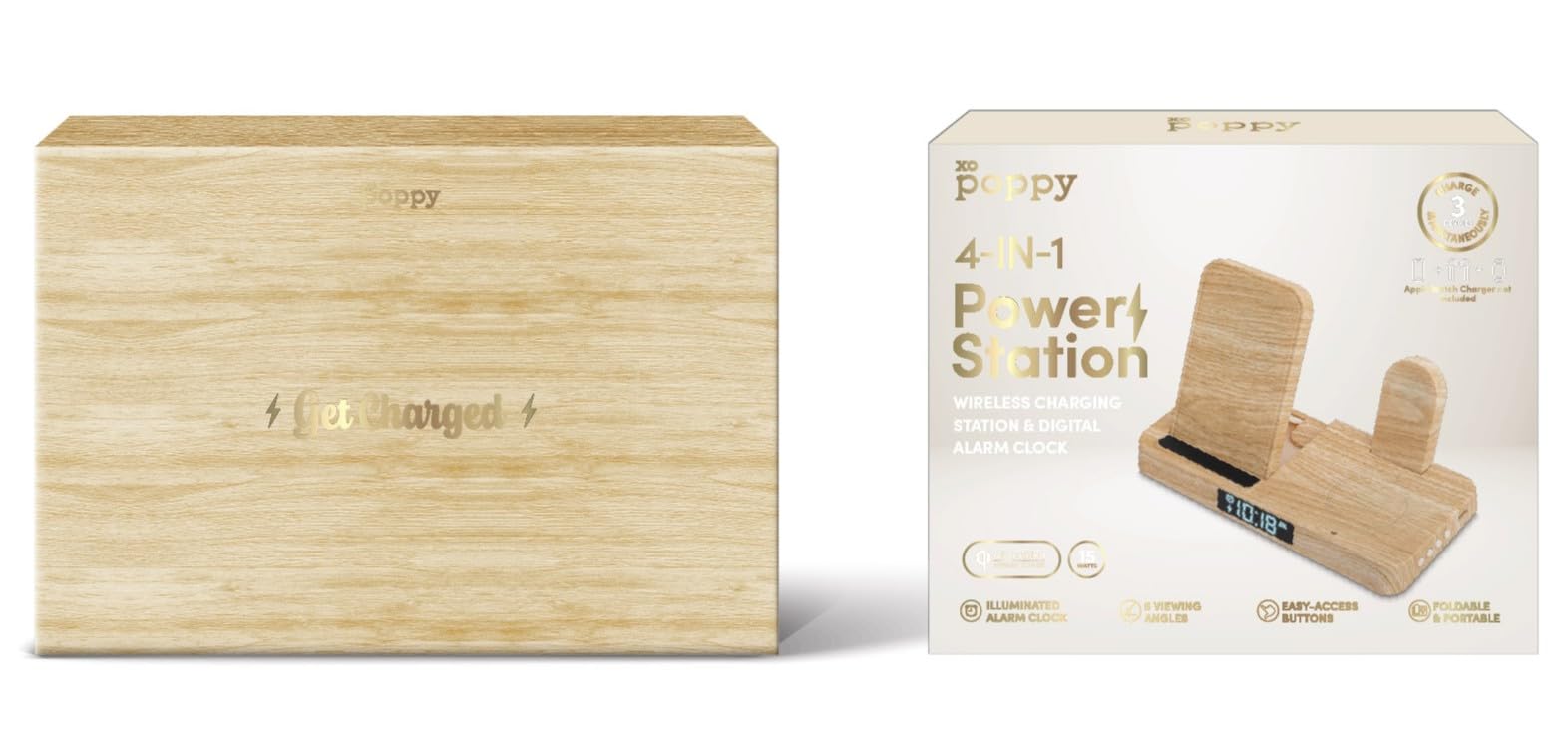
Image 1: Front view of the XO Poppy 4-in-1 Power Station. This image displays the device with a smartphone placed on the wireless charging pad, a smartwatch on its dedicated stand, and wireless earbuds in their charging area. The digital alarm clock display is visible.
Key components include:
- Wireless Phone Charging Pad: For Qi-compatible smartphones.
- Smart Watch Charging Stand: Dedicated area for smartwatches.
- Wireless Earbuds Charging Area: For compatible wireless earbud cases.
- Digital Alarm Clock Display: Shows time and alarm status.
- Adjustable Viewing Stand: Allows for 5 different viewing angles for the phone.
Setup Instructions
- Unpack the Device: Carefully remove all components from the packaging.
- Connect Power: Connect the provided USB charging cable to the power station's input port and then to a compatible USB power adapter (not included) or a powered USB port.
- Initial Power On: The digital alarm clock display should illuminate, indicating the device is powered on.
- Set Time and Alarm: Refer to the "Operating Instructions" section for details on setting the time and alarm.
Operating Instructions
Wireless Phone Charging
- Ensure your smartphone is Qi-compatible.
- Place your smartphone centrally on the wireless phone charging pad.
- The charging indicator (if available on your phone) will show that charging has begun.
- Adjust the viewing angle by gently tilting the phone stand to one of the 5 available positions.
Smart Watch Charging
- Place your smartwatch on the dedicated charging stand. Ensure it is correctly aligned for charging.
- Verify that your smartwatch indicates it is charging.
Wireless Earbuds Charging
- Place your wireless earbud case on the designated charging area.
- Confirm that your earbud case indicates it is charging.
Digital Alarm Clock
Specific button functions for setting time and alarm are typically located on the device itself. Refer to the labels near the buttons for precise operation.
- Setting Time: Usually involves a "SET" or "MODE" button to enter time setting mode, then "+"/"-" or "UP"/"DOWN" buttons to adjust hours and minutes.
- Setting Alarm: Similar to time setting, often with an "ALARM" button to activate and adjust alarm time.
- Snooze/Light: A dedicated button often provides snooze functionality and/or illuminates the display.
Maintenance
- Cleaning: Disconnect the power station from the power source before cleaning. Use a soft, dry, lint-free cloth to wipe the surface. Do not use abrasive cleaners, solvents, or aerosol sprays.
- Storage: Store the device in a cool, dry place away from direct sunlight and extreme temperatures when not in use for extended periods.
- Avoid Liquids: Keep the device away from water and other liquids.
Troubleshooting
| Problem | Possible Cause | Solution |
|---|---|---|
| Device not powering on. | No power connection or faulty cable/adapter. | Ensure the USB cable is securely connected to both the power station and a working power source. Try a different USB cable or power adapter. |
| Wireless charging not working. | Phone not Qi-compatible, misaligned, or phone case is too thick. | Verify your device supports Qi wireless charging. Reposition the device centrally on the charging pad. Remove thick phone cases. |
| Smartwatch/Earbuds not charging. | Improper placement or device incompatibility. | Ensure the smartwatch/earbud case is correctly seated on its designated charging area. Confirm compatibility with the charging station. |
| Alarm clock display is dim or flickering. | Insufficient power or internal issue. | Ensure the power station is receiving adequate power. If the issue persists, contact customer support. |
Specifications
| Feature | Detail |
|---|---|
| Model Number | PY-STCT-LWD |
| Brand | XO Poppy |
| Input Voltage | 9 Volts |
| Material | ABS Plastic, Metal |
| Special Features | 5 Viewing Angles, Digital Alarm Clock, Foldable Design, Qi Compatible, Wireless Charging |
| Item Weight | 8 Ounces (approx. 227 grams) |
| Package Dimensions | 8.75 x 6 x 5 inches |
Warranty & Support
For warranty information or technical support, please refer to the contact details provided with your purchase or visit the official XO Poppy website. Keep your proof of purchase for warranty claims.
This product is from a small business brand. Support small.