
1. Introduction
The Generic S80 Pro AI Translation Device is a portable, multi-functional smart translator designed to facilitate communication across language barriers. It supports real-time voice translation, photo translation, and offline translation, making it an ideal companion for travel, business, and language learning. This manual provides detailed instructions on how to set up, operate, and maintain your device.
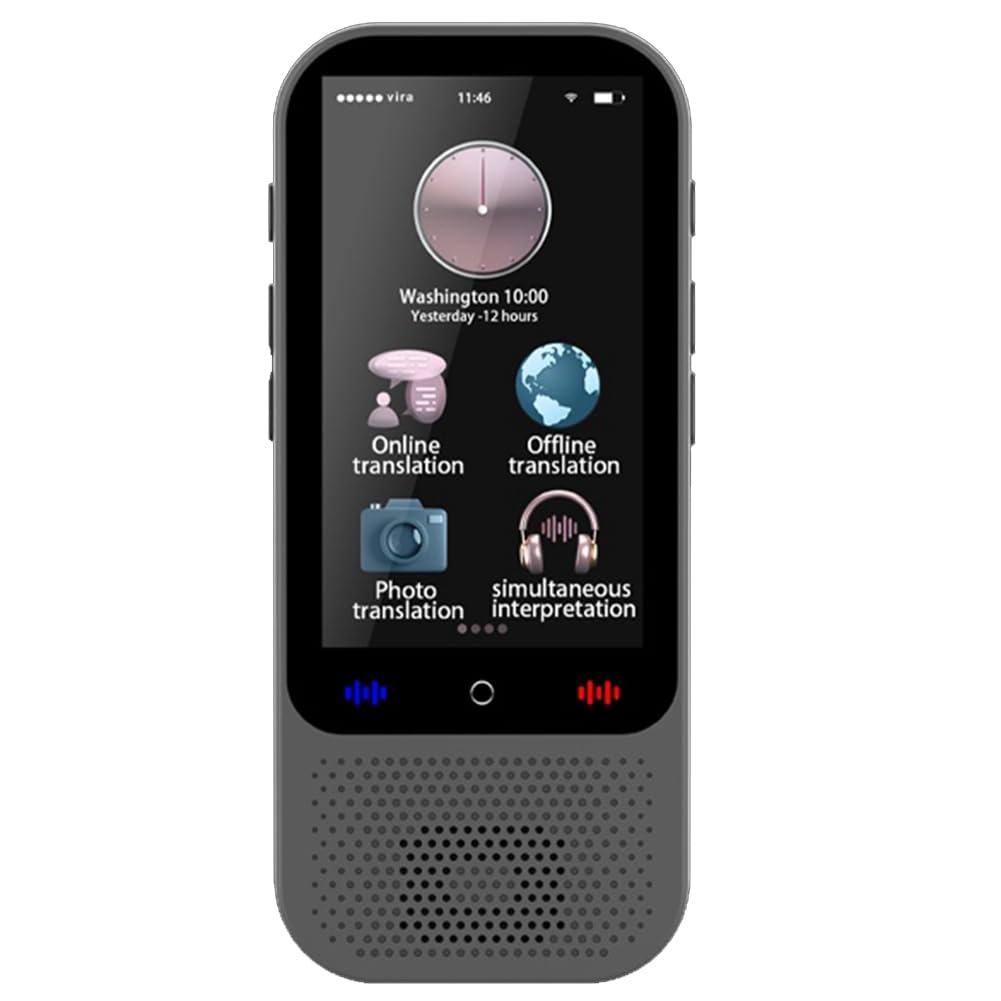
Image 1.1: Overview of the S80 Pro AI Translation Device's main features.
2. Package Contents
Please check the package for the following items:
- 1 x S80 Pro AI Translation Device
- 1 x USB Charging Cable
- 1 x English Instruction Manual
3. Device Layout
Familiarize yourself with the physical components of your S80 Pro device.
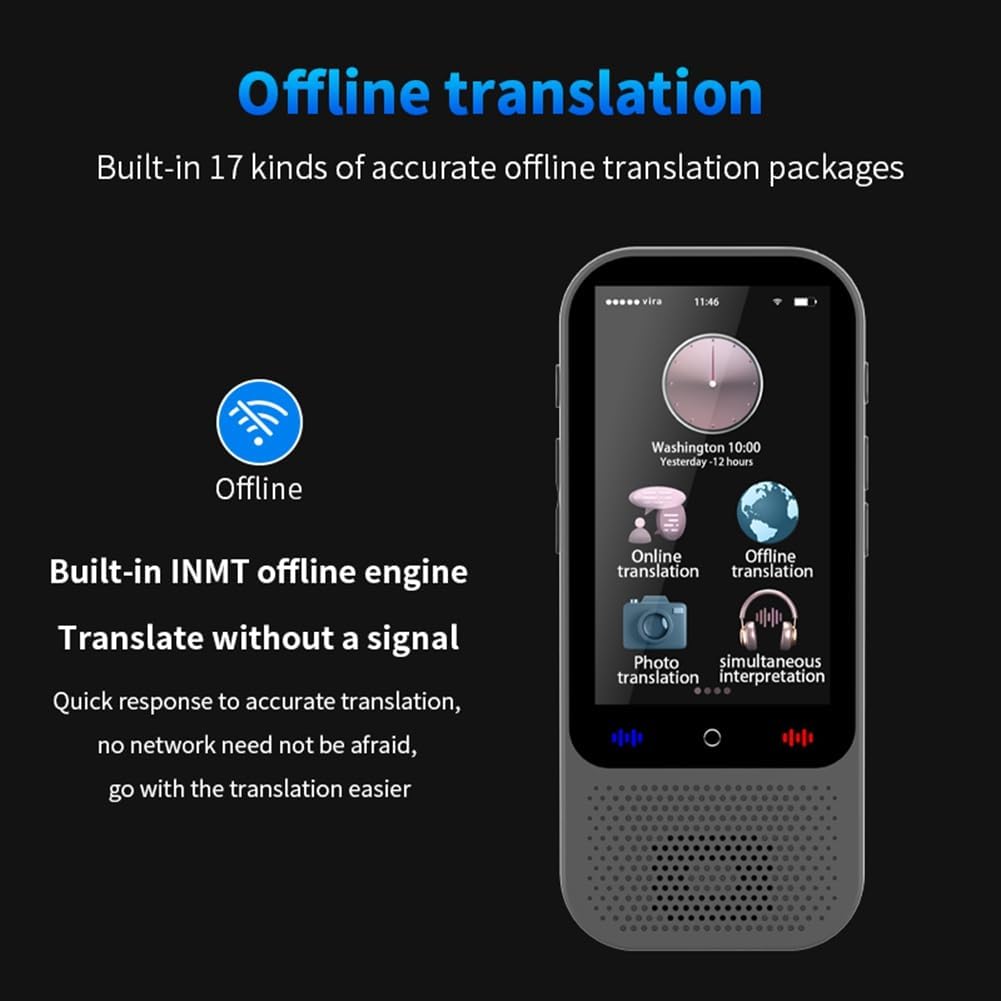
Image 3.1: Front view of the S80 Pro device.
4. Setup
4.1. Charging the Device
Before first use, fully charge the device. Connect the provided USB cable to the device's charging port and a compatible USB power adapter (not included). The charging indicator will show the charging status.
4.2. Powering On/Off
- To Power On: Press and hold the power button until the screen lights up.
- To Power Off: Press and hold the power button, then select 'Power Off' on the screen.
4.3. Initial Setup and Wi-Fi Connection
- Upon first power-on, follow the on-screen prompts to select your preferred system language.
- Navigate to Settings > Wi-Fi.
- Select your Wi-Fi network and enter the password to connect. A stable internet connection is required for online translation features.
5. Operating Instructions
5.1. Online Voice Translation (138 Languages)
This feature allows real-time voice translation with an internet connection.
- From the main screen, tap on Online Translation.
- Select the source and target languages.
- Press and hold the designated button (usually indicated by a microphone icon) and speak clearly into the device. Release the button to hear the translation.
5.2. Offline Voice Translation (17 Languages)
The device supports offline translation for 17 languages, allowing use without an internet connection.

Image 5.1: Offline translation interface.
- Tap on Offline Translation from the main menu.
- Ensure the required language packages are downloaded. If not, connect to Wi-Fi and download them via Settings > Offline Packages.
- Select your source and target languages.
- Press and hold the microphone button and speak. Release to translate.
5.3. Photo Translation (40 Languages)
Translate text from images using the device's camera.

Image 5.2: Photo translation in action.
- Tap on Photo Translation.
- Point the camera at the text you wish to translate.
- Tap the capture button. The device will process the image and display the translated text.
5.4. Group Translation
Engage in multi-person, multi-language group conversations.

Image 5.3: Group translation interface.
- Select Group Translation.
- Create a new group or join an existing one using a provided code.
- Participants can speak in their native language, and the device will translate for others in the group.
5.5. Smart Recording and Transcription
Record audio and transcribe it into text, with support for translation.
- Tap on Smart Recording.
- Press the record button to start recording.
- Once finished, the device can transcribe the audio into text and translate it into selected languages.
5.6. Language Learning
The device includes features for learning Chinese and English.
- Access Language Learning from the main menu.
- Follow the interactive lessons and exercises provided.
5.7. Bluetooth Connection
Connect wireless Bluetooth headsets or speakers for private listening or louder output.
- Go to Settings > Bluetooth.
- Turn on Bluetooth and scan for available devices.
- Select your desired device to pair.
5.8. Other Features
- Unit Conversion: Convert various units of measurement.
- Exchange Rate Conversion: Get real-time currency exchange rates.
- Mobile Translation: Connect to a mobile phone via scan code for enhanced communication and translation.

Image 5.4: Mobile translation feature.
6. Maintenance
- Cleaning: Use a soft, dry cloth to clean the device. Do not use liquid cleaners or abrasive materials.
- Storage: Store the device in a cool, dry place away from direct sunlight and extreme temperatures.
- Battery Care: To prolong battery life, avoid fully discharging the device frequently. Charge it regularly.
- Software Updates: Periodically check for software updates in the device settings to ensure optimal performance and access to new features.
7. Troubleshooting
- Device not powering on: Ensure the device is charged. Connect it to a power source and try again.
- No sound from speaker: Check the volume settings. Ensure no Bluetooth device is connected if you intend to use the internal speaker.
- Translation not accurate: Ensure a stable internet connection for online translation. Speak clearly and at a moderate pace. For offline translation, ensure language packages are fully downloaded.
- Wi-Fi connection issues: Verify your Wi-Fi password. Try restarting your router and the translation device.
- Photo translation not working: Ensure good lighting and that the text is clear and within the camera's focus.
8. Specifications
| Feature | Detail |
|---|---|
| Model | S80 Pro |
| Storage | 1GB RAM + 8GB Internal Storage |
| Memory Expansion | Supports up to 32GB memory card (not included) |
| Networking | Wi-Fi, Offline Networking |
| Screen Size | 3-inch Full Touch Screen |
| Screen Resolution | 480x854 |
| Battery Type | Polymer Lithium-ion |
| Battery Capacity | 1500mAh |
| Standby Time | Up to 10 days |
| Working Hours | Up to 16 hours |
| Online Translation | 138 Languages |
| Offline Voice Translation | 17 Languages |
| Offline Photo Translation | 40 Languages |
| Bluetooth | Supports wireless headsets and speakers |
| Unit Weight | 86.5g |
| Color | Black |
| Material | Metal |
| Device Dimensions | 116.5 x 50 x 12.6 mm |
| Manufacturer | NJRGJNERDJKEW |
| ASIN | B0G7YSPC7C |
9. Warranty and Support
9.1. Warranty Information
This device comes with a 3-month warranty from the date of purchase. The warranty covers manufacturing defects. It does not cover damage caused by misuse, accidents, unauthorized repairs, or normal wear and tear.
9.2. Customer Support
For technical assistance, troubleshooting, or warranty claims, please contact your retailer or the manufacturer directly. Refer to the contact information provided with your purchase documentation.