
1. Introduction and Overview
This manual provides essential information for the proper setup, operation, and maintenance of your AOC Q27G4ZDF QD-OLED Gaming Monitor. The AOC Q27G4ZDF is a 27-inch QHD (2560 x 1440) display featuring QD-OLED panel technology, a 240Hz refresh rate, and an ultra-fast 0.03ms pixel response time. It supports Adaptive Sync for tear-free gaming and HDR10 for enhanced picture quality. Please read this manual thoroughly before using your monitor.
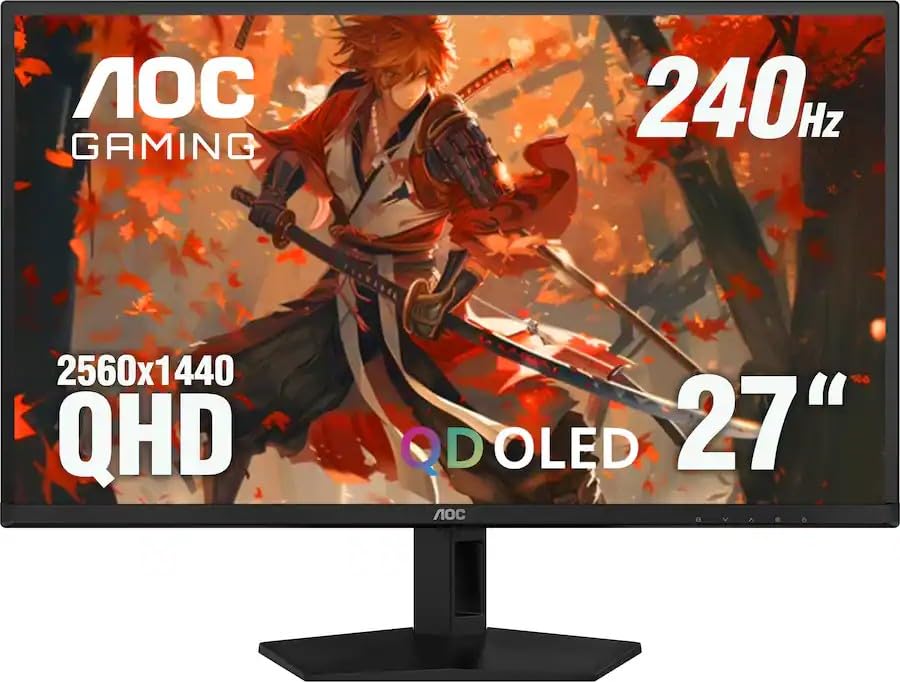
Figure 1.1: Front view of the AOC Q27G4ZDF QD-OLED Gaming Monitor.
2. What's in the Box
Verify that all components are present in the packaging:
- AOC Q27G4ZDF Monitor Display
- Monitor Stand (Base and Neck)
- HDMI Cable
- Power Cord
- User Manual (this document)
3. Setup Instructions
3.1. Stand Assembly
- Carefully remove the monitor and stand components from the packaging.
- Attach the stand neck to the monitor panel. Ensure it clicks securely into place or is fastened with screws as indicated in the quick start guide.
- Attach the stand base to the stand neck. Tighten the thumb screw or screws from the bottom of the base to secure it.
- Place the assembled monitor on a stable, flat surface.
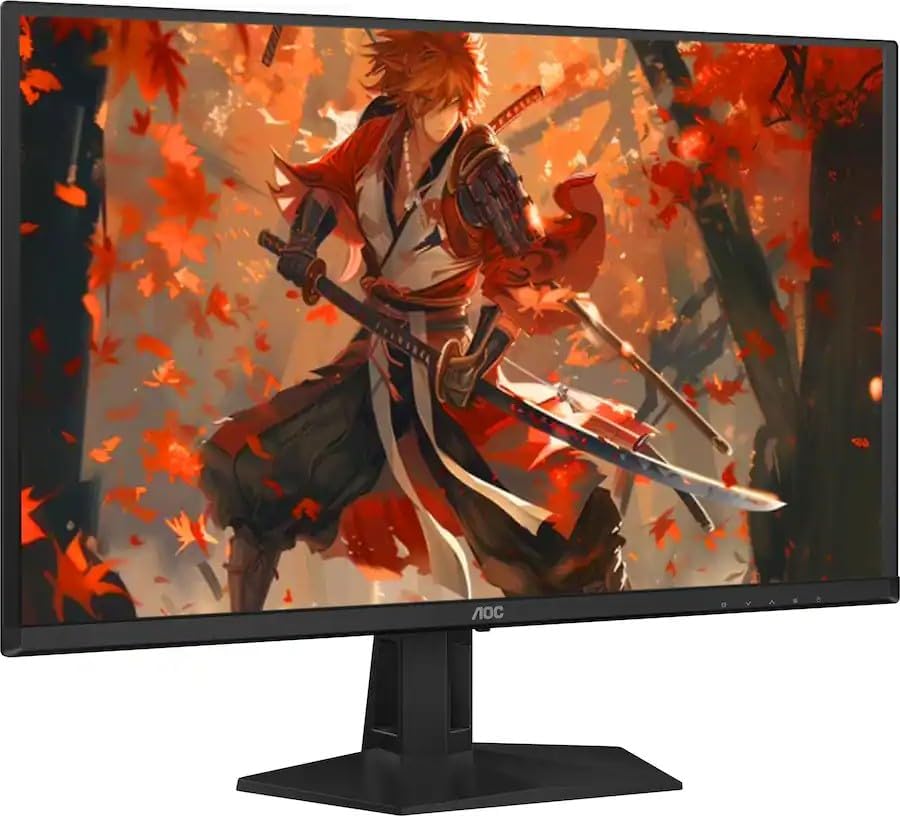
Figure 3.1: Rear view of the monitor with the stand assembled.
3.2. Connecting to a Computer
- Ensure both the monitor and your computer are powered off.
- Connect one end of the provided HDMI cable to the HDMI port on your computer's graphics card.
- Connect the other end of the HDMI cable to an available HDMI input port on the monitor. Alternatively, use a DisplayPort cable for DisplayPort connections.
- Connect the power cord to the monitor's power input and then plug the other end into a grounded electrical outlet.
- Power on your computer, then power on the monitor.
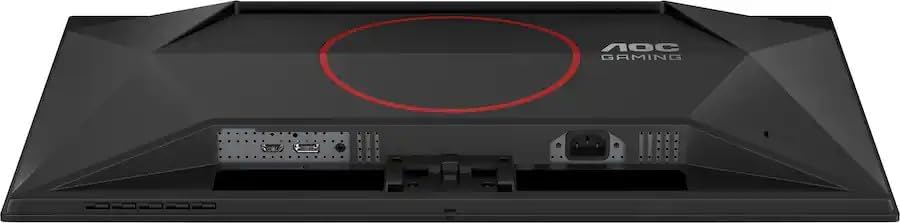
Figure 3.2: Rear view showing the monitor's input ports (HDMI, DisplayPort, Power).
4. Operating Instructions
4.1. Power On/Off
- To power on the monitor, press the power button located on the bottom right side of the monitor.
- To power off the monitor, press the power button again.
4.2. On-Screen Display (OSD) Menu Navigation
The OSD menu allows you to adjust various monitor settings. Use the navigation buttons (usually located on the bottom right of the monitor) to access and navigate the OSD.
- Press the Menu button to open the OSD.
- Use the directional buttons (Up/Down/Left/Right) to navigate through menu options.
- Press the Select/OK button to confirm a selection or enter a sub-menu.
- Press the Exit button to go back to the previous menu or exit the OSD.
4.3. Input Selection
If you have multiple devices connected to the monitor, you can switch between input sources:
- Access the OSD menu.
- Navigate to the 'Input' or 'Source' section.
- Select the desired input (e.g., HDMI1, DisplayPort).
4.4. Picture Settings
Adjust display characteristics such as brightness, contrast, color temperature, and gamma through the OSD menu's 'Picture' or 'Color' settings.
4.5. Gaming Features
The monitor includes features optimized for gaming:
- Adaptive Sync: Ensures smooth, tear-free gameplay by synchronizing the monitor's refresh rate with your GPU's frame rate. Enable this feature in your graphics card control panel.
- Game Mode: Preset display modes (e.g., FPS, RTS) can be selected via the OSD to optimize visual settings for different game genres.
- Low Input Lag: The monitor is designed for minimal input lag, enhancing responsiveness in fast-paced games.
5. Maintenance
5.1. Cleaning the Monitor
- Always power off the monitor and unplug the power cord before cleaning.
- Use a soft, lint-free cloth lightly dampened with water or a mild, non-abrasive screen cleaner.
- Do not spray cleaner directly onto the screen.
- Avoid using benzene, thinner, ammonia-based cleaners, or abrasive materials, as these can damage the screen or casing.
5.2. Storage
- If storing the monitor for an extended period, disconnect all cables and pack it in its original packaging to protect it from dust and physical damage.
- Store in a cool, dry place away from direct sunlight and extreme temperatures.
6. Troubleshooting
Refer to the table below for common issues and their solutions.
| Problem | Possible Cause | Solution |
|---|---|---|
| No Power | Power cord not connected; Power outlet faulty; Monitor power button off. | Ensure power cord is securely connected to monitor and outlet. Test outlet with another device. Press monitor power button. |
| No Signal | Video cable not connected; Incorrect input source selected; Computer not powered on. | Check video cable connections (HDMI/DisplayPort). Select correct input source via OSD. Ensure computer is powered on and outputting video. |
| Image Flickering | Loose video cable; Graphics card driver issue; Refresh rate mismatch. | Secure video cable connections. Update graphics card drivers. Ensure monitor refresh rate is set correctly in display settings. |
| Poor Picture Quality | Incorrect resolution; OSD settings not optimized. | Set display resolution to native QHD (2560x1440). Adjust brightness, contrast, and color settings in the OSD. |
7. Specifications
| Feature | Specification |
|---|---|
| Brand | AOC |
| Model Name | Q27G4ZDF |
| Screen Size | 27 Inches |
| Display Type | QD-OLED |
| Resolution | QHD (2560 x 1440 Pixels) |
| Refresh Rate | 240 Hz |
| Response Time | 0.03ms (GtG) |
| Image Contrast Ratio | 1,500,000:1 |
| Connectivity Technology | DisplayPort, HDMI |
| Additional Features | Adaptive Sync, Eye Care, Frameless Design |
| Mounting Type | Desk Mount |
| Item Weight | 11.4 Pounds |
| UPC / GTIN | 604467590038 |
8. Warranty and Support
This AOC Q27G4ZDF monitor comes with a 90-day limited warranty. This warranty covers defects in materials and workmanship under normal use during the warranty period.
For technical support, warranty claims, or further assistance, please visit the official AOC support website or contact their customer service. Keep your purchase receipt as proof of purchase for warranty services.
Online Support: www.aoc.com/support


