
1. Introduction
This manual provides instructions for setting up, operating, maintaining, and troubleshooting your NIMO Mini PC Desktop. Please read this manual thoroughly before using the device.
The NIMO Mini PC Desktop is a compact and powerful computer designed for various tasks, from everyday use to demanding AI workloads and gaming. It features an AMD Ryzen AI Max+ 395 processor, high-speed LPDDR5 RAM, and a fast PCIe 4.0 SSD.
Package Contents
- NIMO AI MiniPC x 1
- Power Adapter x 1
- HDMI Cable x 1
- User Manual x 1

Image: The NIMO Mini PC package contents, showing the Mini PC, power adapter, HDMI cable, and user manual.
2. Setup
2.1 Connecting Peripherals
Before powering on, connect your monitor, keyboard, mouse, and other peripherals to the appropriate ports.
- Monitor: Connect your monitor(s) using the HDMI or USB Type-C ports. The Mini PC supports a triple-display setup with up to 4K resolution.
- Keyboard and Mouse: Connect your USB keyboard and mouse to the available USB-A ports.
- Network: For wired internet, connect an Ethernet cable to the RJ45 port. For wireless, ensure Wi-Fi 7 is enabled.
- Audio: Connect headphones or speakers to the audio combo jack.

Image: A diagram illustrating the various ports available on the front and rear panels of the NIMO Mini PC.
2.2 Powering On
Connect the power adapter to the Mini PC's power input, then plug the adapter into a power outlet. Press the power button located on the front panel of the Mini PC.
The system will boot up. Follow any on-screen instructions to complete the operating system setup if it is the first time using the device.
3. Operating
3.1 Basic Operation
The NIMO Mini PC is designed for efficient performance across various applications, leveraging its powerful hardware.
- Multitasking: The AMD Ryzen AI Max+ 395 processor and 128GB LPDDR5 RAM enable smooth and responsive multitasking, allowing you to run multiple applications simultaneously without slowdowns.
- AI Workflows: Optimized for intensive AI computing loads, this Mini PC efficiently handles local large language models (LLMs) and complex image generation tasks.
- Gaming: The integrated Radeon RX 8060S iGPU provides performance suitable for running mainstream AAA games smoothly at FHD resolution on high-quality settings.
- Content Creation: High memory bandwidth and powerful graphics significantly enhance digital content creation workflows, such as video editing and graphic design.

Image: The NIMO Mini PC facilitating effortless multitasking with multiple applications open across several monitors.

Image: The NIMO Mini PC on a desk, demonstrating its capability for snappy video editing and content creation.

Image: The NIMO Mini PC on a desk, providing smooth gaming experiences on a connected monitor.

Image: The NIMO Mini PC on a desk, boosting AI workflows with its powerful processing capabilities.
3.2 Display Configuration
To configure multiple displays:
- Connect up to three monitors using the available HDMI and USB Type-C ports.
- Access your operating system's display settings to arrange and extend your desktop across the connected screens.
- The system supports up to 4K resolution on all connected displays.
4. Maintenance
4.1 Cleaning
To ensure optimal performance and longevity, keep your Mini PC clean.
- Use a soft, dry cloth to wipe the exterior surfaces.
- For dust accumulation in the ventilation vents, use compressed air. Ensure the PC is powered off and unplugged before cleaning.
- Avoid using liquid cleaners directly on the device.
4.2 Storage and Memory Upgrades
The NIMO Mini PC features an upgradeable design for memory and storage components.

Image: An exploded view of the NIMO Mini PC, illustrating its internal components and modular design for upgrades.

Image: A detailed view of the 8-channel LPDDR5 8000MHz 128GB RAM and 2TB M.2 2280 PCIe SSD, indicating their upgrade potential.
For detailed instructions on upgrading memory or storage, consult a qualified technician or refer to the full service manual available on the NIMO website.
5. Troubleshooting
This section addresses common issues you might encounter and provides potential solutions.
5.1 No Power
- Ensure the power adapter is securely connected to both the Mini PC and a working power outlet.
- Verify the power outlet is functional by plugging in another device.
- Try a different power outlet.
5.2 No Display
- Check that the monitor is powered on and the video cable (HDMI/USB-C) is securely connected to both the Mini PC and the monitor.
- Ensure the correct input source is selected on your monitor.
- Try connecting to a different display or using a different video cable.
5.3 Peripheral Not Detected
- Ensure the peripheral is correctly plugged into a functional USB port.
- Try connecting the peripheral to a different USB port.
- Restart the Mini PC.
- Check the peripheral's own drivers or software if required.
5.4 System Performance Issues
- Close unnecessary applications running in the background.
- Ensure the Mini PC has adequate ventilation and is not overheating. The ultra-smart cooling system with 3-pipe and 3-fan design helps manage heat.
- Check for available operating system updates and driver updates for graphics and other components.
- Run a system diagnostic to identify potential hardware issues.

Image: The NIMO Mini PC features an Ultra-Smart Cooling System with 3-pipe and 3-fan design, including added front vents for stronger cooling.
6. Specifications
| Feature | Detail |
|---|---|
| Brand | NIMO |
| Model Name | MME2S |
| CPU Model | AMD Ryzen AI Max+ 395 |
| CPU Speed | Up to 5.1 GHz |
| Processor Cores | 16 |
| Graphics Coprocessor | Radeon 8060S Graphics |
| RAM Memory | 128 GB LPDDR5 |
| Memory Speed | 8000 MHz |
| Storage | 2 TB PCIe 4.0 SSD |
| Operating System | OS (User-installed) |
| Connectivity | Wi-Fi 7, Bluetooth 5.2, Ethernet, USB 4.0, USB 3.0, USB Type-C, HDMI, DisplayPort |
| Video Output | HDMI, USB Type-C (Supports Triple 4K Display) |
| Cooling Method | Air (3-pipe & 3-fan with multi-mode) |
| Dimensions | Mini PC form factor |
7. Warranty and Support
7.1 Warranty Information
The NIMO Mini PC Desktop comes with a 2-year warranty. This warranty covers manufacturing defects and ensures your product functions as intended under normal use.
Additionally, NIMO offers a 90-day return policy from the date of purchase.
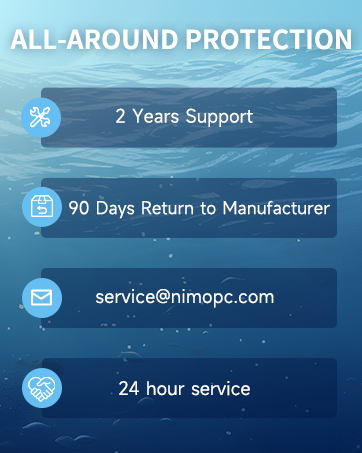
Image: NIMO provides comprehensive support including a 2-year warranty and 90-day return policy.

Image: Nimo products are covered by a 2-year support period, with technical assistance available.

Image: You may return any Nimo product for any reason within 90 days of purchase.
7.2 Customer Support
For any product-related questions, technical assistance, or warranty claims, please contact NIMO customer support.
- Email: service@nimopc.com
- Online: Visit the official NIMO website for support resources and contact options.
NIMO is committed to providing professional and high-quality customer service, with a team of professional technicians ready to assist you.

Image: Contact our professional after-sales team via phone and live chat for assistance.
8. Important Safety Information
Please observe the following safety guidelines to ensure safe operation and prevent damage to your device:
- Do not expose the device to extreme temperatures, humidity, or direct sunlight.
- Avoid placing the device near water or other liquids.
- Do not attempt to open or repair the device yourself. Refer to qualified service personnel.
- Use only the provided power adapter.
- Ensure proper ventilation to prevent overheating.
9. Product Video
Watch this video for an overview of the NIMO Mini PC Desktop's features and capabilities.
Video: An official NIMO video showcasing the NIMO 395 Mini PC, highlighting its compact design, essential ports, internal components, and performance in multitasking, editing, gaming, and AI workflows.

