
Introduction
Welcome to the Harlafou AI Smart Glasses instruction manual. These smart glasses combine high-definition photography and video recording with Bluetooth audio capabilities, allowing for wireless music playback, hands-free calls, and voice assistant interaction. Please read this manual carefully to ensure proper use and optimal performance of your device.
Setup
- Initial Charging: Before first use, fully charge your Harlafou AI Smart Glasses. Connect the provided charging cable to the charging port on the glasses and to a USB power source. The indicator light will show charging status.
- Power On: Press and hold the power button (typically located on the temple) for a few seconds until the indicator light illuminates.
- Bluetooth Pairing:
- Ensure the glasses are powered on and in pairing mode (indicator light may flash).
- On your smartphone or other Bluetooth-enabled device, go to Bluetooth settings and search for available devices.
- Select "Harlafou Smart Glasses" (or similar name) from the list to connect. A confirmation tone or indicator light change will signify successful pairing.
- App Installation (if applicable): If an accompanying mobile application is available, download and install it from your device's app store. Follow the in-app instructions to connect your glasses for advanced features and settings.
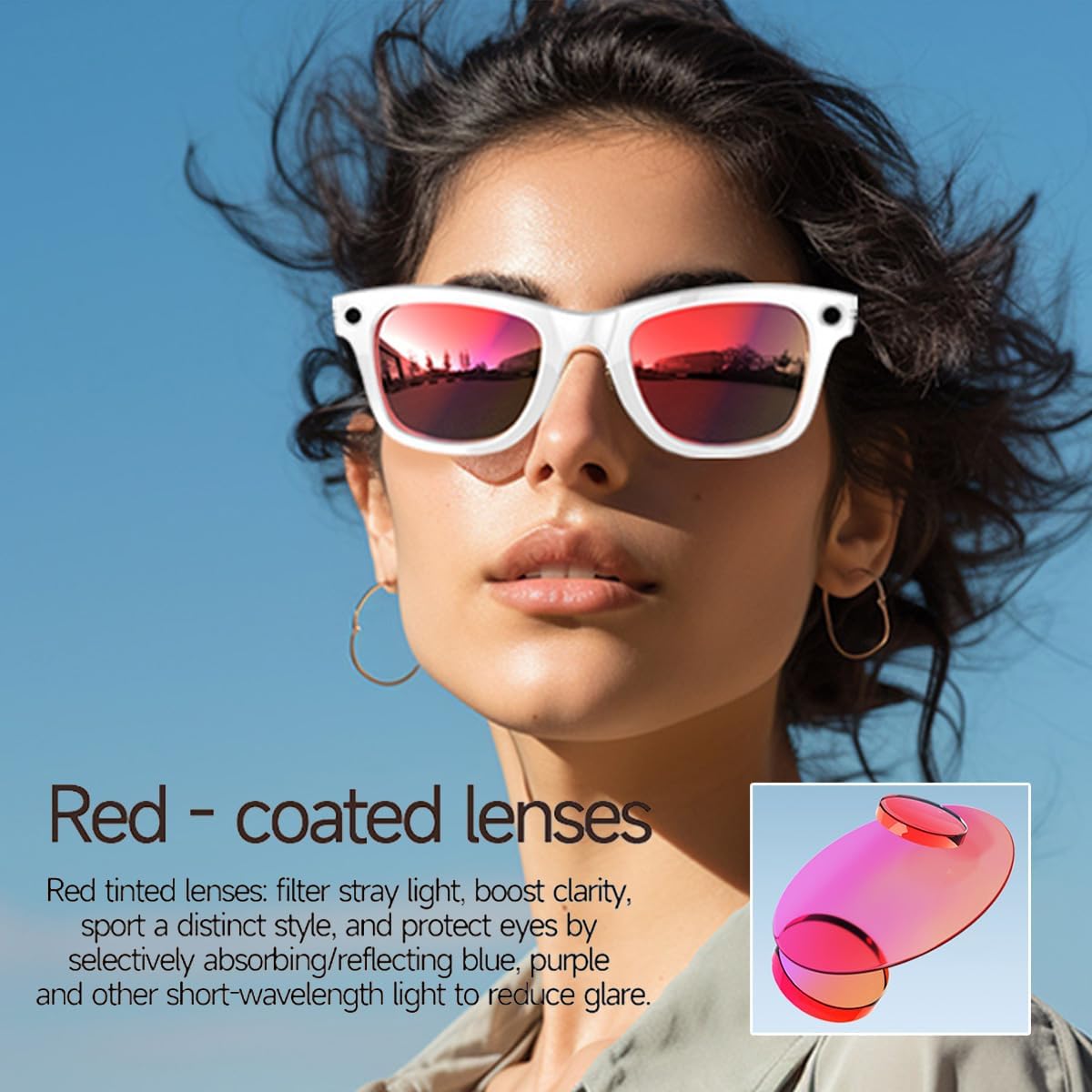
Image: A person wearing the Harlafou AI Smart Glasses with red-coated lenses, demonstrating their use in a bright outdoor setting.
Operating Instructions
Power On/Off
- To Power On: Press and hold the power button for approximately 3 seconds.
- To Power Off: Press and hold the power button for approximately 5 seconds until the indicator light turns off.
Camera and Video Recording
Your smart glasses are equipped with a camera for capturing photos and videos. Indicator lights provide visual feedback on the recording status.
- Take a Photo: Briefly press the camera button (refer to the diagram for location). The indicator light will flash once to confirm.
- Start Video Recording: Press and hold the camera button for approximately 2 seconds. The indicator light will blink continuously during recording.
- Stop Video Recording: Briefly press the camera button again. The indicator light will stop blinking.

Image: A detailed diagram highlighting the camera lens and indicator light on the front of the smart glasses, explaining their functions for photography and videography.
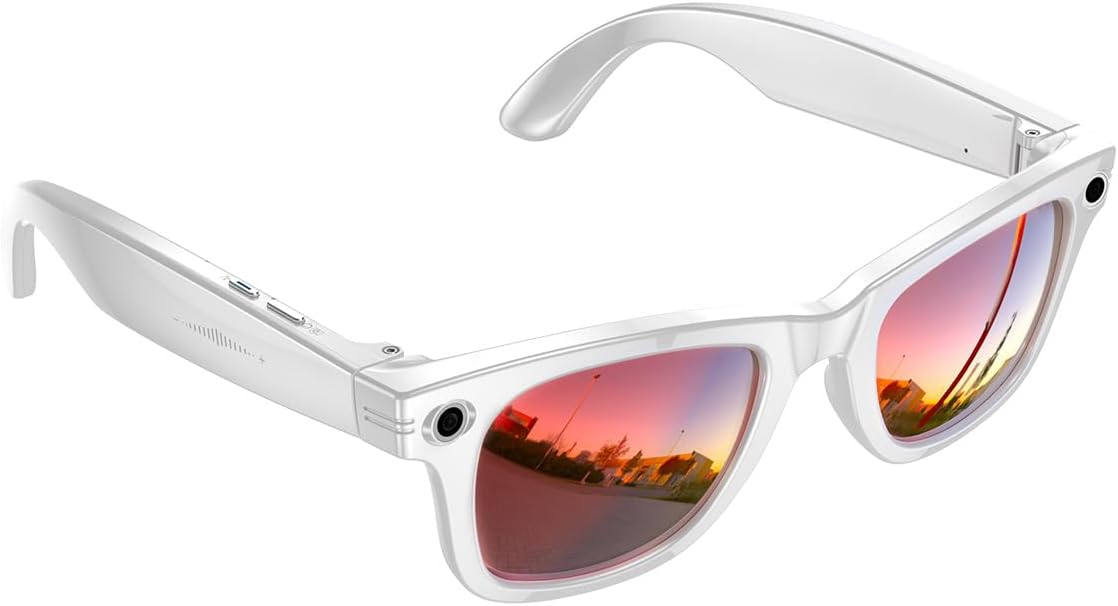
Image: A side profile of the Harlafou AI Smart Glasses, illustrating the placement of control buttons along the temple for various functions.
Bluetooth Audio (Music & Calls)
- Play/Pause Music: Briefly press the multi-function button (often the same as the power button or a dedicated button).
- Next Track: Double-press the multi-function button.
- Previous Track: Triple-press the multi-function button.
- Answer/End Call: Briefly press the multi-function button during an incoming call or to end an active call.
- Reject Call: Press and hold the multi-function button for 2 seconds during an incoming call.
Voice Assistant
Activate your device's voice assistant for hands-free control.
- Voice Wake-up: Say the designated wake-up phrase (e.g., "HeyCyan!") to activate the voice assistant.
- Button Wake-up: Press the designated voice assistant button (often the right rear button) to activate.
Image: A visual representation of a user engaging with the voice assistant feature of the smart glasses, showing prompts like "What object is in front of me?" and "What's the weather like today?".
Lens Features
The Harlafou AI Smart Glasses feature red-coated lenses designed to enhance visual clarity and reduce glare.
- Red Tinted Lenses: These lenses filter stray light, boost clarity, and protect eyes by selectively absorbing/reflecting blue, purple, and other short-wavelength light to reduce glare.
- UV Protection Coating: Provides protection against harmful UV rays.
- Polarized: Reduces glare from reflective surfaces.

Image: A detailed view of the Harlafou AI Smart Glasses, highlighting the distinctive red-coated lenses and their reflective properties.
Maintenance
- Cleaning: Use a soft, clean microfiber cloth to wipe the lenses and frame. Avoid abrasive materials or harsh chemicals that could damage the coatings or plastic.
- Storage: When not in use, store the glasses in their protective case to prevent scratches and damage. Avoid exposing them to extreme temperatures.
- Battery Care: To prolong battery life, avoid fully discharging the battery frequently. Charge the glasses regularly, even if not in constant use.
- Water Exposure: These glasses are not designed to be waterproof. Avoid exposure to rain or submersion in water to prevent damage to electronic components.
Troubleshooting
| Problem | Possible Solution |
|---|---|
| Glasses do not power on. | Ensure the battery is charged. Connect to a power source and allow it to charge for at least 30 minutes before attempting to power on again. |
| Cannot pair with Bluetooth device. | Ensure glasses are in pairing mode. Turn off and on Bluetooth on your device. Move closer to the glasses. Forget previous pairings on your device and try again. |
| Camera or video recording not working. | Check if the glasses have sufficient battery. Ensure there is enough storage space. If using an app, verify connection and app settings. Restart the glasses. |
| Audio quality is poor or no sound. | Check Bluetooth connection. Adjust volume on both glasses and connected device. Ensure speakers are not obstructed. |
| Glasses feel loose or slide off. | The fit may vary by individual. Consider using a glasses strap for added security during active use. |
| Device stopped working after exposure to moisture. | The glasses are not waterproof. Discontinue use immediately. Do not attempt to charge or power on. Allow to dry completely in a dry, well-ventilated area for several days. Damage from water exposure is typically not covered under warranty. |
Specifications
| Feature | Detail |
|---|---|
| Model Number | AI Smart sunglasses Camera &video |
| Brand | Harlafou |
| Department | Unisex |
| Frame Material Type | Plastic |
| Lens Material Type | Glass |
| Lens Color | Black (Red coated) |
| Lens Coating Description | UV Protection Coating |
| Polarization Type | Polarized |
| Arm Length | 147 Millimeters |
| Bridge Width | 45 Millimeters |
| Connectivity | Bluetooth |
| Features | HD Photo & Video, Built-in Speakers, Wireless Music & Call, Voice Assistant |
Warranty and Support
Your Harlafou AI Smart Glasses come with a standard manufacturer's warranty. Please refer to the product packaging or the official Harlafou website for specific warranty terms and conditions.
For technical support, troubleshooting assistance, or warranty claims, please contact Harlafou customer service through the contact information provided with your purchase or on the official brand website. When contacting support, please have your model number and purchase date available.