
1. Introduction
Thank you for choosing the Skyworth 86-inch Canvas Elite™ Art TV QD-Mini LED. This television combines advanced display technology with an elegant design, offering a premium viewing and art display experience. Featuring QD-Mini LED, 4K UHD resolution, a 144Hz refresh rate, and the OmniView Matte Screen™, this TV is designed for exceptional picture quality and a glare-free art gallery aesthetic. This manual provides essential information for setting up, operating, maintaining, and troubleshooting your new television.
2. What's in the Box
Carefully unpack your television and check for the following items:

Image: Overview of the 86-inch TV dimensions, available input/output ports, and a list of included accessories.
- Skyworth 86-inch Canvas Elite™ Art TV
- Instruction Manual (this document)
- Power Cord
- Base Screws (for stand installation)
- Remote Control
- Remote Control Batteries (x2)
3. Setup
3.1 Unpacking and Placement
Remove the TV from its packaging. It is recommended that two people handle the 86-inch TV due to its size and weight. Place the TV on a stable, level surface or mount it securely on a wall.
3.2 Stand Installation (Optional)
If using the included stand, attach the stand bases to the bottom of the TV using the provided screws. Ensure all screws are tightened securely to prevent the TV from tipping.
3.3 Wall Mounting (Optional)
The TV is compatible with a 200x200 VESA mount standard. Use a compatible wall mount bracket (sold separately) and follow the instructions provided with the wall mount. Ensure the wall can support the TV's weight.
3.4 Connecting Devices
Connect your external devices to the TV's input ports. Refer to the diagram below for port locations and types:
Image: Detailed view of the TV's rear panel showing various input and output ports.
- RF Input (Antenna): x1 for connecting an antenna or cable TV.
- Composite (AV): x1 for older devices.
- HDMI: x3 for high-definition devices like Blu-ray players, gaming consoles, or set-top boxes.
- USB: x2 for connecting USB storage devices.
- Earphone Jack: x1 for headphones.
- Ethernet Input: x1 for wired network connection.
- SPDIF Output (Optical/Coaxial): x1 for digital audio output to sound systems.
3.5 Power Connection
Connect the power cord to the TV's power input and then plug it into a wall outlet. The TV will enter standby mode.
3.6 Initial Setup
Press the power button on the remote control to turn on the TV. Follow the on-screen instructions to complete the initial setup, including language selection, network connection, and Google TV account login.
4. Operating Instructions
4.1 Google TV Interface
Your Skyworth Canvas Elite™ Art TV runs on the Google TV platform, providing access to a vast library of streaming services, apps, and personalized content recommendations. Use the remote control to navigate the interface, search for content, and manage your settings.
4.2 Art Mode and OmniView Matte Screen™
Transform your TV into a gallery-quality art display with Art Mode. The OmniView Matte Screen™ technology minimizes glare and reflections, providing an authentic art viewing experience.

Image: The TV in Art Mode, showcasing a painting with a description of accessing over 400 iconic free artworks.
Access the Art Gallery feature to browse and select from hundreds of iconic artworks. The TV's design also integrates seamlessly into your living space, eliminating the need for external boxes and wires.

Image: Comparison highlighting the 'All-in-One Design' of the Canvas Elite Art TV, which eliminates messy wires and separate components.
4.3 Picture Quality Settings
Your TV features QD-Mini LED technology, 4K UHD resolution, and a 144Hz refresh rate for superior visuals. Adjust picture settings in the TV menu to optimize brightness, contrast, color, and motion for different content types.

Image: Visual comparison demonstrating the clarity of a 144Hz refresh rate versus 60Hz, emphasizing smooth motion for gaming and fast-paced content.
The QD-Mini LED panel with thousands of dimming zones and Quantum Dots delivers deep contrast and rich colors.
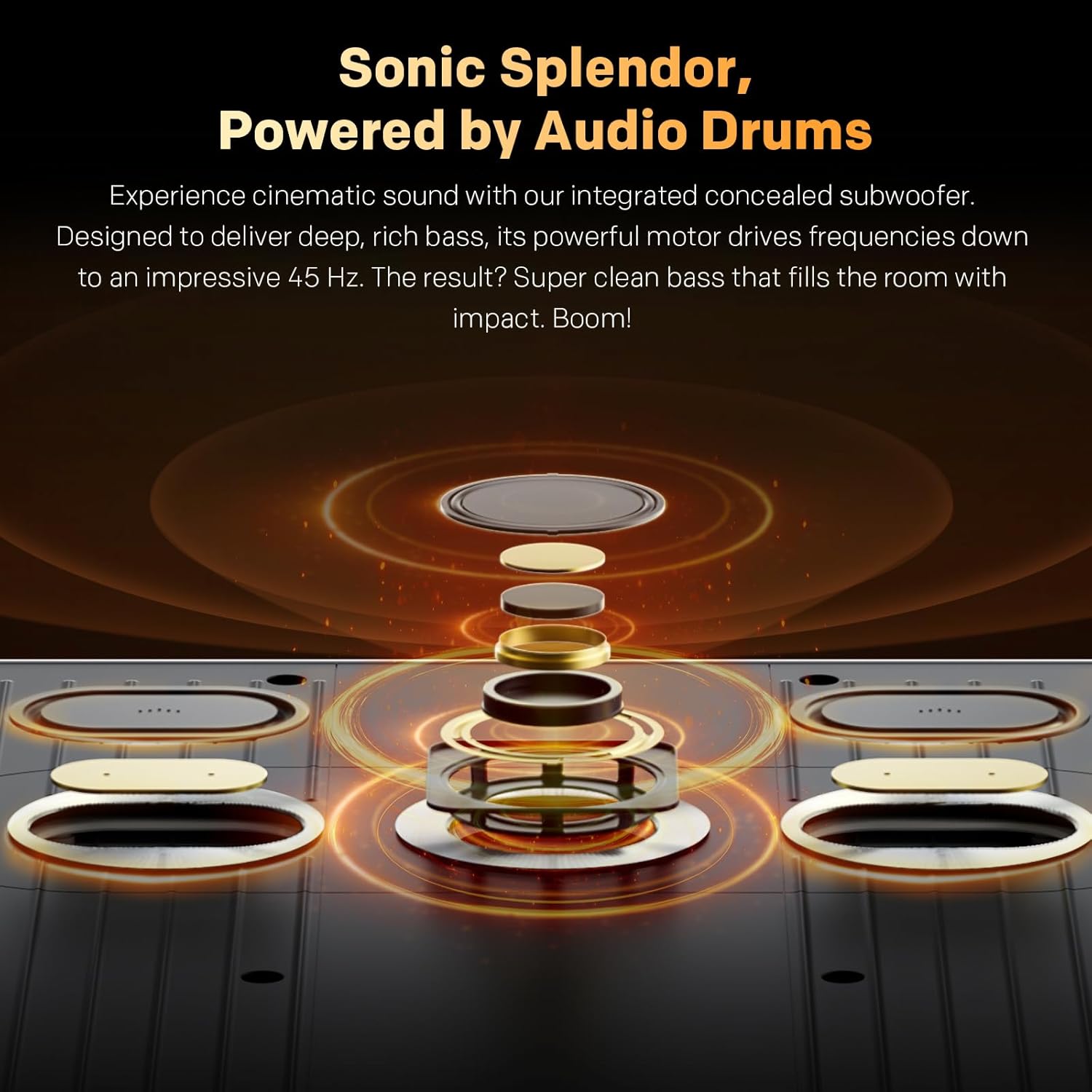
Image: Explanation of Quantum Dot Brilliance, showing how a special silica (glass-like) QD shield protects quantum dots for long-lasting vibrant colors.

Image: Illustration of QD-Mini LED technology, highlighting maximum brightness with deep contrast and the OmniView Matte Screen™ for superior viewing.
The OmniView Matte Screen™ provides an anti-glare, clear, wide-view experience, ensuring comfortable viewing from any angle and in various lighting conditions.

Image: Breakdown of the OmniView Matte Screen™ layers, explaining how it achieves true visual freedom from any seat, in any light.
4.4 Audio Settings
The TV features built-in speakers with Dolby Atmos support and an integrated concealed subwoofer for cinematic sound. Adjust audio modes and equalizer settings to suit your preferences.

Image: Diagram illustrating the integrated concealed subwoofer, designed to deliver deep, rich bass down to 45 Hz.
4.5 Connectivity
Utilize Bluetooth 5.0 for connecting wireless headphones, soundbars, or other compatible accessories. Connect to your home network via Wi-Fi or the Ethernet port for internet access and streaming.
5. Maintenance
5.1 Screen Cleaning
To clean the screen, gently wipe it with a soft, lint-free cloth. For stubborn marks, slightly dampen the cloth with water or a specialized screen cleaner. Avoid using harsh chemicals, abrasive materials, or spraying liquid directly onto the screen.
5.2 General Care
- Dust the TV regularly with a soft, dry cloth.
- Ensure proper ventilation around the TV to prevent overheating. Do not block ventilation openings.
- Avoid placing the TV in direct sunlight or near heat sources.
- Unplug the TV from the power outlet during lightning storms or when it will be unused for extended periods.
6. Troubleshooting
If you encounter issues with your TV, refer to the following common problems and solutions:
- No Power:
- Check if the power cord is securely connected to the TV and the wall outlet.
- Ensure the wall outlet is functioning by plugging in another device.
- Press the power button on the TV itself, not just the remote.
- No Picture or Sound:
- Verify that the correct input source is selected (e.g., HDMI 1, AV).
- Check all cable connections between the TV and external devices.
- Ensure the volume is not muted or set to zero.
- Remote Control Not Working:
- Replace the batteries in the remote control.
- Ensure there are no obstructions between the remote and the TV's IR sensor.
- Network Connection Issues:
- Restart your router and modem.
- Check Wi-Fi password and network settings in the TV menu.
- If using a wired connection, ensure the Ethernet cable is properly connected.
- Picture Quality Issues (e.g., blurry, distorted):
- Check the resolution settings of your external device and the TV.
- Ensure cables are not damaged or loose.
- Reset picture settings to default in the TV menu.
For persistent issues, please contact Skyworth customer support.
7. Specifications
| Feature | Specification |
|---|---|
| Screen Size | 86 Inches |
| Brand | Skyworth |
| Display Technology | QD-Mini LED |
| Resolution | 4K UHD (2160p) |
| Refresh Rate | 144 Hz |
| Peak Brightness | 2000 Nit |
| Special Feature | Built-In Speaker, OmniView Matte Screen™, Google TV |
| Included Components | Power Adapter, Remote Control, Base Screws |
| Connectivity Technology | Bluetooth 5.0, Wi-Fi, Ethernet |
| Aspect Ratio | 16:9 |
| Product Dimensions (without base) | 192.67 cm (W) x 111.31 cm (H) x 3.62 cm (D) |
| Weight (without base) | 52.9 kg |
| VESA Mount Standard | 200x200 mm |
8. Warranty and Support
For warranty information, please refer to the warranty card included with your product or visit the official Skyworth website. Skyworth offers customer support for any inquiries or technical assistance you may require.
For returns, a 30-day easy return policy is typically available. Please check your purchase details for specific return instructions.
Contact Information: Please visit the Skyworth NA website for the most current customer support contact details.