
Introduction
This manual provides essential information for the safe and efficient operation of your Skyworth 100-Inch Canvas Elite™ Art TV. Please read these instructions thoroughly before using the product and retain them for future reference.
The Skyworth Canvas Elite Art TV features a 100-inch QD-Mini LED display with 4K UHD resolution and a 144Hz refresh rate. It integrates Google TV for smart functionality and includes the Art Time 2.0 feature, allowing the display of digital art.
Important Safety Information
Always follow basic safety precautions when using this television to reduce the risk of fire, electric shock, and injury.
- Do not expose the TV to rain or moisture.
- Do not open the TV casing; refer all servicing to qualified personnel.
- Ensure proper ventilation around the TV.
- Use only the power cord supplied with the TV.
- Keep batteries out of reach of children.
What's in the Box
Verify that all components are present upon unpacking:
- Skyworth 100-Inch Canvas Elite™ Art TV
- Instruction Manual (this document)
- Power Cord
- Base Screws (for stand installation)
- Remote Control
- AAA Batteries (x2) for Remote Control

Image: Overview of the Skyworth 100-Inch Canvas Elite Art TV, showing its dimensions and a list of included accessories and available ports.
Setup
1. Unpacking and Placement
Carefully remove the TV from its packaging. Due to its size and weight (approximately 73.1 kg / 161.2 lbs), it is recommended that two or more people handle the TV. Place the TV on a stable, level surface or mount it securely to a wall using a compatible VESA mount (not included).
Dimensions without base: 223.87 cm (W) x 128.4 cm (H) x 9.82 cm (D).
2. Connecting Peripherals
The TV offers various connectivity options:
- HDMI Ports (x3): Connect Blu-ray players, gaming consoles, or other HDMI-enabled devices.
- USB Ports (x2): For connecting USB storage devices to play media or for software updates.
- Ethernet Input (x1): For a wired internet connection.
- RF Antenna Input (x1): For connecting an antenna for over-the-air broadcasts.
- Composite AV Input (x1): For older devices using RCA cables.
- Earphone Jack (x1): For connecting headphones.
- Optical SPDIF Output (x1): For connecting to external audio systems.
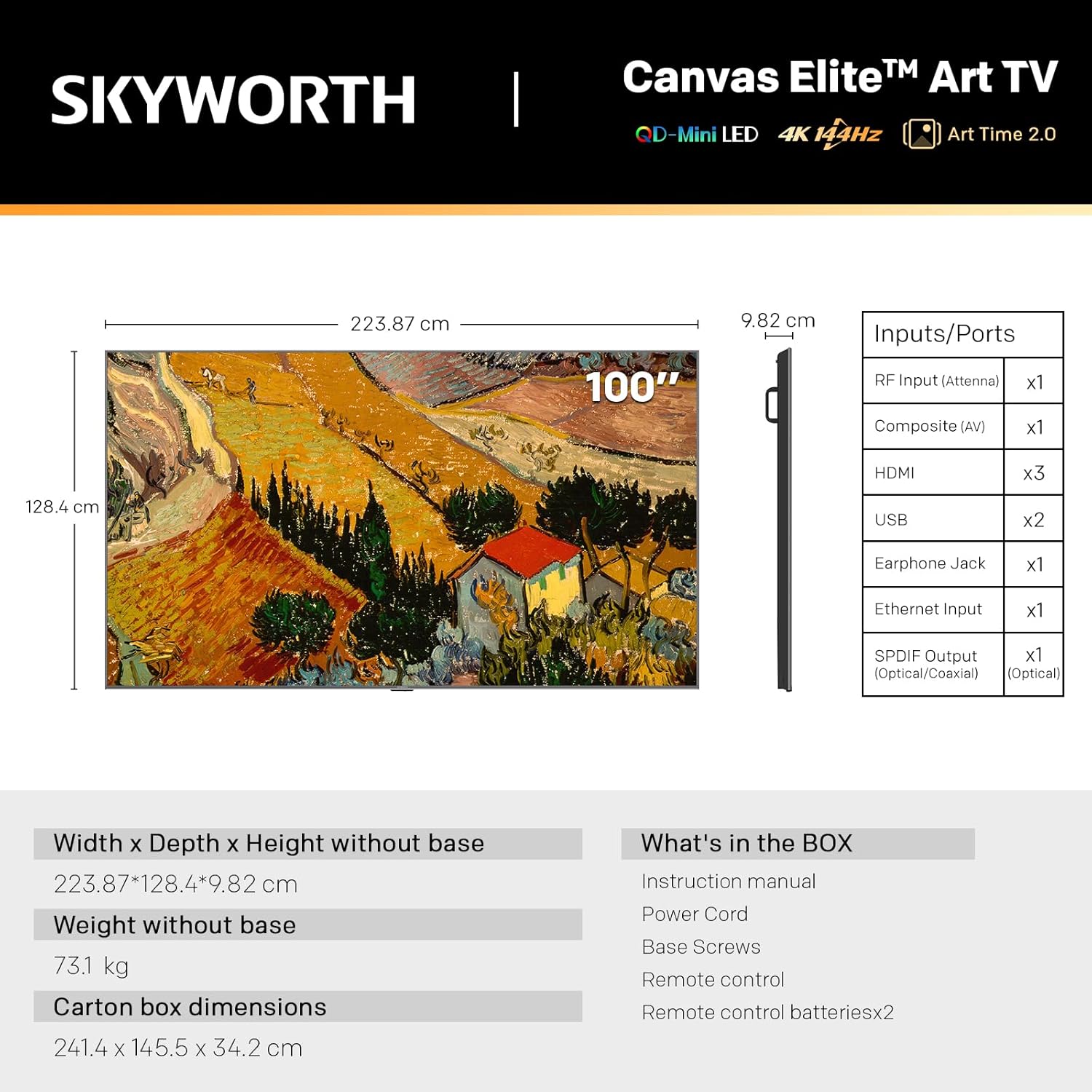
Image: Rear view of the television highlighting the location of various input and output ports for connecting external devices.
3. Power Connection
Connect the power cord to the TV's power input and then to a standard electrical outlet (100-240 VAC, 50-60 Hz).
4. Initial Power On and Google TV Setup
Press the power button on the remote control or the TV. Follow the on-screen instructions to complete the initial setup, including connecting to Wi-Fi or Ethernet, logging into your Google account, and configuring basic settings.
Operating Instructions
1. Remote Control Functions
The included remote control allows navigation through the Google TV interface, volume adjustment, input selection, and access to special features. Insert the two AAA batteries into the remote control, observing polarity.
2. Google TV Interface
Google TV provides a personalized home screen with access to streaming apps, live TV, and content recommendations. Use the directional pad and 'OK' button on the remote to navigate. Voice control is available through the remote's microphone button.
3. Display and Picture Settings
Your TV features QD-Mini LED technology for superior picture quality. Access the picture settings menu to adjust brightness, contrast, color, and other display parameters. The 144Hz refresh rate ensures smooth motion, especially beneficial for gaming and fast-paced content.

Image: Visual representation of how 1000+ local dimming zones enhance contrast and brightness on the display.

Image: Illustrates the difference in visual smoothness between 60Hz and 144Hz refresh rates, particularly for fast-moving content like gaming.

Image: Explains the QD-Mini LED panel technology, highlighting its ability to achieve deep contrast and rich colors through thousands of dimming zones and Quantum Dots.

Image: Details the OmniView Matte Screen technology, showing its layers designed for anti-glare, clarity, and wide viewing angles.
4. Art Time 2.0 Feature
When the TV is not actively being used for content viewing, activate Art Time 2.0 to transform your screen into a digital art display. This feature allows you to showcase a selection of over 400 iconic artworks or your personal photos, turning the TV into a dynamic art piece.

Image: The TV screen displaying a famous artwork, illustrating the Art Time 2.0 feature that transforms the television into a digital art gallery.
5. Audio Settings
The TV includes built-in speakers with Dolby Audio support and an integrated concealed subwoofer for enhanced bass. Adjust audio modes and equalizer settings through the sound menu to optimize your listening experience.
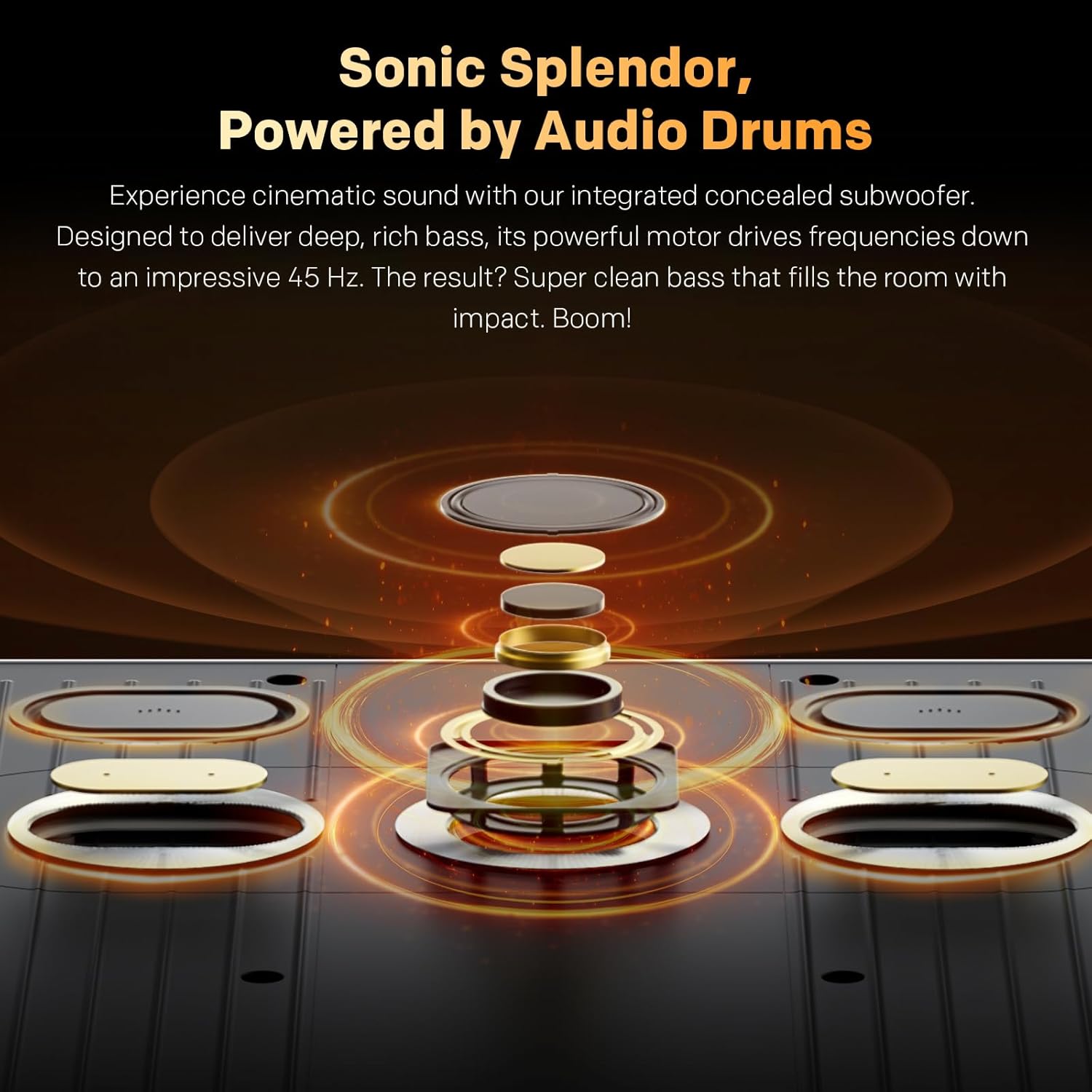
Image: Cross-section diagram illustrating the internal structure of the integrated concealed subwoofer and "Audio Drums" designed to deliver deep, rich bass.
6. Wireless Connectivity
The TV supports Wi-Fi for internet access and Bluetooth 5.0 for connecting wireless accessories like headphones or game controllers. Screen mirroring from compatible mobile devices is also supported.
Maintenance
1. Cleaning the Screen
Gently wipe the screen with a soft, lint-free cloth. For stubborn marks, lightly dampen the cloth with water or a specialized screen cleaner. Avoid using harsh chemicals or abrasive materials.
2. Cleaning the Casing
Wipe the TV casing with a soft, dry cloth. Do not use liquid cleaners directly on the casing.
3. Software Updates
Ensure your TV's software is up to date for optimal performance and security. The TV can automatically check for and install updates when connected to the internet. You can also manually check for updates in the settings menu.
Troubleshooting
If you encounter issues, refer to the following common solutions before contacting support.
| Problem | Possible Solution |
|---|---|
| No power | Check if the power cord is securely connected to both the TV and the electrical outlet. Ensure the outlet is functional. |
| No picture, but sound is present | Verify the correct input source is selected. Check external device connections. Try restarting the TV. |
| No sound, but picture is present | Check the volume level and mute status. Ensure external audio systems are properly connected and powered on. |
| Remote control not working | Replace the AAA batteries. Ensure there are no obstructions between the remote and the TV's IR sensor. |
| Cannot connect to Wi-Fi | Check your router and modem. Ensure the Wi-Fi password is entered correctly. Try restarting the TV and your network equipment. |
| Picture quality issues (e.g., blurry, distorted) | Check the source resolution. Adjust picture settings in the TV menu. Ensure cables are securely connected. |
Specifications
| Feature | Detail |
|---|---|
| Model Number | 100CE1 |
| Screen Size | 100 Inches |
| Display Technology | QD-Mini LED |
| Resolution | 4K UHD (3840 x 2160) |
| Refresh Rate | 144 Hz |
| Operating System | Google TV |
| Connectivity | Wi-Fi, Bluetooth 5.0 |
| HDMI Ports | 3 |
| USB Ports | 2 |
| Ethernet Input | 1 |
| Audio Output | Optical SPDIF (x1), Earphone Jack (x1) |
| Audio Features | Built-in Speakers, Dolby Audio, Integrated Subwoofer (20W total output) |
| Maximum Display Brightness | 1000 Nits |
| HDR Format Supported | HDR10, HLG |
| Memory Storage Capacity | 16 GB |
| Dimensions (without base) | 223.87 cm (W) x 128.4 cm (H) x 9.82 cm (D) / 88.1 x 50.6 x 3.9 inches |
| Weight (without base) | 73.1 kg / 161.2 lbs |
| Power Consumption | 380 Watts (Max) |
| Line Voltage | 100-240 VAC 50-60 Hz |
| UPC | 875382001590 |
Warranty Information
This Skyworth Canvas Elite™ Art TV comes with a 1 Year Manufacturer's Warranty. Please retain your proof of purchase for warranty claims. The warranty covers manufacturing defects under normal use. It does not cover damage caused by misuse, accidents, unauthorized modifications, or improper installation.
For detailed warranty terms and conditions, please refer to the official Skyworth website or contact customer support.
Customer Support
If you require further assistance or have questions not covered in this manual, please contact Skyworth customer support. Contact information can typically be found on the official Skyworth website or on your product packaging.
When contacting support, please have your TV's model number (100CE1) and serial number ready.

