
1. Introduction
This manual provides detailed instructions for the proper use and maintenance of your SKAPENDY VK84 Wireless Gaming Headset. Designed for an immersive audio experience, this headset features dual connectivity modes (2.4GHz wireless and Bluetooth 5.4), a noise-canceling microphone, and a comfortable over-ear design. Please read this manual thoroughly before using the product to ensure optimal performance and longevity.
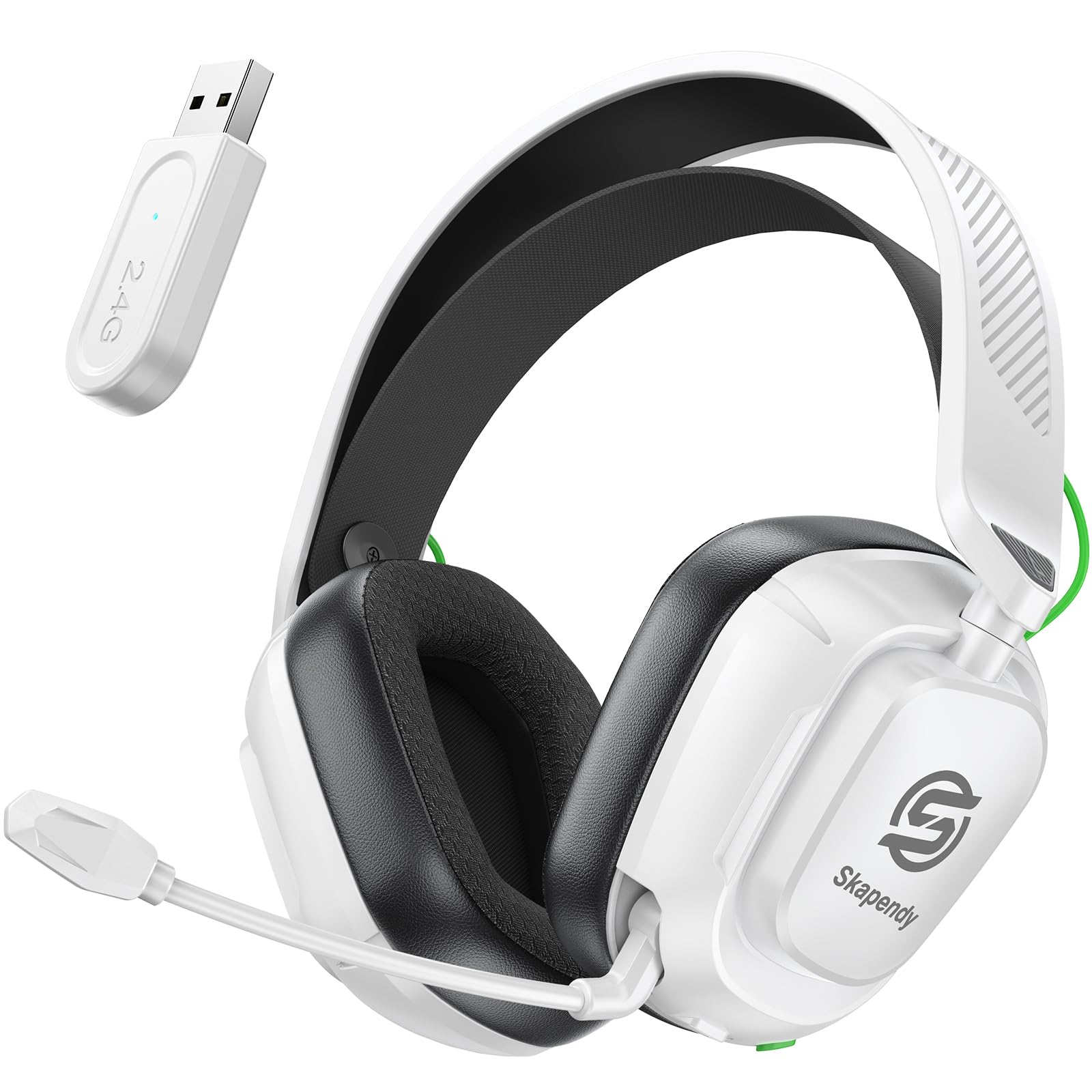
Figure 1: SKAPENDY VK84 Wireless Gaming Headset.
2. What's in the Box
Verify that all items listed below are included in your package:
- Wireless gaming headset (1 unit)
- Type-C charging cable (1 unit)
- USB Adapter (Dongle) (1 unit)
- User Manual (This document)
Video 1: Unboxing the SKAPENDY VK84 Wireless Gaming Headset, showing the headset, USB dongle, and charging cable.
3. Product Features
- Powerful Bass & Immersive 3D Stereo Sound: Equipped with 50mm drivers and 2.4G lossless wireless technology for enhanced audio clarity, allowing precise detection of in-game sounds.
- Dual Mode Flexibility: Supports 2.4GHz USB dongle mode for PC, PS4, PS5, Switch, Mac, and laptops. Bluetooth 5.4 mode is compatible with mobile phones, tablets, iPads, and other smart devices.
- Stable & Lag-Free Connection: 2.4GHz USB dongle provides ultra-low latency audio (≤20ms). Bluetooth mode offers fast response (≤48ms).
- Ergonomic Design for Comfort: Over-ear design with breathable, moisture-wicking earmuffs to reduce pressure and fatigue during extended use.
- High-Definition Noise-Canceling Microphone: Features 360° noise cancellation for clear team communication by blocking background noise. Microphone can be muted with a single click.
- Extended Battery Life & Fast Charging: Built-in 1200mAh battery provides up to 50 hours of use on a single charge. Fast 2.5-hour USB-C charging.

Figure 2: Immersive 3D Surround Sound experience.

Figure 3: Up to 50 hours of continuous gameplay.
Video 2: Overview of the VK84 2.4GHz Wireless Gaming Headset features.
4. Setup
4.1 Charging the Headset
Before first use, fully charge the headset using the provided Type-C charging cable. Connect the Type-C end to the headset's charging port and the USB-A end to a compatible power source (e.g., computer USB port, USB wall adapter).
Charging Time: Approximately 2.5 hours for a full charge.
4.2 Connecting via 2.4GHz USB Dongle (PC, PS4, PS5, Mac, Laptops)
- Insert the 2.4GHz USB dongle into an available USB port on your device.
- Power on the headset. The headset should automatically connect to the dongle.
- Ensure the headset is selected as the audio input/output device in your system settings.

Figure 4: The 2.4GHz USB wireless dongle.
4.3 Connecting via Bluetooth 5.4 (Mobile Phones, Tablets, iPads, Smart Devices, Switch)
- Power on the headset.
- Press and hold the mic button for 2 seconds to switch to Bluetooth mode. The headset will enter pairing mode (indicated by a flashing LED, if applicable).
- On your device, go to Bluetooth settings and select "SKAPENDY VK84" from the list of available devices.
- Once connected, the LED indicator on the headset will show a solid light.
Important Compatibility Notes:
- Both 2.4GHz and Bluetooth modes are NOT compatible with any Xbox consoles.
- The microphone is NOT supported when connected to Nintendo Switch via Bluetooth.
- Bluetooth mode is NOT compatible with PS4/PS5.

Figure 5: Dual connection modes and compatibility.
5. Operating Instructions
5.1 Basic Controls
The headset features intuitive controls located on the earcups:
- Power On/Off: Long press the Power button for 3 seconds to power on, 4 seconds to power off.
- Play/Pause: Click the Play/Pause button.
- Answer Call/Hang Up: Click the Call button.
- Reject Call: Long press the Call button for 2 seconds.
- Redial Last Call: Double click the Call button.
- Volume Up/Next Track: Click '+' for volume up, long press for 2 seconds for next track.
- Volume Down/Previous Track: Click '-' for volume down, long press for 2 seconds for previous track.
- Mic On/Off: Click the Mic button to toggle microphone mute.
- Switch between BT & 2.4G: Long press the Mic button for 2 seconds.
- Game Mode/Music Mode: Click the 'M' button to switch between modes.
- Clear Bluetooth Matching: Long press the 'M' button for 6 seconds.
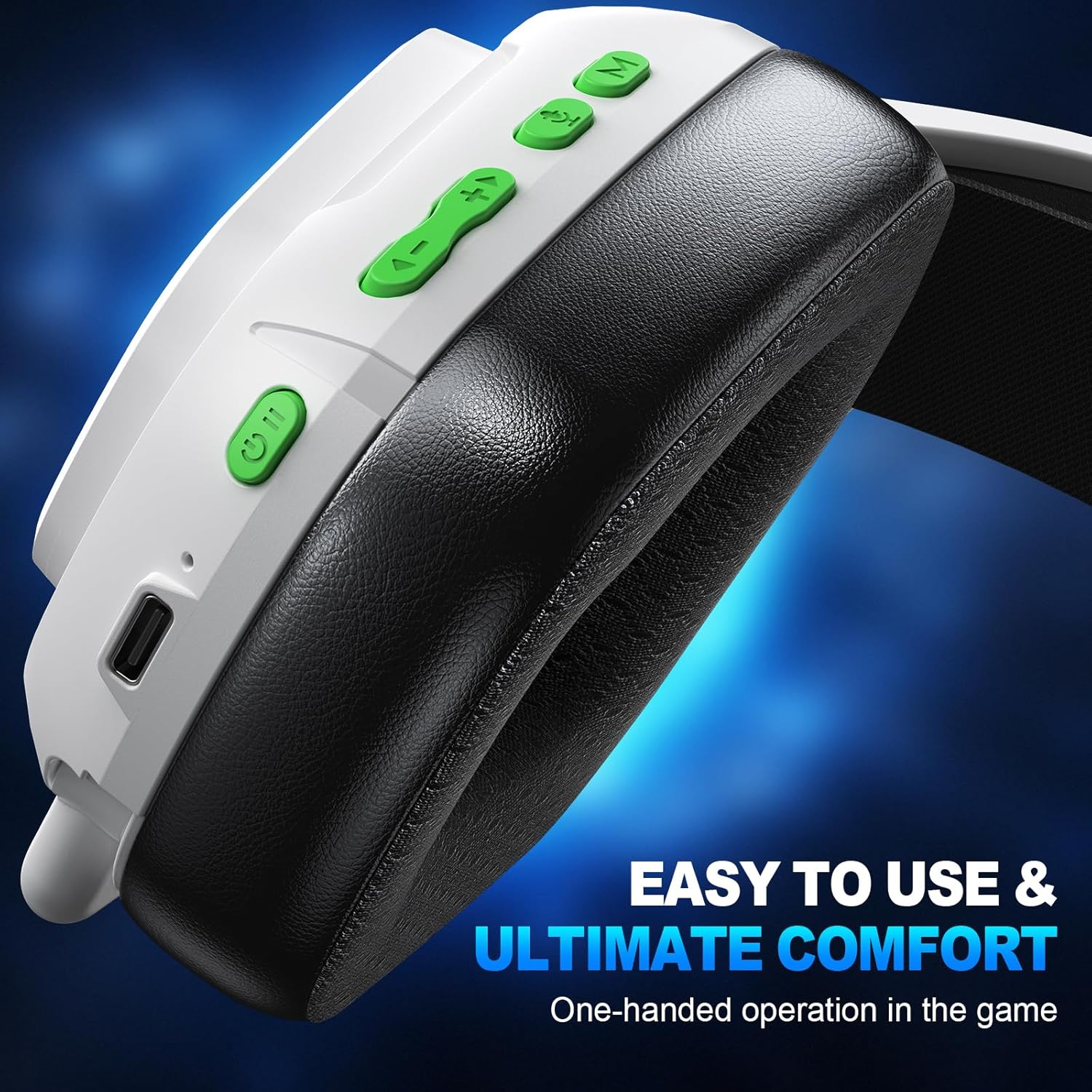
Figure 6: Headset control buttons.
5.2 Wearing the Headset
Adjust the headband for a comfortable fit. The earcups are designed to sit over your ears, providing passive noise cancellation and comfort for extended gaming sessions.

