1. Introduction
The Beelink MINI S13 is a compact and powerful Mini PC designed for various applications, including home entertainment, office work, web browsing, and light creative tasks. It features an Intel N150 processor, 12GB LPDDR5 RAM, and a 500GB SSD, offering responsive performance and efficient multitasking. This manual provides detailed instructions for setting up, operating, maintaining, and troubleshooting your device.

Figure 1: Beelink MINI S13 Mini PC Key Features Overview. This image highlights the 4 Cores, 4 Threads, 3.6 GHz Max Turbo Frequency, 1000MHz Intel Graphics, Up to 25W Power Consumption, WiFi 6, Bluetooth 5.2, 2.5G LAN, LPDDR5 4800MT/s 12GB, Dual SSD card slots, and the Cooling System.
2. Setup Guide
2.1 Package Contents
Before you begin, ensure all items are present:
- Beelink MINI S13 Mini PC
- Power Adapter
- HDMI Cable
- Mounting Bracket (for VESA mounting)
- User Manual
- Keyboard (as per product information)
2.2 Connecting Peripherals
Follow these steps to connect your Mini PC:
- Connect Display: Use an HDMI cable to connect your monitor or TV to one of the HDMI ports on the back of the Mini PC.
- Connect Keyboard and Mouse: Plug your USB keyboard and mouse into any available USB 3.2 Gen2 ports.
- Connect Network (Optional): For a wired connection, connect an Ethernet cable from your router or modem to the 2.5G LAN port on the back of the Mini PC. For wireless, refer to Section 3.2.
- Connect Power: Plug the power adapter into the DC IN port on the back of the Mini PC, then plug the adapter into a power outlet.

Figure 2: Rich Interface Design. This image displays the front ports (RTC Key, USB3.2 Gen2 (10Gbps) x2, Earphone, Power Indicator Light, Power button) and rear ports (USB3.2 Gen2 (10Gbps) x2, LAN (2.5Gbps), 4K 60Hz HDMI x2, DC Power adapter port, and a Locking slot).
2.3 Initial Power-On
After connecting all peripherals:
- Press the power button located on the front of the Mini PC. The power indicator light will illuminate.
- The system will boot into Windows 11 Home. Follow the on-screen instructions to complete the initial setup, including language, region, and user account creation.
3. Operating Instructions
3.1 Basic Operation
- Power On: Press the power button.
- Shut Down: Click the Start button in Windows, then select Power > Shut down.
- Restart: Click the Start button in Windows, then select Power > Restart.
- Sleep: Click the Start button in Windows, then select Power > Sleep.
3.2 Network Connectivity
- Wired (2.5G LAN): If an Ethernet cable is connected, the system will automatically detect the wired network.
- Wireless (WiFi 6):
- Click the network icon in the Windows taskbar.
- Select your desired WiFi network from the list.
- Enter the network password if prompted and click Connect.
3.3 Dual Display Setup
The Beelink MINI S13 supports dual monitors via its two HDMI 2.0 ports, allowing for extended desktop or mirrored displays.
- Connect both monitors to the HDMI ports on the Mini PC.
- Right-click on the desktop and select "Display settings."
- Under "Multiple displays," choose your preferred display option (e.g., "Extend these displays" or "Duplicate these displays").
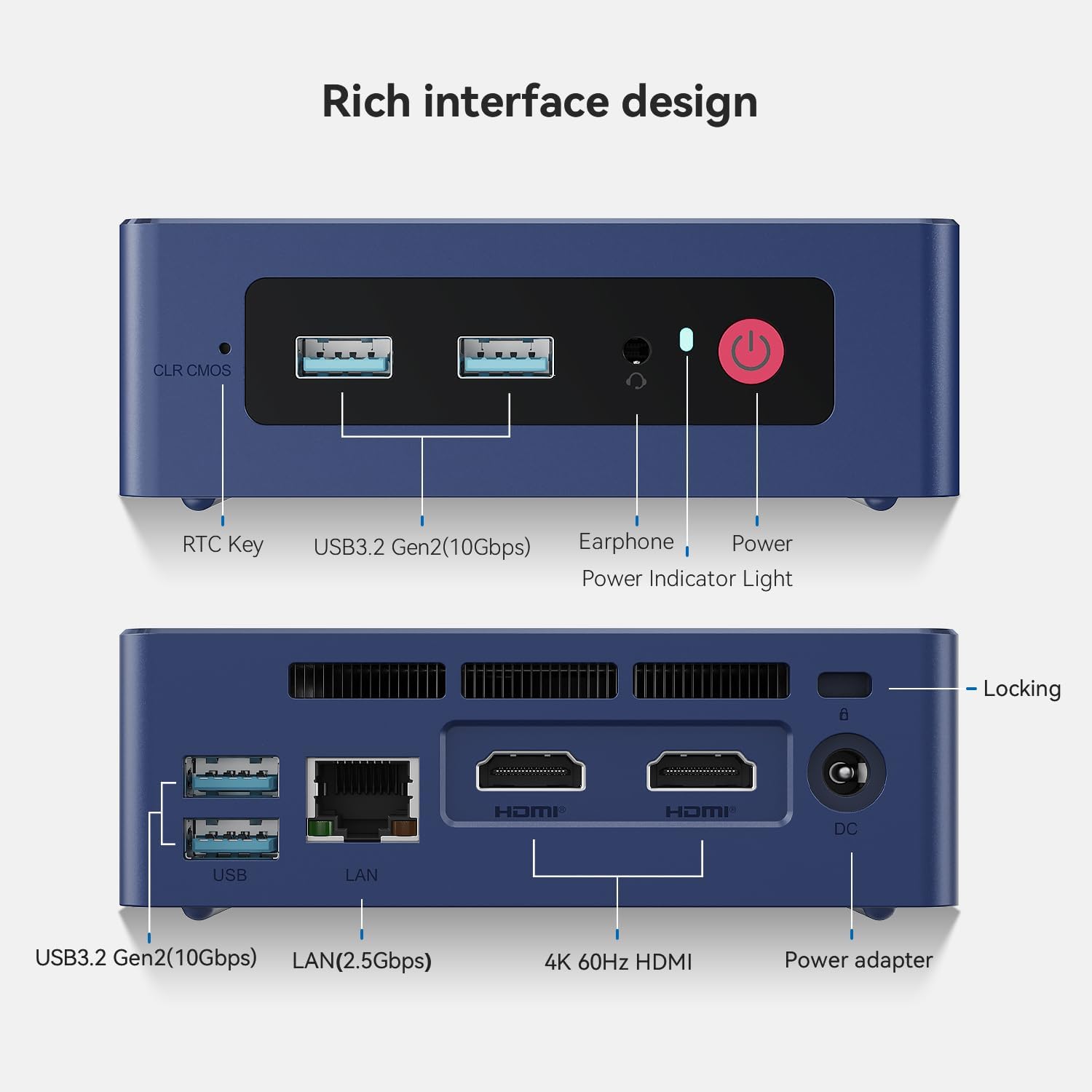
Figure 3: Dual-Screen Display for Efficient and Smooth Office Work. This image shows the Mini PC connected to two monitors, demonstrating an extended desktop setup for multitasking.
3.4 Bluetooth 5.2 Connectivity
To connect Bluetooth devices:
- Go to Windows Settings > Bluetooth & devices.
- Ensure Bluetooth is turned On.
- Click "Add device" and select "Bluetooth."
- Put your Bluetooth device into pairing mode and select it from the list to connect.
3.5 Storage Expansion
The Mini PC includes a second M.2 PCIe 3.0 x1 (NVMe) slot that supports up to 4TB SSD for additional storage. This allows for flexible expansion of large media or work files.
3.6 Intel Unison App
The Intel Unison App allows seamless connection between your PC and mobile devices (phone or tablet) for enhanced productivity.
- View photo galleries on your PC.
- Transfer files between phone/tablet and PC.
- Extend your PC screen with a tablet.
- Make and receive phone calls from your PC.
- Control your tablet from your PC.
- Share files quickly without downloading an app.
- Send and receive text messages from your PC.
- Manage device notifications from a single source.
For detailed setup and usage of the Intel Unison App, please refer to Intel's official website.

Figure 4: Connect Your PC and Devices Seamlessly with Intel Unison App. This image illustrates the various functionalities of the Intel Unison app, showing a phone and the Mini PC interacting.
4. Maintenance
4.1 Cleaning
- Regularly clean the exterior of the Mini PC with a soft, dry cloth.
- Use compressed air to gently clear dust from ventilation openings to ensure proper airflow and cooling.
- Do not use liquid cleaners or solvents directly on the device.
4.2 Software Updates
Keep your Windows operating system and drivers updated to ensure optimal performance and security.
- Windows Updates: Go to Windows Settings > Windows Update and check for updates regularly.
- Driver Updates: Visit the Beelink official website for the latest drivers for your Mini PC model.
4.3 Cooling System
The Beelink MINI S13 features an efficient cooling system with a silent fan, heat pipe, heat sink, and SSD cooling to maintain optimal operating temperatures. Ensure the ventilation openings are not obstructed.
5. Troubleshooting
This section addresses common issues you might encounter with your Beelink MINI S13 Mini PC.
| Problem | Possible Cause | Solution |
|---|---|---|
| No power / Device does not turn on | Power adapter not connected or faulty; Power outlet issue. | Ensure power adapter is securely connected to both the Mini PC and a working power outlet. Try a different outlet. |
| No display on monitor | HDMI cable loose or faulty; Incorrect input selected on monitor. | Check HDMI cable connections. Ensure the monitor is set to the correct HDMI input. Try a different HDMI cable or port. |
| No network connection (wired) | Ethernet cable loose or faulty; Router/modem issue. | Check Ethernet cable connection. Restart your router/modem. |
| No network connection (wireless) | WiFi disabled; Incorrect password; Router issue. | Ensure WiFi is enabled in Windows settings. Verify WiFi password. Restart your router. |
| System freezes or crashes | Software conflict; Overheating; Driver issue. | Restart the PC. Ensure all software and drivers are updated. Check for proper ventilation. |
| BIOS/CMOS reset needed | Incorrect BIOS settings; System instability. | Locate the "CLR CMOS" or "RTC Key" button (refer to Figure 2) and press it with a non-conductive pointed object while the device is powered off and disconnected from power. This will reset BIOS settings to default. |
6. Specifications
Detailed technical specifications for the Beelink MINI S13 Mini PC.
| Feature | Specification |
|---|---|
| Processor | Intel Celeron N150 (4 Cores/4 Threads, up to 3.6 GHz Max Turbo Frequency) |
| Graphics | Intel UHD Graphics (24EUs, 1000MHz), supports 4K UHD @ 60fps |
| RAM | 12GB LPDDR5 4800MT/s (Single Channel) |
| Storage | 500GB M.2 SATA3 2280 SSD Additional M.2 PCIe 3.0 x1 (NVMe) slot, supports up to 4TB SSD |
| Operating System | Windows 11 Home (Pre-installed) |
| Network | 2.5G Gigabit Ethernet LAN WiFi 6 (802.11ax Dual-band 2.4GHz+5.8GHz) Bluetooth 5.2 |
| Ports | 2 x HDMI 2.0 (4K@60Hz Dual Display) 4 x USB 3.2 Gen2 (10Gbps) 1 x 2.5G LAN Port 1 x Earphone Jack 1 x DC Power Input 1 x RTC Key / CLR CMOS Button |
| Cooling System | Silent fan, Heat pipe, Heat sink, SSD Cooling |
| Dimensions | Approx. 11.48 x 10.19 x 3.91 cm (4.52 x 4.01 x 1.54 inches) |
| Weight | Approx. 0.8 kg (1.76 pounds) |
| Power Consumption | Up to 25W (TDP) |
| Certifications | FCC, CE, RoHS |

Figure 5: Intel N150 Processor Details. This image highlights the 3.6 GHz Max Turbo Frequency, 4 Cores, 4 Threads, Intel Graphics 24EUs 1000MHz, and 25W TDP of the N150 processor.
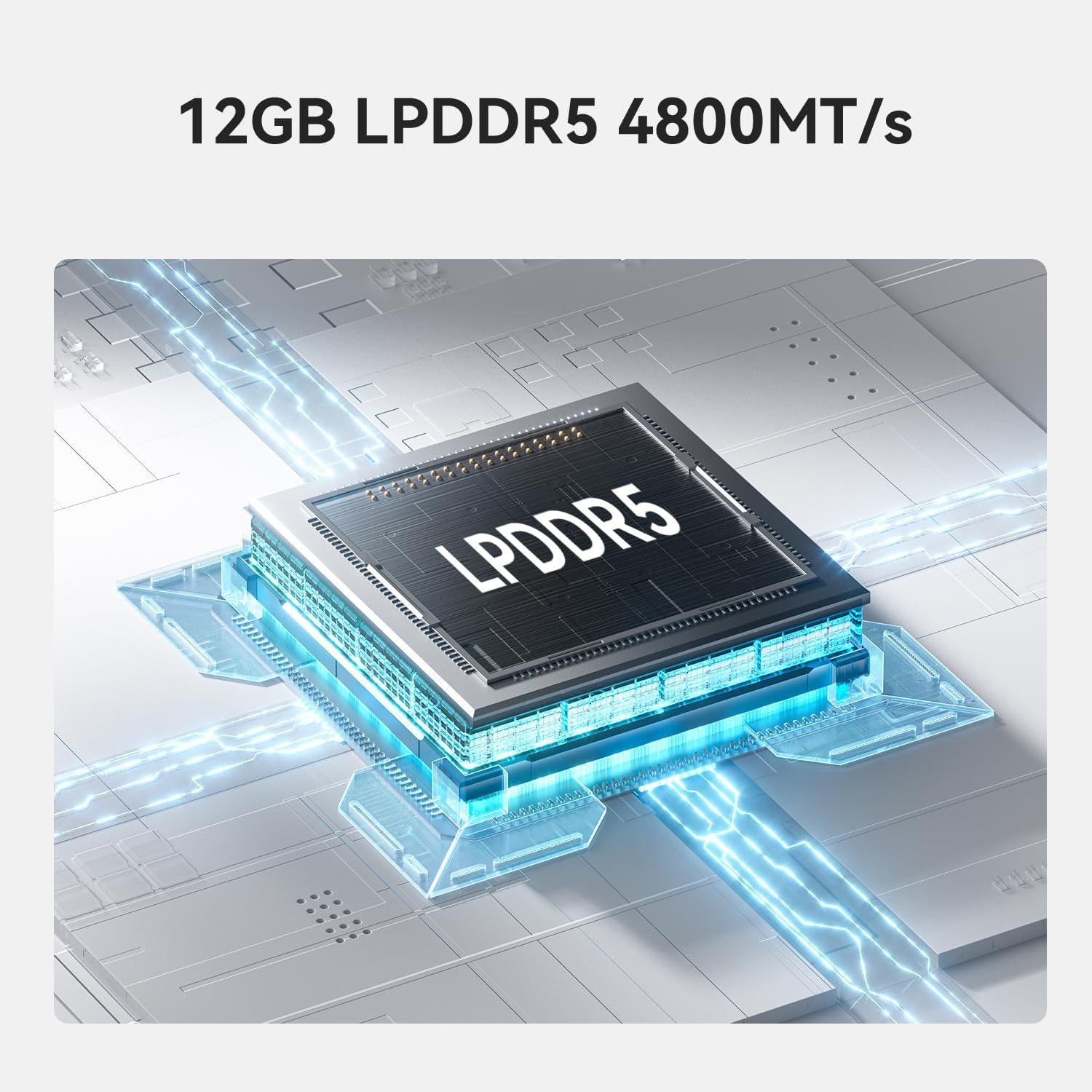
Figure 6: 12GB LPDDR5 4800MT/s Memory. This image visually represents the LPDDR5 memory module.

Figure 7: Dual SSD High-speed Storage. This image shows the internal layout with two M.2 SSD slots, indicating one PCIe 3.0 x1 slot (incompatible with SATA3 SSDs) and one PCIe 3.0 x4 slot (compatible with SATA 3 SSDs), configurable up to 4TB storage.
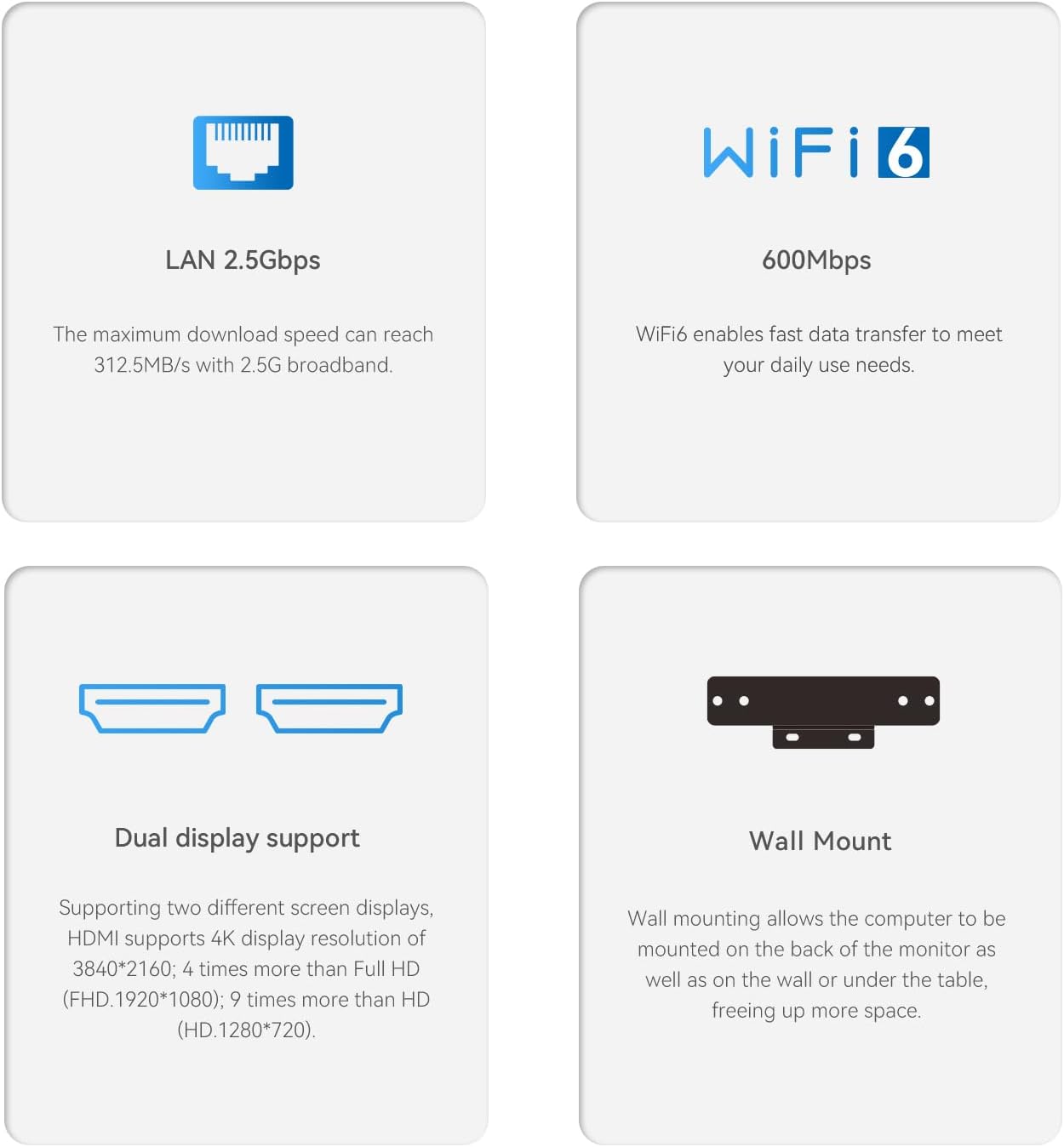
Figure 8: Connectivity and Mounting Features. This image details the 2.5Gbps LAN, WiFi6 (600Mbps), Dual Display support (4K resolution), and Wall Mount capability.
7. Warranty and Support
Beelink provides comprehensive support for your MINI S13 Mini PC:
- Lifetime Technical Support: Assistance is available for the lifespan of your product.
- 30 Days Free Return: You may return the product within 30 days of purchase for a free return.
- 7 Days / 24 Hours Service: Customer service is available around the clock to address your inquiries.
- Certifications: All Beelink products, including the MINI S13, have obtained FCC, CE, and RoHS certifications, ensuring compliance with safety and environmental standards.
For any questions or assistance, please contact Beelink customer support through their official website or the platform where you purchased the product.


