
1. Overview
The Ulefone Tab A9 Pro is an 8.68-inch kids learning tablet designed for children aged 3-12. It features an 8.68" TÜV SÜD Eye Comfort Display, runs on Android 15 with a MediaTek G91 Octa-Core processor, and includes 8GB RAM and 128GB storage (expandable up to 2TB). This tablet is equipped with built-in learning apps, parental controls, and dual SIM support for connectivity on the go. It comes with a durable, shockproof EVA case and a DIY creativity kit.
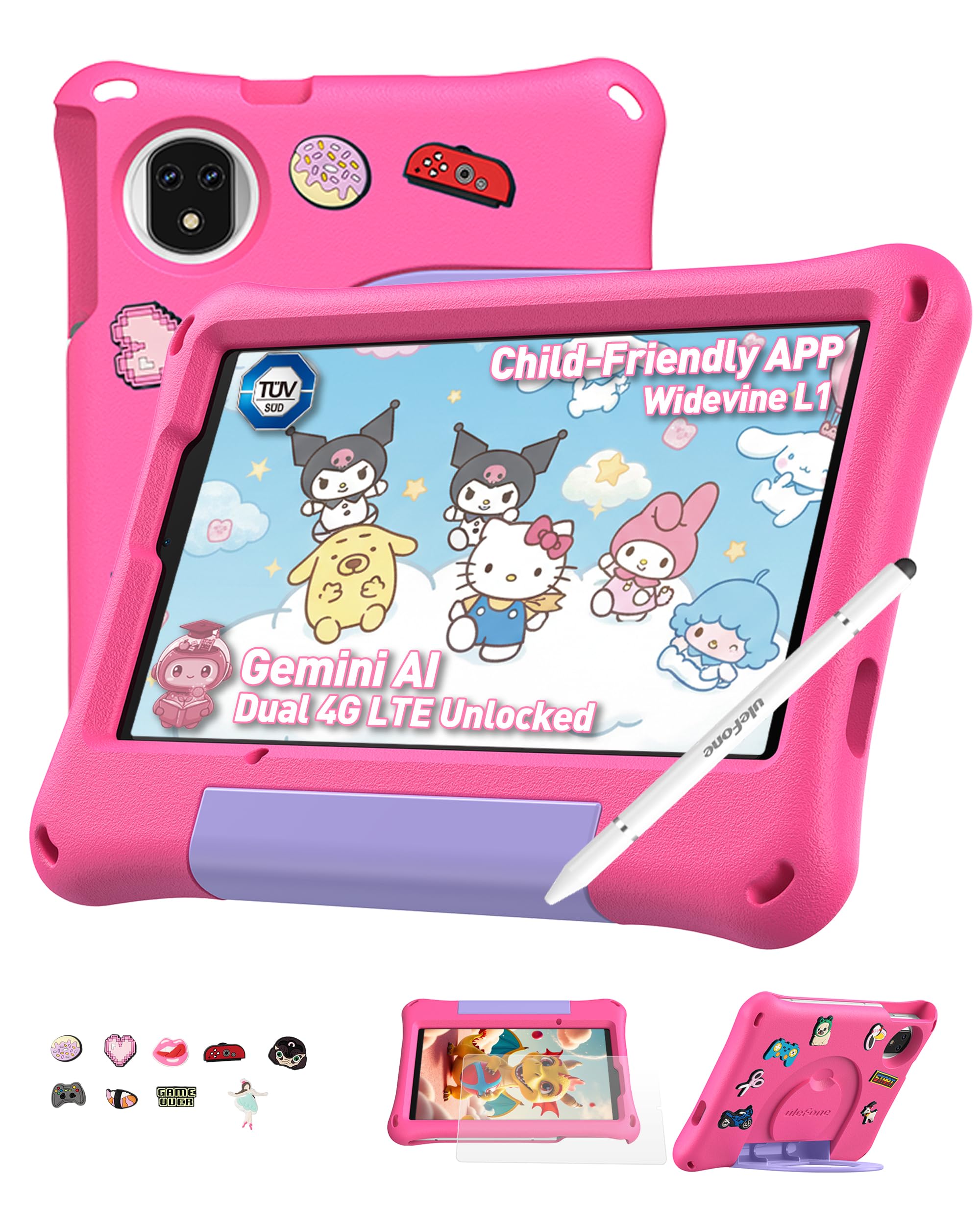
Figure 1: Ulefone Tab A9 Pro Kids Learning Tablet (Pink Edition) with its protective case and various features highlighted.
2. What's Included
The Ulefone Tab A9 Pro package contains the following items:
- 1x Ulefone Tab A9 Pro Tablet
- 1x Type-C to Type-C Charging Cable (1M)
- 1x Tempered Glass Screen Protector (pre-applied)
- 1x Cartoon Decor Kit (15 random accessories)
- 1x EVA Protective Case with adjustable stand
- 1x Capacitive Stylus
- 1x SIM Needle
- 1x AC Power Charger
- 1x Safety Prompt Statement
- 1x Charging Instruction Card
- 1x Multi-language User Manual

Figure 2: All items included in the Ulefone Tab A9 Pro Kids Learning Tablet package.
Video 1: An unboxing and overview of the Ulefone Tab A9 Pro Kids Learning Tablet, demonstrating its components and initial setup.
3. Key Features
- Zero Subscription & Parental Controls: The tablet provides a safe digital environment with no monthly fees. Advanced parental controls allow content filtering, screen time limits, and a secure space for children. It comes preloaded with GMS-certified educational apps.

Figure 3: The tablet features built-in parental control mode for a supervised experience.
Video 2: Demonstration of the advanced parental control features available on the Ulefone Tab A9 Pro Kids Tablet.
- Powerful Android 15 Performance: Equipped with Android 15 OS and a MediaTek G91 Octa-Core processor, 8GB RAM (4+4GB), and 128GB storage (expandable to 2TB). It includes Google Gemini AI for instant answers and supports demanding educational games and 3D applications.
- Eye-Protection Screen: The 8.68-inch IPS display features a 90Hz refresh rate and TÜV SÜD low blue light certification to reduce eye strain. Widevine L1 certification allows streaming HD content from platforms like Disney+ and Netflix.

Figure 4: The 8.68-inch 90Hz display with TÜV SÜD low blue light certification for eye comfort.
- Durable Case & DIY Gift Set: Comes with a rugged, shockproof EVA case with an adjustable stand. The DIY Creativity Kit includes 15 random cartoon accessories for case decoration and a stylus pen for interactive use.

Figure 5: The tablet's double protection with a pre-applied tempered glass screen protector and a soft silicone protective case.
- Travel Essentials: Features Dual SIM support and Dual-band Wi-Fi for connectivity. A 5040mAh battery provides extended use. Includes 12MP+13MP rear cameras and an 8MP front camera with Face Unlock.

Figure 6: The tablet is designed for use at home and on-the-go, with dual SIM and Wi-Fi capabilities.

Figure 7: The tablet is equipped with 12MP + 13MP rear cameras and an 8MP front camera.
4. Setup Guide
4.1 Initial Power On
- Ensure the tablet is fully charged using the provided Type-C cable and AC power charger.
- Press and hold the Power button (usually located on the side) until the Ulefone logo appears on the screen.
- Follow the on-screen prompts to select your language, region, and agree to the terms and conditions.
4.2 Connecting to Wi-Fi
- During initial setup or via Settings, navigate to "Network & internet".
- Toggle Wi-Fi ON.
- Select your desired Wi-Fi network from the list.
- Enter the Wi-Fi password if prompted and tap "Connect".
4.3 Setting Up Parental Controls
The Ulefone Tab A9 Pro includes robust parental control features to manage your child's usage:
- Access the dedicated "Kids Mode" application or navigate to "Settings > Digital Wellbeing & parental controls".
- Create a child profile and set up a parental password.
- Configure screen time limits, content restrictions, and app access permissions.
- Monitor activity and adjust settings as needed to ensure a safe and educational experience.
5. Operating Your Tablet
5.1 Navigating the Interface
- Home Screen: Swipe left or right to access different pages of apps.
- Notifications: Swipe down from the top of the screen to view notifications and quick settings.
- Recent Apps: Tap the square icon (or swipe up and hold from the bottom) to see recently used applications.
- Back: Tap the triangle icon (or swipe from the left/right edge) to go back to the previous screen.
5.2 Using the Stylus
The included capacitive stylus can be used for drawing, writing, and precise navigation. Simply touch the stylus tip to the screen as you would with your finger. The stylus has two ends for versatile use.
5.3 Installing and Managing Apps
- Preloaded Apps: The tablet comes with various educational and entertainment apps.
- Google Play Store: Access the Google Play Store to download additional apps, games, and content. Ensure parental controls are configured to manage downloads.
- Uninstalling Apps: To remove an app, long-press its icon on the home screen or app drawer, then drag it to the "Uninstall" option, or go to "Settings > Apps > See all apps" and select the app to uninstall.
6. Maintenance and Care
- Cleaning: Use a soft, lint-free cloth to clean the screen and body. Avoid harsh chemicals or abrasive materials.
- Battery Care: To prolong battery life, avoid extreme temperatures. Charge the tablet regularly, but do not leave it plugged in for extended periods after it's fully charged.
- Storage: Store the tablet in a cool, dry place. When not in use, keep it in its protective EVA case.
- Software Updates: Periodically check for system updates in "Settings > System > System update" to ensure optimal performance and security.
7. Troubleshooting Common Issues
| Problem | Solution |
|---|---|
| Tablet won't turn on. | Ensure the battery is charged. Connect the charger and wait a few minutes before attempting to power on again. If unresponsive, perform a force restart by holding the Power button for 10-15 seconds. |
| Screen is unresponsive. | Restart the tablet. If the issue persists, ensure the screen is clean and free of debris. |
| Wi-Fi connection issues. | Check if Wi-Fi is enabled in settings. Restart your router and the tablet. Ensure you are within range of the Wi-Fi signal. |
| Apps are crashing or slow. | Close background apps. Clear the cache of the problematic app (Settings > Apps > [App Name] > Storage & cache > Clear cache). Ensure sufficient storage space is available. Restart the tablet. |
| Parental controls not working as expected. | Verify that the parental control settings are correctly configured in the Kids Mode app or system settings. Ensure the parental password is secure and not shared. |
8. Product Specifications
| Feature | Specification |
|---|---|
| Brand | Ulefone |
| Model Name | Ulefone A9 Pro Kids Tablet Pink |
| Memory Storage Capacity | 128 GB (Expandable to 2TB) |
| Screen Size | 8.68 Inches |
| Display Resolution Maximum | 800×1340 |
| Operating System | Android 15 |
| Processor | MediaTek G91 Octa-Core |
| RAM Memory Installed | 8 GB (4+4GB) |
| Battery Capacity | 5040 Milliampere Hour (mAh) |
| Rear Cameras | 12MP + 13MP |
| Front Camera | 8MP (with Face Unlock) |
| Wireless Technology | Bluetooth, Dual-band Wi-Fi |
| Cellular Technology | 4G (Note: Not compatible with AT&T or Cricket) |
| Headphones Jack | 3.5 mm |
| Item Dimensions (L x W x Thickness) | 8.37"L x 0.31"W x 4.93"Th |
9. Warranty and Customer Support
Ulefone provides a 2-year warranty for non-human damage. For any questions or support regarding your Ulefone Tab A9 Pro Kids Learning Tablet, please contact customer service via email at: support@ulefone.com.
Please retain your proof of purchase for warranty claims.


