
Introduction
This manual provides detailed instructions for the installation, operation, and maintenance of your MAHVEC Car Radio Stereo. This unit is designed specifically for Ford Escape, Kuga, and Mazda Tribute models manufactured between 2007 and 2012. It features a 9-inch IPS touch screen, Android 15 operating system, 5Ghz WiFi, Wireless CarPlay, Android Auto, DSP, GPS, Bluetooth, FM/RDS radio, Steering Wheel Control (SWC) support, and AHD backup camera compatibility.
Please read this manual thoroughly before installation and use to ensure proper function and to maximize your experience with the product.
Safety Information
- Professional Installation Recommended: Installation of car audio systems can be complex. If you are not experienced with car electronics, it is highly recommended to seek professional installation to prevent damage to the unit or your vehicle.
- Disconnect Battery: Always disconnect the vehicle's negative battery terminal before beginning any electrical work to prevent short circuits and electrical damage.
- Wiring: Ensure all wiring connections are secure and properly insulated to avoid electrical hazards. Refer to the wiring diagrams provided.
- Driving Safety: Do not operate the unit's advanced features or watch videos while driving. Always prioritize safe driving practices.
- Ventilation: Ensure the unit has adequate ventilation and is not obstructed by other components.
Package Contents
Verify that all items listed below are included in your package:
- MAHVEC Car Radio Stereo Unit
- AHD Backup Camera
- External Microphone
- GPS Antenna
- RCA Cable
- Reverse Line Cable
- Canbus Decoder (if applicable for your vehicle)
- USB Cables (multiple)
- Installation Tools
- Power Cable
- Radio Antenna Adapter
- Mounting Accessories
- User Manual (this document)

Image: Product Size and Package List. This image illustrates the dimensions of the head unit and the various components included in the package.
Setup and Installation
This car stereo is designed for a direct fit in Ford Escape, Kuga, and Mazda Tribute models from 2007-2012. Before proceeding, ensure your vehicle's dashboard matches the compatible models. If unsure, consult a professional or the manufacturer.
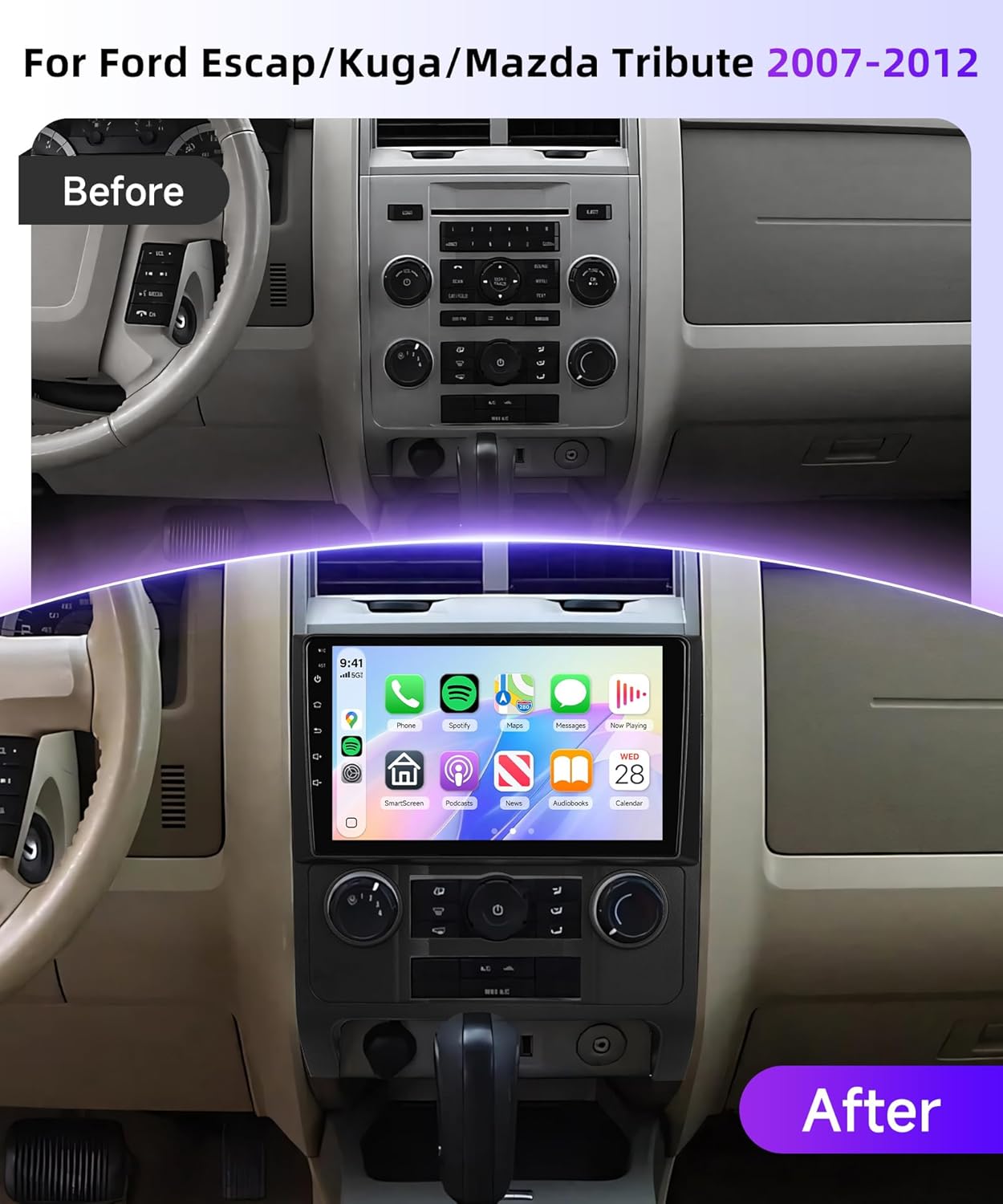
Image: Before and After Installation. This image demonstrates the visual transformation of the car's dashboard after installing the MAHVEC stereo unit.
General Installation Steps:
- Disconnect Battery: Always start by disconnecting the negative terminal of your vehicle's battery.
- Remove Old Unit: Carefully remove the existing car stereo and dashboard trim.
- Connect Wiring Harness: Connect the provided wiring harness to the vehicle's factory harness. Ensure all connections are secure.
- Connect Antennas: Attach the GPS antenna and radio antenna adapter. Position the GPS antenna in a location with a clear view of the sky.
- Connect USB Cables: Route the USB cables to a convenient location, such as the glove compartment.
- Connect External Microphone: Plug in the external microphone and route it to a suitable position for clear voice pickup.
- Backup Camera Installation:
- Mount the AHD backup camera at the rear of your vehicle.
- Connect the video cable from the camera to the "CAM IN" or "REVERSE IN" port on the stereo unit.
- Connect the camera's power wire to the vehicle's reverse light power source (typically the positive wire of the reverse light).
- Connect the reverse trigger cable (labeled "back" or "reverse") from the stereo's wiring harness to the reverse light signal wire. This tells the stereo to switch to the camera view when reverse gear is engaged.

Image: Reversing Camera Wiring. This diagram illustrates the correct connections for installing the backup camera with the head unit.
- Test Connections: Before fully reassembling the dashboard, reconnect the battery and test all functions of the stereo, including radio, Bluetooth, GPS, and backup camera.
- Secure Unit: Mount the stereo unit securely into the dashboard opening.
- Reassemble Dashboard: Reinstall all dashboard trim pieces.
Operating Instructions
Wireless CarPlay & Android Auto
Connect your smartphone wirelessly to access navigation, music, calls, and messages directly on the stereo's display. This feature supports voice control for hands-free operation.
- Ensure Bluetooth and Wi-Fi are enabled on your smartphone.
- On the stereo, open the CarPlay or Android Auto application.
- Follow the on-screen prompts to pair your device.

Image: Wireless CarPlay & Android Auto. This image demonstrates the wireless connectivity and interface for both CarPlay and Android Auto.
Mirror Link
Mirror your smartphone's screen to the stereo display via USB cable or Wi-Fi. This allows you to view and interact with your phone's apps, music, and videos directly on the larger screen.

Image: Mirror Link. This image illustrates how a smartphone's screen content can be displayed on the car stereo.
GPS Navigation & WiFi
The unit includes built-in GPS for both online and offline navigation. Connect to Wi-Fi to download maps, receive real-time traffic updates, and access online content.
- Online Maps: Requires a Wi-Fi connection for real-time data.
- Offline Maps: Download maps for your region to use navigation without an internet connection.
- Wi-Fi Connection: Go to Settings > Network & Internet > Wi-Fi to connect to an available network.

Image: GPS Navigation & WiFi. This image highlights the navigation capabilities and Wi-Fi features of the stereo.
Bluetooth 5.0
Bluetooth 5.0 provides fast pairing and stable connections for hands-free calling and wireless music streaming.
- Pairing: Enable Bluetooth on your phone and search for the stereo unit. Select it to pair.
- Hands-Free Calling: Make and receive calls directly through the stereo.
- Music Streaming: Play audio from your phone wirelessly.

Image: Bluetooth Functionality. This image shows the user interface for Bluetooth calls and music streaming.
FM/RDS Radio
Enjoy stable radio reception with FM/RDS support. The unit allows for clear channel search and multiple preset stations.
- Auto Scan: Automatically search and save available radio stations.
- Manual Tuning: Manually tune to specific frequencies.
- RDS: Radio Data System displays station information (if broadcasted).

Image: FM/RDS Radio. This image displays the radio interface with frequency selection and preset options.
DSP Audio & EQ Setting
Customize your audio experience with the built-in Digital Sound Processor (DSP) and 32-band equalizer. Adjust sound settings for optimal clarity and fidelity.
- Access the EQ settings through the audio menu to fine-tune frequencies.
- Utilize DSP options for surround sound, bass boost, and balance adjustments.

Image: DSP Audio & EQ Setting. This image shows the interface for adjusting audio settings and equalizer.
Steering Wheel Control (SWC)
The unit supports your vehicle's existing steering wheel controls, allowing you to adjust volume, switch songs, and answer calls hands-free for safer driving.
- Access the SWC learning function in the settings menu.
- Follow the on-screen instructions to map your steering wheel buttons to the stereo functions.

Image: Steering Wheel Control. This image illustrates the integration of steering wheel controls with the stereo unit.
Backup Camera Display
When reverse gear is engaged, the stereo automatically displays the feed from the AHD backup camera, providing a clear, wide-angle view with auxiliary guide lines for safer reversing.
Double USB Port & Split Screen
- Double USB Ports: Use these ports to play media from USB drives or charge your devices.
- Split Screen Function: Allows you to run two applications simultaneously on the screen. For example, use navigation on one side and music on the other. Swipe to adjust app size and position.
Maintenance
- Screen Cleaning: Use a soft, lint-free cloth to gently wipe the touch screen. For stubborn smudges, slightly dampen the cloth with water or a screen-safe cleaner. Avoid harsh chemicals or abrasive materials.
- Software Updates: Periodically check for software updates through the unit's settings menu or the manufacturer's website to ensure optimal performance and access to new features.
- General Care: Keep the unit free from dust and debris. Avoid exposing it to extreme temperatures or direct sunlight for prolonged periods.
Troubleshooting
| Problem | Possible Cause | Solution |
|---|---|---|
| Unit does not power on. | Loose power connection, blown fuse, vehicle battery issue. | Check power cables and connections. Inspect vehicle fuses. Ensure battery is charged. |
| No sound. | Volume too low, mute activated, speaker wiring issue, incorrect audio source. | Increase volume. Check mute status. Verify speaker connections. Select correct audio source. |
| GPS signal lost or inaccurate. | GPS antenna obstructed or improperly placed, outdated maps. | Ensure GPS antenna has a clear view of the sky. Update maps if necessary. |
| Bluetooth connection issues. | Phone not discoverable, incorrect pairing, interference. | Ensure phone's Bluetooth is on and discoverable. Delete previous pairings and re-pair. Move phone closer to unit. |
| Backup camera not displaying. | Incorrect wiring, camera malfunction, reverse trigger not connected. | Check camera video input and reverse trigger connections. Ensure camera is powered. |
| Steering Wheel Controls not working. | SWC not configured, incorrect wiring. | Perform SWC learning in settings. Verify SWC wiring connections. |
| System is slow or unresponsive. | Too many apps running, low memory, software glitch. | Close unnecessary applications. Restart the unit. Perform a factory reset if issues persist (note: this will erase all data). |
For specific settings or advanced configurations, refer to the detailed digital manual accessible within the unit's interface or contact MAHVEC customer support.
Specifications
| Feature | Detail |
|---|---|
| Brand | MAHVEC |
| Model | 4Core 2G+64G |
| Screen Size | 9 Inches |
| Display Type | IPS Touchscreen |
| Operating System | Android 15 |
| Memory Storage Capacity | 64 GB |
| RAM | 2 GB |
| Processor | Quad-Core |
| Connectivity Technology | Bluetooth 5.0, USB, Wi-Fi (5Ghz) |
| Special Features | Wireless CarPlay, Android Auto, DSP, GPS Navigation, FM/RDS, SWC, AHD Backup Camera Support, Split Screen |
| Included Components | AHD Backup Camera, External Microphone |
| Compatible Devices | Smartphone |
Warranty
This MAHVEC Car Radio Stereo unit comes with a 2-year warranty from the date of purchase. This warranty covers manufacturing defects and malfunctions under normal use. It does not cover damage caused by improper installation, misuse, accidents, or unauthorized modifications.
Please retain your proof of purchase for warranty claims.
Support
For technical assistance, troubleshooting, or warranty inquiries, please contact MAHVEC customer support. You can typically find contact information on the manufacturer's official website or through your purchase platform.
When contacting support, please have your product model number (4Core 2G+64G) and proof of purchase ready.
MAHVEC Customer Service: Contact Seller MAHVEC on Amazon


