
1. Product Overview
This manual provides instructions for the FOGARI Floating Magnetic Keyboard Case, designed to enhance your iPad experience with a full-featured keyboard and trackpad. This accessory offers comprehensive protection and versatile usage options.
Compatibility
The keyboard case is compatible with the following iPad models:
- iPad Air 11-inch (M2) 2024
- iPad Air 5th Generation 2022 (Models: A2588, A2589, A2591)
- iPad Air 4th Generation 2020 (Models: A2071, A2316, A2324, A2325)
- iPad Pro 11-inch 4th Generation 2022 (Models: A2435, A2759, A2761, A2762)
- iPad Pro 11-inch 3rd Generation 2021 (Models: A2301, A2459, A2460)
- iPad Pro 11-inch 2nd Generation 2020 (Models: A2228, A2068, A2231)
- iPad Pro 11-inch 1st Generation 2018 (Models: A1980, A2013, A1934, A1979)
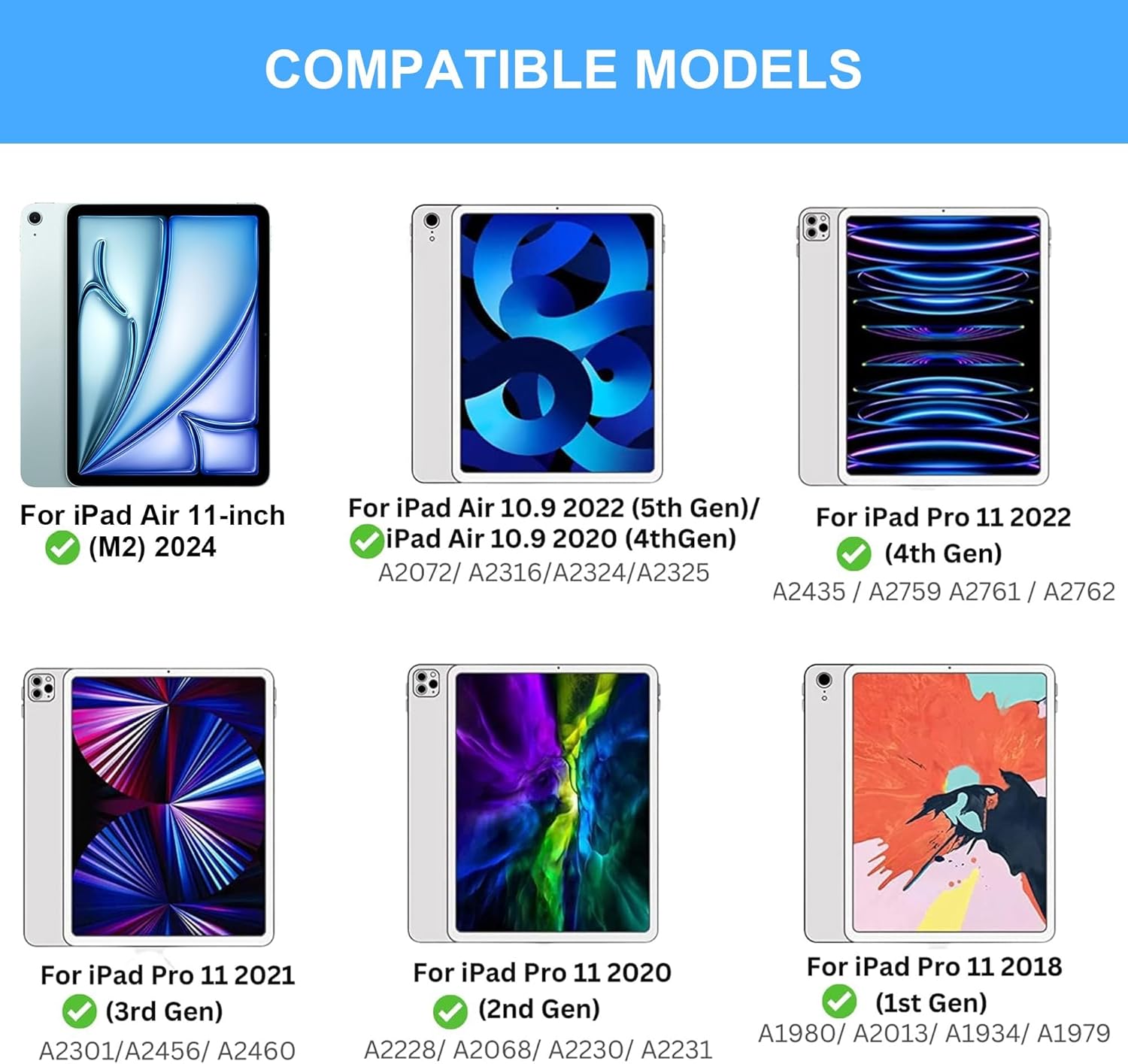
Image: Visual guide to compatible iPad models, including iPad Air 11-inch (M2) 2024, iPad Air 10.9 2022 (5th Gen), iPad Air 10.9 2020 (4th Gen), iPad Pro 11 2022 (4th Gen), iPad Pro 11 2021 (3rd Gen), iPad Pro 11 2020 (2nd Gen), and iPad Pro 11 2018 (1st Gen).
2. What's in the Box
Upon unboxing, please ensure all the following items are present:
- FOGARI Keyboard Case for iPad Pro 11 inch / iPad Air
- USB-C Charging Cable (not explicitly listed but implied for charging)
- User Manual (this document)
3. Setup Instructions
Attaching Your iPad
The keyboard case features a magnetic suspension design for secure attachment. Simply align your iPad with the magnetic area on the stand. The strong magnets will hold your iPad in place.
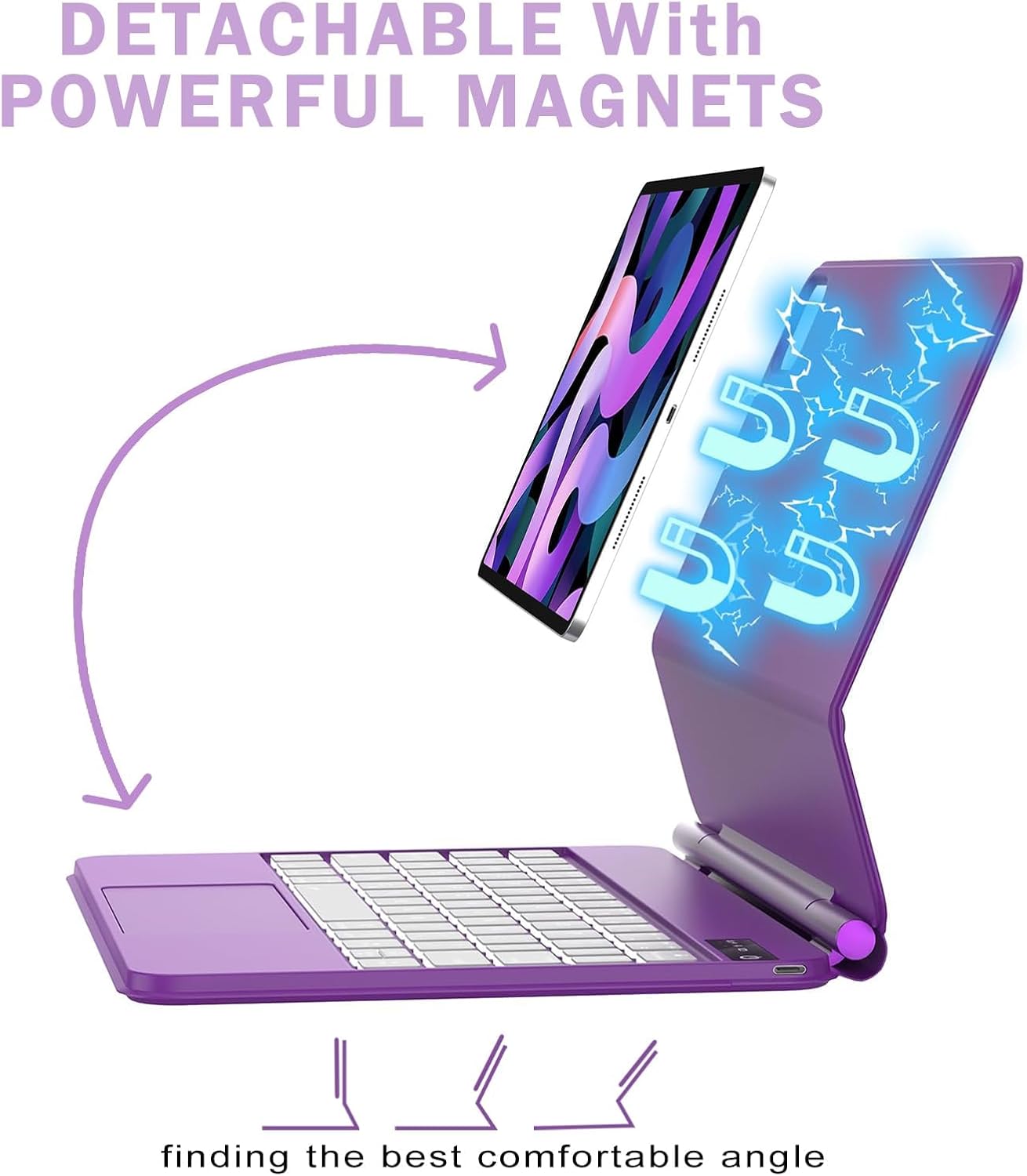
Image: Illustration demonstrating the detachable magnetic attachment of the iPad to the keyboard, allowing for easy placement and removal.
Powering On/Off
- Power On: Double-click the power button.
- Power Off: While the device is on, double-click the power button.
Bluetooth Pairing
- Ensure the keyboard is powered on. The blue light will indicate wireless pairing status.
- On your iPad, go to Settings > Bluetooth.
- Turn on Bluetooth.
- Select the keyboard from the list of available devices (it may appear as "Bluetooth Keyboard" or similar).
- Follow any on-screen prompts to complete the pairing process.
4. Operating Instructions
Keyboard Light Indicators
- Blue Light: Indicates wireless pairing status.
- White Light: Illuminates when Caps Lock is active (uppercase), turns off when Caps Lock is inactive (lowercase).
- Red Light (Blinking): Indicates low battery.
- Red Light (Solid): Indicates the keyboard is charging.
- Green Light (Solid): Indicates the keyboard is fully charged.
Floating Cantilever Stand
The ergonomic floating cantilever stand allows for adjustable viewing angles up to 135°. Adjust the iPad to your preferred tilt angle for comfortable use. Opening or closing the case will automatically wake or sleep your iPad.

Image: Multiple views of the floating cantilever stand, highlighting its design and adjustable angles for optimal viewing.
Precision Multi-Touch Trackpad
The integrated multi-touch trackpad, made with an etching process and a powerful linear motor, allows for precise control of your iPad. Utilize various gestures such as scrolling, swiping, and tapping for navigation and multimedia functions. The trackpad is designed for smooth, responsive operation without stuttering or lag, and is easy to clean.
Backlit Keyboard with Shortcuts
The keyboard features ergonomic keys and backlighting with adjustable brightness levels, enabling comfortable and accurate typing even in low-light environments. A full row of iPadOS shortcuts provides quick access to functions like brightness adjustment, media control, and volume control, enhancing efficiency.
Apple Pencil Charging Support
The case design supports Apple Pencil charging. Place your Apple Pencil on the designated magnetic strip on your iPad while it is in the case to charge it wirelessly.

Image: Depicts the magnetic charging area for an Apple Pencil on the iPad's side and the Type-C charging port for the keyboard, along with battery life indicators.
5. Maintenance
- Storage: Store the keyboard at room temperature.
- Charging: If the keyboard is not used for an extended period, charge it under normal voltage. It is recommended to charge the keyboard once every two months to maintain battery health.
- Low Power: When the battery is low, charge the keyboard promptly.
6. Troubleshooting
Battery Usage Display on iPad
After the keyboard is successfully connected to your iPad, you can view the keyboard's battery usage by swiping right on the iPad home screen to access the Widgets view.
Connectivity Issues
- Ensure the keyboard is fully charged.
- Verify Bluetooth is enabled on your iPad and the keyboard is powered on.
- Try unpairing and re-pairing the keyboard in your iPad's Bluetooth settings.
- Restart both your iPad and the keyboard.
7. Specifications
| Operating Distance | 10 meters |
| Modulation System | GFSK |
| Operating Voltage | 3.3~4.2V |
| Recharging Current | <250mA |
| Standby Time | >90 days (when fully charged) |
| Continuous Working Time | <5 hours (backlight on), <70 hours (backlight off) |
| Charging Time | 3 hours |
| Operating Temperature | -20~50°C |
| Charging Temperature | 0~45°C |
| Lithium Battery Capacity | 450mAh |
| Connectivity Technology | Bluetooth |
| Special Features | Backlit, Ergonomic, Rechargeable, Trackpad, Water Resistant |
| Keyboard Layout | QWERTY |
| Water Resistance Level | Water Resistant |
| Material | Synthetic Vegan Leather Case, Durable Aluminum Alloy Hinge |
8. Warranty and Support
Warranty Information
This FOGARI product comes with a 12-month warranty from the date of purchase. Additionally, a 30-day money-back guarantee is provided.
Customer Support
Should you have any questions or require assistance, please do not hesitate to contact us. We are committed to resolving your concerns within 24 hours.