
1. Product Overview
The DAMOACAM QHD 2K Pen-Type Wearable Body Camera is designed for discreet and high-quality video recording. Its compact and stylish design makes it ideal for various personal and professional recording needs. This device features 2560x1440P video resolution and comes with 64GB of built-in storage, with support for external microSD cards up to 256GB.
- 2560x1440P QHD 2K High-Quality Recording: Supports 2560x1440P (QHD 2K) high-resolution recording, capturing clearer and more detailed images than standard HD. This allows you to preserve daily events and important moments in high-quality video.
- Compact Pen-Type Body Camera: Features a stylish pen-type design, making it easy to carry and naturally integrate into daily recording. Its lightweight and compact nature makes it suitable for life logging and personal recording purposes.
- Built-in 64GB Storage: Equipped with 64GB of internal memory, eliminating the need for additional memory cards. You can start recording high-quality video immediately after unboxing, supporting extended recording times.
- Simple Design Specialized for Video Recording: This product is designed specifically for video recording, making it useful for a wide range of applications such as documenting daily events, life logging, and work records.
- Versatile Personal Camera: A compact body camera suitable for various scenarios including daily recording, pet monitoring, work documentation, and indoor monitoring.

The DAMOACAM pen camera, designed for discreet wear, shown in a suit pocket.

Visual comparison demonstrating the superior clarity and detail of True 2K QHD video (2560x1440P) captured by the camera compared to standard resolution.
2. Package Contents
Please ensure all items are present in the package:
- DAMOACAM QHD 2K Pen-Type Wearable Body Camera
- USB Type-C Cable
- Desktop Stand/Cradle
- Pen Refill Set (5 refills)
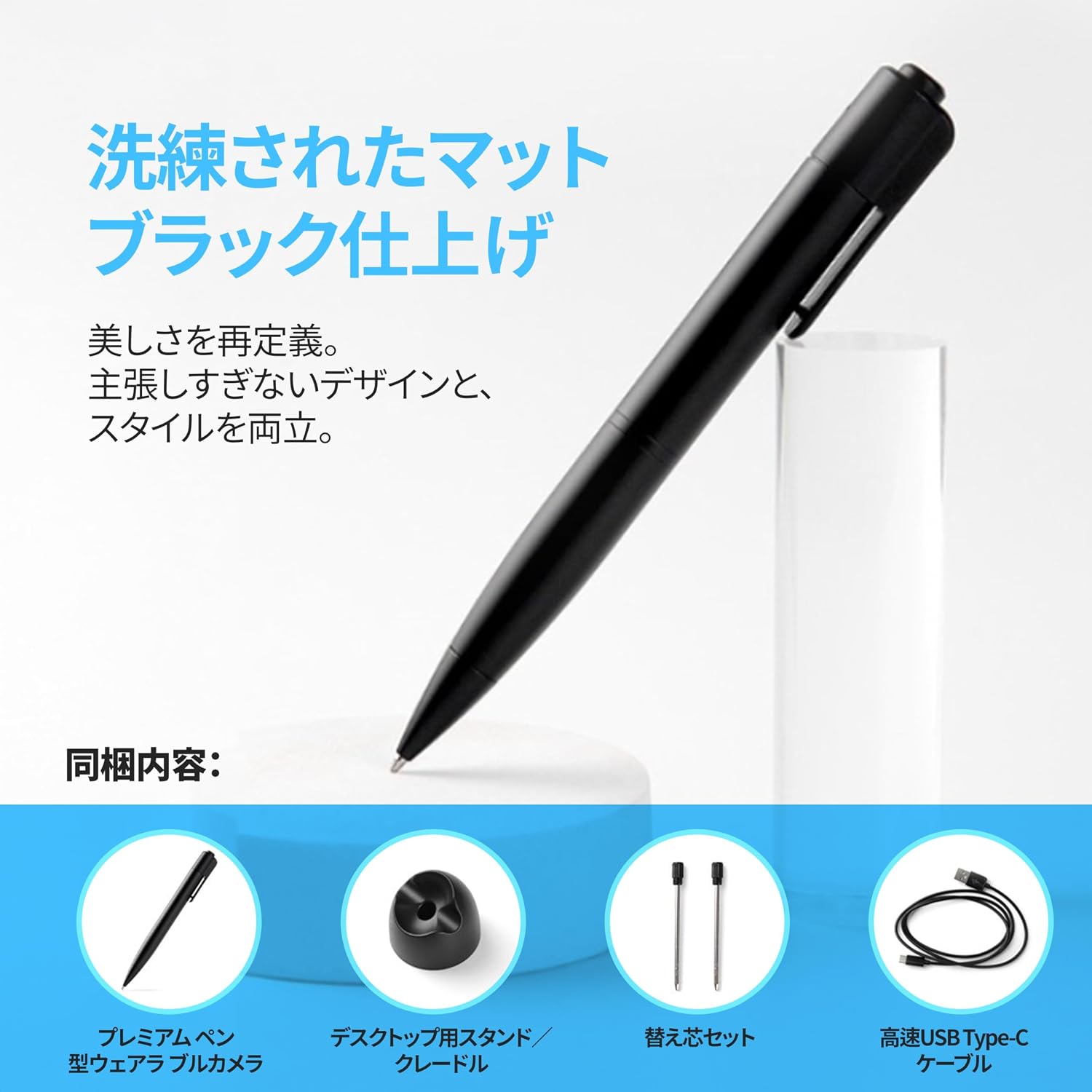
Contents of the package: the premium pen-type wearable camera, a desktop stand/cradle, a set of pen refills, and a high-speed USB Type-C cable.
3. Setup
3.1 Charging the Device
Before first use, fully charge the pen camera. Connect the included USB Type-C cable to the camera's charging port and plug the other end into a USB power source (e.g., computer, wall adapter). The indicator light will show charging status.
3.2 Inserting/Replacing Pen Refills
To use the pen for writing, twist the pen tip to extend it. To replace a refill, gently pull out the existing refill and insert a new one from the provided set.
This video demonstrates the basic operation of a similar pen camera, including how to use the pen function and replace refills.
3.3 Optional: Inserting an External MicroSD Card
While the camera has 64GB of internal storage, it supports external microSD cards up to 256GB for additional storage. To insert a microSD card, carefully remove the top cap of the pen to reveal the USB-C port and the microSD card slot. Insert the card gently until it clicks into place.
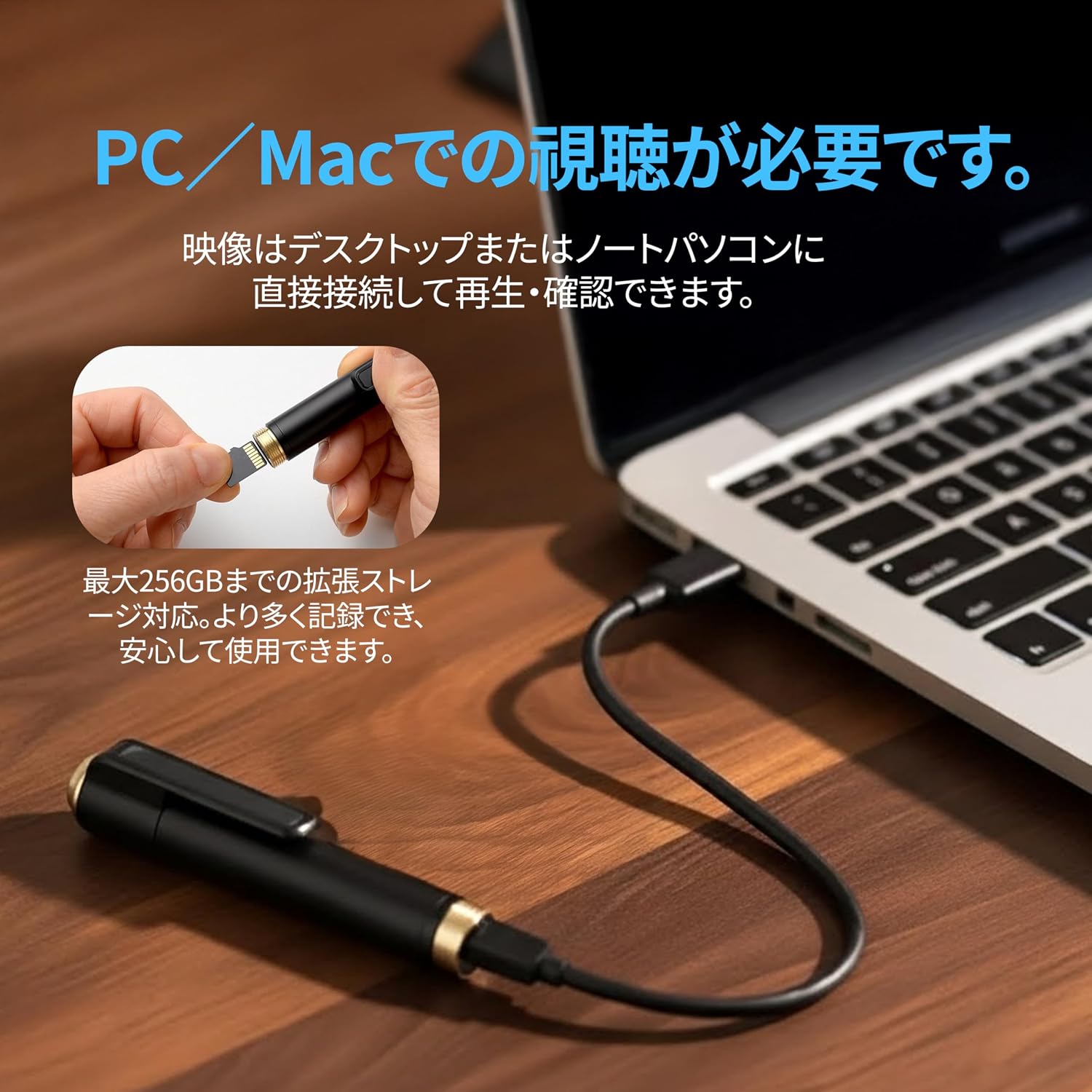
The pen camera connected to a laptop via a USB-C cable for data transfer and charging. An inset image shows a hand inserting a microSD card, indicating support for expanded storage up to 256GB.
This video demonstrates how to correctly insert a microSD card into a pen camera. Ensure the card is inserted in the correct orientation.
4. Operating Instructions
4.1 Power On/Off and Recording
The camera features a simple one-touch operation for recording.
- Power On & Start Recording: From standby mode, long-press the power button (located at the top of the pen). The green indicator light will blink three times, then remain solid green, indicating that recording has started automatically.
- Pause Recording: During recording, short-press the power button once. The red indicator light will turn on, and recording will temporarily pause.
- Resume Recording: While paused, short-press the power button again. The green indicator light will blink three times, then remain solid green, and recording will resume.
- Power Off: Long-press the power button. The red indicator light will blink, and the device will power off.
Important: After reviewing recorded data, always power off the device to conserve battery life and protect the device.

A step-by-step guide for quick start one-touch recording: long press to power on (green light blinks 3 times, then solid green for recording), short press to pause (red light on), short press again to resume (green light blinks 3 times, then solid green), long press to power off (red light blinks).

Close-up view of the pen camera in hand, highlighting its key components: the 2K QHD lens, the power/record button, and the USB-C charging port for easy operation.
4.2 Data Transfer and Playback
To access recorded videos, connect the pen camera to a computer or smartphone using the provided USB Type-C cable. The device will appear as a removable drive, allowing you to transfer, play back, and manage your video files.
- PC Connection: Connect the pen camera to your PC using the USB-C cable. The camera will be recognized as a storage device. You can then browse and manage files.
- Smartphone Connection: Use the included OTG adapter (Type-C) to connect the pen camera to your smartphone. (Note: An iPhone-compatible adapter is sold separately if needed). Your phone's file manager app can then access the video files.

Demonstrates easy connection to a PC using the included USB Type-C cable for data transfer and management. An inset shows inserting a microSD card.
This video demonstrates how to connect the pen camera to a smartphone using an OTG adapter and play back recorded videos.
5. Maintenance
- Cleaning: Use a soft, dry cloth to clean the exterior of the pen camera. Do not use liquid cleaners or abrasive materials.
- Storage: Store the camera in a cool, dry place away from direct sunlight and extreme temperatures.
- Battery Care: To prolong battery life, avoid fully discharging the battery frequently. Charge the device regularly, even if not in use for extended periods.
- Refill Replacement: Replace pen refills as needed using the provided spares or compatible replacements.
6. Troubleshooting
- Device Not Powering On: Ensure the battery is charged. Connect to a power source and try again.
- Recording Not Starting: Check the indicator light sequence. If it's not blinking green after a long press, ensure the device is not in an error state or low on battery.
- Cannot Access Files on PC/Smartphone: Ensure the USB cable is securely connected. Try a different USB port or cable. For smartphones, ensure the OTG adapter is correctly connected and your phone supports OTG functionality.
- Poor Video Quality: Ensure the lens is clean. Check that you are recording in QHD 2K mode (if applicable, though this model defaults to it).
- MicroSD Card Not Recognized (if using external card): Ensure the card is inserted correctly. Try reformatting the card (this will erase all data). Some specific brands or types of microSD cards may have compatibility issues.
This video provides a caution regarding potential issues with KIOXIA memory cards not being recognized by some pen cameras. If you experience issues with an external SD card, consider trying a different brand.
7. Specifications
| Brand | DAMOACAM |
| Model Name | MD200FUDW2 |
| Recommended Use | Indoor Security, Daily Recording, Life Logging |
| Connectivity Technology | USB Type-C (for data transfer/charging) |
| Special Feature | HD Resolution (2K QHD) |
| Indoor/Outdoor Use | Indoor |
| Compatible Devices | PC, Smartphone |
| Power Source | Battery Powered |
| Color | Black |
| Video Pixels | 1440p (2K QHD) |
| Product Body Size | 27.9 x 10.2 x 5.1 cm |
| Internal Storage | 64GB |
| External Storage Support | Up to 256GB microSD card |
| Video Capture Format | MP4 |
8. Warranty and Support
For warranty information and customer support, please refer to the documentation included with your purchase or contact DAMOACAM customer service directly. Keep your proof of purchase for warranty claims.