
1. Introduction
Thank you for choosing the Smart Tech 40FH01K 40-inch Full HD Smart LED TV. This manual provides essential information for the safe and efficient operation of your new television. Please read it thoroughly before use and retain it for future reference.
The Smart Tech 40FH01K offers a comprehensive entertainment experience with its integrated Smart TV functions, allowing easy access to popular applications like YouTube, Netflix, Prime Video, and Disney+. Its full HD display ensures a clear and detailed picture, complemented by a modern, elegant design that fits seamlessly into any interior.
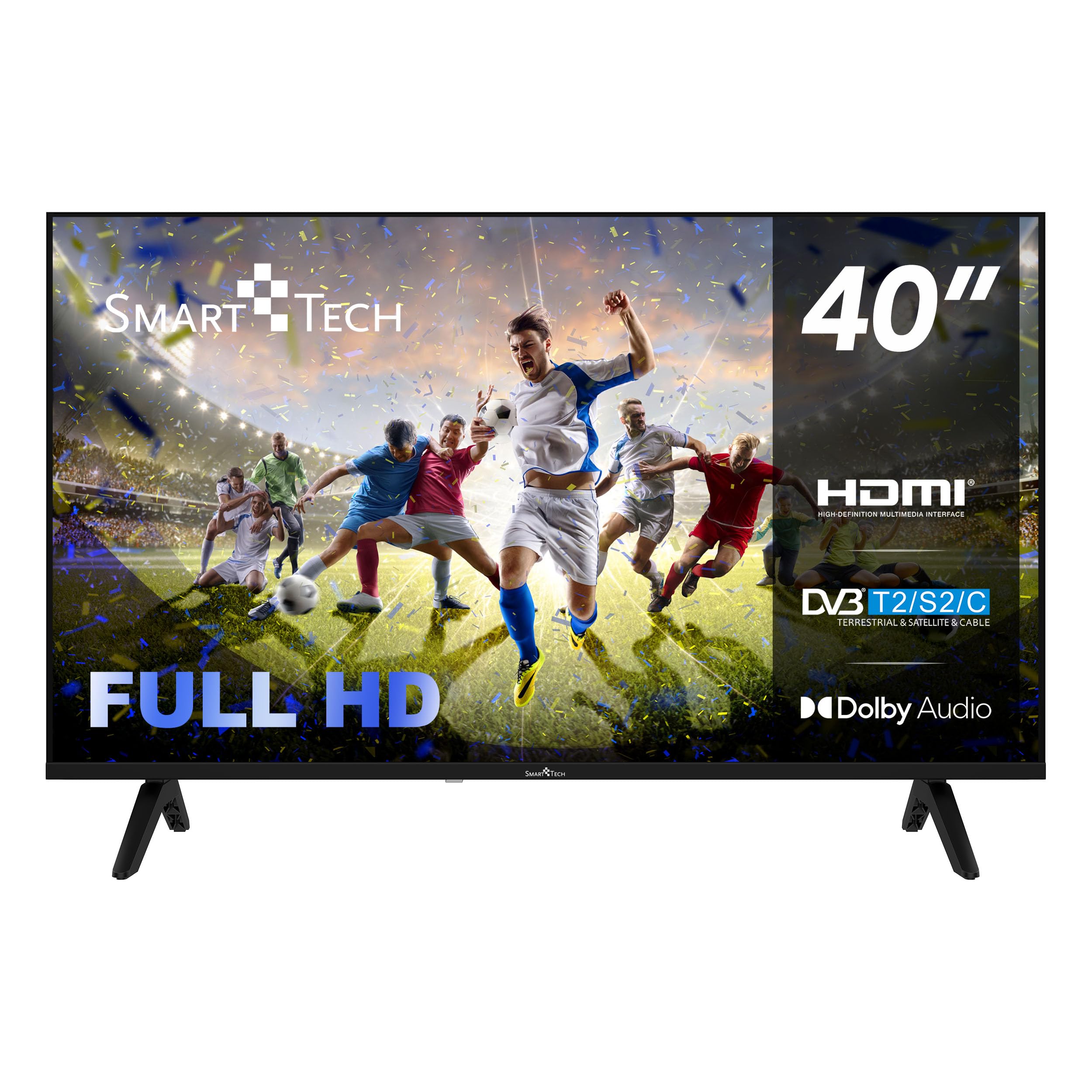
Figure 1: Smart Tech 40FH01K 40-inch Full HD Smart LED TV.
2. Safety Information
Please observe the following safety precautions to prevent damage and ensure safe operation:
- Power Supply: Ensure the TV is connected to a power source within the specified voltage range (100-240V AC, 50-60Hz).
- Ventilation: Do not block ventilation openings. Allow adequate space around the TV for proper airflow.
- Water and Moisture: Do not expose the TV to rain or moisture. Do not place objects filled with liquids, such as vases, on the TV.
- Heat Sources: Keep the TV away from heat sources like radiators, heat registers, stoves, or other heat-producing appliances.
- Cleaning: Unplug the TV before cleaning. Use a soft, dry cloth. Do not use liquid cleaners or aerosol cleaners.
- Mounting: Ensure the TV is installed on a stable surface or wall-mounted using a VESA-compatible bracket (200 x 200 mm) according to manufacturer instructions.
- Children: Supervise children to ensure they do not play with the TV or remote control. Parental control features are available.
3. What's in the Box
Upon unpacking, please verify that all the following items are included:
- Smart Tech 40FH01K 40-inch Full HD Smart LED TV
- TV Stand (Pied)
- Remote Control (Télécommande)
- User Manual (Manuel d'utilisateur)
- Power Cable
4. Setup
4.1 Installing the TV Stand
To install the TV stand:
- Carefully place the TV face-down on a soft, flat surface to prevent screen damage.
- Align the stand bases with the corresponding screw holes on the bottom of the TV.
- Secure the stands using the provided screws. Ensure they are tightened firmly.

Figure 2: Smart Tech 40FH01K TV with stand installed.
4.2 Connecting Power
Plug the power cable into the TV's power input, then connect the other end to a wall outlet. The TV will enter standby mode.
4.3 Initial Power-On and First-Time Setup
Press the power button on the remote control or the TV to turn it on. The first-time setup wizard will guide you through:
- Language selection
- Network connection (Wi-Fi or Ethernet)
- Channel scanning
- Time zone settings

Figure 3: Smart Tech 40FH01K TV in a typical home environment.
5. Operating Instructions
5.1 Remote Control Overview
The remote control allows you to navigate the TV's features. It includes dedicated buttons for quick access to popular streaming services.

Figure 4: Smart Tech TV remote control with quick access buttons.
5.2 Navigating Whale OS
Your Smart Tech TV runs on Whale OS, providing an intuitive interface for accessing content and settings.
- Use the arrow keys on the remote to navigate menus and select options.
- Press the OK button to confirm selections.
- Press the BACK button to return to the previous screen.
- Press the HOME button to access the main Smart TV interface.

Figure 5: Whale OS Smart TV interface with various streaming applications.
5.3 Accessing Smart TV Applications
From the Whale OS home screen, you can launch pre-installed applications such as Netflix, YouTube, Prime Video, Disney+, and Molotov. Ensure your TV is connected to the internet for these services to function.
5.4 Parental Control
The TV includes parental control features to manage content access. Refer to the on-screen menu for setup and configuration of these settings.
6. Connectivity
The Smart Tech 40FH01K TV offers multiple connectivity options for various devices.

Figure 6: Rear view of the Smart Tech TV connector panel.
- HDMI Ports (x3): Connect Blu-ray players, game consoles, set-top boxes, and other HDMI-enabled devices.
- USB Ports (x2): Connect USB storage devices for media playback (photos, videos, music).
- Ethernet (RJ45): For a wired internet connection.
- Wi-Fi: For wireless internet connectivity.
- Bluetooth 5.1: Connect wireless headphones, soundbars, or other Bluetooth devices.
- CI Slot: For Common Interface modules (e.g., for pay-TV services).
- Mini AV In: For connecting older devices using composite video and stereo audio.
- Earphone Output: For connecting headphones.
- Optical Audio Output: For connecting to a soundbar or home theater system with optical input.
- DVB-S2 / DVB-T2: Antenna inputs for satellite and terrestrial digital television signals.
7. Maintenance
7.1 Cleaning the TV
To clean your TV:
- Unplug the power cord from the wall outlet.
- Wipe the screen gently with a soft, lint-free cloth. For stubborn marks, lightly dampen the cloth with water or a specialized screen cleaner.
- Clean the TV casing with a soft, dry cloth. Do not use abrasive cleaners or solvents.
Caution: Never spray liquid directly onto the screen or casing.
8. Troubleshooting
If you encounter issues with your TV, refer to the following common solutions:
- No Power: Ensure the power cable is securely connected to both the TV and the wall outlet. Check if the outlet is functional.
- No Picture/Sound: Verify that the correct input source is selected. Check all cable connections (HDMI, antenna).
- Remote Control Not Working: Check the batteries and ensure there are no obstructions between the remote and the TV's IR sensor.
- Network Connection Issues: For Wi-Fi, ensure the password is correct and the router is within range. For Ethernet, check the cable connection. Try restarting your router.
- Smart App Issues: Ensure the TV has a stable internet connection. Try restarting the TV.
For persistent issues, please contact customer support.
9. Specifications

Figure 7: Energy efficiency label. For more details, visit eprel.ec.europa.eu/qr/2428967.
| Feature | Detail |
|---|---|
| Model Name | 40FH01K |
| Screen Size | 40 Inches (100 cm) |
| Display Technology | LED |
| Resolution | 1080p (Full HD, 1920 x 1080 px) |
| Refresh Rate | 60 Hz |
| Aspect Ratio | 16:9 |
| Contrast Ratio | 3000:1 |
| Peak Brightness | 250 Candelas per square meter |
| HDR Support | HDR10 |
| Response Time | 6.5 milliseconds |
| Backlight Configuration | Direct Lighting LED |
| Smart TV OS | Whale OS |
| Pre-installed Apps | Molotov, Netflix, Prime Video, Disney+, YouTube, Plex |
| Connectivity | Bluetooth 5.1, Ethernet, HDMI (x3), USB (x2), Wi-Fi |
| Audio Encoding | DD (Dolby Digital) |
| Speaker Description | Integrated |
| Max Audio Power | 16 Watts |
| Power Consumption (Operating) | 36 Watts |
| Annual Energy Consumption | 36 Kilowatt-hours |
| Voltage | 100-240 V AC 50-60 Hz |
| Dimensions (W x H x D) | 89 cm x 54 cm x 23 cm (with stand) |
| Weight | 5.44 Kilograms (with stand) |
| VESA Mount Standard | 200 x 200 mm |
| Remote Control Batteries | 2 x AAA (required) |
| Color | Black |
| Manufacturer | Express Luck |
10. Warranty and Support
10.1 Warranty Information
This Smart Tech TV comes with a 2-year warranty covering parts and labor. Please retain your proof of purchase for warranty claims. The warranty covers manufacturing defects and malfunctions under normal use conditions.
10.2 Customer Support
If you require technical assistance, have questions about your product, or need to make a warranty claim, please contact Smart Tech customer support through the retailer where you purchased the product or visit the official Smart Tech website for contact information.
For further information and updates, you may visit the Smart Tech Brand Store.