1. Product Overview
The Wucotc Professional 264GB Digital Voice Recorder (Model Z1) is designed for high-quality audio capture in various environments. It features advanced AI noise cancellation, a large memory capacity, and diverse functions for professional and personal use.

Image 1: Front view of the Wucotc Digital Voice Recorder, highlighting its screen and control buttons.
2. Package Contents
- 1 x Wucotc 8GB Digital Voice Recorder
- 1 x 256GB TF Card (pre-installed)
- 1 x Type-C Charging Cable
- 1 x User Manual
- 1 x Earphones

Image 2: The Wucotc Digital Voice Recorder alongside its USB-C charging cable and earphones.
3. Device Layout and Controls
Familiarize yourself with the buttons and ports on your recorder for optimal use.

Image 3: A detailed diagram illustrating the various buttons and ports on the Wucotc Digital Voice Recorder, including recording slot, headphone jack, noise reduction switch, previous/next song, delete, reset, Type-C interface, lock keys, TF card slot, dial key/volume, backspace, and play/pause button.
- Recording Slot: Top of the device for audio input.
- Headphone Jack (3.5mm): For private listening to recordings or music.
- Noise Reduction Switch: Activates/deactivates AI noise cancellation.
- Previous/Next Song Buttons: Navigate through audio files.
- Delete Key: Remove selected files.
- Reset Key: Restore device to factory settings.
- Type-C Interface: For charging and data transfer.
- Lock Keys Switch: Prevents accidental button presses.
- TF Card Slot: For inserting the 256GB TF card to expand memory.
- Dial Key/Volume: Adjusts volume and navigates menu options.
- Backspace Key: Returns to the previous menu or screen.
- Play/Pause Button: Controls playback and recording pause/resume.
- T-MARK Button: Adds bookmarks during recording.
- M Button: Accesses menu options.
4. Setup
4.1 Charging the Device
Connect the provided Type-C charging cable to the device's Type-C interface and a power source (computer or wall adapter). The battery indicator on the screen will show charging status. A full charge provides over 100 hours of continuous recording (at 512kbps) or 48 hours of playback.
Video 1: A seller video demonstrating the charging process of the Wucotc Digital Voice Recorder. The device is shown connected via its Type-C port to a power source, with the screen indicating charging.
4.2 Powering On/Off
To power on, slide the ON/OFF switch located on the side of the device. To power off, slide the switch back to the OFF position. The device will automatically save any active recordings before shutting down.

Image 4: Illustration of the power switch on the side of the Wucotc Digital Voice Recorder, indicating how to turn the device on or off.
5. Operating Instructions
5.1 Recording Audio
To start recording, simply press the dedicated red record button. The device will immediately begin capturing audio. To pause recording, press the Play/Pause button. Press it again to resume. To stop and save the recording, press the red record button again.
Video 2: A seller video demonstrating how to start and stop recording on the Wucotc Digital Voice Recorder by pressing the red record button, and showing menu navigation.
5.2 Voice Activated Recording (VOR)
The powerful voice control function automatically starts recording when sound reaches a correct decibel level and stops when there is no sound. This feature conserves memory space and reduces listening time. Adjust the voice-activated sensitivity (7 levels available) using the menu settings.

Image 5: Visual representation of the 7 adjustable levels of voice-activated sensitivity, ranging from 50DB to 70DB, for the Wucotc Digital Voice Recorder.
5.3 Noise Reduction
Equipped with a 3rd-gen audio chip and dual-channel microphones, the recorder offers 1536kbps HD stereo recording with hardware-level noise reduction. Use the dedicated noise reduction switch to activate this feature, eliminating background interference for clearer audio.
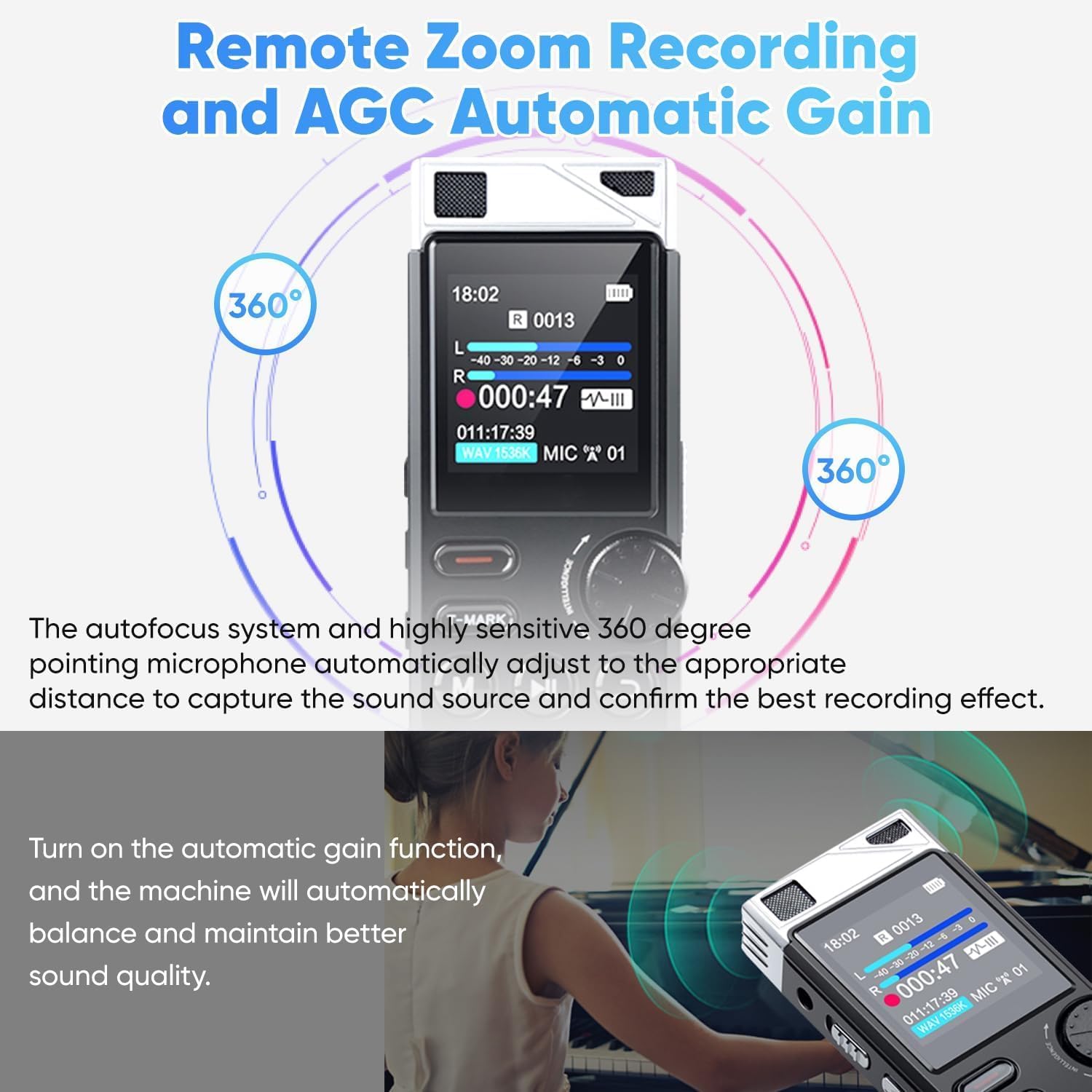
Image 6: The Wucotc Digital Voice Recorder demonstrating its 360-degree remote zoom recording and Automatic Gain Control (AGC) features for optimal sound capture.
5.4 Playback and Navigation
Use the Play/Pause button to start or stop playback. Navigate through recordings using the Previous/Next buttons. The dial key can be used for volume adjustment and menu selection. The device supports A-B repeat, fast forward, and rewind functions.
5.5 T-MARK Bookmark Function
During recording, press the T-MARK button to set bookmarks at key content paragraphs. This allows for easy navigation to specific points during playback.

Image 7: The Wucotc Digital Voice Recorder highlighting its T-MARK button, used for adding bookmarks to recordings for easier navigation.
5.6 MP3 Player Functionality
The device can also function as an MP3 player. Transfer your music files to the device via the Type-C cable and select the music option from the main menu to enjoy your audio.
6. Data Management
6.1 File Transfer and Timestamping
Connect the recorder to your computer or Android smartphone using the provided Type-C cable for fast data transfer. Audio files are automatically saved with timestamps (named in years, months, days, hours, seconds) for easy organization and retrieval.
6.2 Password Protection
Protect your recordings by setting a password on the device. Access the settings menu to enable and configure password protection for enhanced security of your sensitive audio files.
7. Specifications
| Feature | Detail |
|---|---|
| Memory Storage Capacity | 264 GB (8GB built-in + 256GB TF card) |
| Recording Quality | 1536kbps HD Stereo |
| Battery Life (Recording) | 100+ hours (at 512kbps) |
| Battery Life (Playback) | 48 hours |
| Microphone Operation Mode | Stereo, Noise Cancellation |
| Hardware Interface | USB 3.0 Type C |
| Headphones Jack | 3.5 millimeters |
| Screen Size | 1.44 Inches |
| Item Weight | 7 ounces |
| Package Dimensions | 5.43 x 3.58 x 1.5 inches |
8. Troubleshooting
8.1 Device Not Powering On
- Ensure the battery is charged. Connect the device to a power source using the Type-C cable.
- Verify the ON/OFF switch is in the correct position.
- If unresponsive, try performing a reset using the Reset Key (refer to Device Layout).
8.2 Poor Audio Quality
- Ensure the noise reduction switch is activated in noisy environments.
- Adjust the microphone sensitivity settings (1-7 levels) to match your recording environment.
- Check for any obstructions covering the recording slots.
8.3 Unable to Save Recordings
- Check available memory space. Delete unnecessary files or ensure the 256GB TF card is properly inserted and recognized.
- Ensure the recording is properly stopped by pressing the record button again, not just paused.
9. Warranty and Support
Your Wucotc Digital Voice Recorder comes with a two-year warranty. For any product-related inquiries or support, please contact our customer service. We offer 24-hour service to assist you.
For further assistance, please visit the Wucotc Store on Amazon.


