
1. Introduction
This manual provides detailed instructions for setting up, operating, and maintaining your AOOSTAR MACO AMD R7 6850H Mini PC. Please read this manual thoroughly before using the device to ensure proper functionality and to prevent damage.
The AOOSTAR MACO AMD R7 6850H Mini PC is a compact computing device designed for various tasks, including office productivity, content creation, and multimedia consumption. It features an AMD Ryzen 7 PRO 6850H processor, LPDDR5 RAM, and multiple connectivity options.
2. What's in the Box
Upon unpacking, please verify that all items listed below are present and in good condition. If any items are missing or damaged, please contact customer support.
- 1x AOOSTAR MACO 6850H Mini PC
- 1x 120W Power Supply
- 1x HDMI Cable
- 1x SSD Cooling Pad
- 1x Mounting Screw Set
- 1x User Manual (this document)

The image above shows the main components included in the package. The mini PC is a compact silver unit, accompanied by its power adapter, an HDMI cable for display connection, and the user manual. Additional small accessories like an SSD cooling pad and mounting screws are also part of the package.
3. Product Overview
3.1 Front Panel
- Power Button with Fingerprint Sensor: Press to power on/off. Supports Windows Hello for secure login.
- USB4 Port (x1): High-speed data transfer and display output.
- USB 3.2 Gen2 Type-A Ports (x2): For connecting USB devices.
- 3.5mm Audio Jack: For headphones or external speakers.

The front panel provides convenient access to essential ports. The power button also integrates a fingerprint sensor for enhanced security. Two USB 3.2 Type-A ports are available for peripherals, alongside a versatile USB4 port and a 3.5mm audio jack.
3.2 Rear Panel
- DC IN Port: Connect the 120W power adapter here.
- USB4 Port (x1): Additional high-speed data transfer and display output.
- 2.5G LAN Ports (x2): For wired network connections.
- HDMI 2.1 Port (x1): For connecting to a display.
- DisplayPort 1.4 (x1): For connecting to a display.
- USB 2.0 Ports (x2): For connecting USB devices.
- Oculink Port (x1): Dedicated port for external GPU connection.
The rear panel offers extensive connectivity for power, networking, and multiple displays. It includes a DC IN port, a second USB4 port, dual 2.5G LAN ports for robust network connections, HDMI 2.1 and DisplayPort 1.4 for video output, two USB 2.0 ports, and a specialized Oculink port for external graphics solutions.
4. Setup Instructions
4.1 Initial Connection
- Connect Display: Use the provided HDMI cable to connect your monitor to the HDMI port on the Mini PC. Alternatively, use the DisplayPort or USB4 ports for other display types.
- Connect Peripherals: Plug in your keyboard and mouse to the available USB ports (USB 3.2 Type-A on the front or USB 2.0 on the rear).
- Connect Power: Connect the 120W power adapter to the DC IN port on the rear of the Mini PC, then plug the adapter into a power outlet.
- Power On: Press the power button on the front panel to turn on the Mini PC.

This image illustrates a typical setup with the Mini PC connected to a display, keyboard, and mouse. Ensure all cables are securely connected before powering on the device.
4.2 Operating System Setup (Barebone Version)
If you purchased the barebone version without an SSD/OS, you will need to install an operating system. The device supports Windows 11 Pro. Contact customer service to request a free Windows 11 Pro key if applicable.
- Install SSD: Open the bottom cover (refer to Maintenance section for instructions) and install your M.2 2280 PCIe 4.0 x4 SSD into one of the three available slots.
- Create Bootable USB: Prepare a bootable USB drive with your desired operating system (e.g., Windows 11 Pro installer).
- Install OS: Insert the bootable USB drive, power on the Mini PC, and follow the on-screen instructions to install the operating system.

This image shows the internal layout of the Mini PC, specifically the M.2 slots where SSDs can be installed. The device supports up to 24TB of storage across these slots, with RAID 0/1/5 configurations possible.
5. Operating Instructions
5.1 Basic Operation
- Power On/Off: Press the power button once to turn on. To turn off, either shut down via the operating system or press and hold the power button for 5 seconds.
- Fingerprint Login: For Windows Hello compatible systems, gently place your registered finger on the power button for quick and secure login.
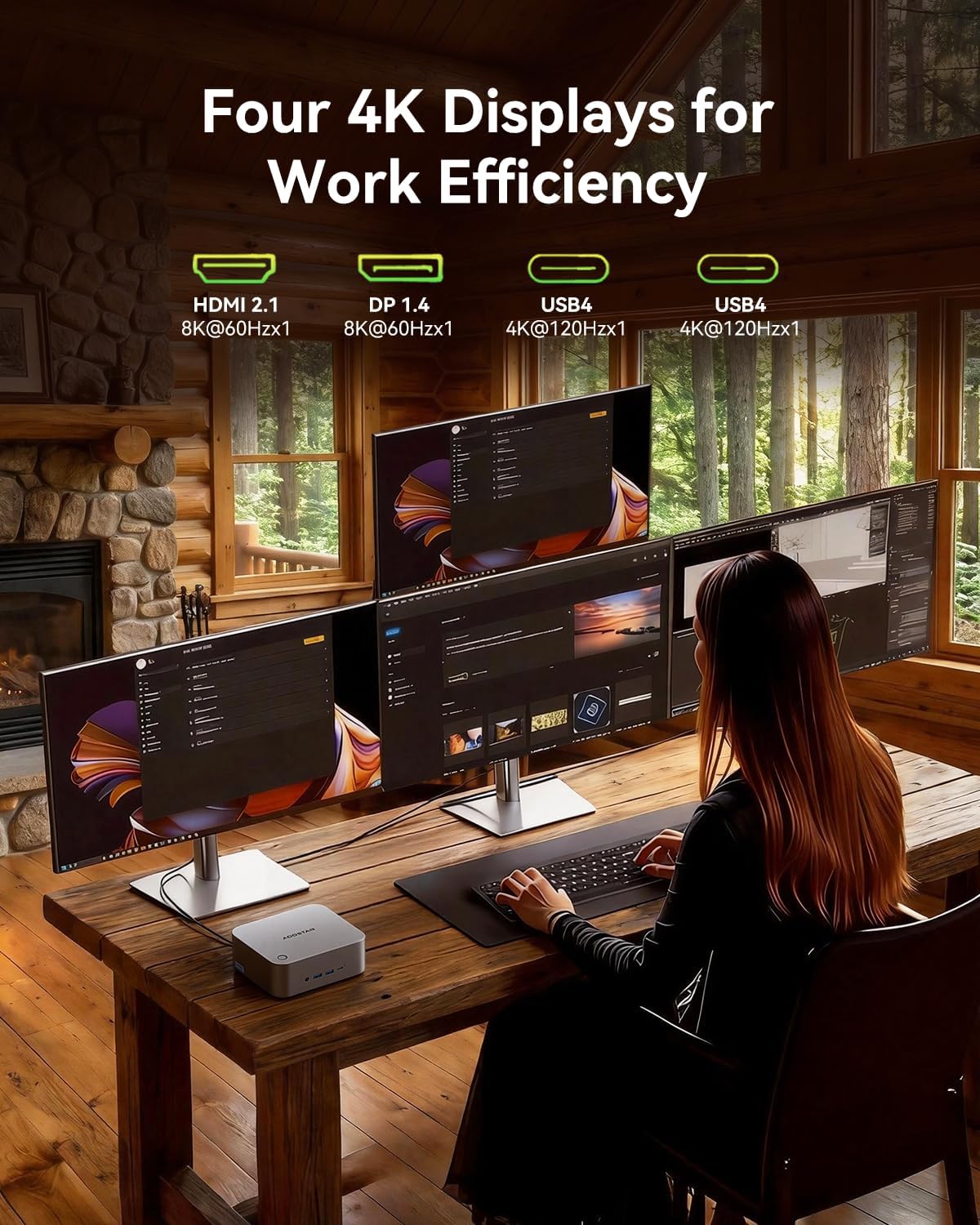
- Quad-Screen Display: Connect up to four displays using the HDMI 2.1, DisplayPort 1.4, and two USB4 ports. This allows for extended desktop environments.

This image showcases the Mini PC's ability to drive four displays simultaneously, ideal for multitasking and professional workflows. The various display ports (HDMI, DisplayPort, USB4) offer flexibility in monitor connections.
5.2 Advanced Features
- Oculink External GPU: The dedicated Oculink port allows for connecting an external GPU (eGPU) for enhanced graphics performance, suitable for gaming or demanding creative applications.
- RAID Configuration: With three M.2 slots, you can configure RAID 0, 1, or 5 arrays for improved storage performance or data redundancy.
- High-Speed Networking: Utilize the dual 2.5Gbps LAN ports for fast and stable wired network connections, or connect wirelessly via WiFi 6 and Bluetooth 5.2.

This image illustrates the Oculink port's function, allowing the Mini PC to connect to an external GPU for significantly boosted graphical capabilities, transforming it into a more powerful workstation or gaming machine.
6. Maintenance
6.1 Cleaning
- Regularly clean the exterior of the Mini PC with a soft, dry cloth.
- Use compressed air to clear dust from the ventilation grilles to maintain optimal cooling performance.
- Ensure the device is powered off and unplugged before cleaning.
6.2 Storage Expansion
The Mini PC supports up to three M.2 2280 PCIe 4.0 x4 SSDs. To install or replace an SSD:
- Power off the device and unplug all cables.
- Carefully remove the four screws on the bottom plastic cover.
- Gently pry open the bottom cover to access the M.2 slots.
- Insert the M.2 SSD into an available slot and secure it with the provided mounting screw.
- Attach the SSD cooling pad if desired.
- Replace the bottom cover and secure the screws.

This image provides a clear view of the internal components, particularly the M.2 slots, which are accessible by removing the bottom cover. This is where users can install or upgrade their NVMe SSDs.
7. Troubleshooting
| Problem | Possible Cause | Solution |
|---|---|---|
| No power/device does not turn on. | Power cable not connected; faulty power adapter/outlet. | Ensure power cable is securely connected. Try a different power outlet or adapter. |
| No display output. | Incorrect display cable connection; monitor input not selected. | Check HDMI/DP/USB4 cable connections. Ensure monitor is set to the correct input source. |
| Slow performance. | Overheating; too many applications running; insufficient storage. | Ensure proper ventilation. Close unnecessary applications. Check SSD health and free space. |
| Network connectivity issues. | Loose LAN cable; WiFi signal interference; incorrect network settings. | Check LAN cable connection. Restart router/modem. Verify WiFi settings or try wired connection. |
8. Specifications
| Feature | Detail |
|---|---|
| Processor | AMD Ryzen 7 PRO 6850H (8C/16T, 3.2GHz base, 4.7GHz max boost) |
| Graphics | AMD Radeon Graphics (Integrated) |
| RAM | 24GB LPDDR5 6400MHz (Soldered) |
| Storage | 3x M.2 2280 PCIe 4.0 x4 slots (up to 24TB, supports RAID 0/1/5) |
| Video Output | 1x HDMI 2.1 (8K@60Hz), 1x DisplayPort 1.4 (8K@60Hz), 2x USB4 (4K@120Hz) |
| USB Ports | 2x USB4 (front/rear), 2x USB 3.2 Gen2 Type-A (front), 2x USB 2.0 (rear) |
| Networking | 2x 2.5Gbps LAN (Intel I226V), WiFi 6, Bluetooth 5.2 |
| Expansion | 1x Oculink port for external GPU |
| Audio | 1x 3.5mm Audio Jack (front) |
| Security | One-touch fingerprint unlock (Windows Hello support) |
| Chassis | 100% Recycled Aluminum Alloy (except plastic bottom cover) |
| Cooling | "Glacier" cooling system (VC heat spreader + dual turbo fans + FIN heat dissipation) |
| Operating System | Windows 11 Pro (if purchased with OS) |
| Dimensions | 6.89 x 6.77 x 5.08 inches (Package) |
| Weight | 3.36 pounds (Item) |
9. Warranty and Support
AOOSTAR provides a 12-month worry-free warranty for the MACO AMD R7 6850H Mini PC. Additionally, lifetime technical support is available for all customers.
For any product-related issues, technical assistance, or warranty claims, please contact AOOSTAR customer service. If you encounter any problems with the product, please email us instead of mistakenly contacting the Amazon platform. As a sales platform, they do not understand product technical issues and cannot resolve the problems you are facing.
If you have the time or wish to get the most out of this product, it would be best to send us an email (including the purchase date and order number) when you have the time. We will register this internally, and our after-sales center can assist you more quickly when you encounter product issues in the future. Additionally, we can also offer an extended 6-month warranty period.
If you encounter a product issue that requires telephone or voice communication, please notify us via email first. We will arrange for a corresponding voice customer service representative to assist you. (As we sell in many countries, advance notice is required.)
Contact Email: aoostar-shop@outlook.com
10. Safety Information
- Do not expose the device to extreme temperatures, humidity, or direct sunlight.
- Avoid placing the device near water or other liquids.
- Do not attempt to open or repair the device yourself, as this may void the warranty and cause damage.
- Use only the provided power adapter. Using an incompatible adapter may damage the device.
- Keep ventilation openings clear to prevent overheating.
11. Official Product Videos
AOOSTAR MACO AMD R7 6850H Overview
Video: This video provides a brief overview of the AOOSTAR MACO AMD R7 6850H Mini PC, showcasing its design and key features. It highlights the compact size and various connectivity options.


