
1. Introduction
This manual provides essential information for the safe and efficient operation of your VIOS VI-43T232 Smart TV. Please read it thoroughly before using the television and retain it for future reference. This 43-inch Full HD 1080p LED Smart TV offers a modern entertainment experience with integrated Wi-Fi, Dolby Audio, and a frameless design.
2. Safety Information
Always follow basic safety precautions when using this product to reduce the risk of fire, electric shock, and injury.
- Do not expose the TV to rain or moisture.
- Ensure proper ventilation to prevent overheating.
- Use only the power cord supplied by the manufacturer.
- Do not open the TV casing; refer all servicing to qualified personnel.
- Keep the TV away from direct sunlight, heat sources, and strong magnetic fields.
3. Package Contents
Verify that all items are present in the box:
- VIOS VI-43T232 Smart TV
- Remote Control
- TV Stand (2 pieces)
- Power Cable
- User Manual (this document)

Image: VIOS VI-43T232 Smart TV packaging box, showing the brand logo and key features.
4. Product Overview
4.1 Front View

Image: Front view of the VIOS VI-43T232 Smart TV, showcasing its frameless design and display.
The VIOS VI-43T232 features a 43-inch Full HD (1920x1080p) LED display with a frameless design for an immersive viewing experience. The screen has a 60 Hz refresh rate and supports Dolby Vision HDR for vibrant and detailed images.
4.2 Side View

Image: Side view of the VIOS VI-43T232 Smart TV, highlighting its slim profile.
The television boasts a slim and modern profile, making it suitable for various living spaces. Its sleek design complements contemporary home decor.
4.3 Rear View and Ports

Image: Rear view of the VIOS VI-43T232 Smart TV, detailing the location of its various connectivity ports.
The rear panel provides access to all connectivity options:
- HDMI Ports: 3 inputs for connecting devices like gaming consoles, Blu-ray players, or soundbars.
- USB Ports: 2 inputs for connecting external storage devices or other USB peripherals.
- Wi-Fi: Integrated for wireless internet connectivity.
- Audio Output: For connecting external audio systems.
4.4 Remote Control
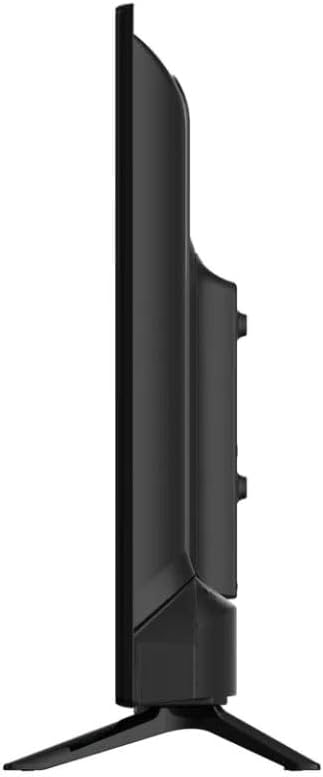
Image: The remote control for the VIOS Smart TV, featuring dedicated buttons for popular streaming services.
The included remote control allows for easy navigation and access to all Smart TV features, including dedicated buttons for popular streaming applications like Netflix, Prime Video, and YouTube.
5. Setup
5.1 Stand Installation
To install the TV stand:
- Carefully place the TV face down on a soft, flat surface to prevent screen damage.
- Align the stand pieces with the corresponding slots on the bottom of the TV.
- Secure the stands using the provided screws. Ensure they are tightened firmly.
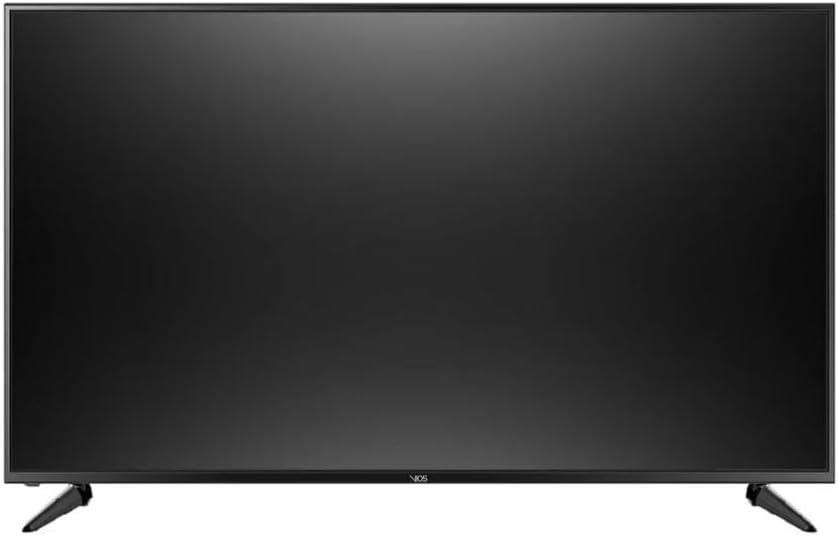
Image: The VIOS Smart TV with its two-piece stand correctly installed, ready for placement on a flat surface.
Alternatively, the TV is compatible with VESA wall mounts (not included). Refer to your wall mount's instructions for installation.
5.2 Connecting Peripherals
Connect your external devices to the appropriate ports on the rear of the TV:
- HDMI: Use HDMI cables for high-definition video and audio from devices like cable boxes, gaming consoles, or Blu-ray players.
- USB: Insert USB drives for media playback or connecting compatible accessories.
- Power: Connect the power cable to the TV and then to a wall outlet.
5.3 Power On
After connecting all necessary cables, press the power button on the remote control or on the TV itself to turn on the television.
6. Operating Instructions
6.1 Initial Setup Wizard
Upon first power-on, the TV will guide you through an initial setup process. This includes:
- Language selection.
- Network connection (Wi-Fi setup).
- Time zone and date settings.
- Channel scanning (if connecting to an antenna/cable).
- Accepting terms and conditions for Smart TV features.
6.2 Smart TV Features (Android OS)
Your VIOS Smart TV runs on the Android operating system, providing access to a wide range of applications and services. Use the remote control to navigate the Smart TV interface.
- Accessing Apps: Use the dedicated buttons on the remote or navigate to the app launcher to open pre-installed applications like Netflix, Prime Video, YouTube, Apple TV+, Disney Plus, and more.
- Wi-Fi Connectivity: Ensure your TV is connected to a stable Wi-Fi network for optimal streaming performance. Go to Settings > Network & Internet to manage your Wi-Fi connection.
- Content Sharing: The TV supports mobile-to-TV content sharing, allowing you to cast content from compatible smartphones or tablets.
6.3 Input Selection
To switch between connected devices (e.g., HDMI 1, HDMI 2, USB), press the "Input" or "Source" button on your remote control and select the desired input.
6.4 Audio and Picture Settings
Customize your viewing and listening experience through the TV's settings menu:
- Picture Modes: Adjust brightness, contrast, color, and sharpness. Select from preset modes (e.g., Standard, Dynamic, Movie) or customize your own.
- Sound Modes: Optimize audio output with various sound modes (e.g., Standard, Music, Movie, Sports). The TV features Dolby Audio for an immersive sound experience.
6.5 Parental Controls
To restrict access to certain content, navigate to Settings > Parental Controls. You can set up a PIN and apply content filters based on ratings or channels.
7. Maintenance
- Cleaning the Screen: Use a soft, lint-free cloth specifically designed for electronics. Do not use abrasive cleaners or sprays directly on the screen.
- Cleaning the Casing: Wipe the TV casing with a soft, dry cloth.
- Power Off: Always unplug the TV from the power outlet before cleaning or when not in use for extended periods.
8. Troubleshooting
| Problem | Possible Cause | Solution |
|---|---|---|
| No power | Power cable not connected; power outlet not working. | Ensure power cable is securely connected. Test the outlet with another device. |
| No picture, but sound is present | Incorrect input source selected; faulty HDMI cable. | Select the correct input source. Try a different HDMI cable. |
| No sound, but picture is present | Volume muted or too low; external audio system issues. | Check volume and mute settings. Ensure external audio system is properly connected and powered. |
| Wi-Fi connection issues | Incorrect password; router issues; TV too far from router. | Verify Wi-Fi password. Restart your router. Move TV closer to router or use a Wi-Fi extender. |
9. Specifications
- Model Name: VI-43T232
- Brand: VIOS
- Screen Size: 43 Inches
- Display Technology: LED
- Resolution: Full HD 1080p (1920 x 1080)
- Refresh Rate: 60 Hz
- Aspect Ratio: 16:9
- Response Time: 14 Milliseconds
- HDR Format: Dolby Vision
- Audio: Dolby Audio
- Operating System: Android
- Connectivity: Wi-Fi, 3x HDMI, 2x USB
- Dimensions (DxWxH): 9 x 96 x 55 cm (3.5 x 37.8 x 21.7 inches)
- Item Weight: 18 Kilograms
- Weight without Stand: 9 Kilograms
- Year Model: 2023
- Included Components: Remote control, Stand
- UPC: 724065748829
10. Warranty and Support
Your VIOS VI-43T232 Smart TV comes with a 3-month limited warranty on parts and labor. For warranty claims or technical support, please contact VIOS customer service through their official website or the retailer where the product was purchased.
For additional information, visit the product details page on Amazon.com.mx.

