
Introduction
This manual provides detailed instructions for the safe and effective use of your YISENCE 4K Digital Camera Model 806. Please read this manual thoroughly before using the camera and keep it for future reference.
1. Setup
1.1 Package Contents
Ensure all items are present:
- YISENCE 4K Digital Camera Model 806
- USB Cable
- Lithium Ion Battery (1 C battery)
- User Manual
- Other accessories (as included with your specific package)
1.2 Battery Installation
Locate the battery compartment cover on the bottom of the camera. Slide the cover open, insert the Lithium Ion battery according to the polarity indicators (+/-), and close the cover securely.
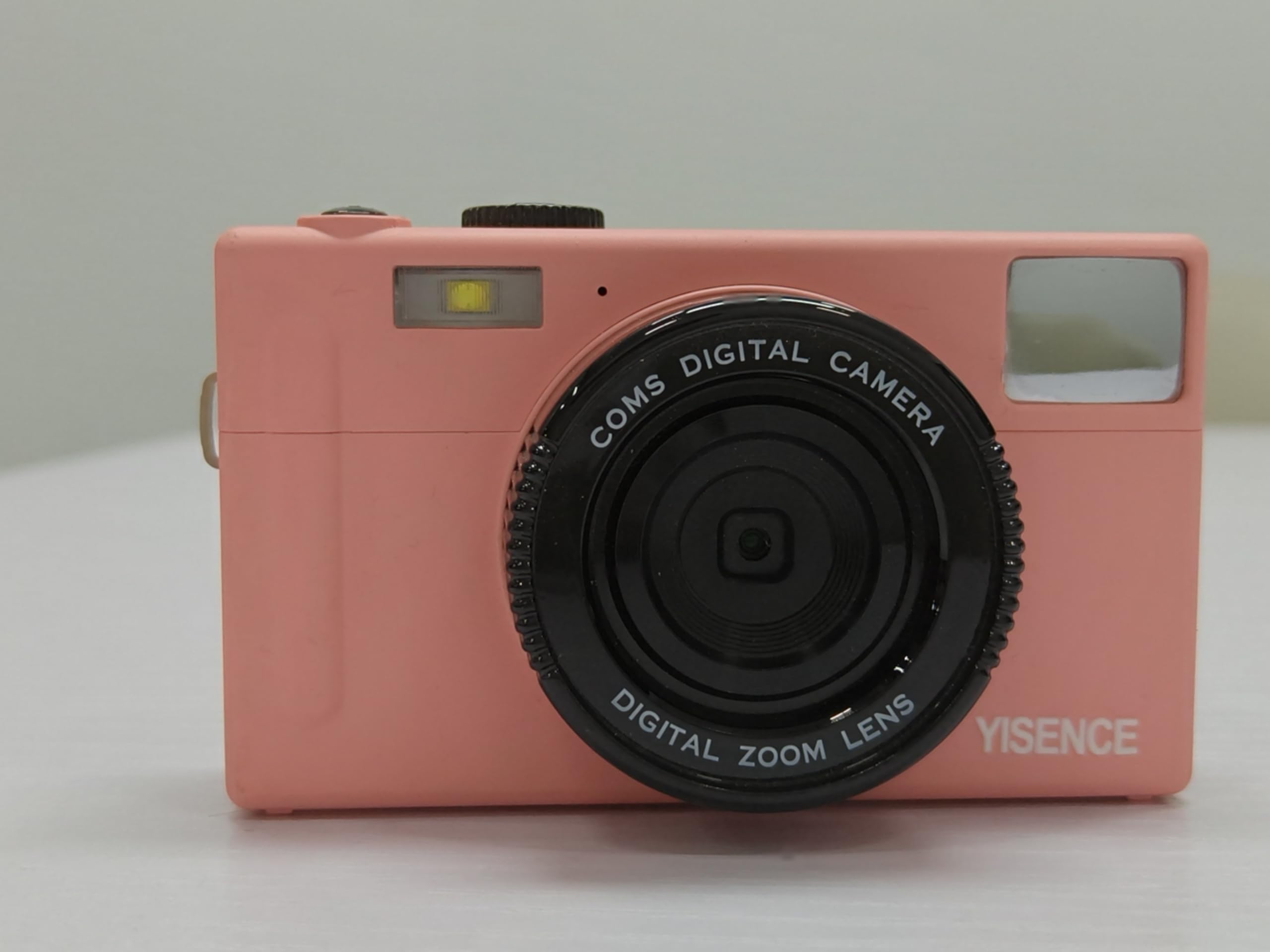
Figure 1: Rear view of the camera, showing the display and control buttons. The battery compartment is typically located on the bottom.
1.3 Charging the Battery
Connect the camera to a power source using the provided USB cable. The charging indicator light will illuminate. Charging is complete when the light turns off or changes color (refer to camera display for status). Ensure the camera is fully charged before first use.
1.4 Memory Card Insertion (Not Included)
This camera requires a compatible memory card (e.g., SD card) for storing photos and videos. Locate the memory card slot, typically near the battery compartment. Insert the memory card with the metal contacts facing the correct direction until it clicks into place. Ensure the card is formatted in-camera before first use.
2. Operating the Camera
2.1 Power On/Off
Press and hold the Power button (usually marked with a circle and a line) to turn the camera on or off.
2.2 Basic Controls Overview

Figure 2: Front view of the camera, highlighting the lens and flash.
- Shutter Button: Press halfway to focus, fully to capture a photo.
- Zoom Lever: Adjusts optical zoom (0.99x) and digital zoom.
- Mode Dial/Button: Selects between photo, video, and playback modes.
- MENU Button: Accesses camera settings.
- DISP Button: Changes display information on the screen.
- Navigation Buttons: Used to navigate menus and select options.
2.3 Taking Photos
In photo mode, frame your shot using the LCD screen. Press the shutter button halfway to allow the camera to focus, then press fully to take a 48 MP photo. The camera features a self-timer function, accessible via the menu, allowing for delayed shots.
2.4 Recording Videos
Switch to video mode. Press the shutter button to start recording 4320p video in AVI format. Press again to stop recording.
2.5 Playback Mode
Enter playback mode to review your photos and videos. Use the navigation buttons to scroll through media. Press the MENU button for options like deleting or protecting files.
2.6 Connecting to a Computer
Use the USB cable to connect the camera to your computer. The camera will appear as a removable disk, allowing you to transfer files. Ensure the camera is powered on during connection.
3. Maintenance
3.1 Cleaning the Camera
- Use a soft, lint-free cloth to clean the camera body.
- For the lens and LCD screen, use a specialized lens cleaning cloth and solution. Avoid harsh chemicals.
- Ensure the camera is dry before closing any compartments, especially after underwater use.
3.2 Battery Care
- Remove the battery if the camera will not be used for an extended period.
- Store batteries in a cool, dry place.
- Avoid exposing batteries to extreme temperatures.
3.3 Waterproof Usage
As a waterproof camera, ensure all seals and covers (battery, memory card, USB port) are securely closed before submerging the camera in water. Rinse the camera with fresh water after use in saltwater and allow it to dry completely before opening any compartments.
4. Troubleshooting
| Problem | Solution |
|---|---|
| Camera does not power on. | Ensure the battery is fully charged and correctly inserted. Try charging the battery again. |
| Cannot take photos/videos. | Check if a memory card is inserted and has sufficient free space. Ensure the camera is in the correct mode (photo/video). |
| Images are blurry. | Clean the lens. Ensure proper lighting. Allow the camera to focus before fully pressing the shutter button. |
| Camera not recognized by computer. | Ensure the USB cable is securely connected and the camera is powered on. Try a different USB port or cable. |
5. Specifications
| Feature | Detail |
|---|---|
| Brand | YISENCE |
| Model Name | 806 |
| Photo Sensor Resolution | 48 MP |
| Video Resolution | 4320p |
| Screen Size | 2.8 inches |
| Photo Sensor Technology | CMOS |
| Optical Zoom | 0.99x |
| Supported File Format (Video) | AVI |
| Battery Cell Type | Lithium Ion |
| Number of Batteries | 1 C battery (included) |
| Has Self-Timer | Yes |
| Connectivity Technology | USB |
| Display Type | LCD |
| Lens Type | Macro |
| Color | Blue |
| Manufacturer | YISENCE |
| UPC | 717504968650 |
6. Warranty & Support
6.1 Product Warranty
The YISENCE 4K Digital Camera Model 806 comes with a 1-year manufacturer's warranty from the date of purchase. This warranty covers defects in materials and workmanship under normal use. It does not cover damage caused by misuse, accidents, unauthorized modifications, or natural disasters. Please retain your proof of purchase for warranty claims.
6.2 Customer Support
For technical assistance, troubleshooting, or warranty inquiries, please contact YISENCE customer support. Visit the official YISENCE Store on Amazon for more information or to find contact details.


