
1. Product Overview
The myQ Secure View 3-in-1 Smart Lock integrates a smart deadbolt, a 2K HDR video doorbell camera, and a security camera into a single device. This intelligent entry system offers multiple access methods, advanced monitoring capabilities, and seamless integration with the myQ ecosystem for enhanced home security and convenience.
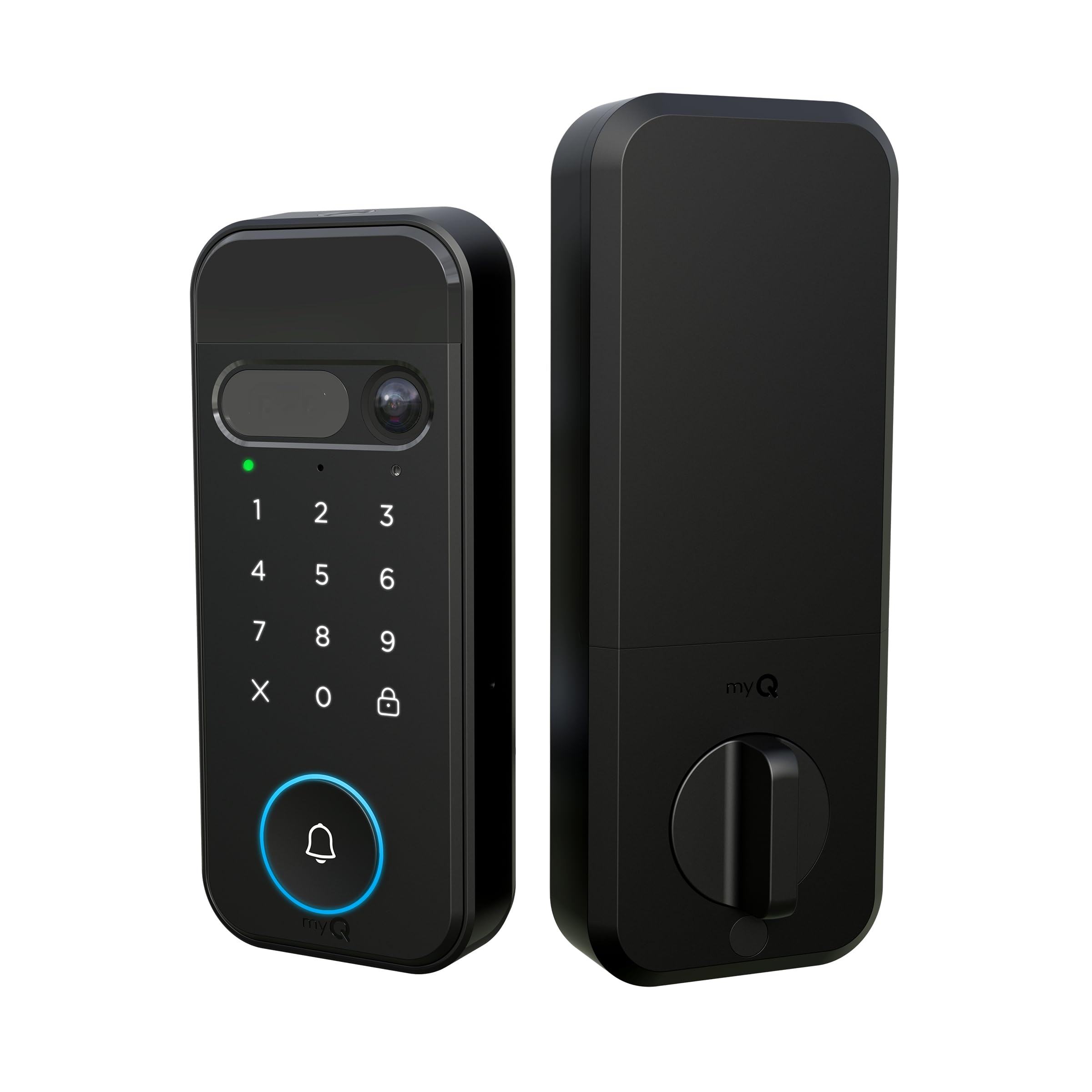
Figure 1: The myQ Secure View 3-in-1 Smart Lock, showcasing its sleek black design and integrated keypad, camera, and doorbell button.
Key Features:
- 3-in-1 Design: Combines a smart deadbolt lock, 2K HDR video doorbell, and security camera.
- Multiple Access Options: Face Access, fingerprint recognition, PIN codes, myQ app control, and traditional key backup.
- 2K HDR Camera: Provides clear video with a wide-angle lens and color night vision.
- Two-Way Audio: Communicate with visitors at your door from anywhere.
- Rechargeable Battery: Designed to last 4–6 months on a single charge.
- Easy DIY Setup: Installs with standard tools and fits most standard doors.
- myQ App Integration: Remote monitoring, lock/unlock, PIN management, and motion alerts.
2. Setup and Installation
The myQ Secure View Smart Lock is designed for straightforward DIY installation. Ensure you have basic tools such as a screwdriver before beginning.
2.1 Package Contents
Before installation, verify all components are present:
- Front Panel
- Rear Panel
- Rechargeable Battery
- Charging Cable
- Hardware Kit (screws, bolts)
- Door Sensor and Covers
- Product Manual

Figure 2: Diagram illustrating door compatibility measurements for installation, including door thickness and bore hole dimensions.
2.2 Installation Steps
- Prepare the Door: Remove any existing deadbolt hardware. Ensure your door meets the specified dimensions (door thickness 1-3/8" to 2", backset 2-3/8" or 2-3/4").
- Install Latch and Strike Plate: Insert the new latch into the door edge and secure the strike plate on the door frame.
- Mount Exterior Assembly: Feed the cables from the exterior panel through the door bore hole and align the panel.
- Mount Interior Assembly: Connect the cables from the exterior panel to the interior panel. Secure the interior panel to the door using the provided screws.
- Insert Battery: Place the fully charged rechargeable battery into the interior assembly.
- Install Door Sensor: Attach the door sensor to the door frame, ensuring it aligns with the lock for accurate open/close detection.
- Download myQ App: Download the myQ app from your smartphone's app store.
- Pair Device: Follow the in-app instructions to pair your myQ Secure View Smart Lock with your smartphone and home Wi-Fi network.
Video 1: Official overview of the myQ Secure View 3-in-1 Smart Lock features by Chamberlain.
3. Operating Instructions
The myQ Secure View Smart Lock offers diverse methods for secure and convenient access.
3.1 Unlocking and Locking
You have five primary ways to unlock your door:
- Face Access: The lock uses facial recognition to automatically unlock when a registered user approaches.
- Fingerprint Access: Place a registered finger on the sensor for quick unlocking.
- PIN Code: Enter your personalized PIN on the keypad.
- myQ App Control: Use the myQ app on your smartphone to remotely lock or unlock the door.
- Traditional Key: A physical key is provided for manual unlocking as a backup.

Figure 3: Visual representation of the 3-in-1 functionality: Lock, Camera, and Doorbell integrated into one device.

Figure 4: A person unlocking the door using Face Access, highlighting the hands-free convenience.

Figure 5: A hand touching the fingerprint sensor to unlock the smart lock.

Figure 6: A person entering a PIN code on the smart lock's keypad.

Figure 7: A person using the myQ app on their smartphone to remotely unlock the door.

Figure 8: A hand inserting a physical key into the hidden keyhole for manual access.
3.2 Camera and Doorbell Functions
- Live View: Access a live 2K HDR video feed of your front door via the myQ app at any time.
- Motion Alerts: Receive instant notifications on your smartphone when motion is detected at your door.
- Two-Way Audio: Speak and listen to visitors through the integrated speaker and microphone.
- Color Night Vision: The camera provides clear, full-color video even in low-light conditions.
- Doorbell Alerts: When the doorbell button is pressed, your phone will ring, allowing you to see and speak to the visitor.
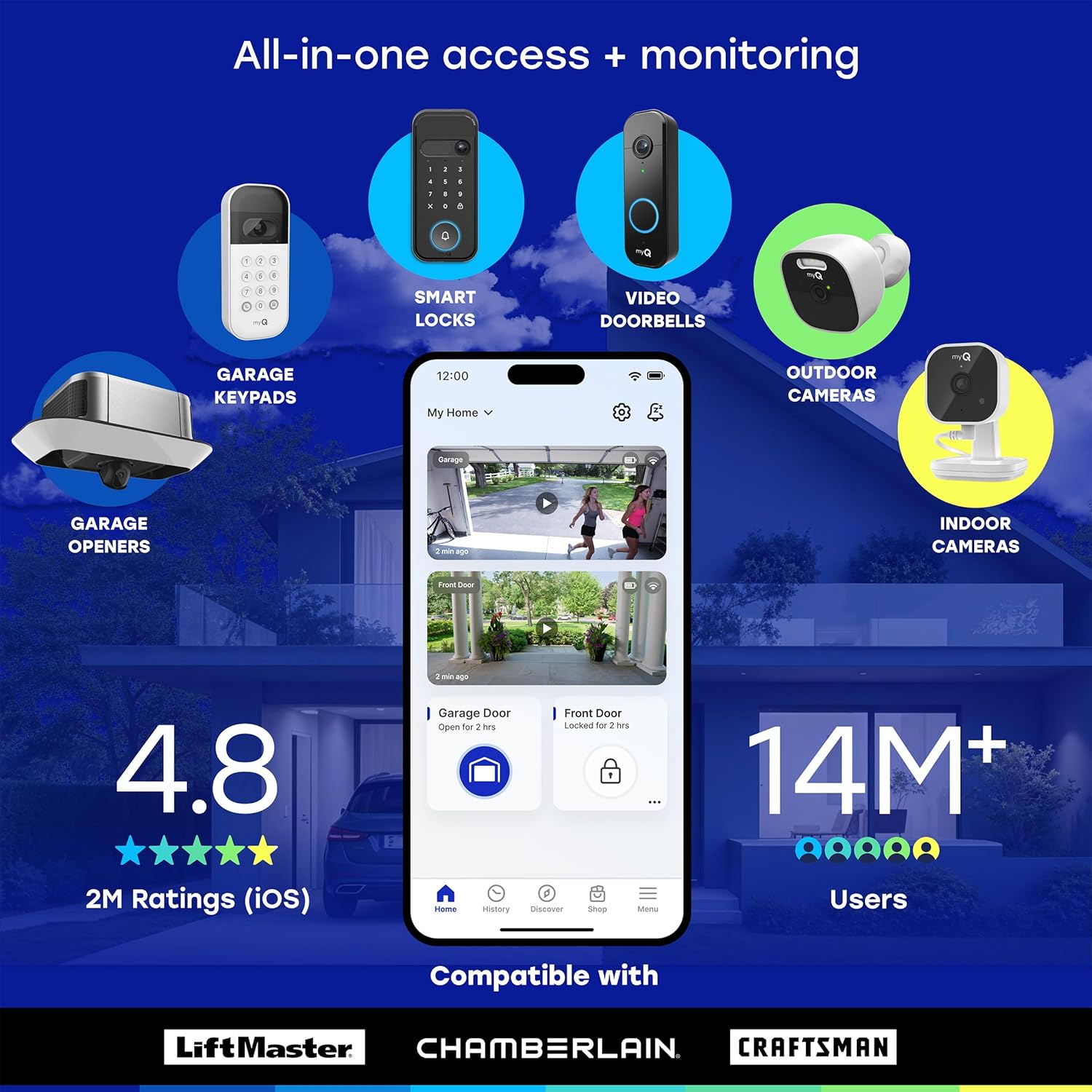
Figure 9: A smartphone displaying a myQ app notification for a doorbell ring, allowing the user to see who is at the door.
3.3 myQ App Features
The myQ app is central to managing your smart lock:
- Remote Control: Lock and unlock your door from anywhere.
- User Management: Add, delete, or modify access for family members and guests.
- Access Schedules: Create custom schedules for PIN codes or temporary access.
- Activity Log: View a history of who entered and exited, and when.
- Auto-Lock: Configure the lock to automatically secure the door after a preset time.
- Smart Detection (Subscription Required): AI-powered alerts for people, faces, packages, vehicles, and custom detection zones.
- myQ Smart Secure (Subscription Required): Proactively locks your door and can trigger myQ-enabled garage openers to close the garage door when motion or people are detected.
4. Maintenance
4.1 Battery Management
The myQ Secure View Smart Lock uses a rechargeable battery designed to last 4–6 months. To charge the battery:
- Remove the battery pack from the interior assembly.
- Connect the battery to the provided charging cable.
- Plug the charging cable into a standard USB power adapter.
- Once fully charged, reinsert the battery into the lock.
Consider purchasing a spare battery (sold separately) for uninterrupted use.
4.2 Cleaning
Wipe the exterior surfaces of the lock and camera lens with a soft, damp cloth. Avoid using abrasive cleaners or solvents that could damage the finish or electronic components.
5. Troubleshooting
5.1 Common Issues and Solutions
- Lock Not Responding: Check the battery level. If low, recharge or replace the battery. Ensure the lock is properly installed and all connections are secure.
- Wi-Fi Connectivity Issues: Ensure your home Wi-Fi is 2.4 GHz, as the lock is compatible with this frequency. Restart your router and try re-pairing the device through the myQ app.
- Face/Fingerprint Access Not Working: Ensure your face or finger is clean and properly positioned on the sensor. Re-register your biometric data in the myQ app if issues persist.
- Doorbell Not Alerting Phone: Verify that app notifications are enabled for the myQ app on your smartphone. Check Wi-Fi connection strength.
- Short Battery Life: Frequent use of live view, two-way audio, or high motion detection sensitivity can reduce battery life. Adjust settings in the myQ app to optimize.
- Physical Key Not Working: Ensure the key is fully inserted and turned correctly. If the lock is jammed, do not force it. Contact customer support.
6. Specifications
| Feature | Detail |
|---|---|
| Model Number | MYQL90AXXB |
| Brand | CHAMBERLAIN |
| Lock Type | Deadbolt |
| Dimensions (L x W x H) | 2.95 x 3.84 x 6.85 inches |
| Weight | 2.21 Kilograms |
| Camera Resolution | 2K HDR |
| Night Vision | Color Night Vision |
| Connectivity | Wi-Fi (2.4 GHz) |
| Battery Life | 4-6 months (rechargeable) |
| Access Methods | Face Access, Fingerprint, PIN, App, Key |
| UPC | 012381230099 |
7. Warranty and Support
For warranty information and technical support, please refer to the official CHAMBERLAIN website or contact their customer service directly. Keep your purchase receipt for warranty claims.


