
PULWTOP BD242A
PULWTOP BD242A 19-in-1 Triple Monitor Docking Station User Manual
Model: BD242A
1. Introduction
This manual provides detailed instructions for the setup, operation, and maintenance of your PULWTOP BD242A 19-in-1 Triple Monitor Docking Station. Please read this manual thoroughly before using the product to ensure optimal performance and safety.

Figure 1: PULWTOP BD242A 19-in-1 Triple Monitor Docking Station
2. Product Features
- 19-in-1 Connectivity: Equipped with 3 HDMI ports, 2 DisplayPort ports, 1 USB-C 10Gbps data-only port, 1 USB-C 10Gbps port with 7.5W power, 2 USB-A 5Gbps ports with 7.5W power, 1 USB-A 2.0 port, SD/TF card slots, Gigabit Ethernet, 3.5mm audio jack, 2 USB-C PD output charging ports, PD IN port, USB-C to Host port, and DC input.
- Triple 4K Extended Display: Supports up to three 4K@60Hz monitors via HDMI and DisplayPort. Note: When 5 video ports are connected, 2 monitors will not display.
- Super-Speed Data Transfer: Offers up to 10Gbps data transfer speeds through USB-C ports and 5Gbps through USB-A ports.
- Power Delivery: Includes a 72W DC power adapter for the dock. Supports up to 100W Power Delivery (PD) to your laptop via the 'PD IN' port (PD adapter not included). Two USB-C PD output ports provide up to 45W (single port) or 24W (dual ports) for charging peripherals.
- Wide Compatibility: Compatible with Thunderbolt 5/4/3, USB 4.0, and most USB-C/A laptops running macOS 11+, Windows 10+, or Chrome OS 100+.
- Space-Saving Dual Stand Design: Features an aluminum dual vertical stand for laptops (29mm slot) and phones/tablets (17mm slot) to optimize desk space.

Figure 2: Overview of the docking station ports and features.
3. Package Contents
Upon opening the package, please verify that all items listed below are included:
- 1 x Package Box
- 1 x Multilingual User Manual
- 1 x PULWTOP BD242A Docking Station
- 1 x 72W DC Power Adapter & Cable
- 1 x USB-C to C Cable with USB-A Adapter
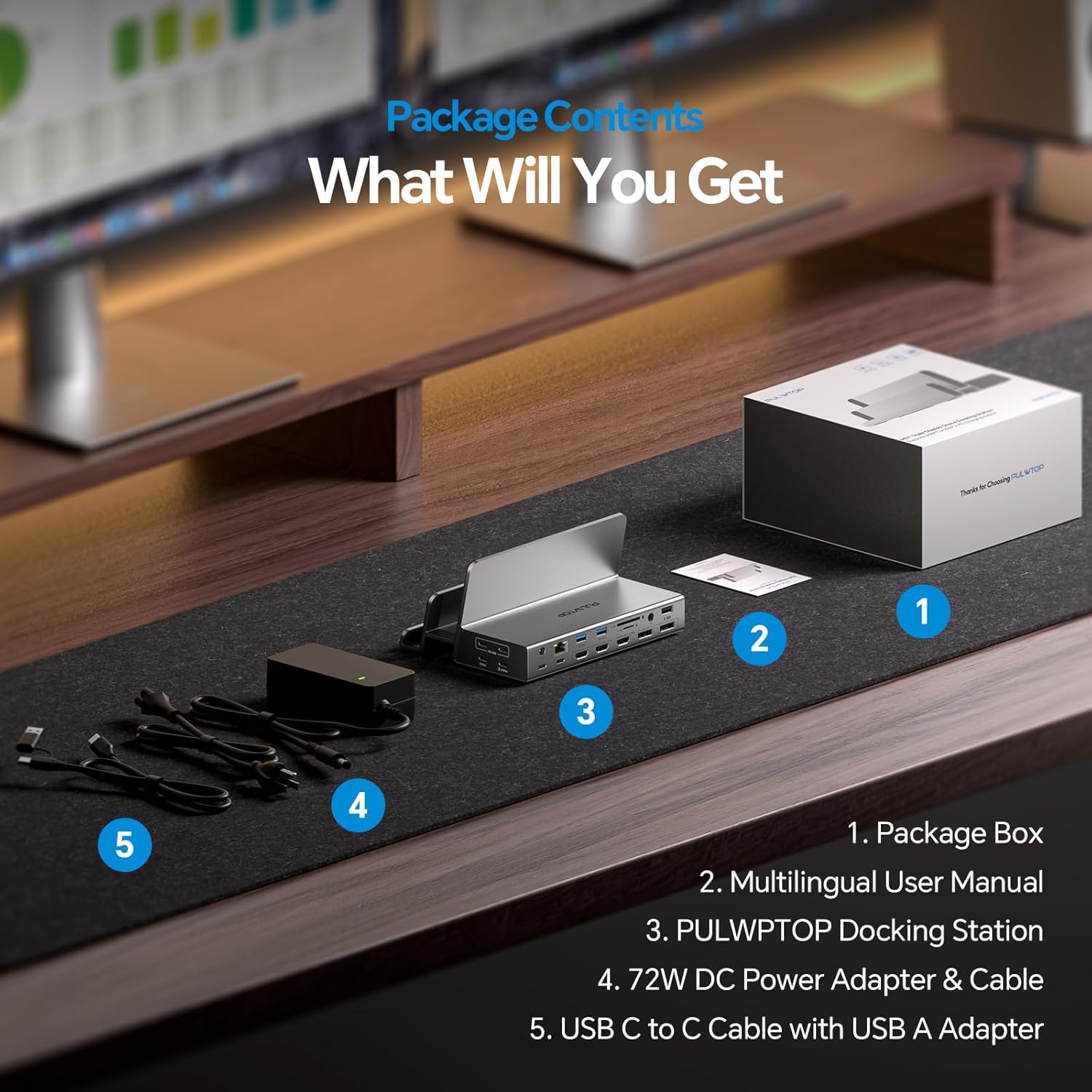
Figure 3: All items included in the product package.
4. Setup and Installation
4.1 Driver Installation
For triple display functionality, especially with macOS, installing the Silicon Motion Driver (SM770) is mandatory. Follow the steps below for your operating system:
For Windows:
- Visit the official Silicon Motion website: www.siliconmotion.com
- Navigate to 'Support' > 'Download Center'.
- Select 'Others' for Product Solution, then locate and download the 'SM770 Driver Download' for Windows 10/11.
- Double-click 'SMIUSBDisplaySW.exe' to start the installation.
- Follow the on-screen prompts, click 'Install', and wait for completion.
- Click 'Exit' once the installation is complete.
Video 1: Silicon Motion Driver Installation Guide for Windows OS.
For macOS:
- Visit the official Silicon Motion website: www.siliconmotion.com
- Navigate to 'Support' > 'Download Center'.
- Select 'Others' for Product Solution, then locate and download the 'SM770 Driver Download' for macOS.
- Drag the 'macOS InstantView' application to your Applications folder.
- Open the software, then open 'System Settings'.
- Go to 'Privacy & Security' > 'Screen Recording' and enable the 'macOS InstantView' button.
- You may need to quit and reopen the application for changes to take effect.
Video 2: Silicon Motion Driver Installation Guide for Mac OS.
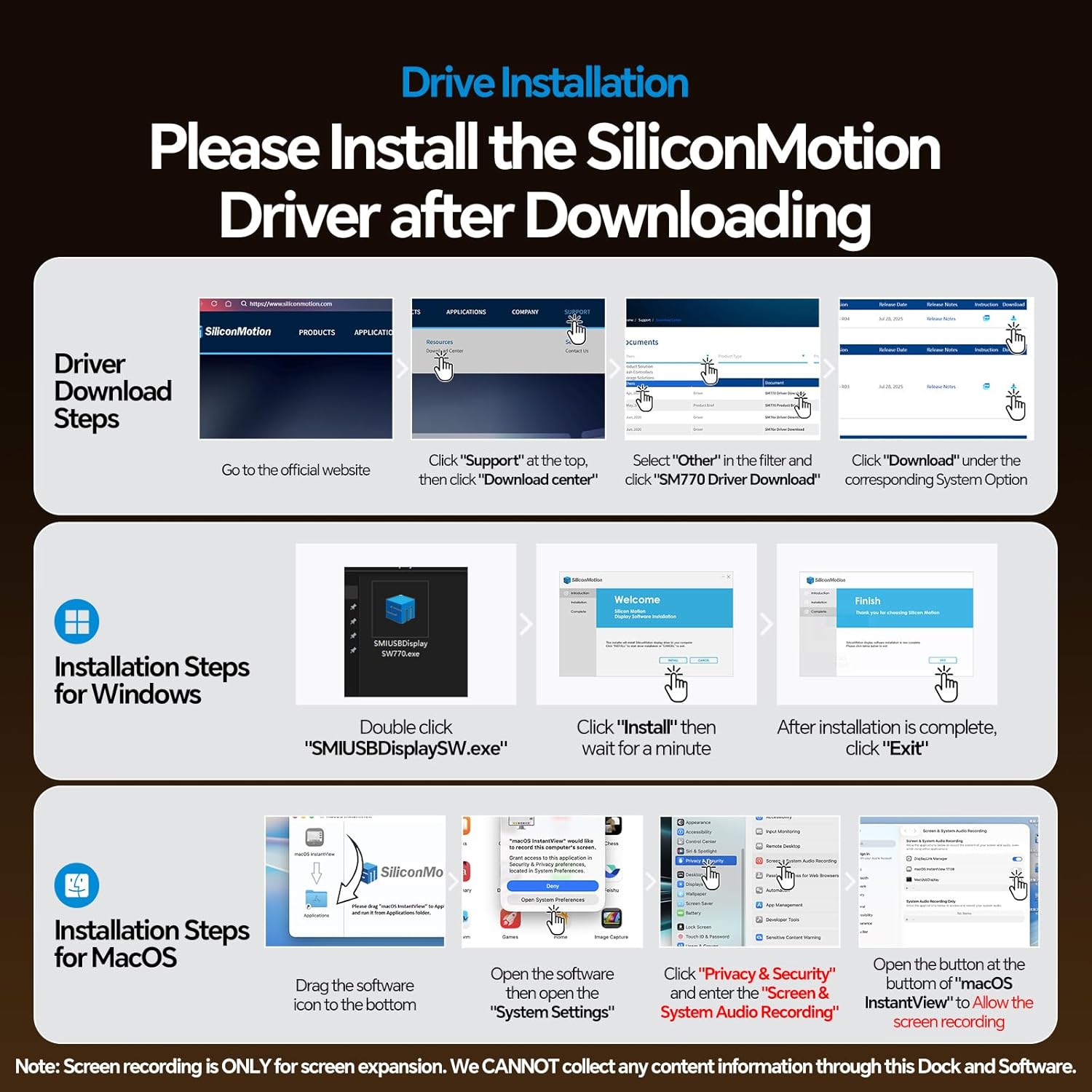
Figure 4: Visual guide for driver installation on Windows and macOS.
4.2 Hardware Connection
- Power the Dock: Connect the included 72W DC power adapter to the 'DC IN' port on the docking station. The dock must be powered for operation.
- Connect to Host Device: Use the provided USB-C to C cable (with USB-A adapter if needed) to connect the 'USB-C to Host' port on the docking station to your laptop's USB-C or USB-A port.
- Connect External Monitors: Connect your monitors to the HDMI and/or DisplayPort outputs on the docking station. You can use any 3 of the 5 available video ports (3 HDMI, 2 DP) for triple display.
- Connect Peripherals: Plug in your USB devices (keyboard, mouse, external drives), Ethernet cable, SD/TF cards, and audio devices to the corresponding ports on the docking station.
Video 3: Unboxing and initial setup of the docking station.

Figure 5: Example of a triple display setup with the docking station.
5. Operating Instructions
5.1 Display Configuration
After connecting your monitors and installing the necessary drivers, your operating system should automatically detect the external displays. You can configure display settings (extend, mirror, primary display) through your system's display settings.
5.2 Clamshell Mode (Laptop Lid Closed)
To use your laptop with the lid closed while connected to external monitors, ensure the following:
- A mouse must be connected to the dock to wake up the laptop.
- The 72W DC power adapter must be connected to power the dock.
- Your laptop's power settings must be configured to prevent it from going to sleep when the lid is closed and connected to external power.
5.3 Charging Functionality
- Dock Power: The included 72W DC power adapter powers the docking station.
- Laptop Charging: To charge your laptop, connect an additional PD adapter (not included) to the 'PD IN' port on the dock. This supports up to 100W charging for your laptop. Note: When using the dock with a USB-A laptop, the 'PD IN' port will not charge your laptop.
- Peripheral Charging: The two USB-C PD output ports can charge smartphones, headsets, or other accessories with up to 45W (single port) or 24W (dual ports simultaneously).

Figure 6: Illustration of the charging capabilities for laptops and peripherals.
5.4 Data Transfer
Utilize the high-speed USB-C (10Gbps) and USB-A (5Gbps) ports for rapid data transfer between your laptop and external storage devices or other peripherals.

Figure 7: High-speed data transfer ports on the docking station.
5.5 SD/TF Card Reader and Ethernet
The integrated SD and TF card slots support simultaneous reading and writing at speeds up to 104Mbps. The Gigabit Ethernet port provides a stable wired network connection up to 1000Mbps.

Figure 8: SD/TF card reader and Gigabit Ethernet port.
5.6 Dual Stand Functionality
The docking station features two vertical stand slots: a 29mm slot for laptops (MacBook Pro/Air and Windows laptops) and a 17mm slot for phones or tablets. This design helps organize your workspace and keeps devices upright.
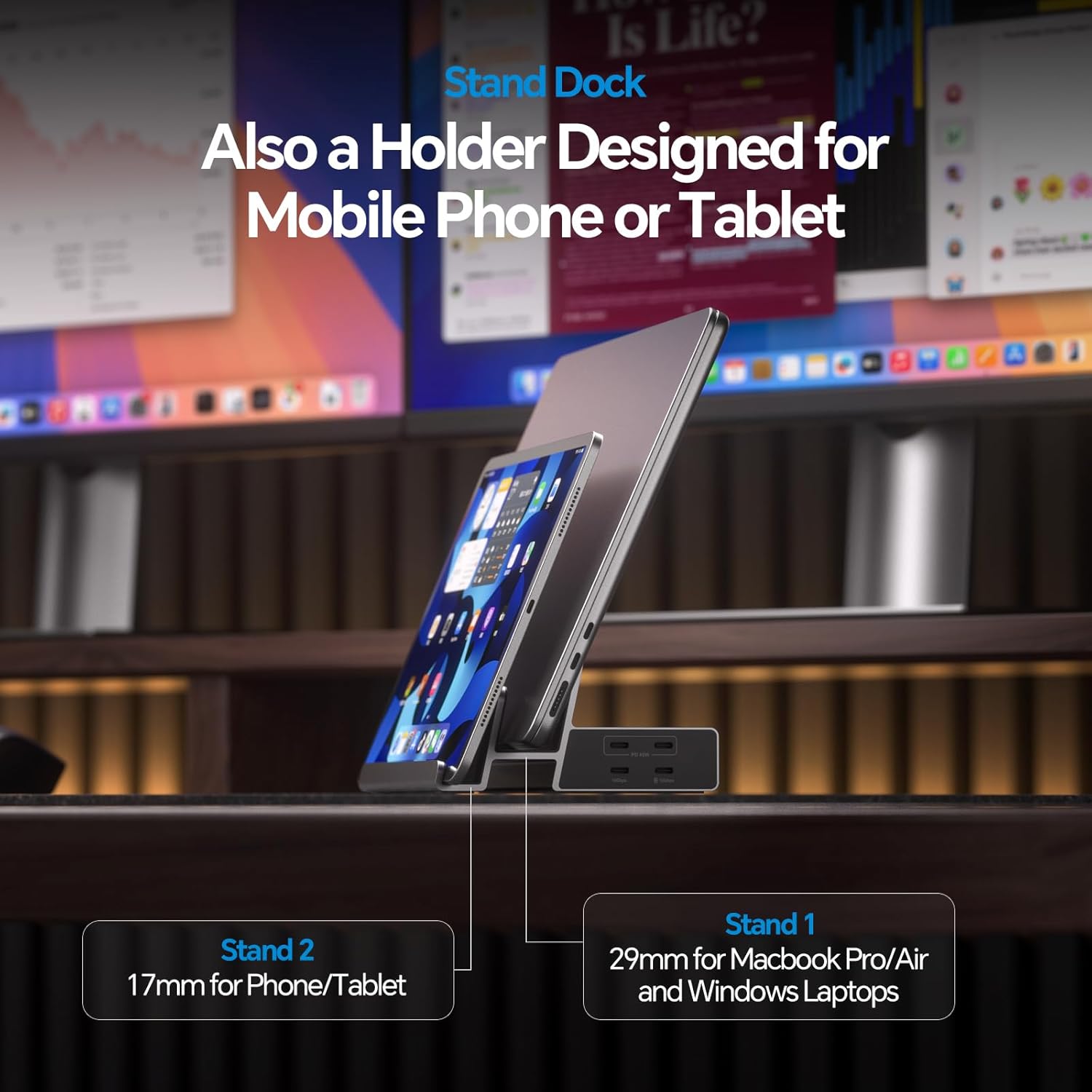
Figure 9: The dual stand design for laptops and mobile devices.
6. Maintenance
- Cleaning: Use a soft, dry cloth to clean the docking station. Avoid liquid cleaners or abrasive materials.
- Storage: Store the device in a cool, dry place away from direct sunlight and extreme temperatures.
- Handling: Handle the docking station with care to prevent damage to ports or the aluminum casing.
7. Troubleshooting
- No Display on External Monitors:
- Ensure the Silicon Motion driver is correctly installed and 'Screen Recording' permission is granted for macOS. Refer to Section 4.1.
- Verify all cables (USB-C to Host, HDMI/DP) are securely connected.
- Confirm the docking station is powered by the 72W DC adapter.
- Check your laptop's display settings to ensure external monitors are detected and configured correctly (extend/mirror).
- Try restarting your laptop and reconnecting the dock.
- Laptop Not Charging:
- Ensure a separate PD adapter (not included) is connected to the 'PD IN' port on the dock for laptop charging.
- Confirm your laptop supports USB-C Power Delivery.
- If using a USB-A laptop, the 'PD IN' port will not charge the laptop.
- USB Devices Not Recognized:
- Ensure the USB-C to Host cable is firmly connected to both the dock and your laptop.
- Try connecting the USB device directly to your laptop to rule out device issues.
- Ensure the dock is receiving power.
- Intermittent Connection:
- Check all cable connections for looseness.
- Ensure your laptop's USB-C port is fully functional and supports the required protocols (DisplayPort Alt Mode, Power Delivery).
8. Specifications
| Feature | Description |
|---|---|
| Product Dimensions | 7.08 x 4.92 x 3.26 inches (18 x 12.5 x 8.3 cm) |
| Item Weight | 1.23 pounds (560 Grams) |
| Item Model Number | BD242A |
| Hardware Interface | 3.5mm Audio, DisplayPort, HDMI, MicroSD, USB 2.0, USB 3.1 Type A, USB 3.2 Gen 2, Ethernet |
| Total USB Ports | 7 (2x USB-C 10Gbps, 2x USB-A 5Gbps, 1x USB-A 2.0, 2x USB-C PD Output) |
| Number of Ports | 19 |
| Total HDMI Ports | 3 |
| Total DisplayPort Ports | 2 |
| Input Voltage | 24 Volts (DC) |
| Max Laptop PD Charging | 100W (via optional PD adapter to 'PD IN' port) |
| Peripheral PD Output | 45W x 1 or 22W x 2 (via USB-C PD output ports) |
| Compatible Devices | Windows 10/11, macOS 10.15.x+, ChromeOS 100+, Thunderbolt 5/4/3, USB4.0, USB-C/A Laptops (e.g., Dell, Microsoft Surface, HP, Lenovo, Huawei, Google, LG, Samsung, Apple MacBook M1/M2/M3/M4/M5) |
9. Warranty and Support
For warranty information or technical support, please contact PULWTOP customer service:
- Email: Support@pulwtop.com
- Website: www.pulwtop.com
- Service Time: Monday - Friday, 9 AM - 5 PM (EST)
Ask a question about this manual
Ask about setup, troubleshooting, compatibility, parts, safety, or missing instructions. Manuals+ will review the question and use this page’s manual context to help answer it.