
Introduction
This manual provides detailed instructions for the AOC GK280 Wireless Gaming Keyboard. It covers setup, operation, maintenance, and troubleshooting to ensure optimal performance and user experience. The GK280 features tri-mode connectivity (Bluetooth, 2.4 GHz wireless, and USB-C wired), RGB LED backlighting, and an ergonomic 77-key layout, designed for both gaming and typing.
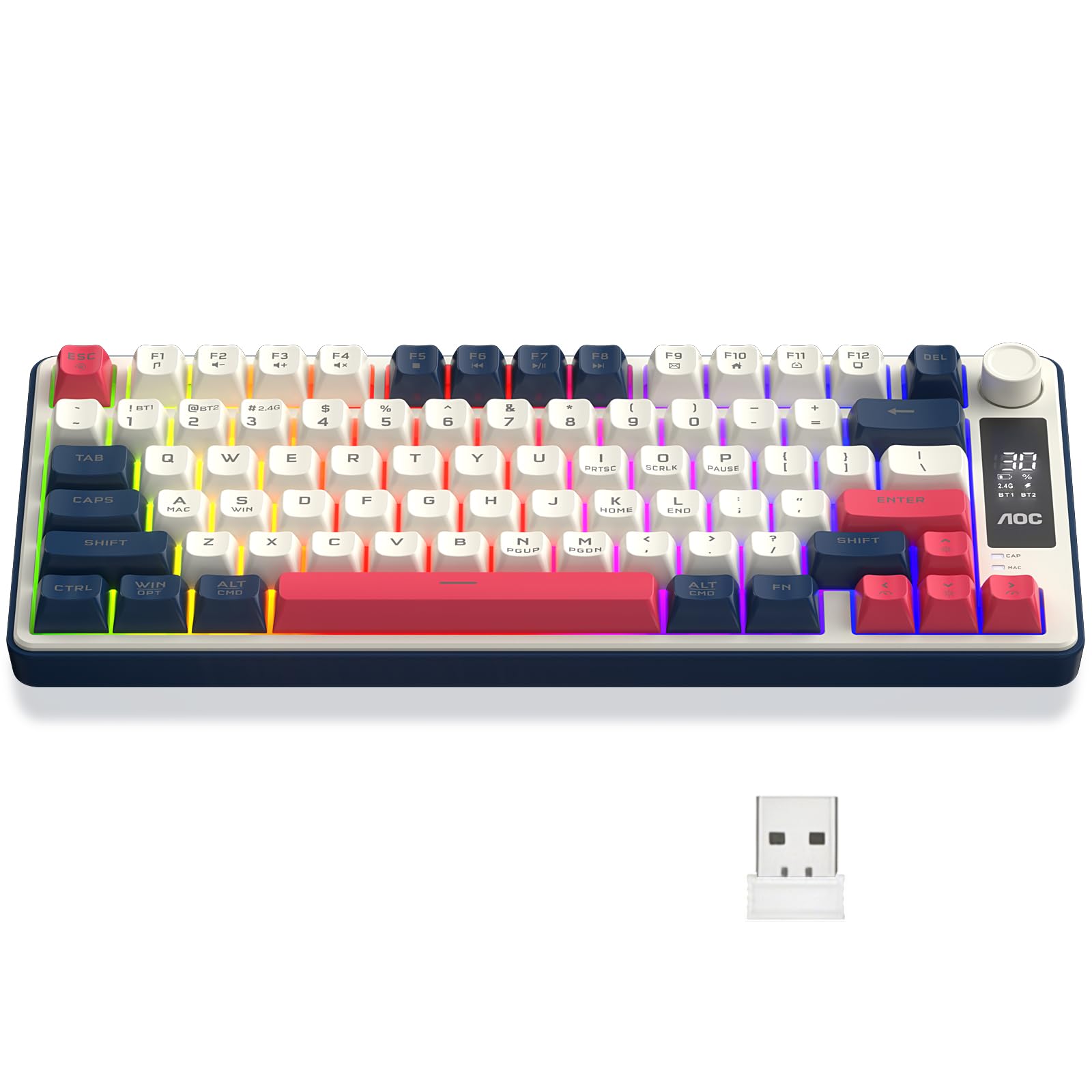
Image: AOC GK280 Wireless Gaming Keyboard, showcasing its compact design and RGB lighting.
Product Overview
Key Features
- Multi-device Connectivity: Supports Bluetooth (BT1/BT2), 2.4 GHz wireless, and USB-C wired connections, allowing seamless switching between devices like PCs, laptops, and tablets.
- Compact 77-Key Layout: More compact than full-sized keyboards, offering portability without sacrificing essential functionality. Features 19-key anti-ghosting for precise input during gaming.
- RGB LED Backlighting: Offers 15 lighting modes with adjustable colors (red, green, blue, purple, yellow, cyan, colorful, white) to enhance your gaming environment.
- Integrated LED Display and Control Knob: Provides intuitive display of keyboard status, connection mode, and battery level. The rotary knob allows quick adjustment of volume and brightness.
- Ergonomic Design: Features spherical keycaps and durable materials for excellent tactile feedback. Adjustable keyboard angle ensures comfort during extended use.
Components

Image: Detailed view of the AOC GK280's integrated LED display and rotary control knob, indicating battery, connection status, and lighting.
- Rotary Knob: Controls volume (rotate clockwise to increase, counter-clockwise to decrease, press to mute) and brightness (long press for 5 seconds to switch between volume/brightness control, press once to cycle lighting effects).
- LED Display: Shows battery percentage, connection mode (2.4G, BT1, BT2), and other indicators.
- Mode Switch Button: Located on the side, used to switch between connection modes.
- Adjustable Feet: Two-level adjustable feet for ergonomic typing angles.
- USB Storage Compartment: For storing the 2.4 GHz wireless receiver.

Image: The AOC GK280 keyboard showing its two-level adjustable feet and the integrated USB storage compartment for the 2.4 GHz receiver.
Setup
The AOC GK280 keyboard offers three connection modes: Bluetooth, 2.4 GHz wireless, and USB-C wired. Follow the instructions below to connect your keyboard.

Image: The AOC GK280 keyboard demonstrating its tri-mode connectivity options: Bluetooth, 2.4 GHz wireless, and USB-C wired, compatible with various devices.
1. Bluetooth Mode (BT1/BT2)
- Activate Bluetooth mode on the keyboard using the side mode switch.
- Press and hold the Fn + 1 or Fn + 2 keys for 3 seconds. The corresponding Bluetooth icon on the LED display will flash.
- On your device (PC, laptop, tablet), search for Bluetooth devices and select "AOCGK280-1" or "AOCGK280-2" to pair.
- Once connected, the Bluetooth icon on the display will stop flashing.
- To reconnect, quickly press Fn + 1 or Fn + 2.
2. 2.4 GHz Wireless Mode
- Activate 2.4 GHz wireless mode on the keyboard using the side mode switch.
- Press and hold the Fn + 3 keys. The corresponding 2.4 GHz icon on the LED display will flash.
- Insert the USB 2.4 GHz receiver into an available USB port on your computer.
- The keyboard should connect automatically.
3. USB-C Wired Mode
- Ensure the keyboard's mode switch is set to 'OFF' or wired mode.
- Connect the provided USB-C cable to the keyboard and to an available USB port on your computer.
- The keyboard will function as a wired device and will also charge its internal battery.
Operating Instructions
Backlight Control
- To cycle through the 15 lighting effects, press Fn + Enter.
- To change the color of the current lighting effect, press Fn + \|. Colors include red, green, blue, purple, yellow, cyan, colorful, and white.
Volume and Brightness Control
The integrated rotary knob provides quick control over audio volume and backlight brightness.
- Volume Control: Rotate the knob clockwise to increase volume, counter-clockwise to decrease volume. Press the knob to mute/unmute audio.
- Brightness Control: Long press the knob for 5 seconds to switch its function between volume control and brightness control. Once in brightness control mode, rotate the knob to adjust backlight brightness. Press the knob once to cycle through lighting effects.
LED Display Information

Image: AOC GK280 keyboard displaying its battery level and connection status on the integrated LED screen.
The LED display provides real-time information:
- Battery Level: Shows the current battery percentage.
- Connection Mode: Indicates the active connection (2.4G, BT1, BT2).
- Charging Status: An icon will indicate when the keyboard is charging.
Anti-Ghosting Feature
The GK280 features 19-key anti-ghosting, ensuring that multiple key presses are registered accurately and simultaneously, which is crucial for gaming.
Maintenance
Charging the Battery
The keyboard is equipped with a rechargeable battery. Connect the keyboard to a USB power source using the provided USB-C cable. The LED display will indicate the charging status and battery level.
Cleaning
To clean the keyboard, use a soft, dry cloth. For stubborn dirt, a slightly damp cloth with mild soap can be used, ensuring no liquid enters the keyboard. Avoid using harsh chemicals or abrasive materials.
Troubleshooting
Connection Issues
- Keyboard not connecting: Ensure the keyboard is charged. Verify the correct mode (Bluetooth, 2.4 GHz, or wired) is selected using the side switch. For Bluetooth, ensure your device's Bluetooth is on and the keyboard is in pairing mode. For 2.4 GHz, ensure the USB receiver is properly inserted.
- Intermittent connection: Check for interference from other wireless devices. Ensure the keyboard is within the 10-meter (33 feet) transmission range for wireless modes.
Key Functionality
- Keys not responding: Try connecting the keyboard in wired mode to rule out wireless issues. Ensure the keyboard is not in a locked state. If specific keys are not working, contact support.
- Incorrect character input: Verify your operating system's keyboard layout settings match the physical layout of the GK280.
Software Recognition
- Keyboard not recognized by software: Ensure your operating system is up to date. If using specific AOC software, check for the latest version and compatibility with the GK280 model.
Specifications
| Brand | AOC |
| Model | GK280 |
| Connectivity Technology | Bluetooth, 2.4 GHz, USB-C |
| Compatible Devices | PC |
| Keyboard Description | Gaming, Multifunctional, Multimedia |
| Recommended Uses | Gaming and Typing |
| Special Features | Backlit (RGB) |
| Power Source | Battery Powered |
| Keyboard Layout | QWERTY |
| Number of Keys | 77 |
| Country of Origin | China |
Warranty Information
No explicit warranty description is provided within the product specifications. For warranty details and terms, please refer to the retailer or the official AOC website. Additional protection plans may be available for purchase from your retailer.
Support
For further assistance, product registration, or to explore other AOC products, please visit the official AOC store or contact their customer support.
Official AOC Store: AOC Store on Amazon


