
1. Introduction
The COTAO Pixi Beam Portable Projector is designed to transform any space into an immersive viewing experience. Its lightweight and portable design allows for easy setup and enjoyment of large-screen entertainment anywhere. This manual provides essential information for the safe and effective use of your projector, including setup, operation, maintenance, and troubleshooting.
2. Safety Information
- Do not look directly into the projector lens when the lamp is on. The intense light can cause eye damage.
- Ensure proper ventilation around the projector. Do not block ventilation openings.
- Use only the power adapter supplied with the projector.
- Keep the projector away from water, moisture, and extreme temperatures.
- Avoid placing the projector on unstable surfaces.
- Do not attempt to disassemble or repair the projector yourself. Refer all servicing to qualified personnel.
3. Package Contents
Please check that all items are present in your package:
- COTAO Pixi Beam Portable Projector
- Remote Control
- Power Cord
- User Manual (this document)
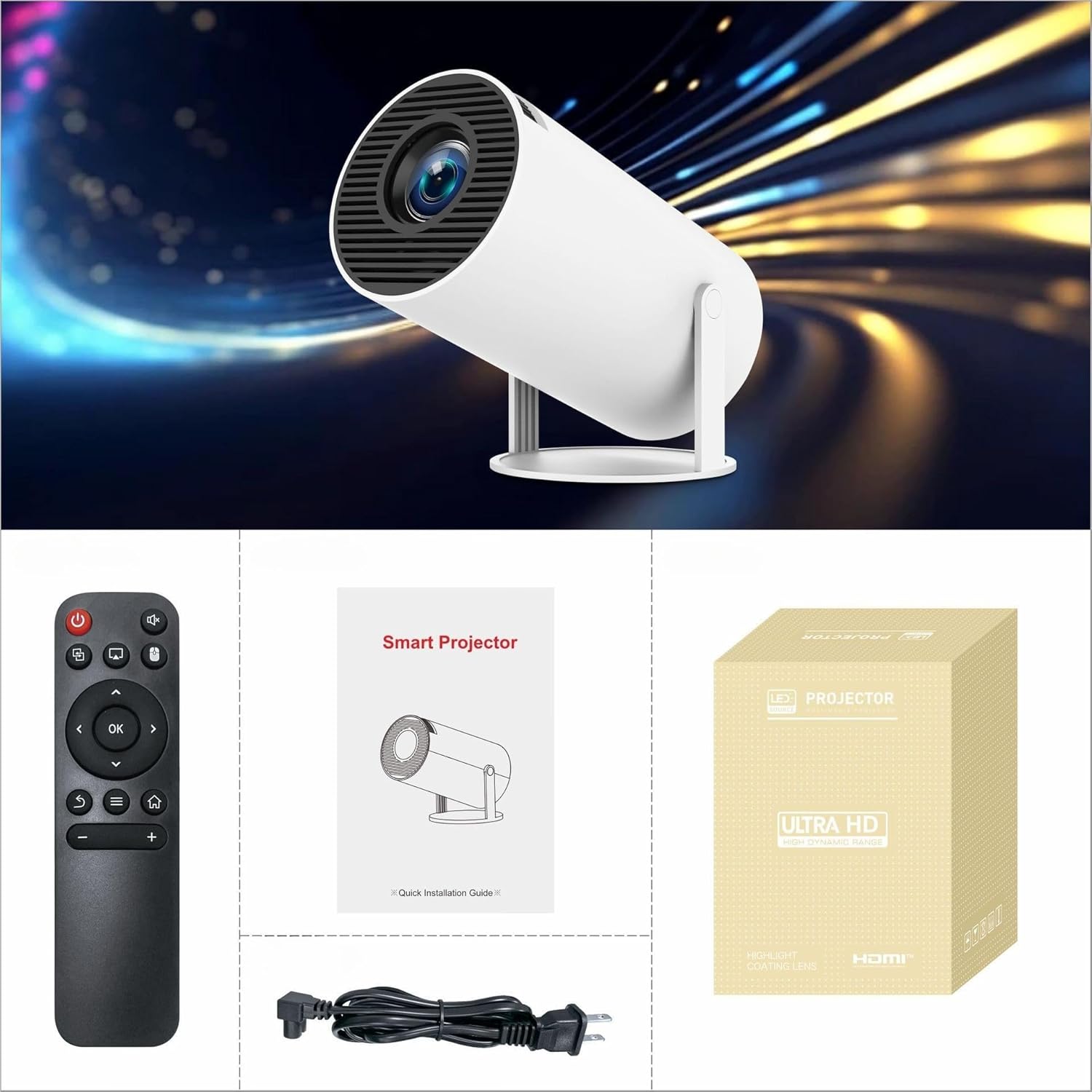
Image: Contents of the COTAO Pixi Beam Portable Projector package.
4. Product Overview
Familiarize yourself with the main components of your projector.

Image: Front view of the projector, highlighting the lens and ventilation.

Image: Rear view of the projector, showing power input, USB port, and ventilation.
Key Features:
- Lens: Projects the image onto the screen or surface.
- Ventilation: Ensures proper airflow to prevent overheating.
- Power Input: Connects to the power adapter.
- USB Port: For connecting USB storage devices.
- Built-in Speaker: Provides audio output.
- Adjustable Stand: Allows for 180° projection angle adjustment.
5. Setup
5.1 Placement
Place the projector on a stable, flat surface. Ensure there is adequate space around the projector for ventilation. The projector features a 180° adjustable stand, allowing you to project onto walls, ceilings, or floors.

Image: The projector's agile gimbal allows for 180° projection, enabling versatile placement.
5.2 Power Connection
- Connect the power cord to the projector's power input port.
- Plug the other end of the power cord into a power outlet.
5.3 Initial Power On
Press the power button on the projector or the remote control to turn on the device. The projector will boot up and display its home screen.
5.4 Focus and Keystone Correction
The projector features automatic keystone correction to adjust the image for a perfectly rectangular display, even if the projector is not perfectly aligned with the screen.

Image: Automatic correction feature ensuring a square picture from various projection angles.
Adjust the focus manually if needed using the focus ring on the projector lens until the image is clear.
6. Operating Instructions
6.1 Power On/Off
- To Power On: Press the power button on the remote control or the projector.
- To Power Off: Press the power button again. Confirm shutdown if prompted.
6.2 Screen Mirroring
The Pixi Beam Projector supports convenient screen mirroring from your iPhone, Android smartphone, or tablet via Wi-Fi.
- Ensure your projector and mobile device are connected to the same Wi-Fi network.
- On the projector's interface, select the 'Screen Mirroring' option.
- On your mobile device, activate the screen mirroring feature (e.g., 'Screen Mirroring' on iOS, 'Smart View' or 'Cast' on Android).
- Select the projector from the list of available devices.
- Your device's screen will now be displayed on the projector.

Image: Connecting your iPhone, Android smartphone, or tablet to the projector via Wi-Fi for screen mirroring.

Image: Examples of mobile screen mirroring for both Android and Apple devices.
6.3 Connecting External Devices
You can connect various devices to the projector:
- USB Devices: Insert a USB flash drive into the USB port to play media files directly.
- Bluetooth Devices: Pair Bluetooth speakers or headphones for enhanced audio. Navigate to the Bluetooth settings in the projector's menu to connect.
6.4 Audio System
The projector features a built-in HiFi surround sound system with an independent large cavity and full-frequency loudspeaker for cinema-grade audio.

Image: Internal view of the projector's Hifi surround sound system components.
7. Maintenance
7.1 Cleaning the Lens
Use a soft, lint-free cloth specifically designed for optical lenses to gently wipe the projector lens. Do not use abrasive cleaners or excessive force.
7.2 Cleaning the Exterior
Wipe the projector's exterior with a soft, dry cloth. For stubborn dirt, dampen the cloth slightly with water, then wipe dry immediately.
7.3 Storage
When not in use for extended periods, store the projector in a cool, dry place, away from dust and direct sunlight. It is recommended to use the original packaging or a protective case.
8. Troubleshooting
| Problem | Possible Cause | Solution |
|---|---|---|
| No image displayed | Projector not powered on; input source not selected; cable not connected. | Ensure power is connected and unit is on. Select correct input source. Check all cable connections. |
| Image is blurry | Focus not adjusted; projector too close/far from screen. | Adjust the focus ring on the lens. Adjust projection distance. |
| Image is trapezoidal/skewed | Projector not perpendicular to screen. | The projector has automatic keystone correction. Ensure it is enabled. Reposition the projector if necessary. |
| No sound | Volume too low; external audio device not connected properly; projector muted. | Increase volume. Check external audio connections. Unmute the projector. |
| Screen mirroring not working | Devices not on same Wi-Fi network; screen mirroring feature not activated. | Ensure both devices are on the same Wi-Fi. Activate screen mirroring on your mobile device and select the projector. |
9. Specifications
| Feature | Specification |
|---|---|
| Brand | COTAO |
| Model | Pixi Beam Portable Projector (Standard Version) |
| Native Resolution | 1024 x 576 |
| Maximum Display Resolution | 1024 x 768 |
| Display Type | LED |
| Connectivity Technology | Bluetooth, Wi-Fi (Dual Band Wi-Fi 6, BT5.0) |
| Special Features | 3D-Ready, Built-In Media Player, Built-In Speaker, Automatic Keystone Correction, 180° Free Projection |
| Form Factor | Desktop |
| Mounting Type | Floor Mount |
| Parcel Dimensions | 18.9 x 10.1 x 10.1 cm |
| Weight | 800 g |
| Country of Origin | China |
Image: Overview of key technical specifications and features.
10. Warranty and Support
For warranty information and technical support, please refer to the warranty card included with your product or contact the seller directly. Keep your purchase receipt as proof of purchase for any warranty claims.