
1. Introduction
Thank you for choosing the Yowow BIT AI Smart Glasses. This manual provides essential information for the safe and effective use of your device. Please read it thoroughly before operation and retain it for future reference. These smart glasses integrate an 8MP camera, 4K photo and 1080P video capabilities, AI-powered real-time translation, Bluetooth calling, and photochromic lenses for versatile use.
2. What's in the Box
- Yowow BIT AI Smart Glasses
- Charging Cable
- User Manual
3. Product Overview
The Yowow BIT AI Smart Glasses are designed for comfort and functionality. Key components include:
- Camera: Integrated 8MP camera for photo and video capture.
- Indicator Light: Provides status feedback during operation.
- Physical Buttons: Located on the temples for various controls.
- Touchpad: Located on the right temple for gesture-based controls.
- Nose Pads: Designed for comfortable fit.
- TR Flexible Material: Ensures durability and comfort.

Image: Structural overview of the smart glasses, highlighting the camera, indicator light, nose pads, and flexible material.
4. Setup
4.1 Initial Charging
Before first use, fully charge your smart glasses using the provided magnetic charging cable. Connect the cable to the charging port on the glasses and a USB power source. The indicator light will show charging status.
4.2 App Installation
To unlock full functionality, download and install the "HeyCyan" app on your smartphone (compatible with iOS and Android). Search for "HeyCyan" in your device's app store.
4.3 Device Pairing
- Ensure your smart glasses are powered on by pressing and holding the front button.
- Enable Bluetooth on your smartphone.
- Open the HeyCyan app and register an account if prompted.
- In the app, select "Connect Device" and wait for the app to search for your glasses. The blue indicator light on the glasses will flash during pairing mode.
- Select your device from the list to complete the pairing process.

Image: Visual guide for initial setup and pairing with the HeyCyan app.
5. Operating Instructions
5.1 Basic Button Operations
The smart glasses feature both physical buttons and a touch-sensitive area for control.

Image: Detailed guide for button and touchpad controls.
- Capture Photos: Single press the Front-Right Button. The indicator light will flash.
- Start Recording Video: Double press the Front-Right Button. The indicator light will stay on.
- Start Recording Audio: Long press the Rear-Right Button. The indicator light will blink in a pattern.
- Incoming Call Answer: Short press the Front-Right Button. Long press to hang up.
- AI Quick Image Recognition: Double-click the Rear-Right Button.
- Play/Pause Music: Double-tap the Right Touchpad.
- Adjust Volume: Slide the Right Touchpad forward/backward.
5.2 Camera and Video Recording
The integrated 8MP camera captures 4K photos and 1080P video. Advanced stabilization technology helps maintain steady footage. Dual high-sensitivity microphones ensure clear audio recording.

Image: Detail of the 8MP camera lens and its internal structure.

Image: Example of 1080P video and 4K photo capture, demonstrating image stabilization.
5.3 AI Assistant and Translation
Equipped with an embedded AI model, these glasses offer real-time translation and voice assistant features.
- Real-Time Translation: Provides ultra-fast (0.1s) translation across multiple languages.
- Voice Assistant: Activate for quick answers, information lookup, and scenario recognition.
- Object Recognition: Identify objects and receive instant voice feedback.
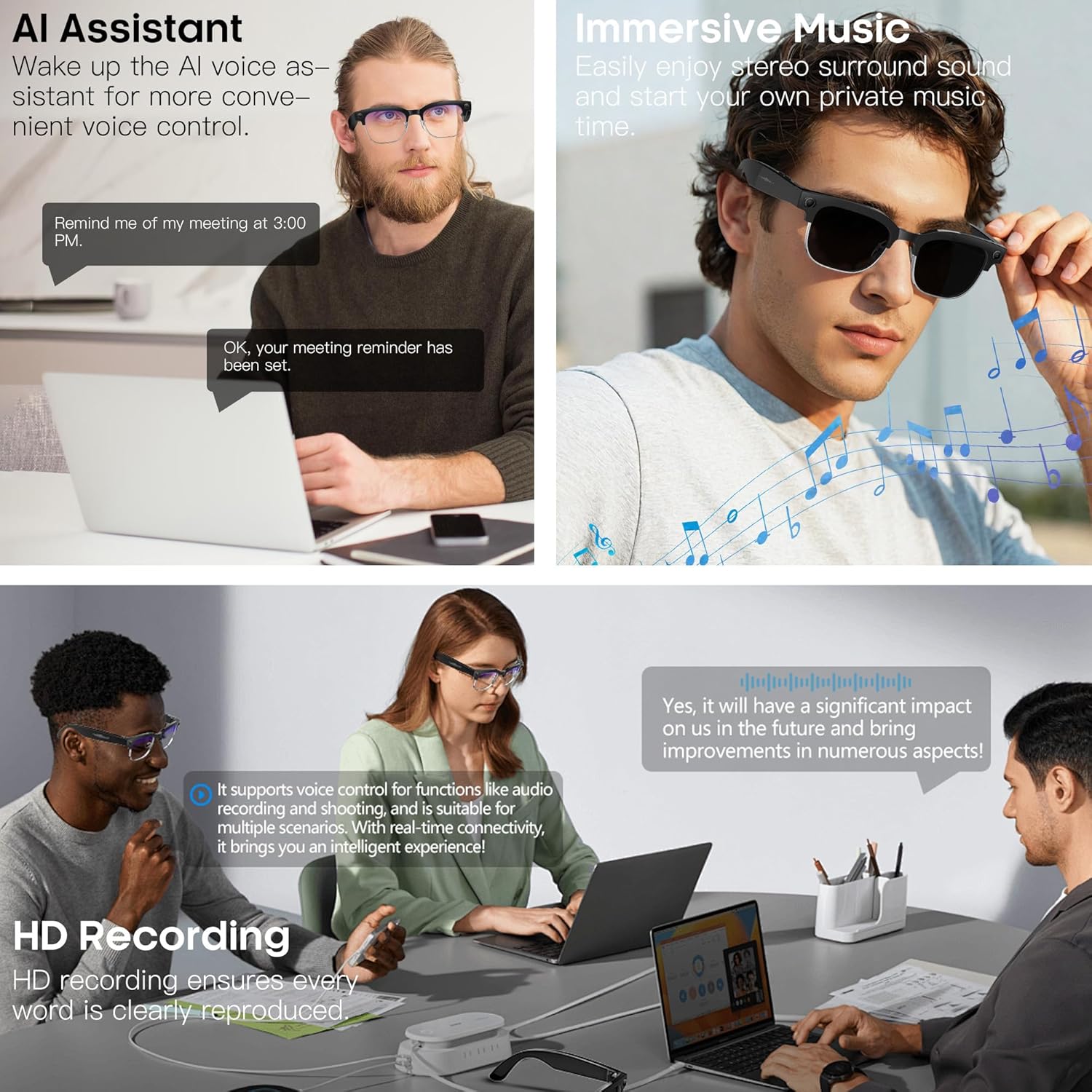
Image: Illustration of the AI real-time translation feature during a conversation.

Image: AI photo recognition identifying an object and providing information.
5.4 Bluetooth Calling and Audio
Enjoy stable Bluetooth calling with dual-mic noise reduction for clear conversations. The open-ear audio design provides immersive sound while maintaining environmental awareness.

Image: Bluetooth calling with ENC noise reduction for clear audio.
6. Lenses Information
The smart glasses feature advanced photochromic lenses that adapt to light conditions.
- Photochromic Lenses: Automatically adjust tint, becoming clear indoors and darker in sunlight.
- UV400 Protection: Blocks 99% of ultraviolet rays.
- Blue-Light Filtering: Reduces eye fatigue from screens and LED light sources.

Image: Photochromic lenses demonstrating automatic tint adjustment.
7. Battery Life and Charging
The glasses are equipped with a 290mAh battery, providing:
- Up to 12 hours of continuous music playback.
- Over 7 days of standby time.
Charging is done via the included magnetic charging cable. Connect the cable to the charging contacts on the glasses and a standard USB power adapter. LED indicators show the charging status.

Image: Battery life indicators for charging, music playback, and standby time.
8. Water Resistance
The smart glasses feature an IP66 waterproof and dustproof design, making them suitable for daily life and outdoor activities. This rating indicates protection against powerful water jets and dust ingress.

Image: Smart glasses demonstrating IP66 water resistance.
9. Connectivity
The glasses support both Bluetooth and Wi-Fi connectivity.
- Bluetooth: For pairing with your smartphone for calls, music, and app control.
- Wi-Fi: For fast and seamless transfer of photos, videos, and voice recordings to your phone via the HeyCyan app.

Image: Wi-Fi transfer of media to a smartphone.
10. Specifications
| Feature | Detail |
|---|---|
| Model Number | B0G5F6P452 |
| Operating System | Android, iOS Compatible |
| Camera | 8MP, 4K Photo, 1080P Video |
| Special Features | AI Translation, AI Voice Assistant, Anti-shake Camera, Auto-tinting Lenses, Open Ears |
| Battery Capacity | 290 mAh Lithium Polymer |
| Connectivity | Bluetooth, Wi-Fi |
| Water Resistance | IP66 (3 Meters depth) |
| Weight | Approximately 35g |
| Lenses | Photochromic, UV400 Protection, Blue-Light Filtering |
| Display Type | No Display |
| Resolution (Internal) | 128 x 96 |
11. Troubleshooting
- Device not powering on: Ensure the glasses are fully charged. Connect to the charging cable and check the indicator light.
- Cannot pair with smartphone: Make sure Bluetooth is enabled on your phone and the HeyCyan app is open. Ensure the glasses are in pairing mode (flashing blue indicator light). Try restarting both the glasses and your phone.
- AI features (translation, object recognition) not working: Ensure the glasses are properly connected to the HeyCyan app and your phone has an active internet connection. The accuracy of AI features can vary based on environment and language.
- Video/Audio recording issues: Check battery level. Ensure sufficient internal storage is available (storage capacity is fixed and not expandable). Note that the bright white LED on the camera side illuminates during photo/video recording and cannot be disabled.
- Poor audio quality during calls/music: Ensure the glasses are positioned correctly on your head. Check for any obstructions to the open-ear speakers.
- Battery drains quickly: High-intensity operations like continuous video recording or heavy AI usage will consume more power. Ensure no background apps are excessively using power on your connected smartphone.
12. Maintenance
- Cleaning: Use a soft, dry cloth to clean the lenses and frame. For stubborn smudges, a lens cleaning solution designed for eyewear can be used. Avoid harsh chemicals.
- Storage: Store the glasses in a cool, dry place, away from direct sunlight and extreme temperatures. Use the provided case for protection when not in use.
- Charging: Always use the original magnetic charging cable to prevent damage.
- Water Exposure: While IP66 rated, avoid prolonged submersion or exposure to high-pressure water jets. Dry thoroughly after exposure to moisture.
13. Warranty and Support
Your Yowow BIT AI Smart Glasses come with a one-year limited warranty from the date of purchase. This warranty covers manufacturing defects. It does not cover damage caused by misuse, accidents, unauthorized modifications, or normal wear and tear.
For warranty claims or technical support, please contact Yowow BIT customer service through the contact information provided on the product packaging or the official Yowow BIT website.