
Introduction
The Bridge Cutters OBD V300 2 Scanner is a professional-grade automotive diagnostic tool designed for everyday drivers, DIY mechanics, and small repair shops. This manual provides detailed instructions on how to use the V300 to diagnose vehicle issues, read and clear engine codes, and monitor vehicle performance. With its fast processor, large backlit display, and intuitive menu system, the V300 simplifies vehicle diagnostics without requiring subscriptions or additional apps.
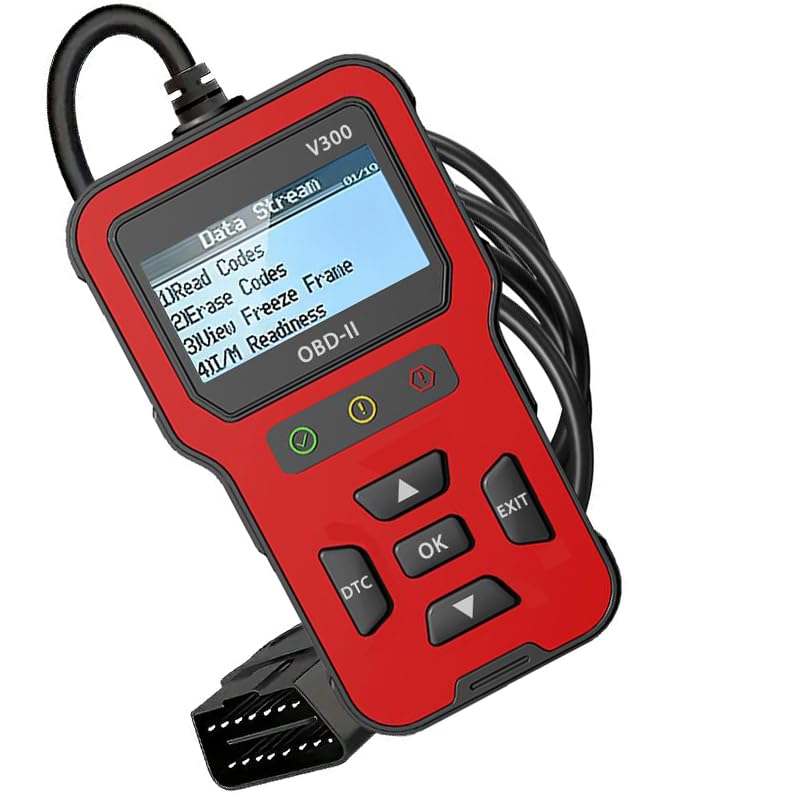
Image: The Bridge Cutters OBD V300 2 Scanner, a compact handheld device with a screen and control buttons, ready for use.
Key Features
- Plug-and-Play Operation: No Bluetooth, Wi-Fi, or app downloads required. Simply connect to your vehicle's OBD2 port for instant results on a bright, easy-to-read screen. Features a durable cable and shock-resistant housing.
- Comprehensive Diagnostic Capabilities: Reads and clears check engine codes (both generic P0xxx and manufacturer-specific), displays live data streams, freeze frame information, and I/M readiness status.
- Wide Vehicle Compatibility: Compatible with all 1996 and newer gas vehicles equipped with OBD2 protocol, offering universal coverage for most cars, trucks, and SUVs.
- Vehicle Information and Testing: Includes VIN lookup, emissions test readiness monitoring, and battery voltage testing for a complete vehicle health assessment.
- User-Friendly Design: Equipped with a fast processor, large backlit display, and an intuitive menu system, making diagnostics accessible for all users.
Setup
The OBD V300 2 Scanner is designed for quick and easy setup. Follow these steps to begin diagnostics:
- Locate your vehicle's OBD2 port. This port is typically found under the dashboard on the driver's side. Refer to your vehicle's owner's manual if you cannot locate it.
- Ensure your vehicle's ignition is in the "ON" position (engine can be off or running, depending on the specific test).
- Plug the V300 scanner's connector firmly into the OBD2 port. The device will power on automatically.

Image: The OBD V300 2 Scanner being plugged into the vehicle's OBD2 port, illustrating the plug-and-play design.

Image: The scanner's screen showing the diagnostic menu and linking status to the vehicle.
Operating Instructions
Once the V300 is connected and powered on, use the navigation buttons (Up, Down, OK, ESC) to navigate through the menu options.
1. Reading and Clearing Codes
- From the main menu, select "Diagnosis" and press "OK".
- Choose "Read Codes" to view stored, pending, or permanent diagnostic trouble codes (DTCs).
- To clear codes, select "Erase Codes" from the Diagnosis menu. Confirm your selection when prompted. This will turn off the Check Engine Light.

Image: The scanner screen showing a detailed definition for a Diagnostic Trouble Code (DTC), P0115, related to an engine coolant temperature sensor.
2. Viewing Live Data
The Live Data Stream function allows you to view real-time operational parameters of your vehicle's engine. This can help in identifying intermittent problems or verifying repairs.
- From the Diagnosis menu, select "Live PCM Data" or "Realtime Curve" to view various sensor readings and engine parameters.
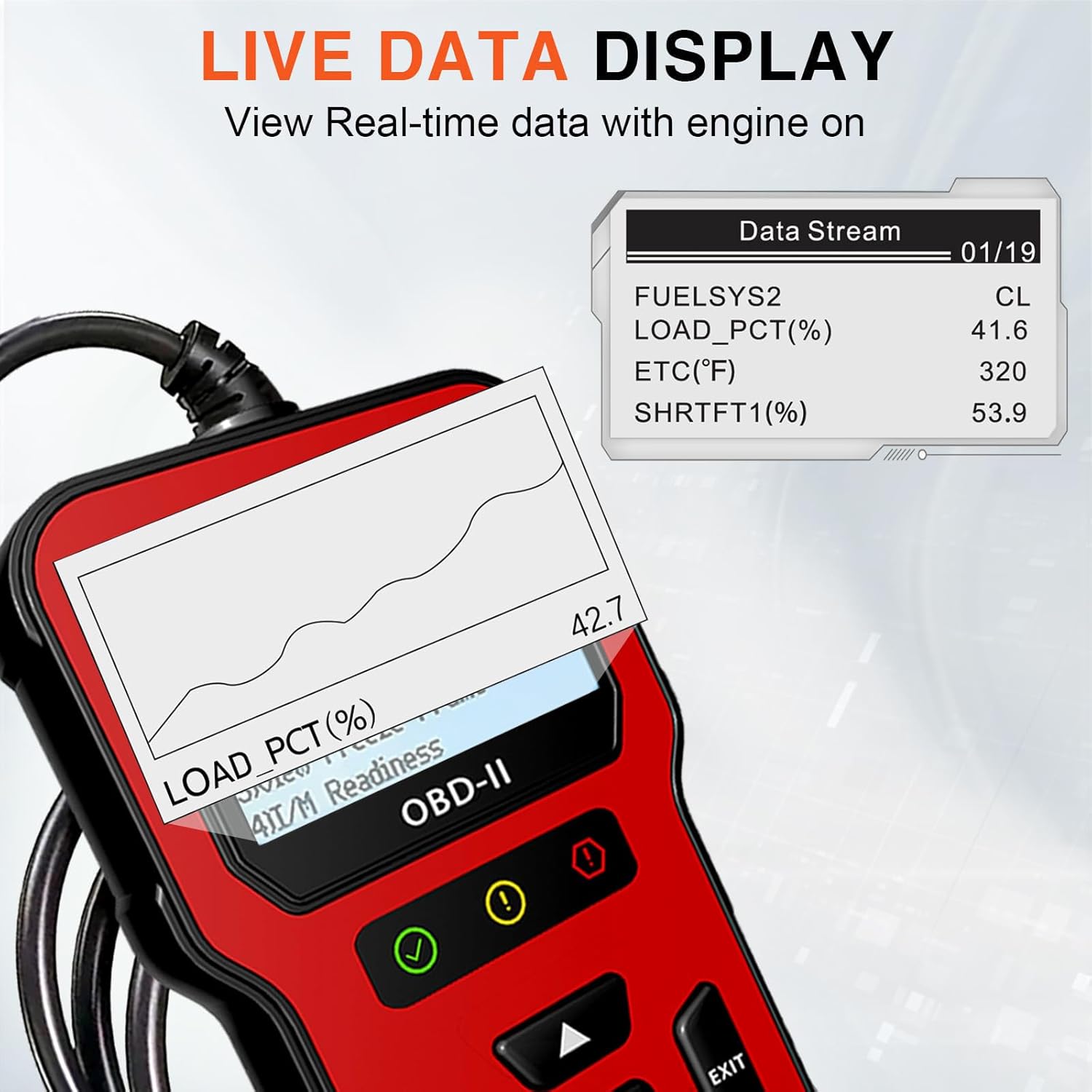
Image: The scanner displaying live data such as FUEL SYS, LOAD_PCT, ECT, and SHRTFT1, with a graphical representation of a parameter.
3. I/M Readiness Test
This function checks the readiness of the emission-related monitoring systems on your vehicle. It's crucial for preparing for emissions inspections.
- Select "I/M Readiness" from the Diagnosis menu. The scanner will display the status of various monitors (e.g., MIL Status, Misfire Monitor, Fuel System Mon). "OK" indicates the monitor has completed its test.

Image: The scanner showing I/M Readiness Test results, indicating the status of various monitors for emissions inspection.
4. Viewing Vehicle Information (VIN Lookup)
Access important vehicle identification details directly from the scanner.
- Select "Vehicle Info." from the Diagnosis menu to retrieve information such as VIN (Vehicle Identification Number), Calibration ID, and Calibration Verification Number.
5. Battery Voltage Test
Quickly check your vehicle's battery voltage to ensure it's within optimal operating range.
- Select "Battery" from the main menu to display the current battery voltage.
Diagnostic Capabilities Overview
The OBD V300 2 Scanner offers a wide array of diagnostic functions to help you understand and address vehicle issues:
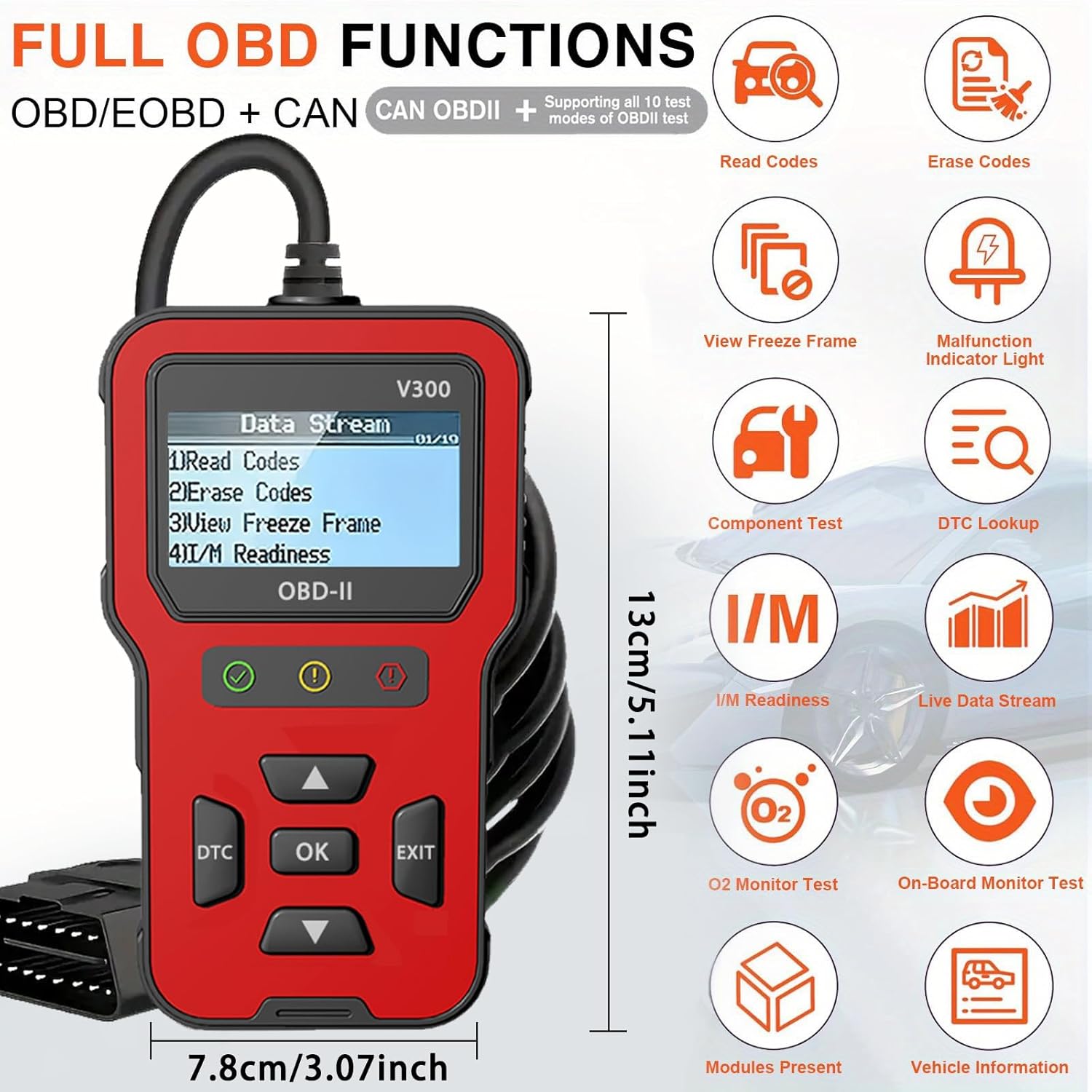
Image: The scanner's screen showing a comprehensive list of full OBD functions, including Read Codes, Erase Codes, View Freeze Frame, Live Data Stream, I/M Readiness, O2 Monitor Test, and Vehicle Information.
- Read Codes: Retrieves Diagnostic Trouble Codes (DTCs) from the vehicle's computer.
- Erase Codes: Clears DTCs and resets the Check Engine Light.
- View Freeze Frame: Displays a snapshot of operating conditions at the time an emission-related fault occurred.
- I/M Readiness: Checks the status of emission-related systems.
- Live Data Stream: Shows real-time data from various sensors.
- O2 Sensor Test: Retrieves O2 sensor monitor test results.
- On-Board Monitor Test: Retrieves results for emission-related powertrain components and systems.
- Component Test: Allows initiation of a leak test for the vehicle's EVAP system.
- Vehicle Information: Retrieves VIN, CID, and CVN.
Official Product Video
Video: A demonstration of the OBD 2 car scanner, showing how to read and clear engine fault codes. This video highlights the ease of use and various functions of the device.
Specifications
| Brand | Bridge Cutters |
| Model | V300 |
| Product Dimensions | 3"L x 1"W x 5"H |
| Item Weight | 4 ounces |
| Power Source | Corded Electric |
| Screen Size | 2.5 Inches |
| Operating System Compatibility | Android 11.0, Linux, Windows 10 (for potential software updates/connectivity, though device is standalone) |
| Automotive Fit Type | Universal Fit (for 1996 and newer gas vehicles with OBD2 protocol) |
Maintenance
To ensure the longevity and optimal performance of your OBD V300 2 Scanner, follow these simple maintenance guidelines:
- Cleaning: Wipe the device with a soft, dry cloth. Avoid using abrasive cleaners or solvents that could damage the screen or casing.
- Storage: Store the scanner in a cool, dry place away from direct sunlight and extreme temperatures. Keep it in its original packaging or a protective pouch to prevent physical damage.
- Cable Care: Avoid bending or twisting the cable excessively. Always grasp the connector when plugging or unplugging to prevent damage to the pins.
Troubleshooting
If you encounter issues while using your OBD V300 2 Scanner, consider the following common troubleshooting steps:
- Device Not Powering On: Ensure the scanner is securely plugged into the vehicle's OBD2 port and the vehicle's ignition is in the "ON" position. Check your vehicle's fuse box for any blown fuses related to the OBD2 port.
- "Linking to Vehicle" Error: Verify that your vehicle is OBD2 compliant (1996 or newer gas vehicle). Ensure the connection is secure. Try turning the ignition off and on again, then reconnect the scanner.
- No Codes Found (when expecting codes): Confirm the Check Engine Light is illuminated on your dashboard. If it is, and no codes are found, try restarting the diagnostic process.
- Inaccurate Readings: Ensure your vehicle's engine is at operating temperature for accurate live data and sensor readings.
Warranty and Support
For warranty information, technical support, or further assistance with your Bridge Cutters OBD V300 2 Scanner, please refer to the contact information provided in your product packaging or visit the official Bridge Cutters website. Keep your purchase receipt as proof of purchase for warranty claims.


