1. Introduction
This manual provides essential instructions for the installation, operation, and maintenance of the Generic AMX-MT070IE Touch Panel. This industrial touch screen is designed for integration with various Programmable Logic Controllers (PLCs) and features Ethernet connectivity for reliable communication. Please read this manual thoroughly before using the device to ensure proper functionality and safety.
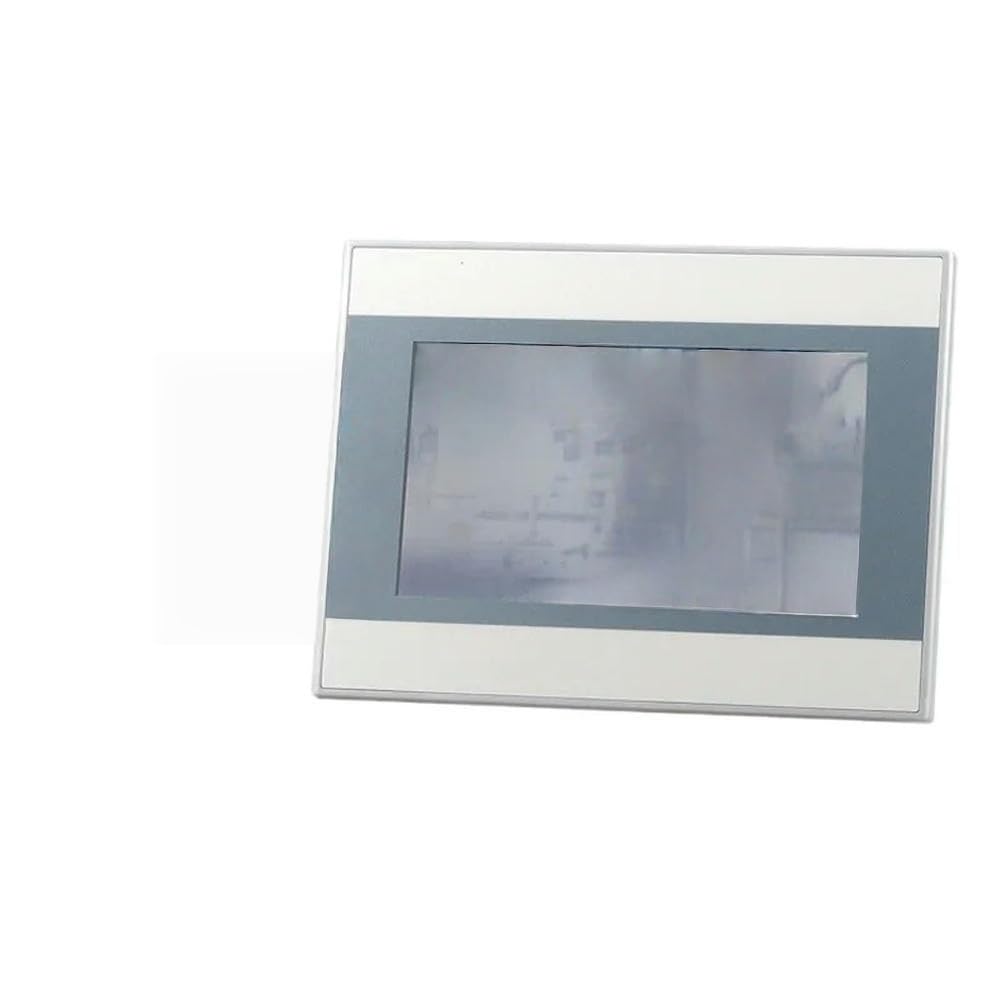
This image displays the front view of the AMX-MT070IE Touch Panel, highlighting its screen and overall design. The panel is designed for industrial applications, featuring a robust build suitable for various PLC systems.
2. Setup
Follow these steps to set up your AMX-MT070IE Touch Panel:
- Unpacking: Carefully remove the touch panel from its packaging. Inspect for any visible damage. Report any damage to your supplier immediately.
- Mounting: Securely mount the touch panel in the desired location using appropriate mounting hardware (not included). Ensure adequate ventilation around the unit.
- Power Connection: Connect the power supply to the designated power input port on the touch panel. Ensure the power source matches the panel's voltage requirements.
- Ethernet Connection: Connect an Ethernet cable from your network or PLC to the Ethernet port on the touch panel.
- Other Connections: If applicable, connect any other necessary cables (e.g., serial communication, USB) to their respective ports.
- Power On: Once all connections are secure, apply power to the touch panel. The device should initiate its boot sequence.
3. Operating Instructions
The AMX-MT070IE Touch Panel is designed for intuitive operation. Here are general guidelines:
- Initial Boot: Upon powering on, the panel will display a boot screen followed by the configured application interface.
- Touch Interface: Interact with the panel using light touches. Avoid excessive force.
- Navigation: Navigate through menus and screens by tapping on buttons or icons displayed on the screen.
- Data Entry: For data input fields, a virtual keyboard may appear. Tap on characters to enter data.
- System Settings: Access system settings (if available in your application) to configure network parameters, display brightness, or other device-specific options. Refer to your application's documentation for details.
4. Maintenance
Regular maintenance ensures the longevity and optimal performance of your touch panel:
- Cleaning the Screen: Use a soft, lint-free cloth slightly dampened with a non-abrasive, ammonia-free cleaner. Do not spray cleaner directly onto the screen.
- Cleaning the Casing: Wipe the casing with a dry or slightly damp cloth. Avoid harsh chemicals.
- Environmental Conditions: Ensure the operating environment remains within the specified temperature and humidity ranges to prevent damage.
- Firmware Updates: Periodically check for firmware updates from the manufacturer or your system integrator. Follow update instructions carefully.
- Power Cycle: If the device becomes unresponsive, perform a controlled power cycle by turning off the power, waiting 10 seconds, and then turning it back on.
5. Troubleshooting
If you encounter issues with your AMX-MT070IE Touch Panel, refer to the following common problems and solutions:
| Problem | Possible Cause | Solution |
|---|---|---|
| Panel does not power on. | No power supply, faulty cable, or power adapter. | Check power connections. Ensure power adapter is functional. Verify power outlet. |
| Touch screen is unresponsive. | Software freeze, calibration issue, or physical damage. | Perform a power cycle. If issue persists, check for calibration options in system settings or contact support. |
| No network connection. | Loose Ethernet cable, incorrect network settings, or network device issue. | Verify Ethernet cable is securely connected. Check network settings on the panel. Test network cable with another device. |
| Display is dim or flickering. | Brightness settings, power issue, or hardware fault. | Adjust brightness settings. Ensure stable power supply. If problem continues, contact support. |
If the problem persists after attempting these solutions, please contact technical support.
6. Specifications
Key specifications for the Generic AMX-MT070IE Touch Panel:
- Manufacturer: Generic
- ASIN: B0G5243CPW
- Item Model Number: 7853444981472
- Date First Available: December 4, 2025
- Connectivity: Ethernet (specifics depend on model variant)
- Display Size: Available in 4.3, 7, and 10 inch variants (this model is AMX-MT070IE, typically indicating a 7-inch display)
- Application: Designed for use with PLCs and industrial control systems.
7. Warranty Information
This Generic AMX-MT070IE Touch Panel is covered by a standard manufacturer's warranty against defects in materials and workmanship. The specific duration and terms of the warranty may vary by region and retailer. Please retain your proof of purchase for warranty claims.
For detailed warranty information, refer to the documentation provided at the time of purchase or contact your supplier.
8. Technical Support
For technical assistance, troubleshooting beyond this manual, or warranty inquiries, please contact your product supplier or the manufacturer's support channels.
When contacting support, please have the following information ready:
- Model Number: 7853444981472
- Description of the issue
- Steps taken to resolve the issue
- Date of purchase