
Introduction
Thank you for choosing the Rimoody 1 Din Car Stereo. This device integrates advanced features such as wireless Carplay, Android Auto, Mirror Link, Bluetooth 5.2, FM radio, and a 5.1-inch touchscreen. This manual provides detailed instructions for installation, operation, maintenance, and troubleshooting to ensure optimal performance and user experience.
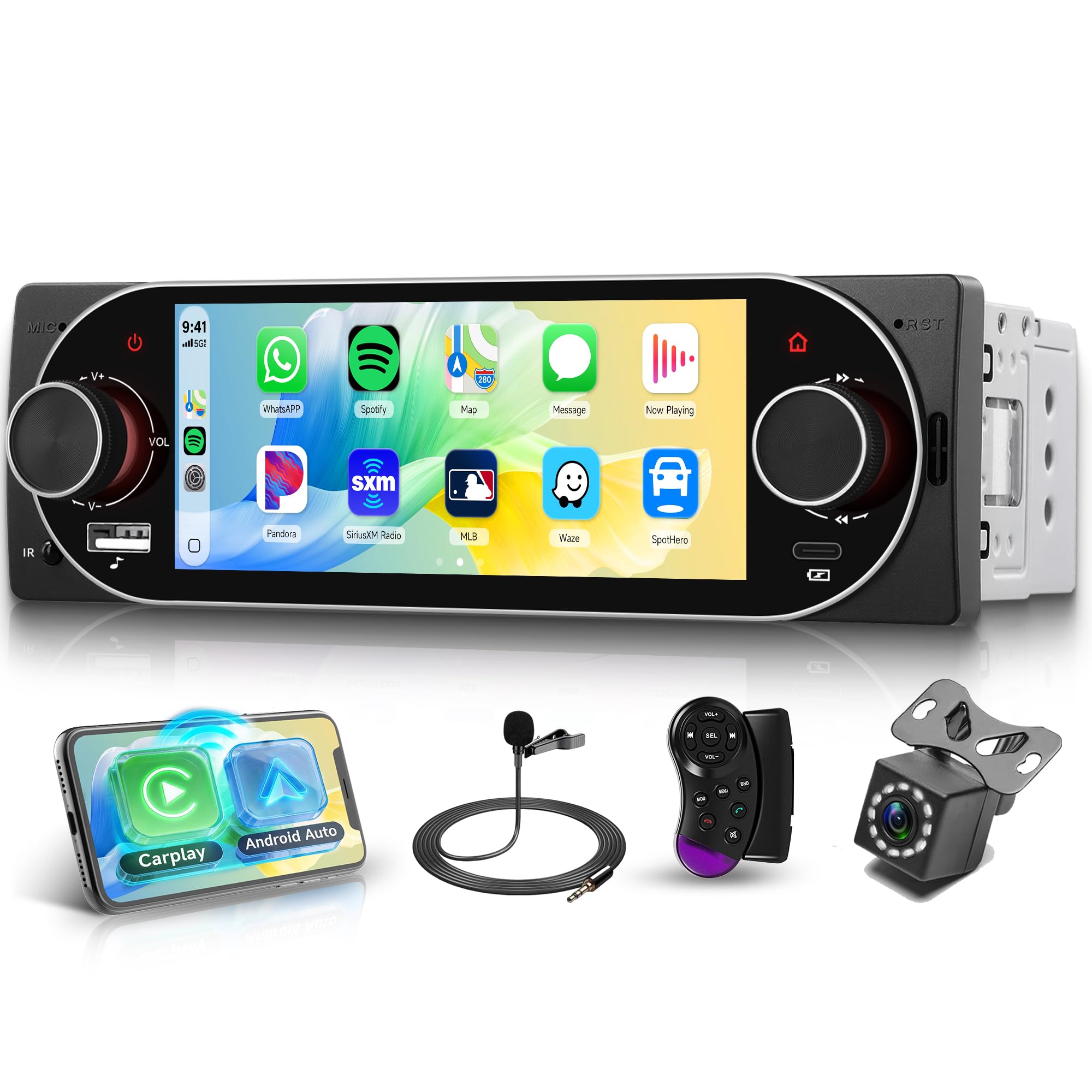
Image: The Rimoody 1 Din Car Stereo, showcasing its 5.1-inch touchscreen and physical controls.
Safety Information
- Installation: Ensure professional installation to prevent damage to the vehicle's electrical system or the device. Incorrect wiring can cause malfunction or fire.
- Power Supply: This unit operates on a DC12V power supply. Do not connect it to other voltage systems.
- Operation: Do not operate the device or view videos that may distract you while driving. Always prioritize road safety.
- Temperature: Avoid exposing the unit to extreme temperatures outside the operating range of -10°C to 60°C.
- Cleaning: Use a soft, dry cloth for cleaning. Avoid abrasive cleaners or solvents.
Setup and Installation
1. Product Dimensions and Wiring Diagram
Before installation, verify that the unit's dimensions fit your vehicle's 1 DIN slot. The installation dimensions are approximately 187 mm (width) x 59 mm (height) x 106 mm (depth). Refer to the wiring diagram for proper connections.
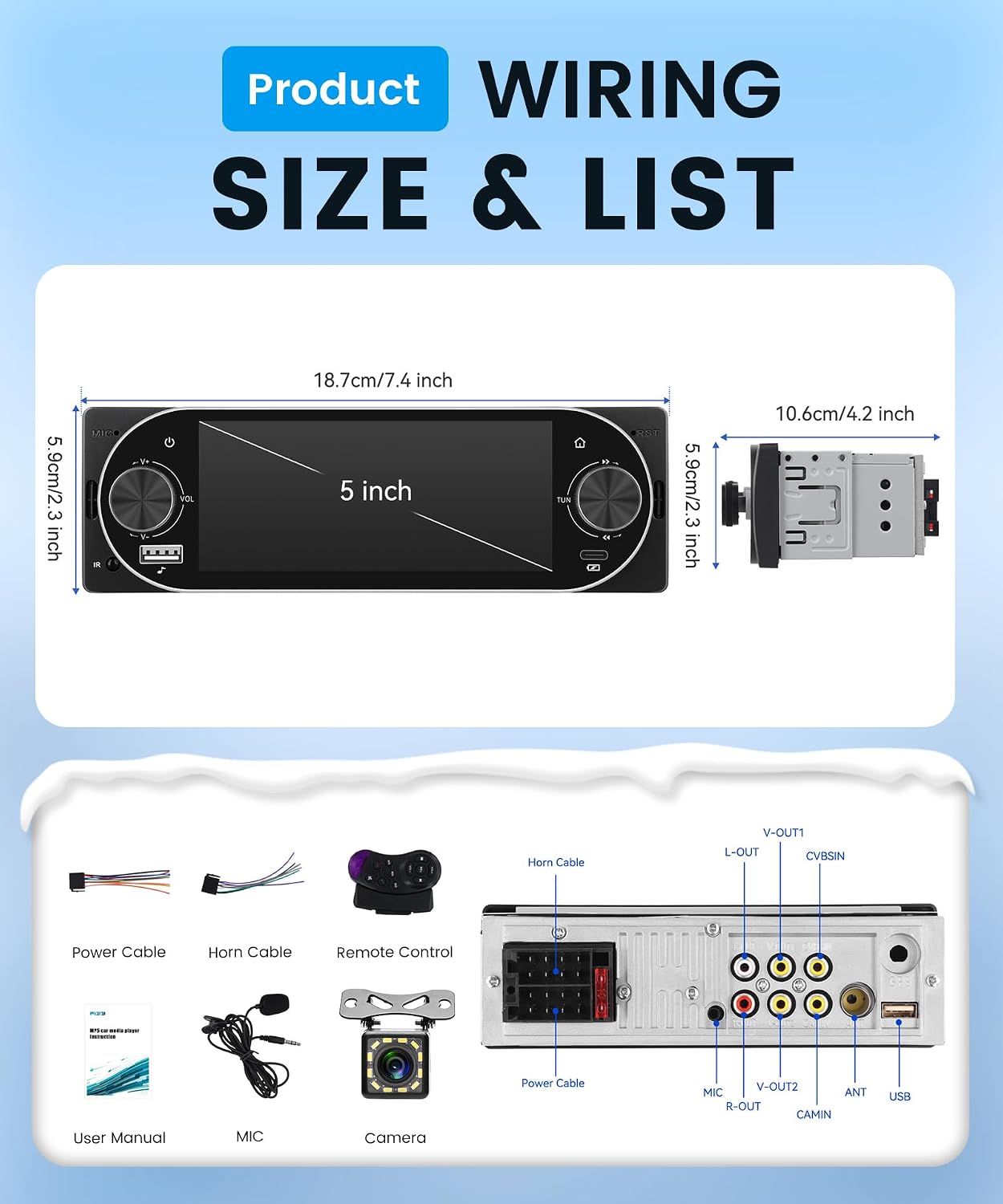
Image: Detailed illustration of the car stereo's dimensions (18.7cm/7.4 inch width, 5.9cm/2.3 inch height, 10.6cm/4.2 inch depth) and a comprehensive wiring diagram showing connections for power, horn cable, remote control, user manual, microphone, camera, L-OUT, V-OUT1, CVBSIN, R-OUT, V-OUT2, ANT, and USB.
2. Wiring Connections
- Power Cable: Connect the yellow wire to the constant 12V power supply, the red wire to the accessory (ACC) 12V power supply, and the black wire to ground.
- Speaker Cables: Connect the speaker wires according to the diagram, ensuring correct polarity for each of the 4 channels.
- Rearview Camera: Connect the camera's video output to the CVBSIN input and its power to the reverse light circuit.
- External Microphone: Plug the external microphone into the dedicated MIC input for improved call quality.
- USB/AUX: Connect external devices to the USB or AUX inputs as needed.
- Steering Wheel Control: Connect the steering wheel control wires to your vehicle's steering wheel control interface, if applicable.
3. Initial Power-On
After all connections are secure, turn on your vehicle's ignition. The car stereo should power on automatically. Follow any on-screen prompts for initial setup.
Operating Instructions
1. Basic Controls and Touchscreen Interface
The unit features a 5.1-inch HD touchscreen for most operations. Physical buttons and rotary knobs are provided for essential functions like power, volume, and tuning. Tap icons on the screen to access different functions and settings.
2. Wireless Carplay and Android Auto
This car stereo supports both wireless and wired Carplay and Android Auto. This allows seamless integration with your iOS or Android smartphone for navigation, music, calls, and messages.
- Wireless Connection: Enable Bluetooth and Wi-Fi on your smartphone. On the car stereo, select the Carplay or Android Auto option. Follow the on-screen instructions to pair your phone.
- Wired Connection: Connect your smartphone to the car stereo's USB port using a certified USB cable. The system will automatically detect and launch Carplay or Android Auto.

Image: The car stereo display showing the user interface for Wireless/Wired Carplay and Android Auto, with icons for phone, Spotify, maps, messages, and other applications.
3. Mirror Link (iOS/Android)
Mirror Link allows you to display your smartphone's screen directly onto the car stereo's display. This function supports both Android and iOS devices.
- Connection: Connect your phone via a USB cable or Wi-Fi. Select the Mirror Link option on the car stereo and follow the pairing instructions on both devices.
- Usage: Once connected, your phone's screen will be mirrored, allowing you to access navigation, videos, and music directly from the car stereo's display.

Image: A visual representation of the Mirror Link feature, showing an iPhone and an Android phone wirelessly connected to the car stereo, mirroring their screens.
4. Bluetooth 5.2
The integrated Bluetooth 5.2 module enables hands-free calling and wireless audio streaming.
- Pairing: Go to the Bluetooth menu on the car stereo and enable Bluetooth on your phone. Search for the car stereo's Bluetooth name (e.g., "Rimoody") and pair.
- Hands-Free Calls: Once paired, you can make and receive calls directly through the car stereo, utilizing the built-in speaker and external microphone.
- Audio Streaming: Play music from your phone wirelessly through the car stereo's speakers.
5. FM Radio
Access your favorite radio stations with the built-in FM tuner.
- Tuning: Use the manual or automatic search function to find stations.
- Presets: Save up to 18 of your preferred stations for quick access.
6. EQ (Equalizer) Settings
Customize your audio experience with the equalizer function. Choose from various preset sound modes (e.g., Jazz, Classic, Pop, Soft) or adjust the sound frequencies manually to suit your preferences.

Image: A composite image showing the Bluetooth call interface, FM radio tuning with presets, and the Equalizer settings screen with various sound adjustments and presets.
7. USB/AUX/DVR Functions
- USB Input: Connect USB drives to play audio/video files or use the USB-C port for phone charging.
- AUX Input: Connect external audio devices via the AUX port.
- DVR Support: The unit supports DVR input (DVR unit sold separately) for recording driving footage.

Image: The car stereo installed in a dashboard, highlighting the USB and Type-C ports for charging and data, along with an icon indicating support for an external DVR (Digital Video Recorder).
8. Steering Wheel Controls
The car stereo supports steering wheel controls, allowing you to manage essential functions like volume, track skipping, and call answering without taking your hands off the wheel. A remote control for steering wheel mounting is included.
9. Rearview Camera Operation
When the vehicle is shifted into reverse, the car stereo automatically displays the rearview camera feed, providing a clear view of the area behind your vehicle for safer parking and maneuvering. The included 12-LED rearview camera enhances visibility in low-light conditions.

Image: The car stereo display showing a rearview camera feed with parking guidelines, and a separate inset showing the interface for programming steering wheel controls.
10. Colorful Button Backlight
The car stereo features a customizable seven-color backlight for its physical buttons. You can choose your preferred color or set it to cycle through the colors automatically.

Image: The car stereo installed in a vehicle dashboard, illustrating the seven different color options for the button backlighting, cycling through red, yellow, green, cyan, blue, and purple.
Maintenance
- Screen Cleaning: Gently wipe the touchscreen with a soft, lint-free cloth. For stubborn smudges, slightly dampen the cloth with water or a screen-safe cleaner. Do not spray liquids directly onto the screen.
- General Care: Keep the unit free from dust and debris. Avoid placing heavy objects on the unit or exposing it to direct sunlight for extended periods when parked.
- Software Updates: Check the manufacturer's website periodically for any available firmware updates to ensure optimal performance and compatibility.
Troubleshooting
| Problem | Possible Cause | Solution |
|---|---|---|
| No power | Incorrect wiring; Blown fuse; Vehicle ignition off | Check power cable connections; Replace fuse; Turn on vehicle ignition |
| No sound | Speaker wires disconnected; Volume too low; Mute activated | Check speaker connections; Increase volume; Deactivate mute function |
| Bluetooth not connecting | Bluetooth not enabled on phone/stereo; Incorrect pairing process | Ensure Bluetooth is on for both devices; Re-attempt pairing process; Restart devices |
| Carplay/Android Auto not launching | Incorrect USB cable; Phone not compatible; Software glitch | Use a certified USB cable; Check phone compatibility; Restart phone and stereo |
| Rearview camera not displaying | Camera wiring incorrect; Reverse gear not engaged | Check camera power and video connections; Ensure vehicle is in reverse gear |
Technical Specifications
- Brand: Rimoody
- Model Number: B0G51FL6M4
- Screen Size: 5.1 inches
- Screen Resolution: 1120*480
- Screen Material: IPS
- Connectivity Technology: AUX, Bluetooth, USB
- Wireless Technology: Bluetooth 5.2
- Special Features: Wireless Carplay, Android Auto, iOS/Android Mirror Link, FM Radio, EQ, Steering Wheel Controls, Rearview Camera Support, Colorful Backlight
- Compatible Devices: Smartphones
- Audio Output Mode: Stereo
- Surround Sound Channel Configuration: 4.0
- Number of Channels: 4
- Output Power (per channel): 45 Watts
- Total Output Power: 180 Watts
- Voltage: DC12V
- Operating Temperature: -10°C to 60°C
- Radio Frequency: 87.5-108 MHz
- Supported Audio Format: WAV
- Analog RGB Input: USB, AUX, RCA
- Smart Home Compatibility: Not smart home compatible
- Country of Origin: China
- Package Contents: Car stereo, rearview camera, power cable, horn cable, remote control, user manual, microphone.
Warranty Information
This Rimoody car stereo is covered by a 2-year product warranty from the date of purchase. This warranty covers manufacturing defects and malfunctions under normal use. Please retain your proof of purchase for warranty claims. The warranty does not cover damage caused by improper installation, misuse, accidents, or unauthorized modifications.
Customer Support
For further assistance, technical support, or warranty inquiries, please contact Rimoody customer service through the official Rimoody store or your point of purchase.
Visit the Rimoody Store: Rimoody Official Store