
1. Product Overview
The CHIVALZ PM260 is a portable 2-inch wireless label maker machine designed for efficient organization in various environments, including small businesses, kitchens, offices, and homes. This mini label printer utilizes thermal printing technology, offering monochrome output for clear and durable labels. Its compact design and wireless connectivity make it a versatile tool for creating custom labels on demand.
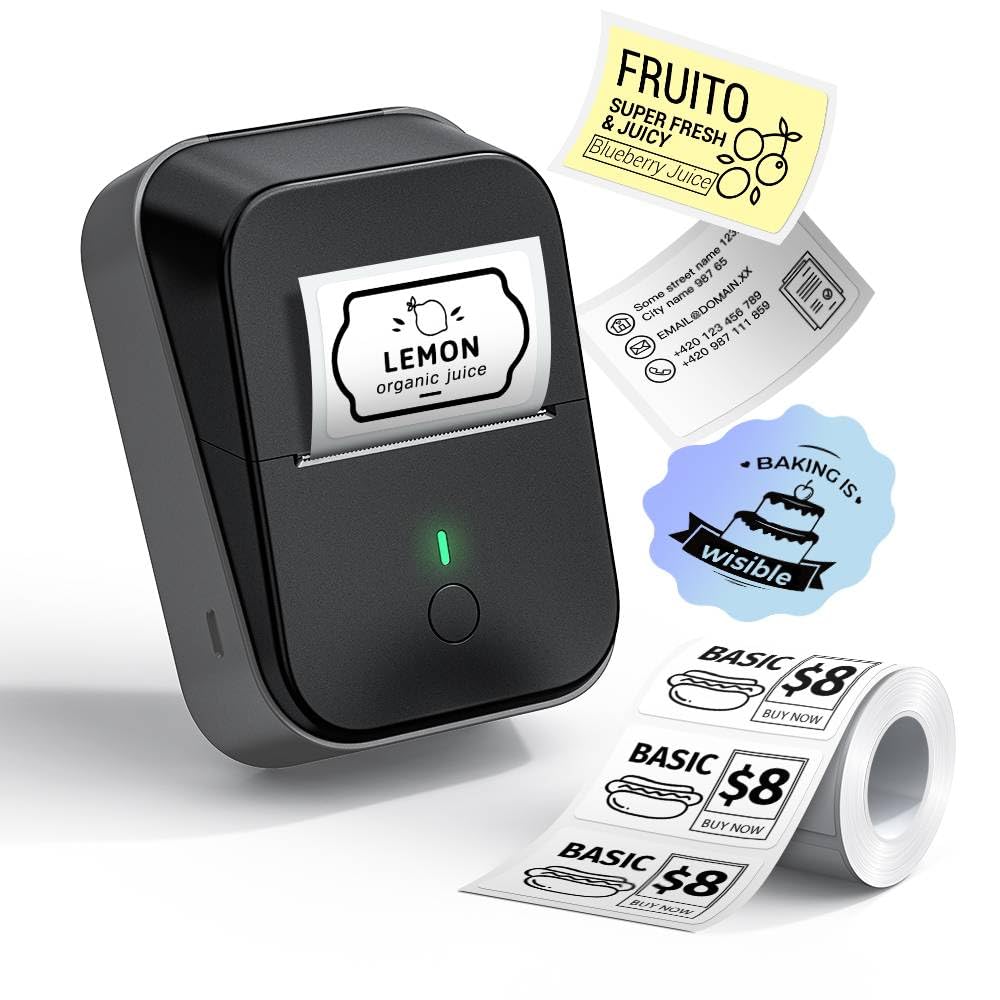
Image 1: CHIVALZ PM260 Wireless Label Maker Machine. This image displays the compact, dark grey label maker with its power button and label output slot.
2. Setup Guide
2.1. Download the Labelnize App
Before using your CHIVALZ PM260 label maker, download the 'Labelnize' application on your mobile device. This app is available on both Google Play Store for Android devices and the Apple App Store for iOS devices.
2.2. Install the Paper Roll
- Open the paper cover by sliding the switch located on the side of the device.
- Load the label paper roll into the paper bin. Ensure that the printed content page is facing down, and the smooth surface of the paper is facing downwards.
- Slide the internal clamps to securely position the paper roll, ensuring it is firmly fastened for optimal print quality.
- Close the paper bin. Make sure that approximately 1-2mm of the label paper remains outside the machine's output slot.

Image 2: Installing paper roll in CHIVALZ PM260. This image shows a hand opening the label maker, inserting a white paper roll, and adjusting the internal clamps to secure it.
2.3. Power On and Test Page
- Long press the power button on the front of the label maker to turn it on. The indicator light will illuminate.
- To print a test page, press the power button five times in quick succession. This will confirm the printer is functioning correctly and the paper is loaded properly.
3. Operating Instructions
3.1. Bluetooth Connection
- Open the 'Labelnize' app on your mobile device.
- Allow the app to access Bluetooth and location services if prompted.
- In the app, click on the 'Unconnected' status (usually in the upper left corner) to search for available devices.
- Select 'PM260' from the list of found devices to establish a Bluetooth connection.
3.2. Editing and Printing Labels
- Within the 'Labelnize' app, you can choose from existing templates or create a new label design.
- Double-click on any element within a template to adjust its content (e.g., text, images).
- Use the function area at the bottom of the screen to add various elements such as text, barcodes, QR codes, icons, images, and more.
- Adjust print settings like density and number of copies as needed.
- Click the 'Print' button to send your label design to the CHIVALZ PM260 label maker.
Video 1: PM260 Label Maker Operation Tutorial. This video provides a step-by-step guide on how to download the app, install the paper roll, connect via Bluetooth, and design/print labels using the Labelnize app.
Video 2: ETIKEZ PM260 Label Maker. This video demonstrates the ease of use and various applications of the PM260 label maker, including quick setup and printing.
4. Maintenance
4.1. Cleaning the Print Head
To ensure optimal print quality and prolong the life of your label maker, regularly clean the print head. Use a soft, lint-free cloth lightly dampened with isopropyl alcohol. Gently wipe the print head surface to remove any dust, adhesive residue, or debris. Allow the print head to dry completely before closing the cover or using the device.
4.2. Storage of Label Rolls
Store unused label rolls in a cool, dry place away from direct sunlight and extreme temperatures. Keep them in their original packaging to protect them from dust and moisture, which can affect adhesive quality and printability.
4.3. Battery Care
For best battery performance, charge the device regularly. Avoid fully discharging the battery frequently. If storing the device for an extended period, ensure it has a partial charge (around 50%) and recharge it every few months to prevent deep discharge.
5. Troubleshooting
5.1. Bluetooth Connection Issues
- Ensure the label maker is powered on and within range of your mobile device.
- Verify that Bluetooth is enabled on your mobile device.
- Restart both the label maker and your mobile device, then attempt to reconnect.
- Check the app permissions to ensure Bluetooth and location access are granted.
5.2. Poor Print Quality or Blank Labels
- Confirm that the label paper is loaded correctly, with the printable side facing downwards.
- Adjust the print density setting in the 'Labelnize' app to a higher value.
- Clean the print head as described in the Maintenance section.
- Ensure you are using genuine CHIVALZ thermal label paper.
5.3. Paper Jams
- Open the paper cover and carefully remove any jammed paper.
- Ensure the paper roll is properly seated and the internal clamps are securing it without excessive tightness.
- Make sure the paper is not wrinkled or damaged before loading.
6. Product Specifications
| Feature | Detail |
|---|---|
| Model | PM260 |
| Brand | CHIVALZ |
| Included Components | Portable Mini Label Printer |
| Sheet Size | 50 x 30 Millimeters (up to 3.5 x 5.75 inches) |
| Product Dimensions | 10 x 13 x 6.9 cm |
| Connectivity Technology | Bluetooth |
| Printing Technology | Thermal |
| Colour | Black |
| Printer Output | Monochrome |
| Max Print Speed Monochrome | 30.0 mm/s |
7. Warranty and Support
7.1. Customer Support
For any inquiries, technical assistance, or support regarding your CHIVALZ PM260 label maker, please contact our customer support team:
- Email: support@chivalz.com
7.2. Return Policy
This product is eligible for a 30-day return policy, which includes options for refund or replacement, as per the terms and conditions of purchase.