
1. Introduction
This manual provides detailed instructions for the installation, operation, and maintenance of your Satisure L7D Smart WiFi Power Failure Alarm. Please read this manual thoroughly before using the device to ensure proper function and safety. This device is designed to alert you to power outages, helping to protect valuable items in freezers, aquariums, or critical systems like sump pumps.
2. Product Overview
The Satisure L7D Smart WiFi Power Failure Alarm is an advanced device that monitors power supply and notifies you of any interruptions via a smartphone app. It features two expandable sockets, adjustable alarm sounds and volume, and remote cancellation capabilities.
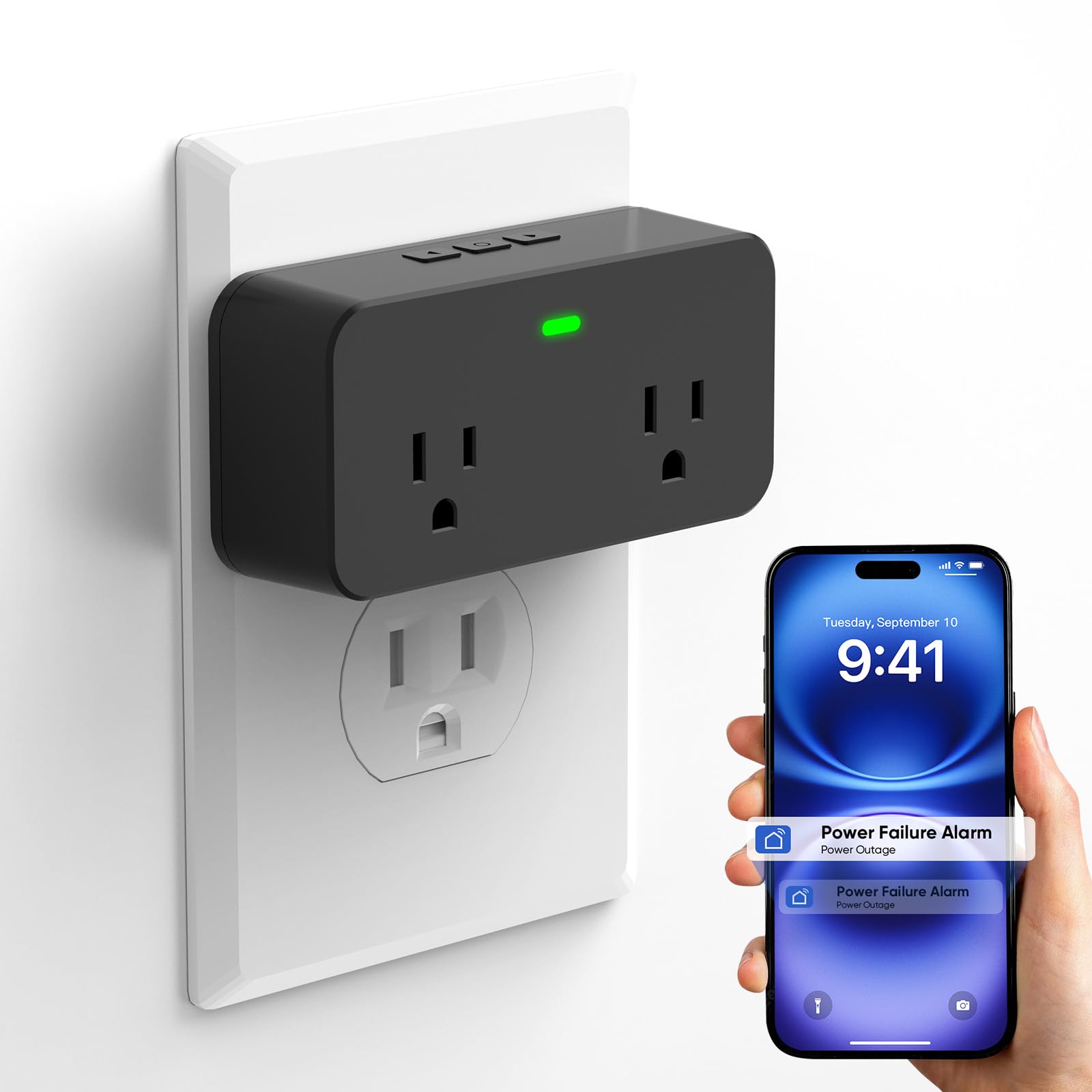
Image: Satisure L7D Smart WiFi Power Failure Alarm with two outlets and an indicator light.
Key Features:
- Remote Alert Cancellation: Cancel device alerts and customize alarm time, sound, and volume via smartphone app.
- 2.4GHz WiFi Connectivity: Connects to "Smart Life" or "Tuya" APP for timely notifications (5G WiFi not supported).
- Loud 110dB Alarm: Features 3 adjustable volume levels and 3 siren sounds for comprehensive home security.
- Two Expandable Sockets: Provides additional outlets for connecting multiple household electrical devices.
- 10-Hour Battery Backup: Built-in rechargeable battery ensures alerts for up to 10 hours during power outages.
- Automatic Alarm Release: Alarm automatically stops when power is restored.
3. Package Contents
The package includes:
- 1 x Satisure L7D Smart WiFi Power Failure Alarm with 2 sockets
- 1 x User Manual
4. Setup
4.1 App Download and Registration
To utilize the smart features of your power failure alarm, download either the "Smart Life" or "Tuya" app on your smartphone. You can find these apps on your device's app store or by scanning the QR codes provided in the product packaging or below:

Image: The Satisure L7D device with logos indicating compatibility with "Tuya" and "SmartLife" apps, and a note about 2.4GHz WiFi support.
Download the Tuya Smart App or Smart Life App.
After downloading, register for an account or log in if you already have one.
4.2 Device Pairing with App
- Plug the Satisure L7D device into a standard electrical socket.
- Long press the "Setup Button" on the device for 3 seconds until the indicator light flashes, indicating it's in pairing mode.
- Open the "Smart Life" or "Tuya" app, click "Add Device", and follow the on-screen instructions to add the "Power Failure Alarm". Ensure your smartphone is connected to a 2.4GHz WiFi network.
Video: Demonstrates how to connect the Satisure L7D Smart WiFi Power Failure Alarm to the app using a 2.4GHz WiFi network.

Image: A smartphone displaying the app interface for adding the smart power failure alarm, highlighting the steps for successful connection.
5. Operating Instructions
5.1 Power Outage Alerts and Cancellation
When a power loss is detected, the device will trigger an audible alarm and the app will send a push notification to your smartphone. You have two options to cancel the alarm:
- Remote Cancellation via App: Open the "Smart Life" or "Tuya" app on your smartphone and select the option to mute or cancel the alarm. This is useful when you are away from home.
- Manual Cancellation: Press the "Cancel Button" on the device to stop the alarm sound and red light flashing reminder directly.
Video: Demonstrates how to remotely cancel the alarm via the app and manually cancel it using the device's button during a power loss.

Image: A smartphone displaying the remote control alarm interface, with a cat in the background reacting to the alarm sound, illustrating the remote cancellation feature.
5.2 Customizing Alarm Settings
Within the "Smart Life" or "Tuya" app, you can adjust various alarm settings:
- Alarm Rings: Choose from 3 different siren sounds.
- Alarm Volume: Select from 3 levels of alarm volume (up to 110dB).
- Alarm Time: Set the duration of the alarm (e.g., 1 minute, 5 minutes).
Video: Shows how to manually operate device buttons to choose between 3 alarm rings and 3 levels of alarm volume.
Video: Illustrates how to use the mobile app to customize device alarm time, rings, and volume settings.
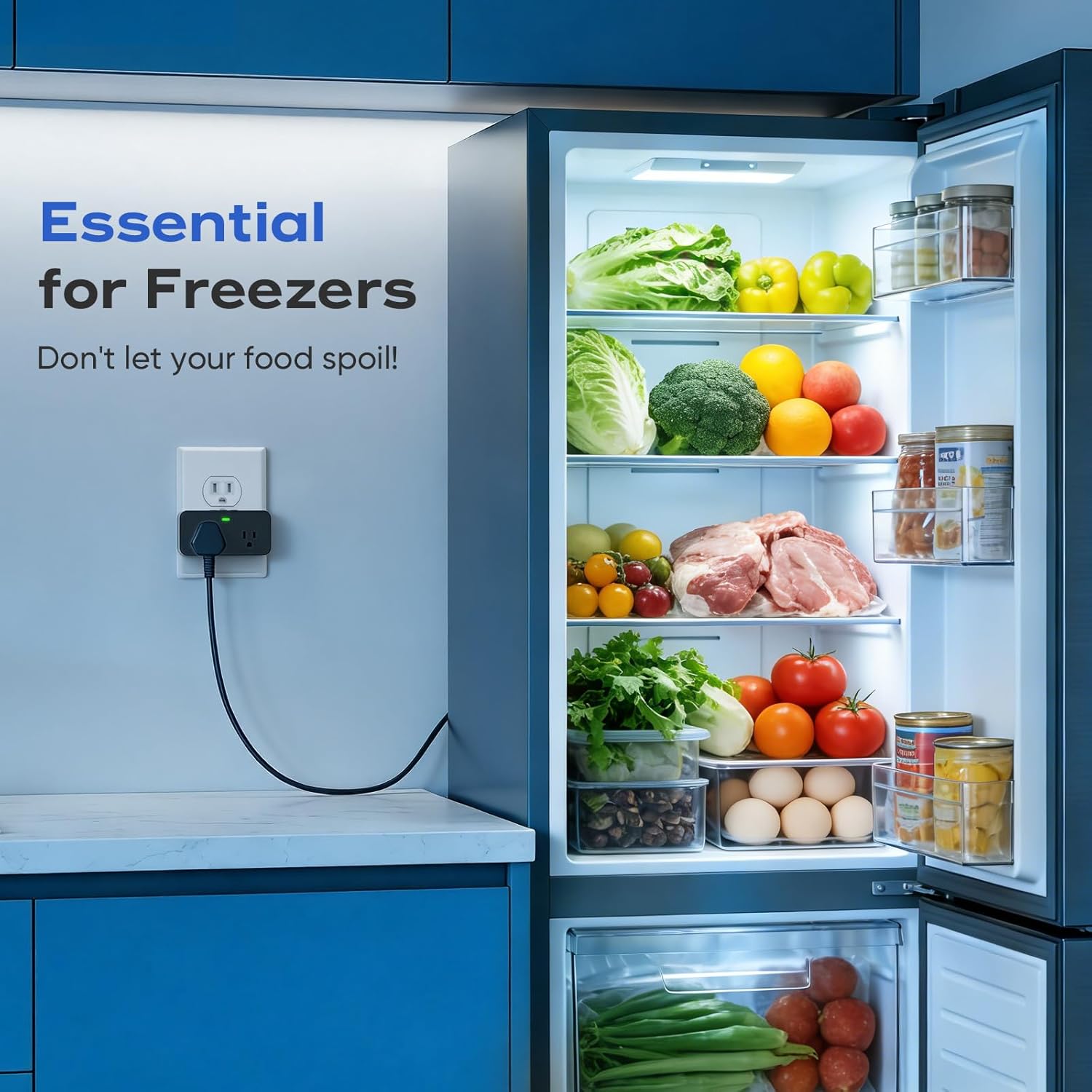
Image: A smartphone displaying the app's settings interface, allowing users to customize alarm rings, volume levels, and alarm duration.
5.3 Device Buttons Overview

Image: A detailed diagram highlighting the functions of the device's buttons: Cancel Button (short press to cancel alarm when power OFF), Setup Button (short press to cycle 3 alarm sounds when power ON, long press 3s for WiFi setup when power ON, long press 3s to turn off device when power OFF), Volume Button (short press to cycle 3 volume levels when power ON), and LED Light (Alarm/WiFi Indicator).
6. Maintenance
The Satisure L7D Smart WiFi Power Failure Alarm requires minimal maintenance. Keep the device clean and free from dust. Ensure it is plugged into a functional 2.4GHz WiFi network for continuous monitoring. The built-in rechargeable battery does not require replacement.
7. Troubleshooting
- Device not connecting to WiFi: Ensure your WiFi network is 2.4GHz. The device does not support 5GHz networks. Restart your router and try pairing again.
- No app notifications: Check your app settings to ensure notifications are enabled. Verify that the device is connected to WiFi and has power.
- Alarm not sounding: Check the alarm volume settings in the app. Ensure the device is receiving power.
- False alarms: Ensure the device is securely plugged into the outlet. Avoid placing it near sources of electrical interference.
8. Specifications
| Feature | Specification |
|---|---|
| Brand | Satisure |
| Model Number | L7D |
| Color | Black |
| Power Source | AC |
| Compatible Devices | Smart Life, Tuya, Smartphone, Tablet |
| Battery Description | 9V Alkaline (included) |
| Number of Batteries | 1 |
| Control Method | App |
| Audible Noise | 110 Decibels |
| Sensor Technology | Contact Sensor |
| Smart Home Compatibility | Smart Home Compatible |
| Unit Count | 1.0 Count |
| Built-In Media | 1 X power failure alarm wifi with 2 sockets |
9. Warranty and Support
Satisure provides dedicated after-sales service. If you have any product queries or require assistance, please contact us. We are available 7 days a week, 24 hours a day, to provide prompt assistance or a replacement if needed.
For further support, please refer to the contact information provided with your purchase or visit the official Satisure website.