
Introduction
Thank you for choosing the FOXX C10 Pro Tablet. This device combines tablet and smartphone functionalities, offering a 10.1-inch display, Android 15 operating system, and cellular connectivity. This manual provides essential information for setting up, operating, maintaining, and troubleshooting your tablet to ensure optimal performance.

Image: The FOXX C10 Pro Tablet, showcasing its sleek design and large display.
Package Contents
Please verify that all items are present in your package:
- FOXX C10 Pro Tablet
- Charger
- Type C Cable
- User Manual
- TPU Case
- Pre-Pasted Screen Protector
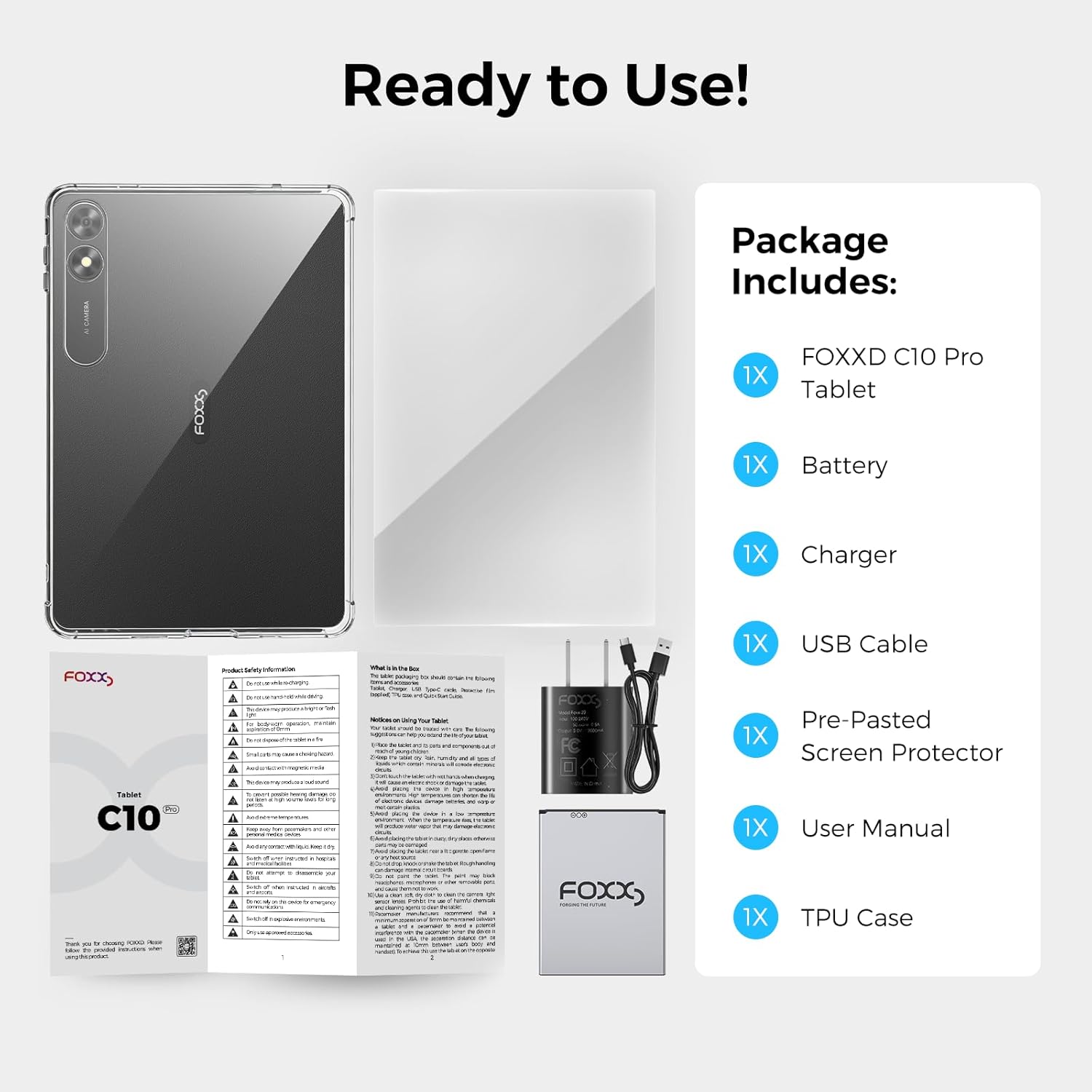
Image: Contents of the FOXX C10 Pro Tablet package, including the tablet, charger, cable, user manual, TPU case, and screen protector.
Setup
1. Charging the Tablet
Before first use, fully charge the tablet using the provided Type C cable and charger. Connect the Type C cable to the tablet's charging port and the charger to a power outlet. The battery indicator on the screen will show charging status.
2. Inserting SIM Card
The FOXX C10 Pro supports mobile network connectivity. To insert a SIM card:
- Locate the SIM card tray on the side of the tablet.
- Use the provided SIM ejector tool (if included) or a small paperclip to open the tray.
- Place your Nano-SIM card into the tray with the gold contacts facing down, ensuring it fits securely.
- Carefully reinsert the tray into the tablet.
The tablet is compatible with AT&T, T-Mobile, Boost Mobile, Metro by T-Mobile (MetroPCS), and Mint Mobile.
3. Inserting MicroSD Card
To expand storage up to 1TB, you can insert a microSD card:
- Locate the microSD card slot, often combined with the SIM card tray.
- Open the tray as described for the SIM card.
- Place the microSD card into its designated slot with the gold contacts facing down.
- Reinsert the tray into the tablet.

Image: Illustration of the FOXX C10 Pro Tablet's expandable storage feature, showing a microSD card being inserted.
4. Powering On/Off
- To Power On: Press and hold the Power button until the FOXX logo appears.
- To Power Off: Press and hold the Power button until the power options appear on the screen. Select "Power Off".
- To Restart: Press and hold the Power button until the power options appear. Select "Restart".
5. Initial Setup Wizard
Upon first power-on, follow the on-screen instructions to complete the initial setup, including language selection, Wi-Fi connection, Google account login, and security settings.
Operating the Tablet
1. Basic Navigation
The FOXX C10 Pro features a 10.1-inch touchscreen display. Use standard Android gestures for navigation:
- Tap: Select an item or open an app.
- Swipe: Scroll through pages or menus.
- Pinch: Zoom in or out on images and web pages.
- Long Press: Access contextual menus or move icons.
2. Connecting to Wi-Fi
- Go to Settings > Network & internet > Wi-Fi.
- Toggle Wi-Fi On.
- Select your desired Wi-Fi network from the list.
- Enter the password if prompted and tap Connect.
3. Using Cellular Data and Calls
With a properly installed SIM card, your tablet can function as a 2-in-1 phone and tablet.
- Cellular Data: Enable mobile data in Settings > Network & internet > Mobile network.
- Making Calls: Use the pre-installed Phone app to dial numbers or select contacts.
- Sending SMS: Use the pre-installed Messages app for text communication.
4. Camera Functions
The tablet is equipped with 8MP front and 8MP rear cameras.
- Open the Camera app.
- Tap the shutter button to take photos.
- Switch between front and rear cameras using the camera icon.
- Select video mode to record videos.
5. Managing Storage
The tablet comes with 64GB of internal storage, expandable up to 1TB with a microSD card. Regularly check storage usage in Settings > Storage to manage files and apps.
6. Battery Management
The 5000mAh battery provides extended usage. To optimize battery life:
- Adjust screen brightness.
- Close unused apps running in the background.
- Disable Wi-Fi, Bluetooth, or cellular data when not in use.
- Enable battery saver mode in Settings > Battery.

Image: The FOXX C10 Pro Tablet being used by a family, highlighting its 5000mAh battery for extended use.
Maintenance
1. Cleaning Your Tablet
Use a soft, lint-free cloth to clean the screen and body of the tablet. Avoid using harsh chemicals or abrasive materials that could damage the surface.
2. Software Updates
Regularly check for and install software updates to ensure your tablet has the latest features and security patches. Go to Settings > System > System update.
3. Storage Optimization
To maintain optimal performance, periodically clear cache data, uninstall unused apps, and transfer large files to your microSD card or cloud storage.
Troubleshooting
- Tablet not turning on: Ensure the tablet is charged. Connect it to the charger for at least 30 minutes, then try powering it on again. If it still doesn't turn on, perform a force restart by holding the power button for 10-15 seconds.
- No cellular service: Verify the SIM card is correctly inserted and activated with your carrier. Check mobile network settings in Settings > Network & internet > Mobile network. Ensure cellular data is enabled.
- Slow performance: Close background applications, clear app caches, and ensure sufficient storage space is available. Restarting the tablet can also resolve temporary slowdowns.
- Wi-Fi connectivity issues: Restart your tablet and Wi-Fi router. Forget the network in tablet settings and reconnect. Ensure you are within range of the Wi-Fi signal.
- Screen not responding: If the screen is unresponsive, try restarting the tablet. If the issue persists, contact customer support.
Specifications
| Feature | Detail |
|---|---|
| Brand | FOXX |
| Model Name | FOXX C10 Pro |
| Operating System | Android 15 |
| Screen Size | 10.1 inches |
| Display Resolution | 800x1280 pixels (IPS) |
| RAM Memory | 4 GB |
| Internal Storage | 64 GB |
| Expandable Storage | Up to 1 TB (microSD) |
| Battery Capacity | 5000 mAh (Lithium Ion) |
| Processor | MediaTek MT8766 (2 GHz) |
| Rear Camera | 8 MP |
| Front Camera | 8 MP |
| Connectivity | Wi-Fi (802.11b/g/n), Bluetooth, 4G Cellular |
| Headphones Jack | 3.5 mm |
| Dimensions (L x W x Thickness) | 6.56"L x 3.02"W x 0.39"Th |
| Item Weight | 1.3 pounds |
Warranty Information
The FOXX C10 Pro Tablet comes with a 1-Year Limited Warranty. This warranty covers manufacturing defects under normal use. Please retain your proof of purchase for warranty claims. For detailed terms and conditions, refer to the warranty card included in your package or visit the official FOXX website.
Customer Support
For further assistance, technical support, or service inquiries, please contact FOXX customer support through the following channels:
- Online Support: Visit the official FOXX website for FAQs and support resources.
- Email Support: Refer to your warranty card or product packaging for the support email address.
Please have your product model (C10 Pro) and purchase information ready when contacting support.


