
Introduction
This manual provides essential instructions for the installation, operation, maintenance, and troubleshooting of your new Generic Laptop Keyboard for Terra Mobile 1766. Please read this manual carefully before proceeding with installation or use to ensure proper function and to prevent damage.
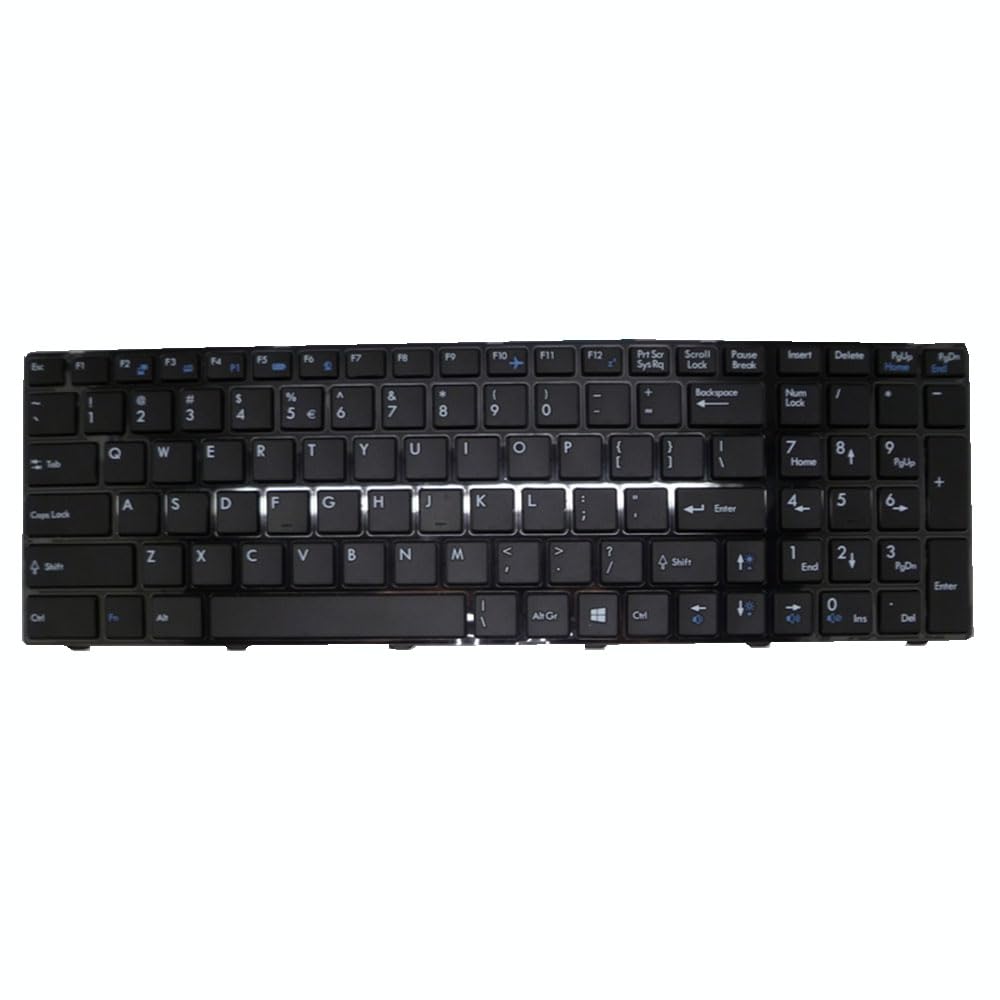
Image: The Generic Laptop Keyboard for Terra Mobile 1766, featuring a US layout and a black frame. This is the product described in this manual.
Setup and Installation
Installing a laptop keyboard requires careful handling of internal components. If you are not comfortable performing this procedure, it is recommended to seek professional assistance.
Safety Precautions:
- Always disconnect the laptop from its power adapter and remove the battery before beginning any internal work.
- Discharge any static electricity by touching a grounded metal object.
- Use appropriate tools to avoid damaging the laptop casing or internal components.
Installation Steps:
- Power Off and Disconnect: Ensure the laptop is completely powered off, unplugged from the power adapter, and the battery is removed.
- Locate Keyboard Retainers: Depending on your Terra Mobile 1766 model, the keyboard may be secured by screws from the bottom of the laptop, or by small clips/latches around the keyboard bezel. Consult your laptop's service manual for specific instructions.
- Remove Old Keyboard: Carefully pry up the old keyboard using a plastic spudger or similar non-marring tool. Be gentle to avoid damaging the surrounding plastic. Once lifted, gently flip the keyboard over to expose the ribbon cable connector.
- Disconnect Ribbon Cable: Unlock the ZIF (Zero Insertion Force) connector by gently flipping up the small retaining clip. Carefully pull the ribbon cable out of the connector.
- Connect New Keyboard: Insert the ribbon cable of the new Generic keyboard into the ZIF connector, ensuring it is fully seated. Gently push down the retaining clip to lock the cable in place.
- Position New Keyboard: Carefully place the new keyboard into its recess, ensuring all clips or screw holes align correctly. Gently press down around the edges until it snaps into place or is ready for screws.
- Secure Keyboard: If your model uses screws, re-insert and tighten them from the bottom of the laptop.
- Reassemble and Test: Reinstall the battery and reconnect the power adapter. Power on the laptop and test all keys to ensure proper functionality.
Operating Instructions
Your new keyboard functions identically to the original Terra Mobile 1766 keyboard. No special drivers are typically required for basic functionality, as it uses standard HID (Human Interface Device) protocols.
Basic Usage:
- Typing: Press keys firmly but gently for character input.
- Function Keys (Fn): The 'Fn' key, usually located near the bottom-left of the keyboard, can be used in combination with the F1-F12 keys (and sometimes other keys) to activate special functions such as volume control, screen brightness, Wi-Fi toggle, etc. Refer to your Terra Mobile 1766 laptop's user manual for specific Fn key combinations.
- Numeric Keypad: If your keyboard includes a numeric keypad, ensure 'Num Lock' is enabled for number input.
Maintenance
Proper maintenance can extend the lifespan and maintain the performance of your keyboard.
Cleaning:
- Dust and Debris: Use a can of compressed air to blow out dust and crumbs from between the keys. Hold the can upright to prevent propellant discharge.
- Surface Cleaning: Dampen a soft, lint-free cloth with a small amount of isopropyl alcohol (70% or higher) or a specialized electronics cleaner. Gently wipe the keycaps and surrounding areas. Avoid excessive moisture.
- Avoid: Do not spray cleaning solutions directly onto the keyboard. Do not use harsh chemicals, abrasive cleaners, or paper towels, which can scratch surfaces.
General Care:
- Avoid spilling liquids on the keyboard.
- Do not apply excessive force when typing.
- Keep the laptop in a clean, dry environment.
Troubleshooting
If you encounter issues with your new keyboard, try the following troubleshooting steps:
- Keyboard Not Responding:
- Ensure the ribbon cable is securely connected to the motherboard. Power off the laptop, disconnect the battery, and re-seat the cable.
- Restart your laptop.
- Check Device Manager (Windows) or System Information (macOS/Linux) to see if the keyboard is detected and if there are any driver issues. You may need to update or reinstall keyboard drivers.
- Specific Keys Not Working:
- Clean around the affected keys with compressed air to remove any debris.
- If the issue persists after re-seating the ribbon cable, the keyboard itself might be faulty.
- Incorrect Character Output:
- Check your operating system's keyboard layout settings to ensure it matches a "US" layout.
If these steps do not resolve the issue, contact customer support or a qualified technician.
Specifications
| Brand | Generic |
| Model Compatibility | Terra Mobile 1766 |
| Layout | United States (US) |
| Frame Color | Black |
| Item Weight | 0.3 Kilograms |
| ASIN | B0G4JFM8CB |
Warranty Information
This product is covered by a standard manufacturer's warranty against defects in materials and workmanship. The specific terms and duration of the warranty may vary. Please retain your proof of purchase for warranty claims. For detailed warranty information, refer to the documentation provided by the seller or manufacturer at the time of purchase.
Support
For further assistance, technical support, or inquiries regarding your Generic Terra Mobile 1766 Laptop Keyboard, please contact the seller or the manufacturer directly. Have your product model number (Terra Mobile 1766) and ASIN (B0G4JFM8CB) ready when contacting support.