
1. Introduction
This manual provides detailed instructions for the installation, operation, and maintenance of your Oskkude 8.4-inch Android 14 Car Stereo. This unit is designed to enhance your driving experience with advanced features such as wireless CarPlay, Android Auto, GPS navigation, Bluetooth connectivity, and a backup camera input. Please read this manual thoroughly before installation and use to ensure proper functionality and safety.
2. Product Compatibility and Fitment
This car stereo is specifically designed for Dodge Charger models manufactured between 2011 and 2014. It features an 8.4-inch IPS capacitive touchscreen for seamless integration with your vehicle's dashboard. Before proceeding with installation, verify your vehicle's model and year to ensure compatibility.

Image 2.1: Car stereo unit with key dimensions and a visual representation of included accessories for fitment verification.
3. Package Contents
Please check the package for the following items:
- 8.4-inch Android 14 Car Stereo Unit
- Power Cable
- RCA Input/Output Cables
- USB Cables (x2)
- Camera Input Cable
- Radio Adapter Cable
- GPS Antenna
- Instruction Manual
- USB Adapter Cable
- Microphone (Wheat Head)
- Canbus Box
- AHD Rearview Camera
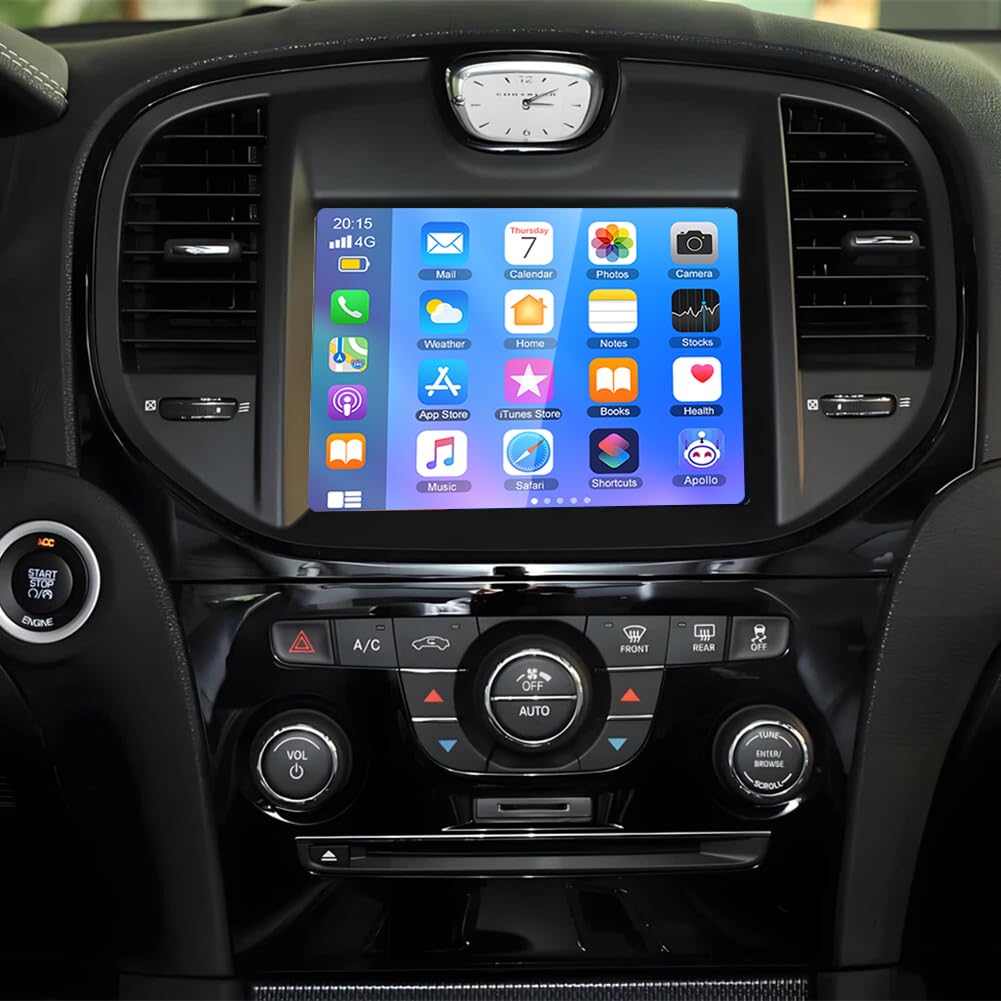
Image 3.1: All components included in the Oskkude car stereo package.
4. Installation Guide
Installation of the car stereo requires technical knowledge and experience. It is highly recommended to seek professional assistance for installation to prevent damage to the unit or your vehicle. If you choose to install it yourself, please follow these general steps:
- Preparation: Disconnect the vehicle's battery to prevent electrical shorts. Remove the original car radio and trim panels carefully.
- Wiring Connections: Connect the provided power cable, RCA cables, USB cables, GPS antenna, and other necessary wiring to the corresponding ports on the new stereo and your vehicle's harness. Ensure the Canbus box is correctly connected for steering wheel control and other vehicle data integration.
- Rearview Camera (Optional): If installing the AHD rearview camera, route the camera cable from the rear of the vehicle to the stereo unit and connect it to the designated camera input.
- Mounting: Secure the new car stereo into the dashboard opening. Reinstall any removed trim panels.
- Testing: Reconnect the vehicle's battery. Power on the stereo and test all functions, including audio, touchscreen, GPS, Bluetooth, and camera input.
Refer to the detailed wiring diagram in the included instruction manual for specific connection points.

Image 4.1: Rear panel connections of the Oskkude car stereo.
5. Basic Operation
5.1 Power On/Off
The unit typically powers on automatically when the vehicle's ignition is turned on. To manually power off or restart, locate the power button on the unit or within the software interface.
5.2 Touchscreen Interface
The 8.4-inch IPS capacitive touchscreen provides a responsive and clear display. Navigate through menus and applications by tapping, swiping, and pinching gestures, similar to a smartphone.
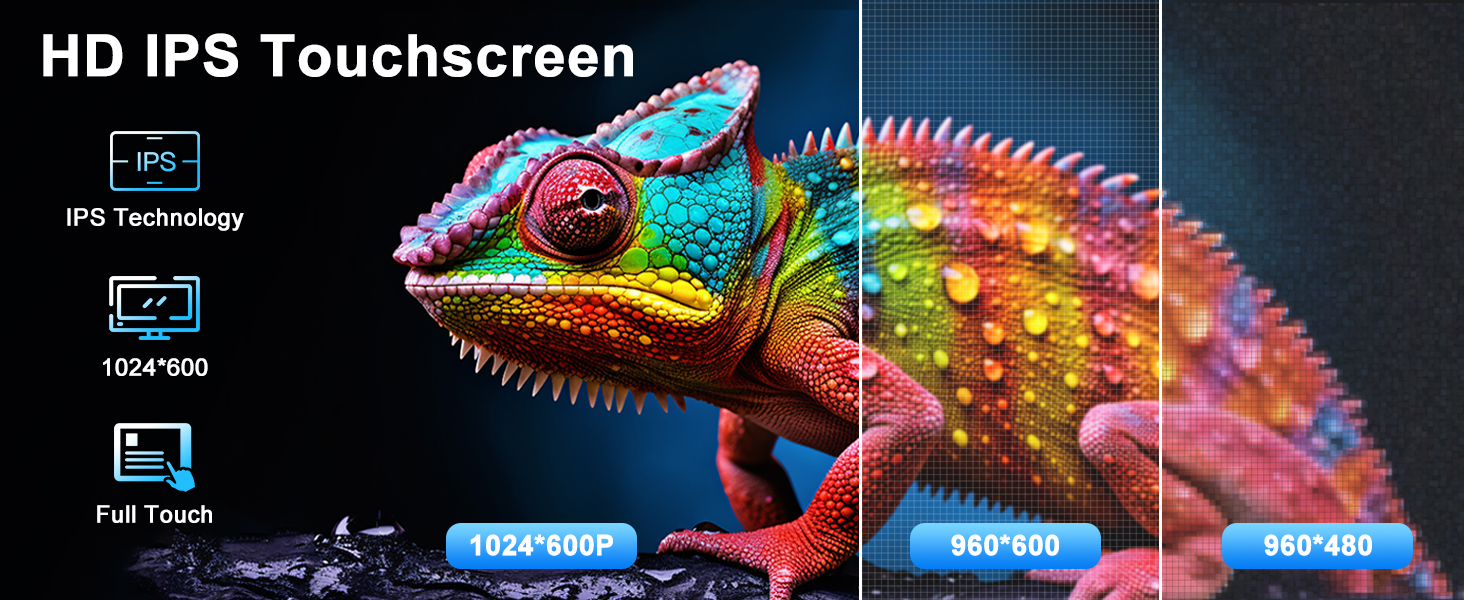
Image 5.1: The HD IPS touchscreen display of the car stereo.
6. Key Features and Functions
6.1 Wireless CarPlay & Android Auto
Connect your iPhone or Android smartphone wirelessly or via USB to access CarPlay or Android Auto. This feature integrates your phone's navigation, communication, and entertainment apps directly onto the car stereo display, allowing for voice-controlled operations and hands-free usage.
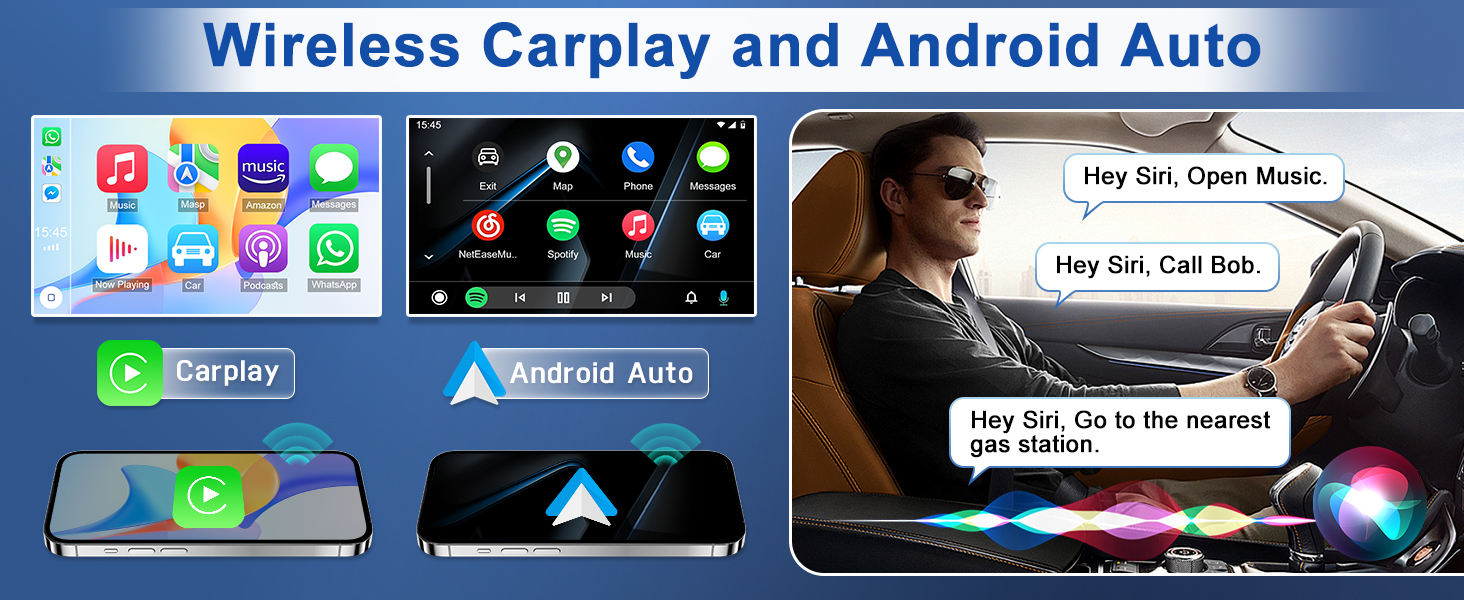
Image 6.1: Wireless CarPlay and Android Auto functionality.
6.2 GPS Navigation & WiFi
The unit supports both online and offline navigation applications. Utilize built-in GPS for precise positioning and connect to Wi-Fi for real-time traffic updates, online map services, and app downloads from the Play Store. You can use your phone's hotspot for internet access.
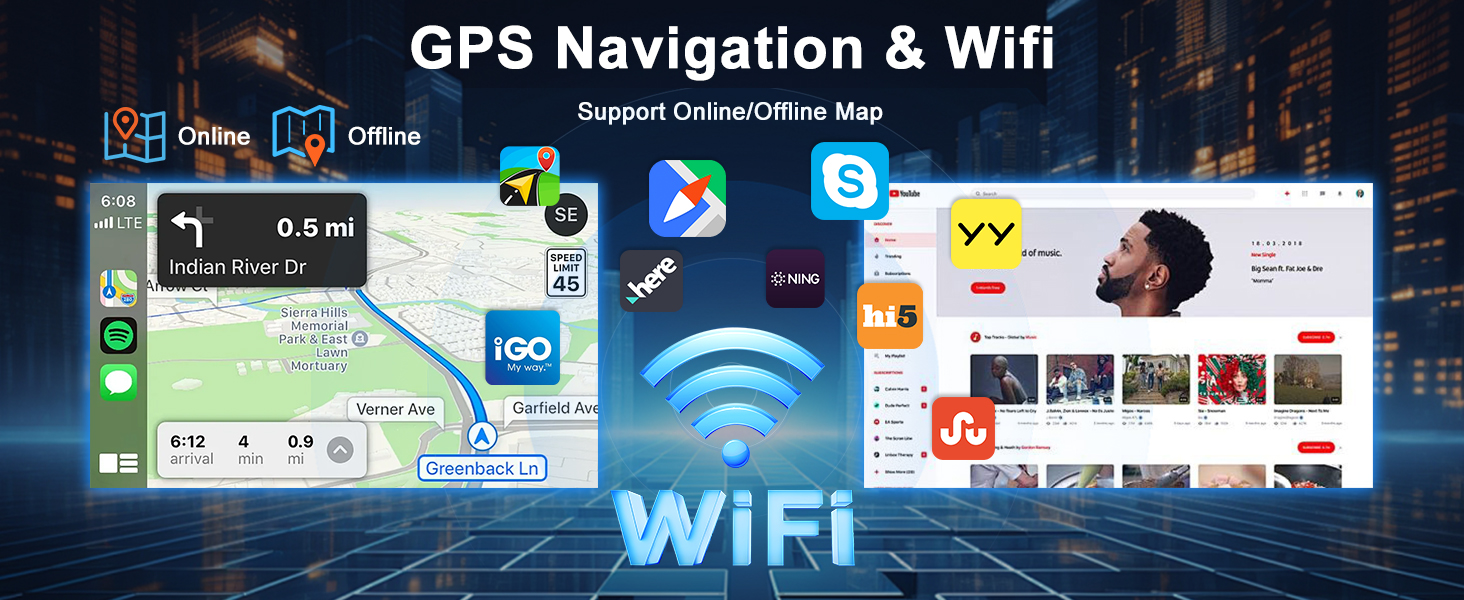
Image 6.2: GPS Navigation and WiFi connectivity.
6.3 Bluetooth Connectivity
The integrated Bluetooth module allows for hands-free calling and wireless audio streaming. Pair your smartphone to make and receive calls, access your phone book, and play music directly through the car's speakers.
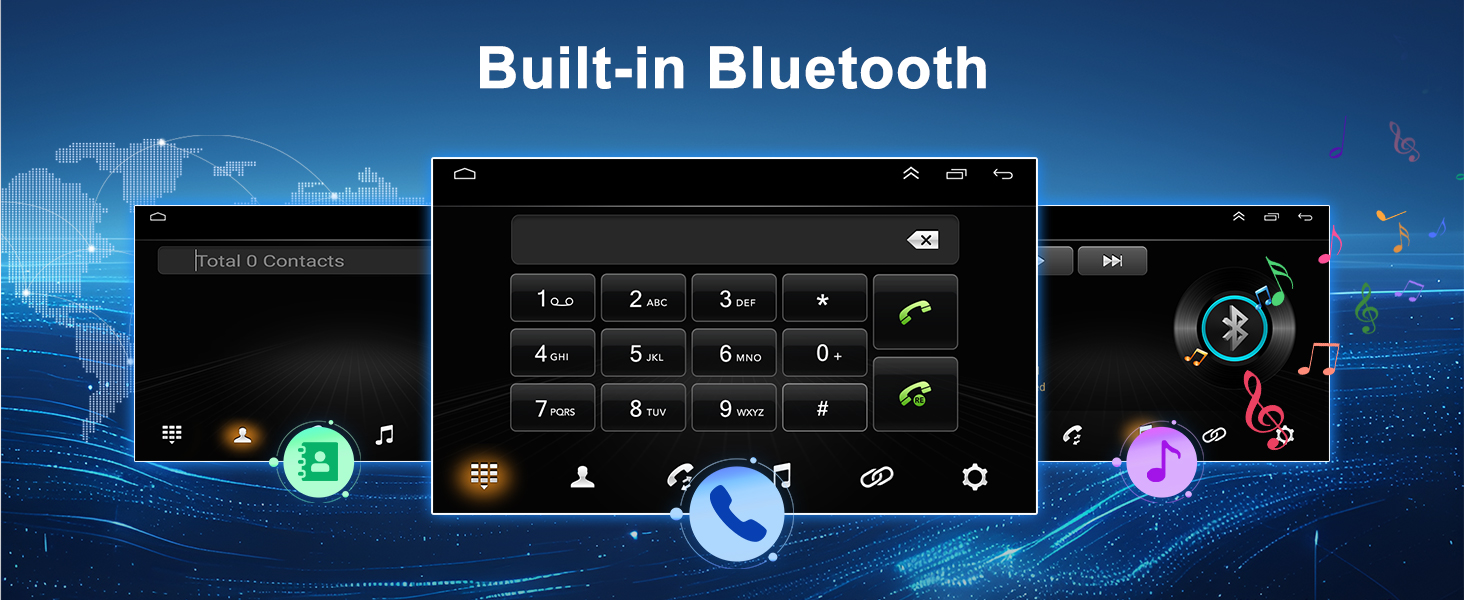
Image 6.3: Built-in Bluetooth features for calls and music.
6.4 Mirror Link
Mirror Link functionality enables you to display your smartphone's screen directly onto the car stereo. This allows for viewing navigation maps, videos, and other content from your phone on the larger HD touchscreen.
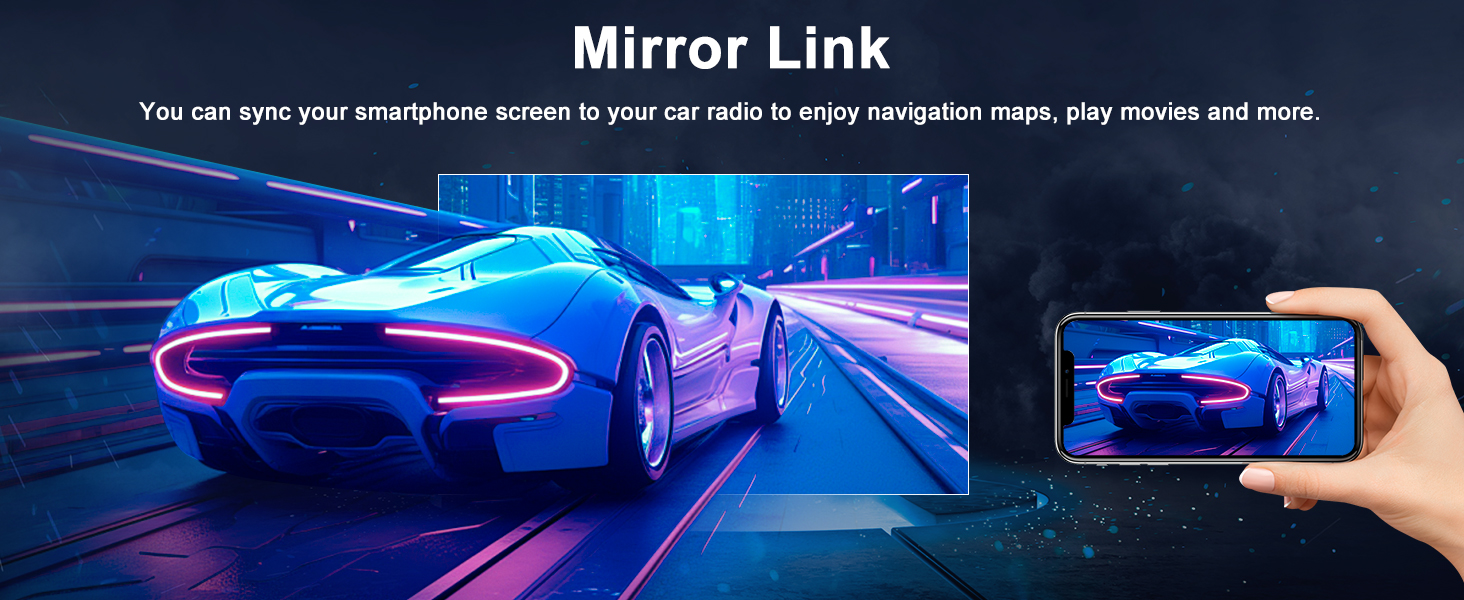
Image 6.4: Mirror Link feature in action.
6.5 Steering Wheel Control (SWC)
The unit supports your vehicle's original steering wheel controls, allowing you to manage audio playback, answer calls, and navigate menus without taking your hands off the wheel. This enhances driving safety and convenience.
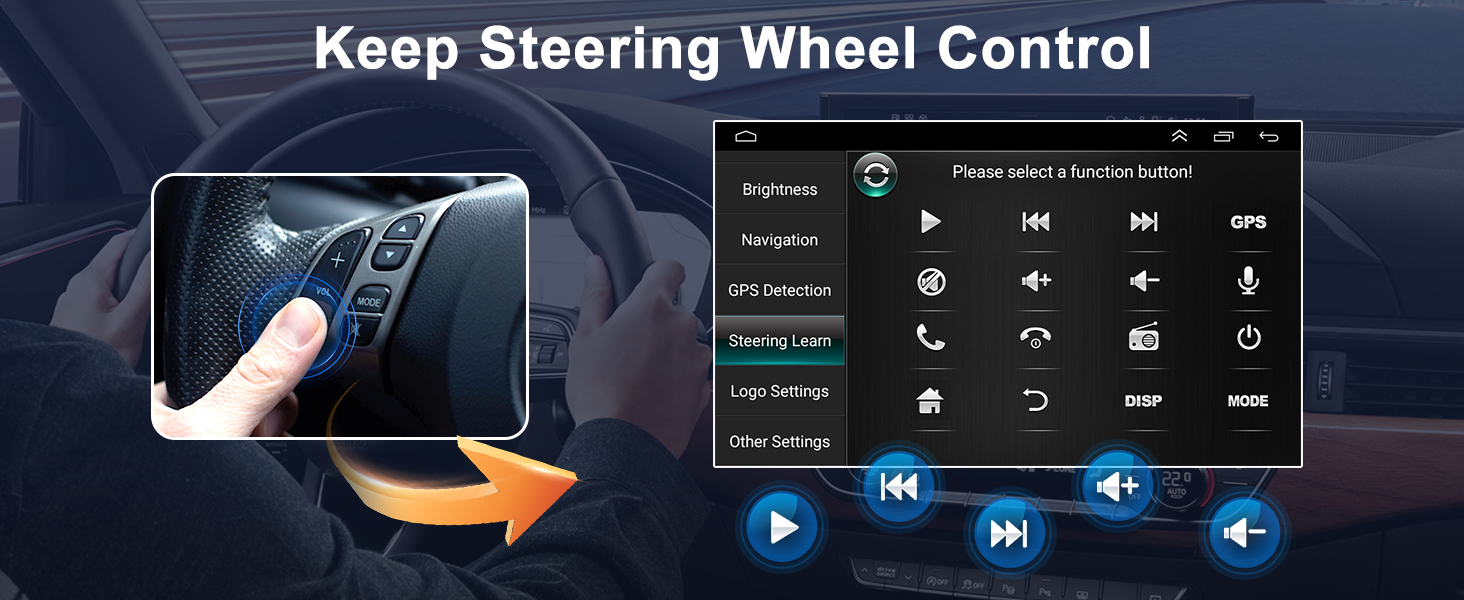
Image 6.5: Steering Wheel Control integration.
6.6 FM/RDS Radio
Enjoy your favorite radio stations with the built-in FM/RDS tuner. The radio supports both automatic and manual station searching, allowing you to save preferred frequencies for quick access.
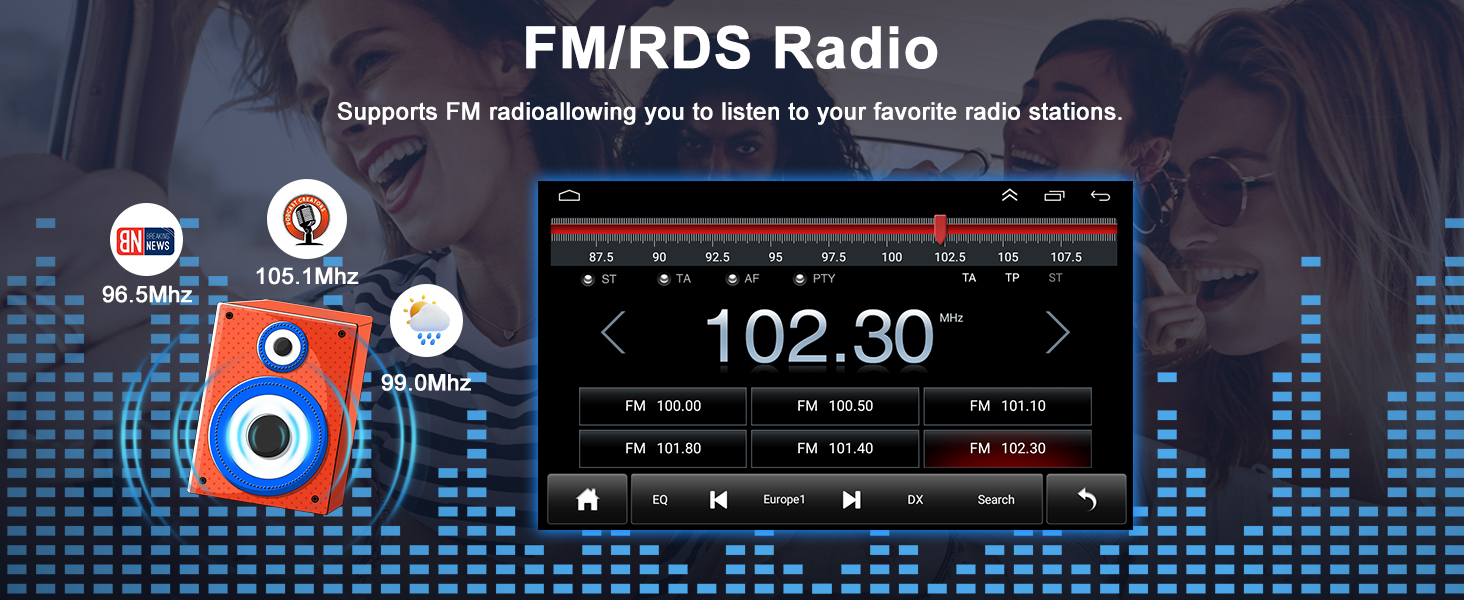
Image 6.6: FM/RDS Radio interface.
6.7 Split Screen Function
The split-screen feature allows you to run two applications simultaneously on the display. For example, you can view navigation maps on one side while controlling music playback on the other, enhancing multitasking capabilities.
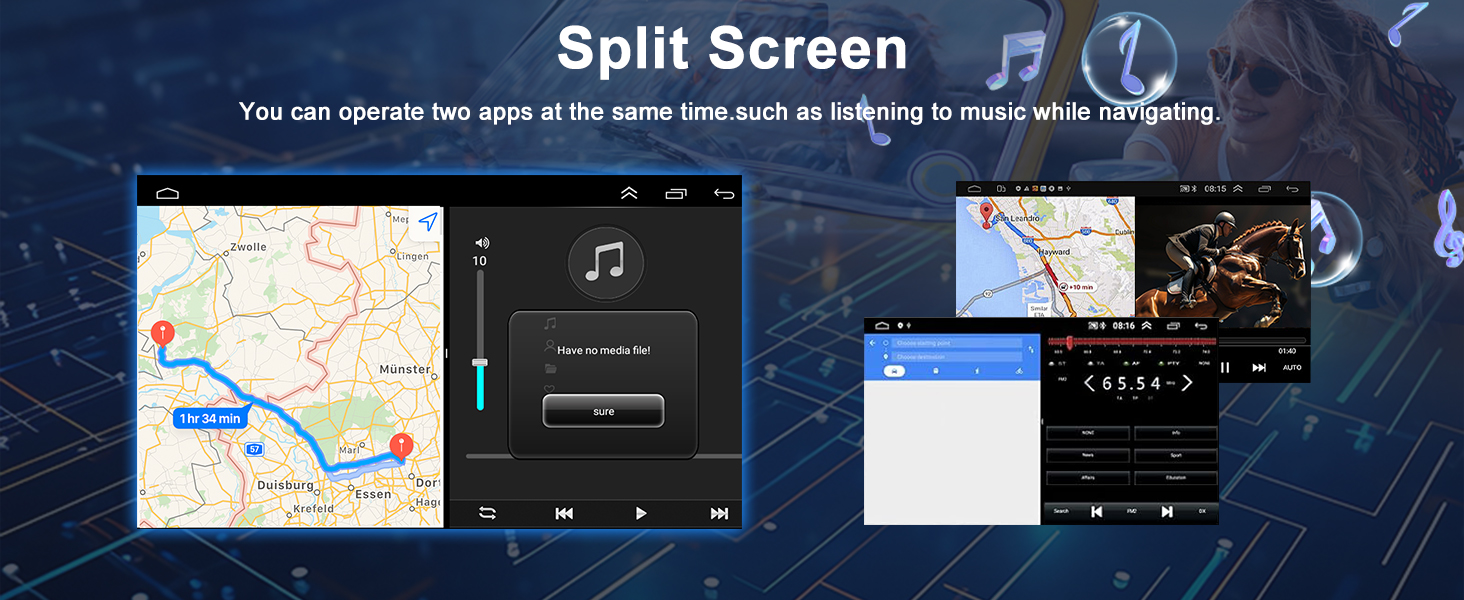
Image 6.7: Split Screen functionality.
6.8 Rear View Camera
Upon engaging reverse gear, the car stereo automatically displays the feed from the connected AHD rearview camera. This feature provides a wide field of view and night vision capabilities, assisting with safer parking and reversing maneuvers.
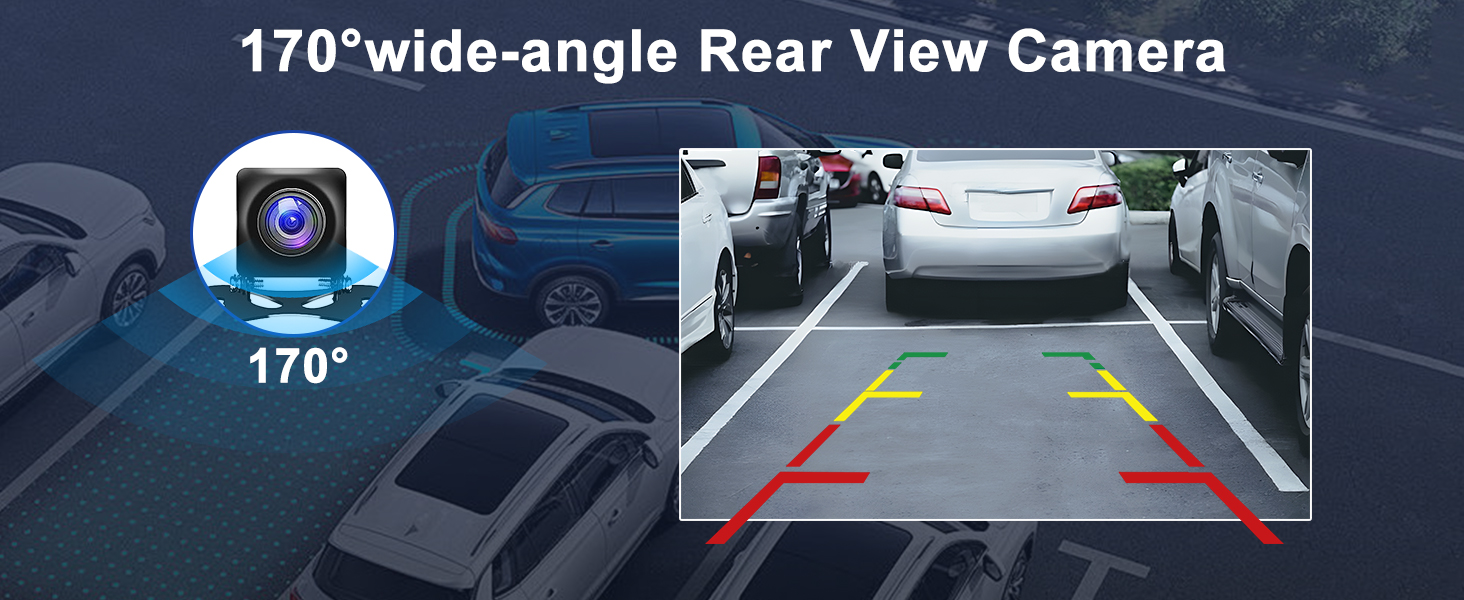
Image 6.8: Rear View Camera display.
6.9 Audio Equalizer (EQ)
Customize your audio experience with the built-in 12-segment equalizer. Adjust sound frequencies to match your preferences, and utilize the RCA subwoofer output for enhanced bass performance.
7. Specifications
| Feature | Description |
|---|---|
| Brand | Oskkude |
| Model Number | TISU-11-XXL-25J1156X-002 |
| Operating System | Android 14.0 |
| RAM + ROM | 2GB RAM + 32GB ROM |
| Screen Size | 8.4 Inches |
| Display Type | IPS Capacitive Touchscreen |
| Connectivity Technology | Bluetooth, USB, Wi-Fi |
| Special Features | Wireless CarPlay, Android Auto, Steering Wheel Control, GPS Navigation, Mirror Link, Split Screen, AHD Backup Camera, EQ, FM/AUX, AV IN, RCA, RLV/AHD |
| Compatible Devices | Dodge Charger 2011-2014 |
| Audio Output Mode | Stereo |
| Supported Satellite Navigation System | GPS |
8. Maintenance
To ensure the longevity and optimal performance of your car stereo, follow these maintenance guidelines:
- Screen Cleaning: Use a soft, lint-free cloth to gently wipe the touchscreen. For stubborn smudges, slightly dampen the cloth with water or a screen-safe cleaner. Avoid harsh chemicals or abrasive materials.
- Software Updates: Periodically check for available software updates through the unit's settings or the manufacturer's website. Keeping the software updated ensures access to the latest features and performance improvements.
- Environmental Conditions: Avoid exposing the unit to extreme temperatures, direct sunlight for prolonged periods, or excessive moisture.
- Cable Connections: Ensure all cables are securely connected. Loose connections can lead to intermittent functionality or poor performance.
9. Troubleshooting
If you encounter issues with your car stereo, refer to the following common troubleshooting steps:
- No Power: Check all power connections and fuses. Ensure the vehicle's battery is properly connected and charged.
- No Sound: Verify speaker connections. Check volume levels on the stereo and any connected devices. Ensure the mute function is not activated.
- Touchscreen Unresponsive: Try restarting the unit. If the issue persists, a factory reset might be necessary (note: this will erase all user data).
- GPS Not Working: Ensure the GPS antenna is properly installed and has a clear view of the sky. Check GPS settings within the unit.
- Bluetooth Connection Issues: Ensure Bluetooth is enabled on both the stereo and your smartphone. Delete previous pairings and attempt to re-pair the devices.
- CarPlay/Android Auto Not Connecting: Verify that your phone's operating system is up to date. Try connecting with a different USB cable if using a wired connection. Ensure the respective apps are installed on your phone.
- Rearview Camera Not Displaying: Check the camera's power and video signal connections. Ensure the camera input is correctly selected or automatically triggered when reversing.
For persistent issues not resolved by these steps, please contact customer support.
10. Warranty and Support
Your Oskkude car stereo comes with a standard manufacturer's warranty. Please refer to the warranty card included in your package for specific terms and conditions, including warranty duration and coverage details. For technical support, service inquiries, or to report any issues, please contact Oskkude customer service through the contact information provided in your product documentation or on the official Oskkude website.