
1. Introduction
The Beelink MINI S13 Mini PC is a compact and efficient desktop computer designed for a variety of uses, including office work, home entertainment, online education, and industrial applications. Powered by an Intel Twin Lake N150 processor, it offers smooth performance for everyday tasks and supports dual 4K display output.
2. Package Contents
Please verify that all items are present in the package:
- 1 x Beelink Mini PC
- 1 x Power Adapter
- 1 x VESA Mount & Screws
- 1 x User Manual
- 1 x HDMI Cable

Figure 2.1: Included accessories for the Beelink MINI S13 Mini PC, showing the Mini PC, power adapter, VESA mount, user manual, and HDMI cables.
3. Product Overview
3.1 Key Features
- Processor: Intel Twin Lake 4-Cores N150 (up to 3.6GHz)
- Memory: 12GB LPDDR5 RAM
- Storage: 500GB M.2 SATA SSD, configurable up to 4TB storage with optional 2.5-inch drive.
- Display: Dual HDMI 4K 60Hz output for ultra-high definition visuals.
- Connectivity: 2.5G Ethernet, WiFi 6 (802.11ax) Dual Band 2.4 & 5GHz, Bluetooth 5.2.
- Operating System: Windows 11 Home.
- Additional Functions: Wake On LAN, PXE Boot, RTC Wake, Auto Power On.
3.2 Ports and Interfaces
The Beelink MINI S13 Mini PC is equipped with a variety of ports for versatile connectivity:
- 4 x USB 3.2 Gen2 (10Gbps) ports
- 2 x HDMI 4K 60Hz ports
- 1 x RJ45 2.5G LAN port
- 1 x Audio Jack
- 1 x DC Jack (Power Input)
- 1 x RTC Key (Clear CMOS)
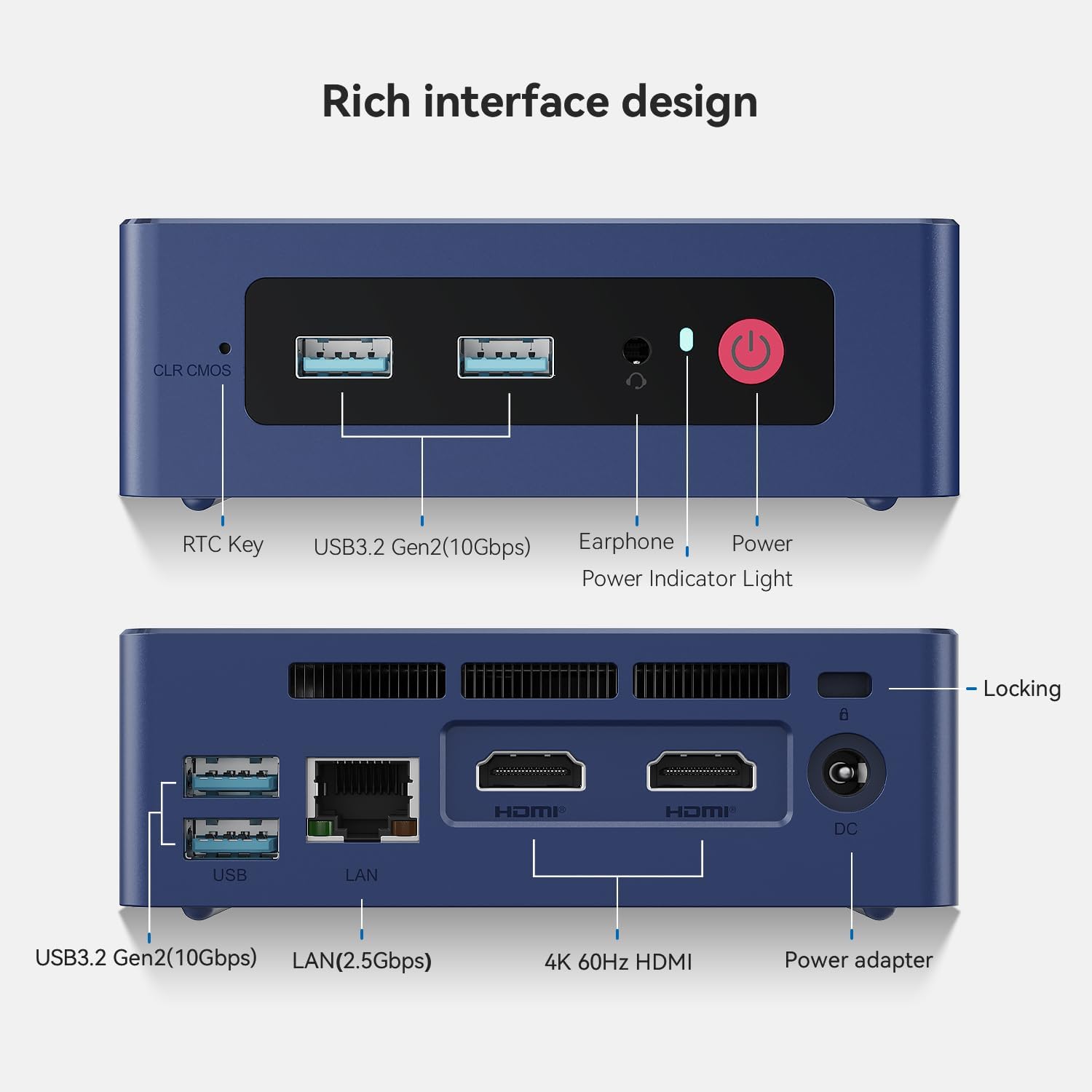
Figure 3.1: Detailed view of the front and rear ports on the Beelink MINI S13 Mini PC, including USB, HDMI, LAN, and audio jacks.
3.3 Internal Components Overview
The internal design of the MINI S13 includes efficient cooling and accessible storage options.
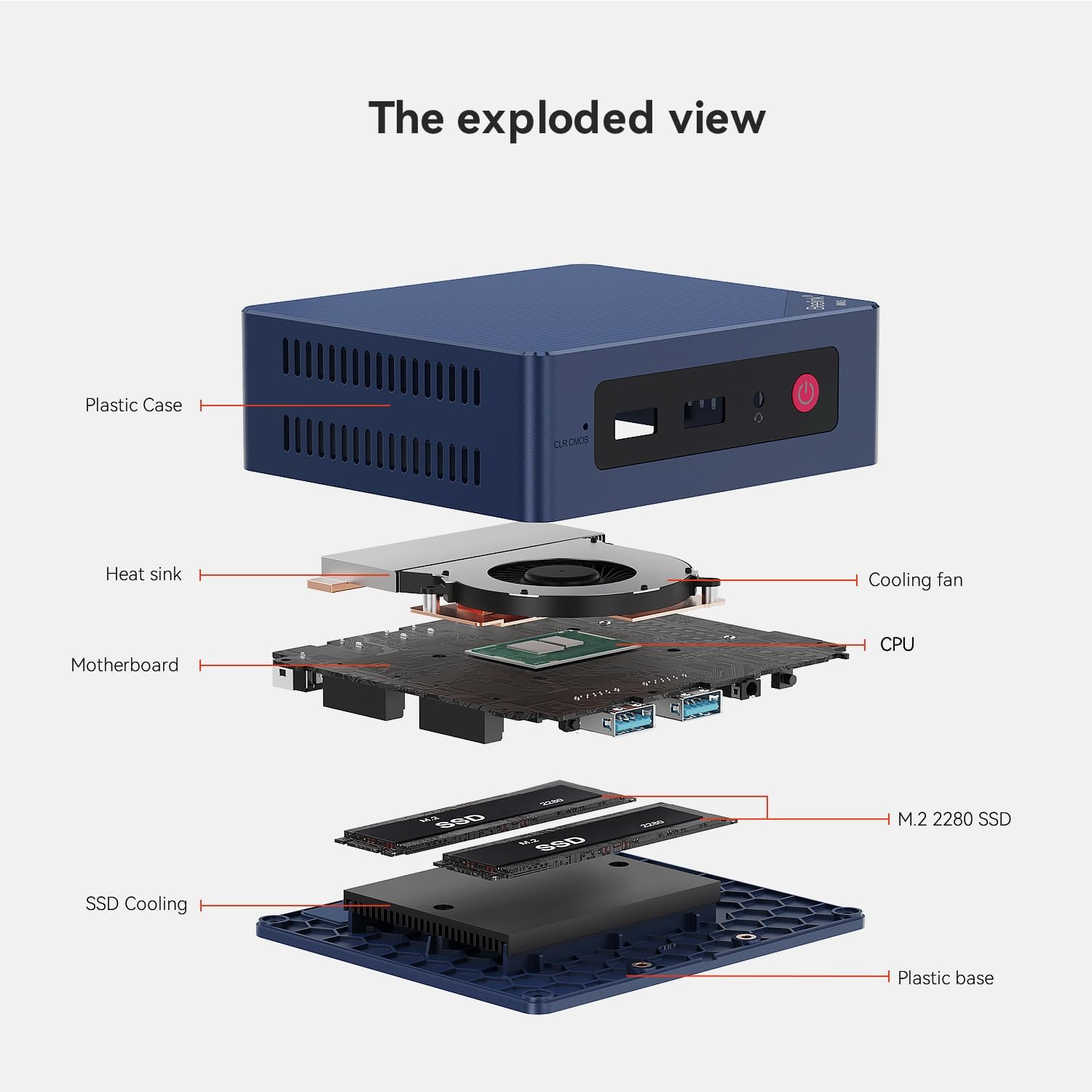
Figure 3.2: Exploded view of the Beelink MINI S13 Mini PC, showing the plastic case, heat sink, cooling fan, motherboard, CPU, M.2 2280 SSD, SSD cooling, and plastic base.
4. Setup Instructions
4.1 Initial Setup
- Connect your monitor(s) to the HDMI ports on the back of the Mini PC.
- Connect a keyboard and mouse to the available USB ports.
- Connect the power adapter to the DC Jack on the Mini PC and then to a power outlet.
- Press the power button on the front of the Mini PC to turn it on.
- Follow the on-screen instructions to complete the Windows 11 Home setup, including network configuration and user account creation.
4.2 Hardware Installation (SSD/RAM)
The Beelink MINI S13 allows for easy installation of an additional 2.5-inch SATA SSD for expanded storage. The following video demonstrates the process:
Video 4.1: This video provides a detailed tutorial on how to replace or install an SSD in your Beelink Mini PC, including opening the casing and connecting the drive.
5. Operating Instructions
The Beelink MINI S13 is designed for smooth and efficient operation across various applications. It supports dual 4K displays for enhanced productivity and is compatible with multiple operating systems.
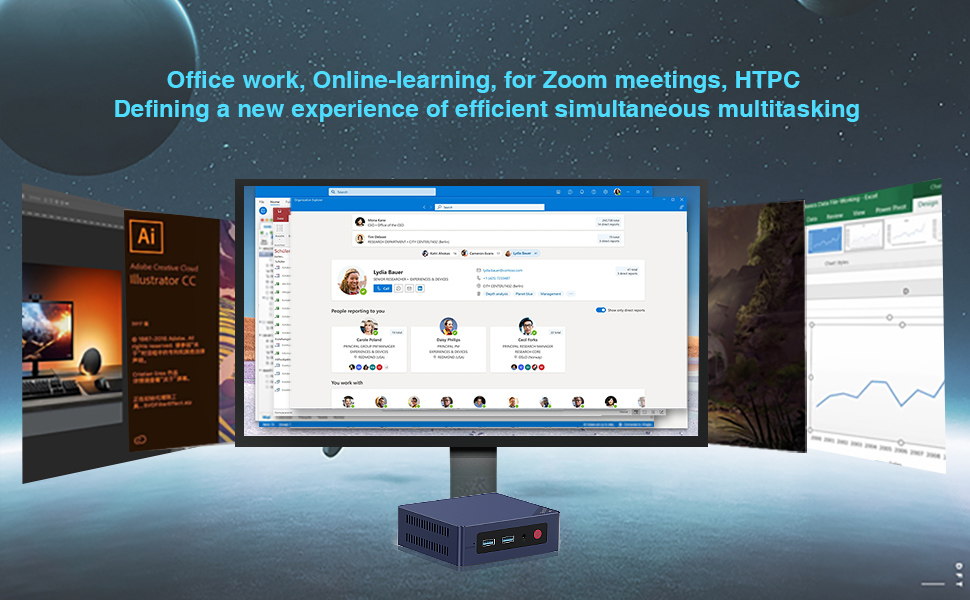
Figure 5.1: The Beelink MINI S13 is suitable for office work, online learning, Zoom meetings, and HTPC use, offering efficient simultaneous multitasking.

Figure 5.2: The Beelink MINI S13 supports various operating systems including Windows 11 Pro, Windows 10 Pro, Ubuntu, Debian, and CentOS.
6. Maintenance
To ensure optimal performance and longevity of your Beelink MINI S13 Mini PC, regular maintenance is recommended.
6.1 Cooling and Ventilation
The MINI S13 features an efficient cooling fan and heat sink design to prevent overheating. Ensure proper airflow around the device and keep ventilation openings clear of obstructions.
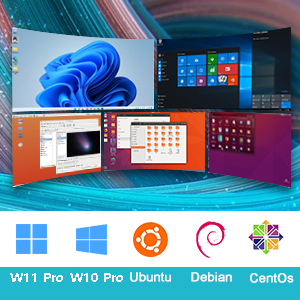
Figure 6.1: Illustration of the new airflow design (MSC2.0) in the Beelink Mini PC, highlighting its efficient heat dissipation.
6.2 Storage and Memory Upgrades
For storage expansion or replacement, refer to the 'Hardware Installation (SSD/RAM)' section (4.2) for detailed instructions on accessing and installing components.
7. Troubleshooting
If you encounter issues with your Beelink MINI S13 Mini PC, please try the following basic troubleshooting steps:
- No Power: Ensure the power adapter is securely connected to both the Mini PC and a working power outlet. Try a different outlet.
- No Display: Check that the HDMI cables are firmly connected to both the Mini PC and the monitor. Try a different HDMI port or cable. Ensure the monitor is set to the correct input source.
- Peripheral Issues: If a keyboard, mouse, or other USB device is not working, try connecting it to a different USB port. Ensure drivers are up to date if necessary.
- Slow Performance: Close unnecessary applications. Check for background updates. Ensure adequate ventilation to prevent thermal throttling.
- Network Connectivity: For wired connections, ensure the Ethernet cable is properly connected. For Wi-Fi, verify the network password and signal strength.
For more complex issues, please refer to the support section or contact customer service.
8. Specifications
Detailed technical specifications for the Beelink MINI S13 Mini PC:
| Feature | Specification |
|---|---|
| Brand | Beelink |
| Operating System | OS (Windows 11 Home) |
| CPU Model | Intel N150 |
| CPU Speed | 3.6 GHz |
| Graphics Card Description | Integrated (Intel UHD Graphics) |
| RAM Memory Installed Size | 12 GB |
| RAM Memory Technology | LPDDR5 |
| Hard Disk Description | SSD |
| Hardware Interface | Ethernet, HDMI, USB |
| Item Weight | 0.69 Kilograms |
| Total USB Ports | 4 |
| Total Number of HDMI Ports | 2 |
| Display Resolution Maximum | 3840 x 2160@60Hz |
| Connectivity Technology | Ethernet, HDMI, Wi-Fi |
9. Warranty and Support
Beelink is committed to providing excellent customer service and support for your Mini PC.
9.1 Warranty Information
All Beelink Mini PCs undergo strict inspection before shipping. This product comes with a 3-year warranty.
9.2 Customer Support
We offer lifetime technical support and 24/7 after-sales service. If you have any questions or require assistance, please do not hesitate to contact us.
Video 9.1: This video explains how to contact Beelink customer support for any inquiries or assistance with your product.