
MONSGEEK M1 V5 HE
MONSGEEK M1 V5 HE Rapid Trigger Gaming Keyboard User Manual
Model: M1 V5 HE
1. Product Overview
The MONSGEEK M1 V5 HE is a high-performance aluminum mechanical gaming keyboard designed for precision and speed. It features advanced rapid trigger technology, magnetic switches, and customizable ARGB lighting. This manual provides essential information for setting up, operating, and maintaining your keyboard.
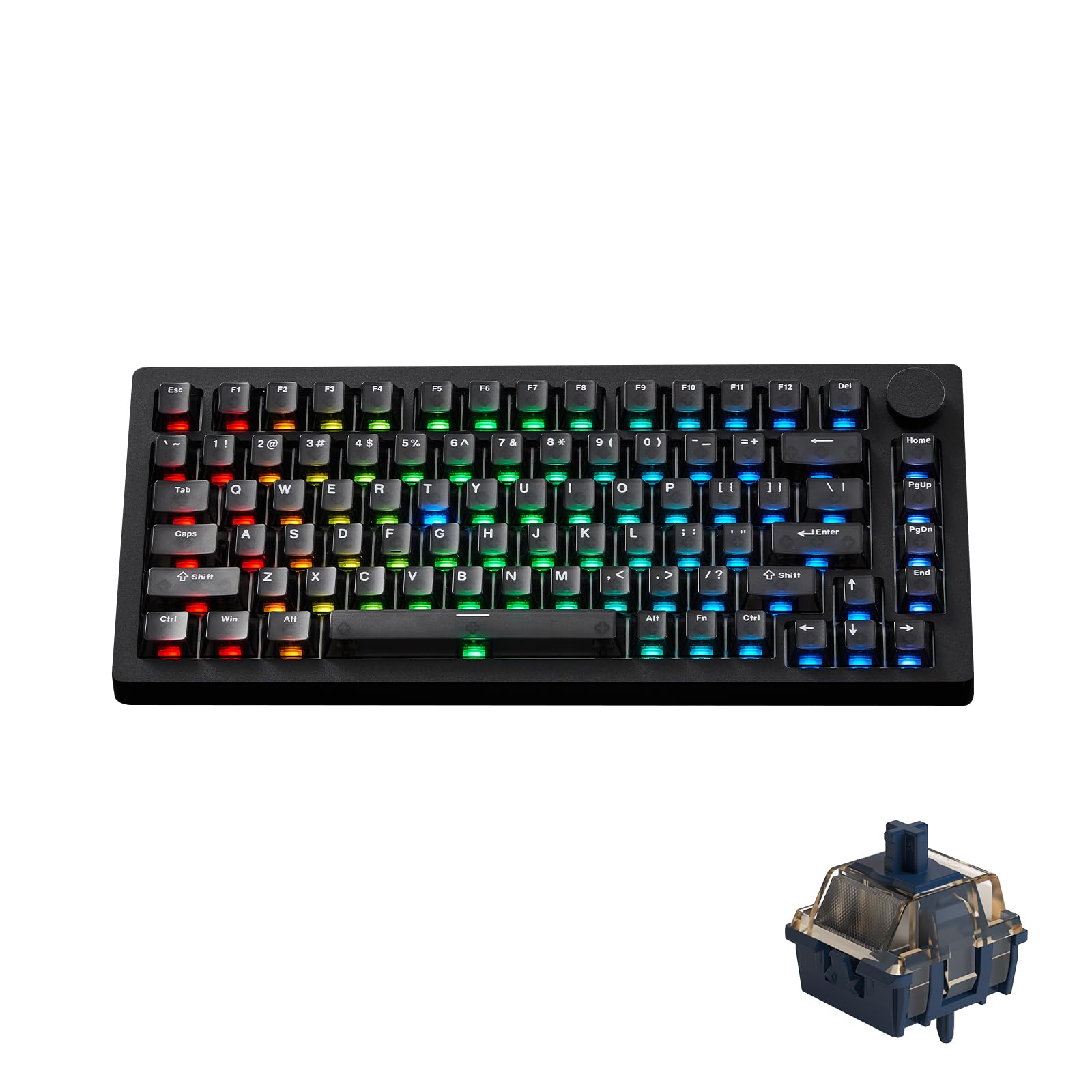
Image: MONSGEEK M1 V5 HE Rapid Trigger Gaming Keyboard, showcasing its design and layout.
2. Setup and Connection
2.1 Package Contents
- MONSGEEK M1 V5 HE Keyboard
- USB-C Cable
- Keycap Puller
- Switch Puller
- Additional Switches (if included)
- User Manual (this document)
2.2 Connecting the Keyboard
The M1 V5 HE keyboard supports multiple connection modes: wired USB, 2.4GHz wireless, and Bluetooth. The mode switch is located under the Caps Lock keycap.
- Wired Connection: Connect the provided USB-C cable from the keyboard to an available USB port on your computer. The keyboard will automatically detect the connection.
- Wireless Connection (2.4GHz / Bluetooth):
- To switch between wireless (Mac/Windows) and wired (USB) modes, gently remove the Caps Lock keycap using the keycap puller.
- Locate the small switch underneath the Caps Lock key.
- Move the switch to the desired position:
- Up: Wireless Mac mode
- Down: Wireless Windows mode
- Middle: Wired USB mode
- For 2.4GHz wireless, insert the USB dongle into your computer. For Bluetooth, enable Bluetooth on your device and pair with the keyboard.

Image: The keyboard's quick release mechanism allows for easy removal of the top frame, revealing the internal structure and switches for maintenance or customization.
3. Operating Instructions
3.1 Key Features
- Ultra-Precise Rapid Trigger: Adjust actuation distance in 0.005mm steps for faster response times.
- 8K Polling Rate & 32K Scan Rate: Ensures rapid data transmission and instant key change detection for enhanced responsiveness.
- Snap Key (SOCD): Prioritizes the most recent keypress for fluid directional changes, particularly useful in FPS games.
- ARGB Lighting: Individually controlled LEDs provide smooth, flicker-free lighting with dynamic effects.
- Magnetic Switches: The keyboard is equipped with Akko magnetic switches, offering a pleasant typing experience and compatibility with standard magnetic switches.

Image: Detail of the keyboard's rapid trigger feature, indicating ultra-precise actuation down to 0.005mm.

Image: An illustration demonstrating the effect of Snap Keys (SOCD) on directional input, allowing for quicker changes in movement.

Image: A visual representation of the Hall Effect sensor, which is central to the keyboard's magnetic switch technology.

Image: The keyboard illuminated with Addressable RGB (ARGB) lighting, showcasing its customizable visual effects.

Image: A diagram illustrating the low latency achieved through 32K Scan Rate and 8K Polling Rate, detailing device scan, internal processing, and transport times.
3.2 Software Customization
The MONSGEEK Driver software allows for extensive customization of key functions, actuation distances, and RGB lighting effects. Refer to the software's interface for detailed instructions on creating profiles and adjusting settings.

Image: The MonsGeek Driver software interface, providing options for remapping keys, adjusting magnetic switch settings, and other configurations.
4. Maintenance
4.1 Cleaning the Keyboard
- Use the provided keycap puller to carefully remove keycaps for thorough cleaning.
- Wipe the keycaps and keyboard surface with a soft, damp cloth. Avoid excessive moisture.
- For dust and debris between switches, use compressed air.
4.2 Replacing Switches
The M1 V5 HE supports hot-swappable magnetic switches. Use the switch puller to carefully remove and replace switches. Ensure proper alignment when inserting new switches to avoid bending pins.
5. Troubleshooting
- Keyboard not responding:
- Check the USB cable connection or wireless dongle.
- Ensure the mode switch under the Caps Lock key is set correctly (Wired, Wireless Windows, or Wireless Mac).
- Recharge the keyboard battery if using wireless mode.
- RGB lighting issues:
- Verify software settings in the MONSGEEK Driver.
- Ensure the keyboard firmware is up to date.
- Keys not registering or double-typing:
- Clean around the affected switch.
- Consider replacing the switch using the switch puller.
- Adjust actuation settings in the MONSGEEK Driver software.
6. Specifications
| Feature | Detail |
|---|---|
| Brand | MONSGEEK |
| Model | M1 V5 HE |
| Color | Black Transparent-AstroLink |
| Material | Aluminum |
| Switch Type | Magnetic Mechanical (Akko Magnetic Switches) |
| Keyboard Layout | QWERTY |
| Special Features | Rapid Trigger (0.005mm adjustment), Astrolink Magnetic Switch, Snap Key, 8K Polling Rate, 32K Scan Rate, ARGB |
| Connectivity | Wired (USB-C), 2.4GHz Wireless, Bluetooth |
| Compatible Devices | PC, Gaming Console |
| Item Weight | 4.97 pounds |
| Package Dimensions | 16.02 x 10.51 x 3.31 inches |
7. Warranty and Support
For warranty information and technical support, please refer to the official MONSGEEK website or contact their customer service. Keep your purchase receipt for warranty claims.
Online Resources:
- MONSGEEK Official Store on Amazon
- Check the product listing for any specific warranty details provided by the seller.
Related documentsM1 V5 HE


Ask a question about this manual
Ask about setup, troubleshooting, compatibility, parts, safety, or missing instructions. Manuals+ will review the question and use this page’s manual context to help answer it.