
Introduction
This manual provides detailed instructions for the installation, operation, and maintenance of your Jerqry 5G WiFi Car Radio. Designed specifically for Dodge Journey models from 2011 to 2019, this advanced head unit features a 9-inch HD touchscreen, Wireless Carplay, Android Auto, GPS navigation, Bluetooth 5.0, FM/RDS radio, DSP EQ, and Steering Wheel Control (SWC) compatibility. Please read this manual thoroughly before use to ensure proper functionality and safety.

The Jerqry 5G WiFi Car Radio seamlessly integrated into a Dodge Journey dashboard.
Product Features Overview
- Applicable Car Models: Dodge Journey 2011-2019.
- Display: 9-inch 2.5D 1280*800 HD Touchscreen.
- Operating System: Android 13 with 4Core 2GB RAM and 64GB ROM.
- Connectivity: 5G WiFi, Bluetooth 5.0, USB.
- Smartphone Integration: Wireless CarPlay and Android Auto.
- Navigation: Built-in GPS with offline map support (Here Wego).
- Audio: FM/RDS Radio, DSP 15-Band EQ for Hifi sound.
- Safety Features: Supports 1080P AHD rear view camera input (free backup camera included).
- Control: Steering Wheel Control (SWC) function.
What's in the Box
Please verify that all components are present before beginning installation:
- Power Cable (x1)
- RCA Cable (x1)
- GPS Module (x1)
- USB Cable (x2)
- 4G Antenna (x1)
- Radio Antenna (x1)
- Reversing Control Cable (x1)
- Backup Camera (x1)
- Crowbar (x1)
- MIC (x1)

Complete wiring harness and accessories included in the product package.
Setup & Installation
Follow these steps for proper installation of your car radio. Professional installation is recommended if you are unfamiliar with car audio wiring.
1. Initial Wiring Connections
Before installing the unit into the dashboard, make the following preliminary connections:
- Connect the CANBUS BOX to the Power Cable.
- Connect the power harness to the back of the car stereo.
- Plug the 8-Pin CANBUS connector into the rear panel of the car stereo.
- Insert the 4-Pin USB cable.
- Insert the radio adapter cable.
- If your car has a rearview camera, insert the original rearview camera adapter cable. The adapter has two plugs; choose one and connect it. If the image does not display, try the other plug.
Video tutorial demonstrating the wiring process for the 8-Core Car Radio installation.

Visual comparison of the dashboard before and after installing the new car radio.
Operating Instructions
1. Bluetooth 5.0 Connection
The unit supports Bluetooth 5.0 for hands-free calls and music streaming. To connect your phone:
- On the car radio, navigate to the Bluetooth settings.
- On your mobile device, enable Bluetooth and search for available devices.
- Select the car radio's Bluetooth name (e.g., "BC8-Android") from your phone's list.
- Enter the pairing password (default is 0000) if prompted.
Video guide on connecting Bluetooth for CarPlay and WiFi functionality.

Bluetooth 5.0 interface for hands-free calling and music playback.
2. Wireless CarPlay & Android Auto
Enjoy seamless smartphone integration with Wireless CarPlay and Android Auto:
- Ensure your phone's Bluetooth is connected to the car radio.
- The unit will automatically connect to CarPlay or Android Auto.
- For CarPlay, ensure the CarPlay function is enabled in your iPhone's settings (General > CarPlay > Zlink > Open/Close CarPlay).
- For Android Auto, download the Android Auto app on your phone if you encounter connection issues.
Video tutorial on connecting Bluetooth for Android Auto and WiFi functionality.

Wireless CarPlay and Android Auto interface for seamless smartphone integration.
3. GPS Navigation
The unit supports both online and offline GPS navigation. The pre-installed offline map app is "Here Wego".
- To use online navigation, ensure the unit is connected to WiFi or a mobile hotspot.
- For offline navigation, download maps for your desired region in the "Here Wego" app.

GPS Navigation screen showing precise positioning and route guidance.
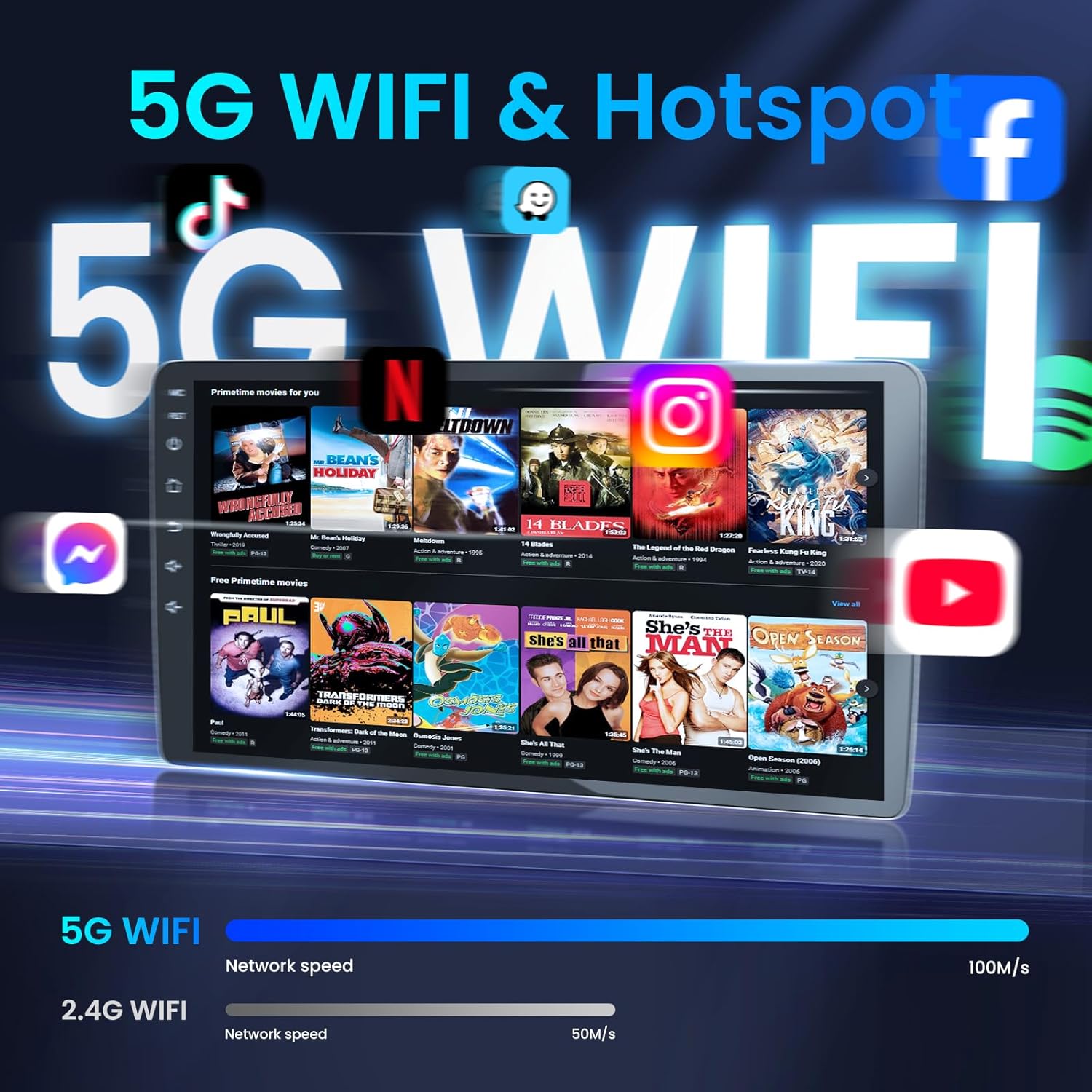
4. 5G WiFi & Hotspot
Connect to the internet via 5G WiFi or use your phone's hotspot for online services, music, and app downloads.
- Access WiFi settings from the main menu to connect to available networks.
- For mobile hotspot, enable the hotspot feature on your smartphone and connect the car radio to it.

Enjoy fast internet access with 5G WiFi for streaming and app usage.
5. FM/RDS Radio & DSP EQ
The unit includes an FM/RDS radio tuner and a Digital Sound Processor (DSP) with a 15-band equalizer for customized audio.
- Access the Radio app to tune into FM stations. RDS provides station information.
- Use the EQ settings to adjust sound frequencies and optimize audio output to your preference.
FM/RDS Radio and advanced EQ adjustment for personalized sound.
6. Steering Wheel Controls (SWC)
Control your car radio conveniently using your vehicle's existing steering wheel buttons.
- Access the SWC settings in the unit's menu.
- Follow the on-screen instructions to map your steering wheel buttons to various functions like volume, track skip, and call answering.

Steering Wheel Controls allow convenient operation of the car radio.
7. Rear View Camera
The unit supports 1080P AHD camera image input, automatically switching to the reverse image when backing up.
- Ensure the backup camera is correctly wired during installation.
- The screen will automatically display the camera feed when the vehicle is in reverse gear.

1080P Rear View Camera for enhanced safety during parking and reversing.
Maintenance
To ensure the longevity and optimal performance of your Jerqry Car Radio, follow these maintenance guidelines:
- Cleaning: Use a soft, dry cloth to clean the touchscreen and exterior. Avoid abrasive cleaners or solvents.
- Software Updates: Periodically check for software updates through the unit's settings to ensure you have the latest features and bug fixes.
- Temperature: Avoid exposing the unit to extreme temperatures, both hot and cold, for extended periods.
- Connections: Ensure all cables and connections are secure and free from damage.
Troubleshooting
If you encounter issues with your car radio, refer to the following common problems and solutions:
| Problem | Possible Cause | Solution |
|---|---|---|
| Unit does not power on | Loose power connection, blown fuse | Check power cable connections. Inspect and replace fuse if necessary. |
| No sound output | Incorrect wiring, volume too low, mute activated | Verify speaker wiring. Increase volume. Check if mute is active. |
| Bluetooth/CarPlay/Android Auto not connecting | Bluetooth off, incorrect pairing, app issues | Ensure Bluetooth is on for both devices. Re-pair devices. Check CarPlay/Android Auto settings on your phone and unit. |
| GPS signal weak or inaccurate | GPS antenna placement, environmental interference | Ensure GPS antenna has a clear view of the sky. Avoid placing near metal objects. |
| Rear view camera not displaying | Incorrect camera connection, wrong adapter plug | Check camera wiring. Try the alternative adapter plug if applicable. |
Specifications
| Feature | Detail |
|---|---|
| Item Weight | 5 pounds |
| Product Dimensions | 15.4 x 7.5 x 19 inches |
| Display Size | 9 Inches |
| Voice Command | Touchscreen |
| Brand | Jerqry |
| Vehicle Service Type | Car |
| Screen Size | 9 Inches |
| Special Features | 1280*800 Touchscreen, Bluetooth / GPS Navigation / 5G WiFi, FM RDS / DSP 15-Band EQ, Mirror Link / SWC / 1080P Rear View Camera, Wireless Carplay / Android Auto |
| Connectivity Technology | Bluetooth, USB, Wi-Fi |
| Map Type | North America |
| Audio Output Mode | Stereo |
| Mounting Type | Dashboard Mount |
Warranty & Support
For warranty information and technical support, please refer to the contact details provided with your purchase or visit the official Jerqry website. Keep your proof of purchase for any warranty claims.


