
1. Introduction
Thank you for choosing the Jufodrca 9.7-inch HD Touch Screen Car Radio. This manual provides essential information for the proper installation, operation, and maintenance of your new car radio. Please read this manual thoroughly before installation and use to ensure optimal performance and safety. Keep this manual for future reference.
2. Safety Information
- Professional Installation Recommended: While designed for easy installation, professional installation is recommended to prevent damage to the vehicle's electrical system or the unit itself.
- Power Disconnection: Always disconnect the vehicle's battery before performing any installation or wiring work.
- Wiring: Ensure all wiring connections are secure and correctly matched according to the provided wiring diagram. Incorrect wiring can cause malfunctions or damage.
- Driving Safety: Do not operate the unit in a way that distracts you from driving. Always prioritize road safety.
- Temperature: Avoid exposing the unit to extreme temperatures or direct sunlight for prolonged periods.
- Cleaning: Use a soft, dry cloth for cleaning. Do not use abrasive cleaners or solvents.
3. Package Contents
Verify that all items are present in the package:
- Jufodrca 9.7-inch HD Touch Screen Car Radio Unit
- Wiring Harness (as specified in product details)
- GPS Antenna
- 1080P AHD Backup Camera
- USB Cables
- Installation Accessories

Image: Jufodrca Car Radio unit with wiring harness, GPS antenna, and backup camera.
4. Product Overview
The Jufodrca 9.7-inch HD Touch Screen Car Radio is an advanced multimedia system designed for Cadillac ATS, SRX, XTS, and CTS models from 2013 to 2018. It features a powerful Android 13 operating system, an 8-core processor, 4GB of RAM, and 64GB of internal storage for smooth performance and ample space for applications and media.
Key features include:
- High-Resolution Display: A 9.7-inch 1024x768 IPS touchscreen provides vivid colors and wide viewing angles.
- Smartphone Integration: Supports both wireless and wired Apple CarPlay and Android Auto for seamless access to navigation, music, messages, and calls.
- Advanced Navigation: Built-in GPS system with support for online and offline maps, utilizing the included GPS antenna.
- Connectivity: Features Bluetooth 5.0 for stable music streaming and hands-free calling, and 5G WiFi for fast internet access.
- Audio Enhancements: Integrated DSP (Digital Sound Processor) with FM/AM/RDS radio for a customizable audio experience.
- Safety Features: Includes a 1080P AHD high-definition backup camera that activates automatically when reversing, and supports existing steering wheel controls (SWC).
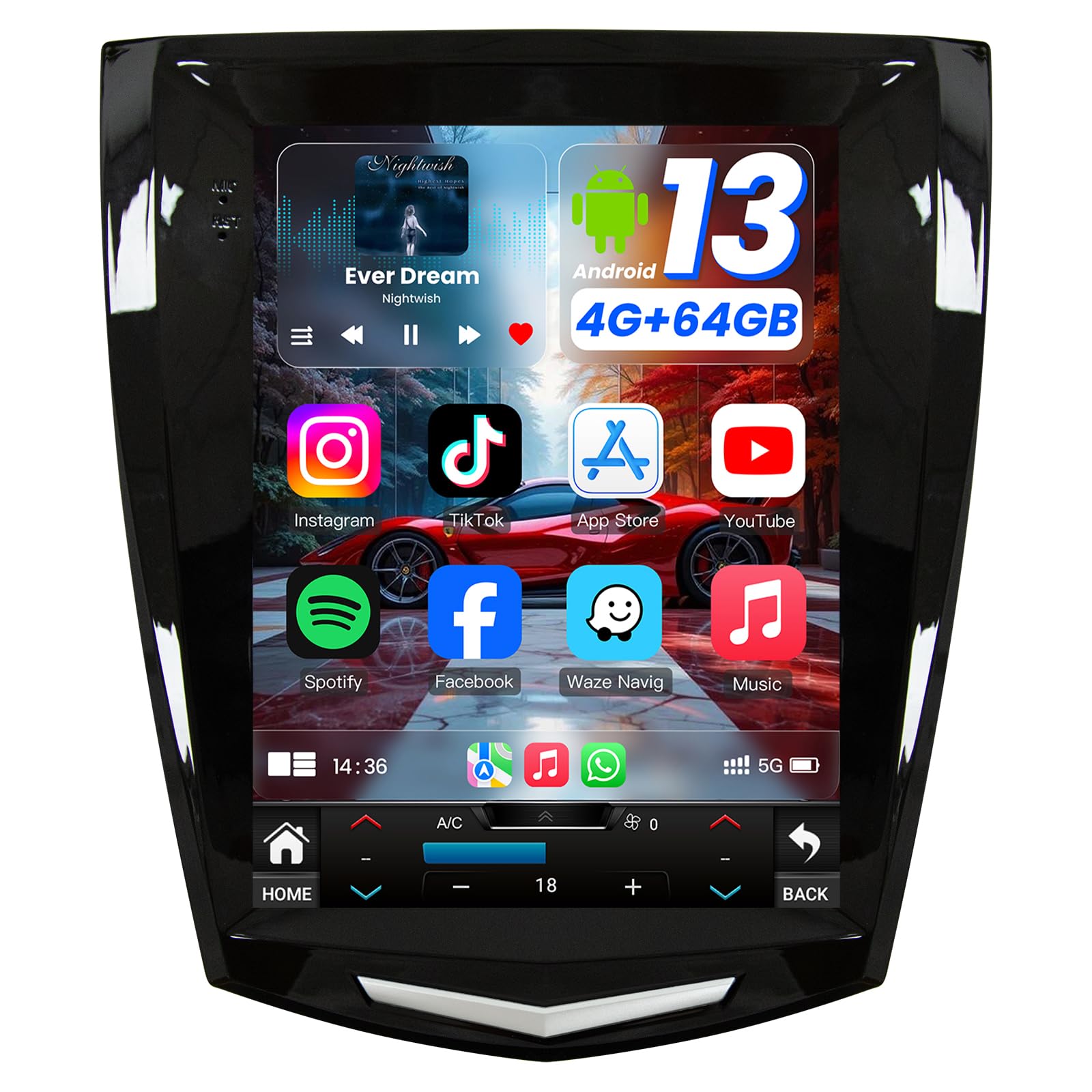
Image: The Jufodrca 9.7-inch car radio integrated into a Cadillac dashboard.
5. Installation
The car radio features a plug-and-play design. Refer to the provided wiring diagram for detailed connections. For a visual guide, scan the QR code in the troubleshooting section or visit the provided link for video tutorials.
5.1 Pre-Installation Check
- Compare your original car's central control with the adaptation diagram to ensure compatibility.
- Ensure the AUX audio cable is properly connected. If your car does not have a USB-A or Type-C port, contact customer support.
5.2 Mounting the Unit
- Remove the original car radio and any necessary trim panels.
- Remove the brackets from both sides of the factory radio.
- Attach these brackets to the back of the new Jufodrca unit.
- Connect the wiring harness, GPS antenna, and backup camera cable.
- Carefully slide the new unit into the dashboard opening and secure it.

Image: Comparison of the Cadillac dashboard before and after installing the Jufodrca car radio.

Image: Another perspective showing the car radio installation process.
For detailed wiring instructions and video tutorials, please refer to this link: Wiring Diagram and Video Tutorials
6. Initial Setup
6.1 Power On
After installation, turn on your vehicle's ignition. The car radio should power on automatically. If it does not, check all power connections.
6.2 Basic Settings
Upon first use, you may need to configure basic settings such as language, time zone, and date. Navigate to the 'Settings' menu on the touchscreen to adjust these preferences.
7. Operating Instructions
7.1 Wireless CarPlay & Android Auto
Connect your smartphone wirelessly or via USB to access essential apps directly on the 9.7-inch touchscreen. Use voice commands (Siri or Google Assistant) for hands-free control of navigation, music, messages, and calls.

Image: Display showing Wireless/Wired CarPlay and Android Auto functionality.
7.2 GPS Navigation
The built-in GPS system supports both online and offline maps. Connect to WiFi for real-time navigation through apps like Google Maps or Waze. Ensure the GPS antenna is properly installed for optimal signal reception.

Image: GPS navigation display and 5G WiFi connectivity.
7.3 Bluetooth 5.0
Enjoy stable and fast Bluetooth 5.0 connectivity for seamless music streaming and hands-free calling. Pair your smartphone via the Bluetooth settings menu to make and receive calls safely while driving.
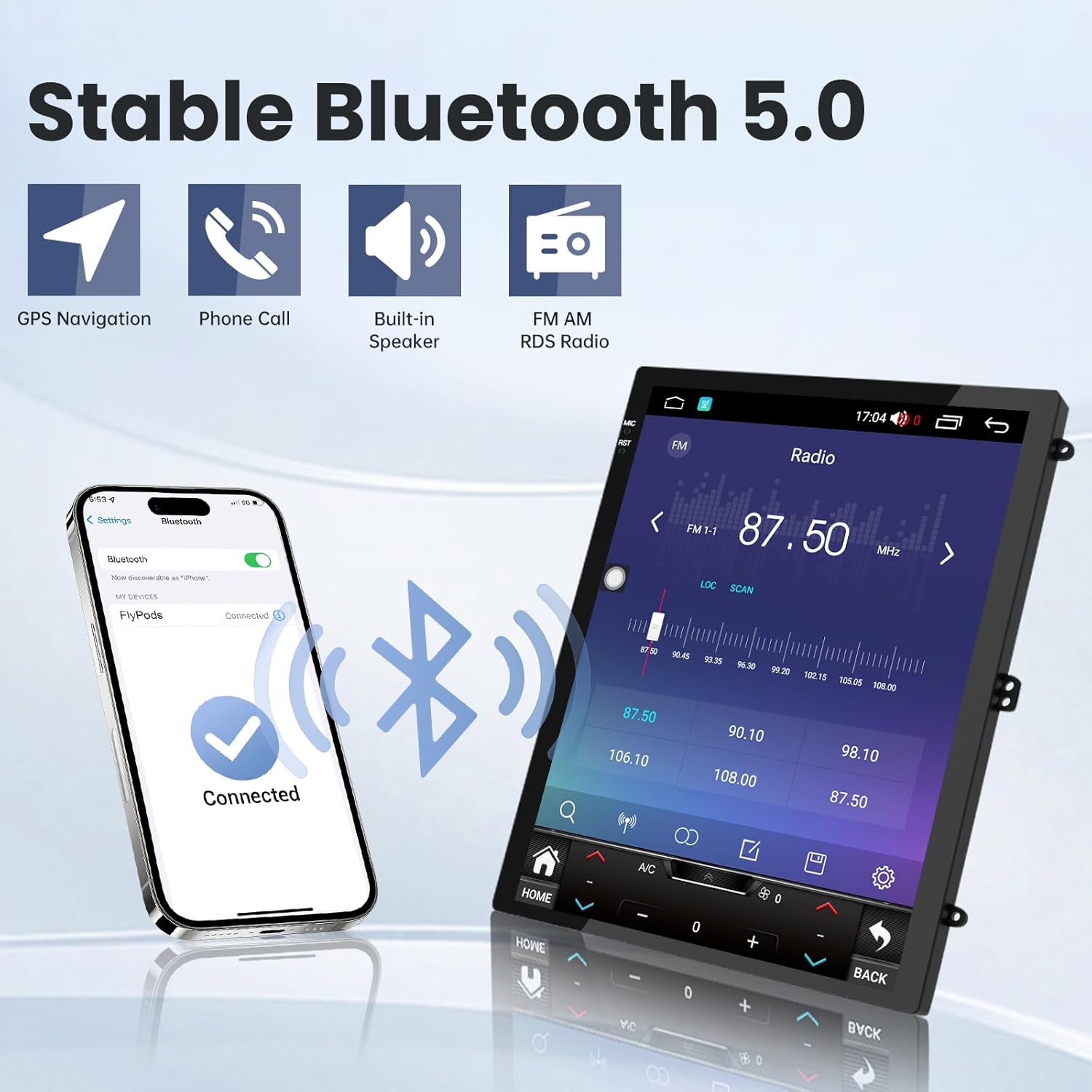
Image: Bluetooth 5.0 pairing screen and FM/AM radio interface.
7.4 FM/AM/DSP/RDS Radio
Tune in to your favorite FM/AM radio stations for news, sports, and weather updates. The integrated DSP allows for advanced sound customization, including equalizer settings and sound field adjustments, to optimize your audio experience.
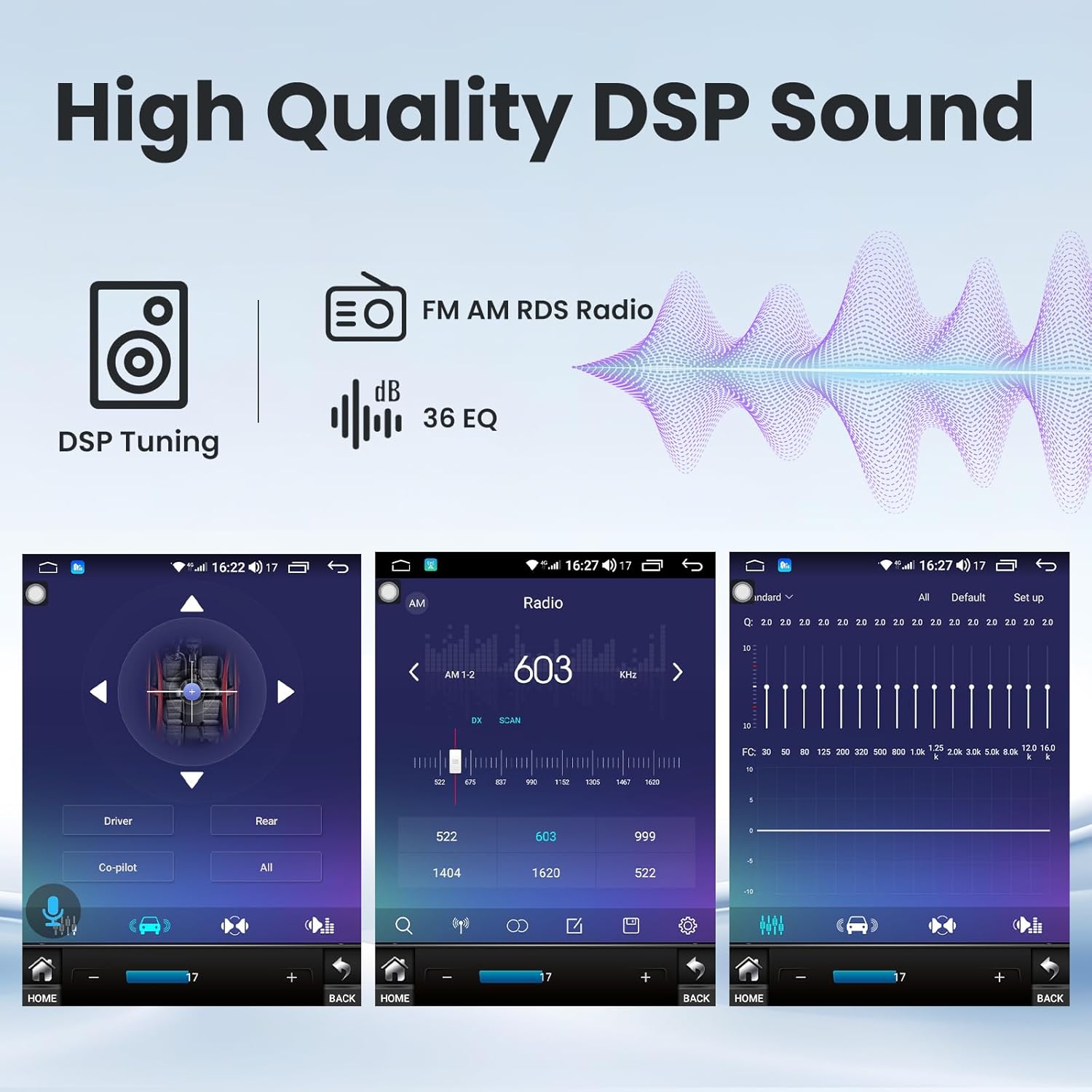
Image: DSP sound tuning interface with equalizer and sound field controls.
7.5 5G WiFi Connectivity
Connect the car radio to a WiFi hotspot to access online features, download apps, and stream content. The 5G WiFi capability ensures faster and more reliable internet access.
7.6 1080P AHD Backup Camera & Steering Wheel Control (SWC)
The included 1080P AHD backup camera automatically displays a clear rear view when shifting into reverse, aiding in safer parking. The unit also supports your vehicle's existing steering wheel controls, allowing you to manage volume, tracks, and calls without taking your hands off the wheel.

Image: Backup camera view and steering wheel control setup screen.
7.7 Split Screen Functionality
The car radio supports split-screen mode, allowing you to run two applications simultaneously. For example, you can have navigation open on one side and music playback on the other.
Video: Official product video demonstrating the Jufodrca car radio's features, including Bluetooth 5.0, FM/AM radio, DSP EQ sound settings, Wireless/Wired CarPlay, GPS navigation, 5G WiFi connection, and split-screen functionality.
8. Troubleshooting
This section addresses common issues you might encounter.
- No sound from the radio after installation?
A: Make sure to follow these two steps: 1. Ensure the AUX audio cable is properly connected. If your car does not have a USB-A or Type-C port, contact customer service. 2. Using the SEL button (original car function selection button) on the steering wheel, first select Radio Media, then use the scroll up/down buttons to locate AUX input/USB, enable AUX input/USB. - Why do the steering wheel control buttons not work after installation?
A: 1. Please open the cover above the steering wheel to make sure the steering wheel adapter cable is connected correctly. 2. Make sure that the CANBUS setting is set correctly. - How to listen to FM/AM?
A: After installing the new head unit, the original factory CD unit remains in place. If you wish to listen to FM/AM radio, please open the "Car UI" application to access the factory system and listen to the broadcast. - After installing the radio, where can I control the factory features?
A: To access and control your vehicle's original factory functions, please follow these steps: 1. Ensure all connections are made correctly according to the wiring diagram. 2. Select the correct CANBUS type based on the size of your original screen. 3. Connect the radio to a stable Wi-Fi network or mobile hotspot. Then, open the App Store and update the following apps: Canbus-Service, Canbus-List, Canbus, and Canbus-Config. Be sure to pull down the page to refresh before updating. Once the updates are complete, please reboot the radio. 4. Scan the QR code to access the video tutorial. 5. After installation and update, locate and open the "Car UI" app on the system interface. From there, you will be able to control and adjust factory-related functions. - Are some A/C buttons not working on the radio?
A: The air conditioning button is an factory feature. For vehicles equipped with the 8-inch factory display, please follow QR, then open the "Car UI" app on the head unit. You can operate the A/C functions that are not responding directly within this application. - How do I install and secure the new radio?
A: When installing the new radio, first remove the brackets from both sides of the back of the factory radio. Then attach these brackets to the back of our radio's dash kit to securely mount the unit.

Image: Visual guide for common troubleshooting steps.
9. Specifications
| Feature | Specification |
|---|---|
| Brand | Jufodrca |
| Model Name | Jufodrca |
| Vehicle Service Type | Car |
| Screen Size | 9.7 Inches |
| Operating System | Android 13 |
| Processor | 8Core |
| Memory (RAM) | 4GB |
| Storage (ROM) | 64GB |
| Display Type | LCD (IPS Touchscreen) |
| Screen Resolution | 1024x768 HD |
| Connectivity Technology | Bluetooth, USB, Wi-Fi |
| Bluetooth Version | 5.0 |
| Wi-Fi Support | 5G WiFi |
| Navigation System | GPS (Supports online/offline maps) |
| Audio Output Mode | Stereo (with DSP, EQ, HiFi) |
| Radio Tuner | FM/AM/RDS |
| Backup Camera | 1080P AHD (Included) |
| Steering Wheel Control (SWC) | Supported |
| Human-Interface Input | Touchscreen, Voice |
| Compatible Devices | Smartphone (CarPlay, Android Auto) |
| Mounting Type | Dashboard Mount |
| UPC | 741050804223 |
| ASIN | B0G3WXFPGP |
10. Maintenance
- Screen Cleaning: Use a soft, lint-free cloth to gently wipe the touchscreen. For stubborn smudges, slightly dampen the cloth with water or a screen-safe cleaner. Avoid harsh chemicals.
- Software Updates: Periodically check for software updates through the unit's settings menu or the manufacturer's website to ensure optimal performance and access to new features.
- System Reset: If the unit experiences persistent issues, a factory reset option is available in the settings. Note that this will erase all personal data and settings.
- Environmental Care: Protect the unit from extreme temperatures, direct sunlight, and excessive moisture.
11. Warranty and Support
Your Jufodrca car radio comes with a standard manufacturer's warranty. Please refer to the warranty card included in your package for specific terms and conditions. For technical support, troubleshooting assistance, or warranty claims, please contact Jufodrca customer service through the retailer where you purchased the product or visit the official Jufodrca website for contact information.
Customer Support: For any questions or technical issues, our professional customer support team is ready to provide prompt and reliable assistance.