
1. Introduction
This manual provides instructions for the ZBT AC1200 4G LTE Router, Model WE1326-BKC. This device is designed to provide reliable internet connectivity using a 4G LTE SIM card or a traditional WAN connection, distributing it via dual-band Wi-Fi and Gigabit Ethernet ports. It is suitable for home, apartment, and small office environments, offering features like USB storage sharing and OpenWrt compatibility.

The ZBT AC1200 4G LTE Router converts a 4G LTE signal into a Wi-Fi network for multiple devices.
2. Package Contents
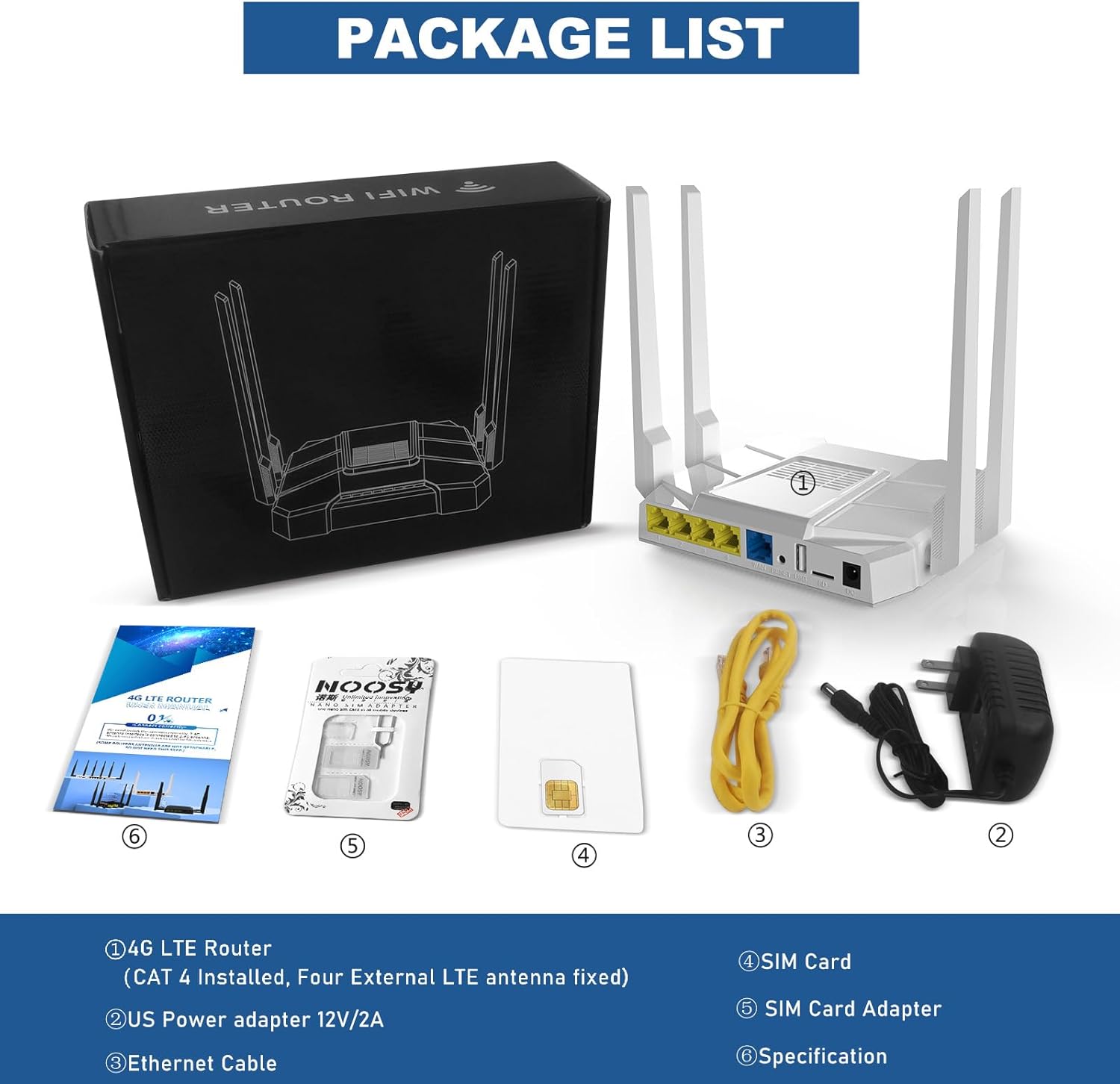
Verify that all items listed below are included in your package. If any items are missing or damaged, please contact customer support.
- 1x ZBT AC1200 4G LTE Router (WE1326-BKC)
- 1x Power Adapter (12V/2A)
- 2x 2.4GHz Antennas
- 2x 5.8GHz Antennas
- 1x SIM Card Adapter
- 1x Ethernet Cable
- 1x User Manual (this document)
- 1x Quality Certificate

Image showing the router, antennas, power adapter, SIM card adapter, Ethernet cable, and documentation included in the box.
3. Product Overview
3.1 Hardware Components
The ZBT AC1200 router features a robust design with clearly labeled ports and indicators for easy setup and monitoring.

Detailed view of the router's rear panel, highlighting the 4 Gigabit LAN ports, Gigabit WAN port, Reset button, USB 2.0 port, SD card slot, and 12V DC power input.
- 4 Gigabit LAN Ports: For wired connections to computers, gaming consoles, or other network devices.
- Gigabit WAN Port: Connects to a traditional broadband modem (DSL/Cable/Fiber) for internet access.
- Reset Button: Used to restore factory default settings or enter firmware rescue mode.
- USB 2.0 Port: For connecting USB storage devices to create network-attached storage (NAS).
- SD Card Slot: For connecting MicroSD cards to create network-attached storage (NAS).
- SIM Card Slot: Insert a 4G LTE SIM card for cellular internet connectivity.
- 12V DC Power Input: Connect the included power adapter.
- Antenna Connectors: Four connectors for the included omnidirectional antennas (two for 2.4GHz, two for 5GHz).
3.2 LED Indicators
The router features LED indicators to show the status of the device:
- Power LED: Indicates power status.
- Internet LED: Indicates internet connection status (4G LTE or WAN).
- Wi-Fi LED: Dual-color LED indicating Wi-Fi band activity (Green for 2.4G, Red for 5G, Orange when both are active).
- LAN LEDs: Indicate activity on the respective LAN ports.
4. Setup
4.1 SIM Card Installation
To use the 4G LTE functionality, a compatible SIM card must be installed.
- Ensure the router is powered off.
- Locate the SIM card slot on the rear panel.
- Insert your standard SIM card into the slot until you hear a click. If you do not hear a sound, gently push the SIM card again. To remove, push the SIM card in again, and it will spring out slightly, allowing you to pull it out.
- If your SIM card is a Micro SIM or Nano SIM, use the provided SIM card adapter to fit it into the standard SIM card slot.

Illustration of the SIM card insertion process into the router's dedicated slot.
4.2 Antenna Installation
Screw the four included omnidirectional antennas onto their respective connectors on the rear panel of the router. Ensure they are securely tightened but do not overtighten.
4.3 Power Connection
Connect the included 12V/2A power adapter to the router's DC power input port and then plug the adapter into a power outlet. The Power LED should illuminate.
4.4 Initial Configuration
After powering on, the router will boot up. You can access the router's web management interface for configuration:
- Connect your computer to one of the router's LAN ports using an Ethernet cable, or connect to its default Wi-Fi network (SSID and password usually found on a label on the router).
- Open a web browser and enter
192.168.1.1in the address bar. - Log in using the default credentials: Username
root, Passwordadmin. - Follow the on-screen prompts to configure your internet connection (4G LTE or WAN) and Wi-Fi settings.
5. Operating Instructions
5.1 Connecting Devices
- Wi-Fi Connection: Search for the router's Wi-Fi network (SSID) on your wireless devices (smartphones, laptops, tablets) and enter the Wi-Fi password.
- Ethernet Connection: Connect devices directly to the router's LAN ports using Ethernet cables for stable, high-speed wired connections.
5.2 4G LTE Connectivity
Once a valid SIM card is inserted and configured, the router will automatically establish a 4G LTE internet connection. The Internet LED will indicate the connection status. This provides internet access in areas without traditional broadband or as a primary connection.
5.3 Dual-Band Wi-Fi
The router supports dual-band Wi-Fi (2.4GHz and 5GHz) for flexible connectivity:
- 2.4GHz Band: Offers wider coverage and better penetration through walls, suitable for general browsing, smart home devices, and devices further away from the router.
- 5GHz Band: Provides faster speeds and lower interference, ideal for bandwidth-intensive tasks like 4K streaming, online gaming, and video calls.

Visual representation of the router's AC1200 dual-band Wi-Fi capabilities, showing 2.4GHz (300Mbps) and 5.8GHz (867Mbps) bands, and the four antennas.
5.4 WAN Failover (Backup Internet)
The router can be configured to use the 4G LTE connection as a backup internet source if the primary WAN (Ethernet) connection fails. This ensures continuous internet access.

Illustration of the WAN Failover feature, where the router switches from a wired WAN connection to the 4G LTE SIM card for uninterrupted internet.
5.5 USB and MicroSD Shared Storage (NAS)
The USB 2.0 port and TF (MicroSD) card slot allow you to connect external storage devices. These can be configured as network-attached storage (NAS) accessible via SAMBA or FTP by all devices on your Wi-Fi network, enabling easy sharing of files, photos, and media.
5.6 Network Management and OpenWrt
The web management interface (accessible via 192.168.1.1) allows you to monitor network status, manage connected devices, configure Wi-Fi settings, and set up advanced features like VPN, VLAN, firewall, and QoS. The router is OpenWrt compatible, and an upgrade is available via customer service for advanced users seeking greater control and customization.

Example of the router's web interface, showing network status, device management, and AD blocking features.
6. Maintenance
6.1 Firmware Updates
Regular firmware updates can improve performance, add new features, and enhance security. Check the manufacturer's website or contact customer service for the latest firmware versions and upgrade instructions. The router supports a one-click firmware rescue mode by long-pressing the Reset button.
6.2 Resetting the Router
To restore the router to its factory default settings, press and hold the Reset button for approximately 10 seconds while the router is powered on. Release the button when the LEDs flash. The router will then restart with default settings.
6.3 Heat Dissipation
The router is designed with heat dissipation features to ensure stable operation. Ensure adequate airflow around the device and avoid placing it in enclosed spaces that could restrict ventilation.
Visual representation of the router's heat dissipation design, showing airflow for cooling.
7. Troubleshooting
- No Internet Connection:
- Check if the SIM card is correctly inserted and activated with your carrier.
- Verify that the WAN cable is securely connected if using a wired internet source.
- Restart the router and your modem (if applicable).
- Check the Internet LED status.
- Cannot Access Web Management Interface:
- Ensure your device is connected to the router via Wi-Fi or Ethernet.
- Verify you are entering
192.168.1.1correctly in the browser. - Clear your browser's cache or try a different browser.
- Temporarily disable any firewall or antivirus software on your computer.
- Slow Wi-Fi Speed or Disconnections:
- Ensure antennas are properly installed and oriented.
- Reduce interference by moving the router away from other electronic devices (microwaves, cordless phones).
- Try connecting to the 5GHz band for faster speeds if your device supports it and is close to the router.
- Update your device's Wi-Fi drivers.
- SIM Card Not Detected:
- Ensure the SIM card is inserted correctly and fully seated.
- Verify the SIM card is active and has a data plan.
- Try the SIM card in another compatible device to confirm it is functional.
8. Specifications
| Feature | Description |
|---|---|
| Model Name | WE1326-BKC |
| Brand | Zbtlink |
| 4G LTE Module | Quectel EC25AFXDGA (Cat4, 150Mbps DL / 50Mbps UL) |
| LTE Bands (NA) | B2/B4/B5/B12/B17/B29/B30/B66 (LTE-FDD), WCDMA B2/B4/B5 |
| Wi-Fi Standard | 802.11a/b/g/n/ac (AC1200) |
| Wi-Fi Speed | 2.4GHz: Up to 300Mbps, 5GHz: Up to 867Mbps |
| Processor | MT7621A 880MHz Dual-Core |
| RAM | 256MB DDR3 |
| Ethernet Ports | 1x Gigabit WAN, 4x Gigabit LAN (10/100/1000 Mbps) |
| Antennas | 4x Fixed 5dBi Omnidirectional (2x 2.4GHz, 2x 5GHz) |
| Other Ports | 1x USB 2.0, 1x TF (MicroSD) Card Slot, 1x SIM Card Slot |
| Security Protocols | WEP, WPA, WPA2-PSK |
| Operating System | OpenWrt compatible |
| Power Input | 12V/2A DC |
| Dimensions (L x W x H) | 6.26" x 5.16" x 1.45" (159mm x 131mm x 36mm) |
| Item Weight | 1.5 Pounds |
| Operating Temperature | -20 to 60°C |

The router is powered by an MT7621A 880MHz dual-core processor.
9. Warranty and Support
9.1 Warranty Information
The ZBT AC1200 4G LTE Router comes with a 1-Year Manufacturer's Warranty. This warranty covers defects in materials and workmanship under normal use. Please retain your proof of purchase for warranty claims.
9.2 Technical Support
For technical assistance, troubleshooting, or warranty inquiries, please contact Zbtlink customer support through their official website or the retailer where the product was purchased. Online resources, FAQs, and firmware updates may also be available on the manufacturer's support pages.


