
1. Introduction
The KONNWEI MAXOBD OBD2 Scanner is a professional diagnostic tool designed to read and clear diagnostic trouble codes (DTCs) from your vehicle's engine control unit (ECU). It provides access to various vehicle systems, allowing users to monitor live data, perform I/M readiness tests, and retrieve vehicle information. This manual provides detailed instructions for the proper use and maintenance of your MAXOBD scanner.
2. Safety Information
Before operating the MAXOBD OBD2 Scanner, please read and understand all safety messages and instructions in this manual. Failure to do so may result in personal injury or damage to the vehicle or the scanner.
- Always perform automotive testing in a safe environment.
- Wear eye protection that meets ANSI standards.
- Keep clothing, hair, hands, tools, test equipment, etc., away from all moving or hot engine parts.
- Operate the vehicle in a well-ventilated work area; exhaust gases are poisonous.
- Put the transmission in PARK (for automatic transmission) or NEUTRAL (for manual transmission) and make sure the parking brake is engaged.
- Keep a fire extinguisher suitable for gasoline/electrical fires nearby.
- Do not connect or disconnect any test equipment while the ignition is on or the engine is running.
3. Product Overview
The MAXOBD scanner features a clear display and intuitive button layout for easy navigation and operation. It connects directly to your vehicle's OBD-II port to retrieve diagnostic information.
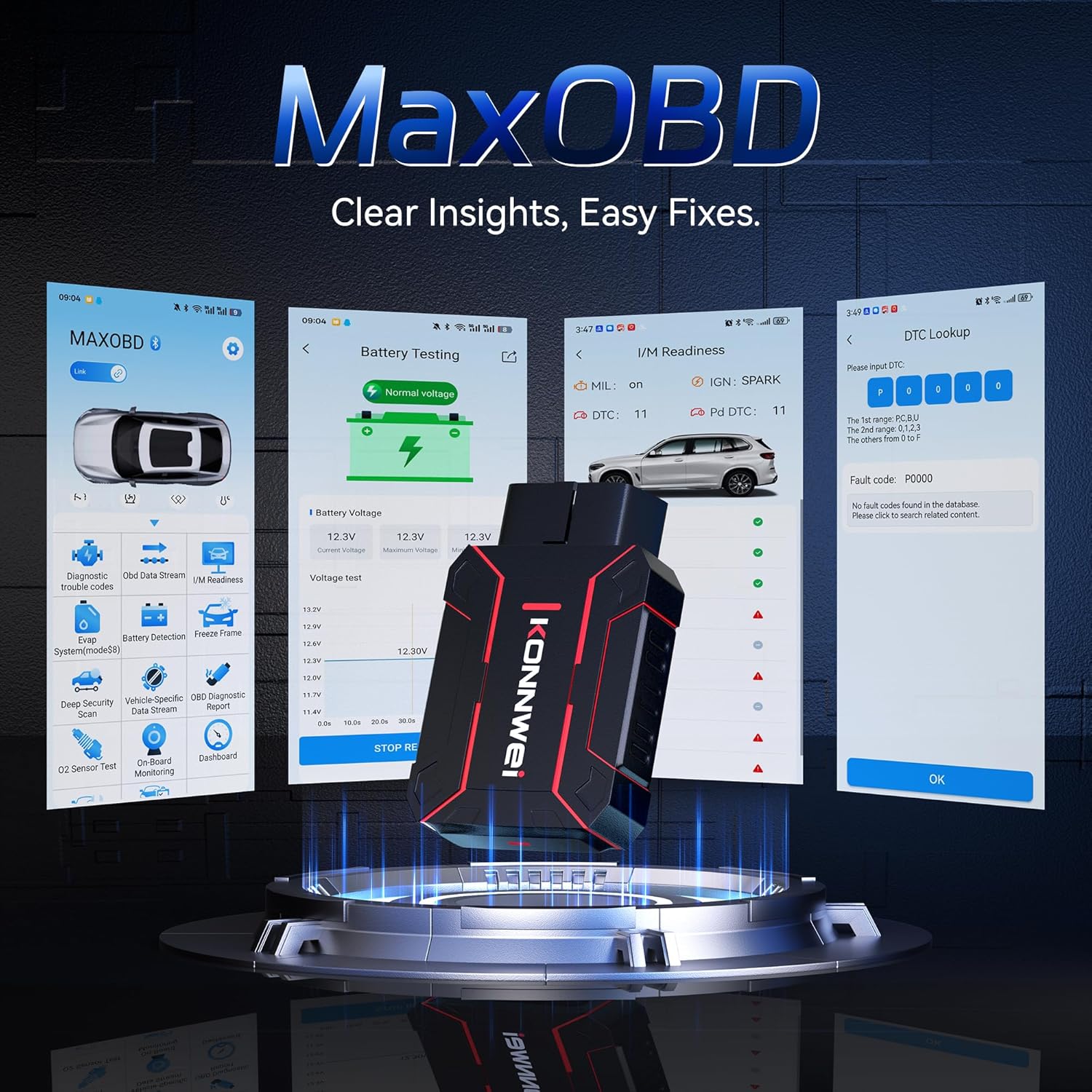
Image: The KONNWEI MAXOBD OBD2 Scanner device, illustrating its physical form and various diagnostic screen interfaces such as battery testing, I/M readiness, and DTC lookup.
Key Components:
- OBD-II Connector: Connects to the vehicle's Data Link Connector (DLC).
- LCD Display: Shows test results and menu options.
- Navigation Buttons: Used to scroll through menus and select options.
- Enter/Exit Buttons: Confirm selections or return to previous screens.
4. Setup
Follow these steps to set up your MAXOBD OBD2 Scanner:
- Locate the Vehicle's OBD-II Port: The 16-pin Data Link Connector (DLC) is usually located under the dashboard on the driver's side of the vehicle. Refer to your vehicle's service manual for the exact location if you cannot find it.
- Connect the Scanner: Plug the MAXOBD scanner's OBD-II connector firmly into the vehicle's DLC. Ensure a secure connection.
- Power On: Once connected, the scanner will automatically power on. If it does not, turn the vehicle's ignition to the 'ON' position (engine off).
5. Operating Instructions
The MAXOBD scanner offers various diagnostic functions. Use the navigation buttons to move through menus and the Enter button to select options.

Image: A visual representation of a vehicle highlighting various systems (Engine, ABS, SAS, SRS, DPF, TPMS) that the MAXOBD scanner can perform a full system scan on.
Main Menu Functions:
- Read Codes: Retrieves Diagnostic Trouble Codes (DTCs) from the vehicle's ECU. These codes indicate specific issues detected by the vehicle's onboard diagnostic system.
- Erase Codes: Clears all DTCs from the vehicle's ECU and turns off the Malfunction Indicator Lamp (MIL). Ensure the underlying issue is resolved before clearing codes.
- I/M Readiness: Checks the status of emission-related monitoring systems to determine if they are ready for an emissions test.
- Data Stream: Displays real-time operational parameters from the vehicle's sensors and components. This can include engine RPM, vehicle speed, oxygen sensor readings, and more.
- Freeze Frame: Captures a snapshot of sensor data at the moment a DTC was set. This data can help identify the conditions under which a fault occurred.
- O2 Sensor Test: Retrieves O2 sensor monitoring test results for the most recently completed tests from the vehicle's onboard computer.
- On-Board Monitor Test: Retrieves results for emission-related powertrain components and systems that are not continuously monitored.
- EVAP System Test: Initiates a leak test for the vehicle's Evaporative Emission Control System.
- Vehicle Info: Displays the vehicle identification number (VIN), calibration ID (CALID), and calibration verification number (CVN).
Performing a Diagnostic Scan:
- Connect the scanner to the vehicle's DLC and turn the ignition to 'ON'.
- From the main menu, select 'Read Codes' and press Enter.
- The scanner will communicate with the vehicle and display any detected DTCs.
- Use the navigation buttons to scroll through the codes and their descriptions.
- To clear codes, return to the main menu, select 'Erase Codes', and confirm.
6. Maintenance
Proper maintenance ensures the longevity and reliable operation of your MAXOBD scanner.
- Cleaning: Use a soft, damp cloth to clean the scanner's exterior. Do not use abrasive cleaners or solvents.
- Storage: Store the scanner in a dry, clean environment away from extreme temperatures and direct sunlight. Keep it in its original packaging or a protective case when not in use.
- Software Updates: Periodically check the KONNWEI official website for available software updates to ensure your scanner has the latest vehicle compatibility and features. Follow the instructions provided on the website for updating the device.
7. Troubleshooting
If you encounter issues with your MAXOBD scanner, refer to the following common problems and solutions:
| Problem | Possible Cause | Solution |
|---|---|---|
| Scanner does not power on. | Loose connection; vehicle ignition off; faulty OBD-II port. | Ensure the scanner is securely plugged into the DLC. Turn vehicle ignition to 'ON'. Test on another vehicle if possible. |
| "Link Error" or "Communication Error" message. | Loose connection; vehicle not OBD-II compliant; ignition off; communication protocol issue. | Verify connection. Ensure vehicle is OBD-II compliant (most vehicles 1996 and newer). Turn ignition to 'ON'. Try a different vehicle if available. |
| Screen is blank or frozen. | Software glitch; power interruption. | Disconnect and reconnect the scanner. If the issue persists, contact customer support. |
If the problem persists after attempting these solutions, please contact KONNWEI customer support for further assistance.
8. Specifications
- Brand: KONNWEI
- Model: maxobdTM
- Power Source: Battery Powered (via OBD-II port)
- Operating System: Linux
- Screen Size: 2.8 Inches
- Automotive Fit Type: Universal Fit (for OBD-II compliant vehicles)
- Package Dimensions: 10.04 x 7.28 x 2.76 inches
9. Warranty and Support
KONNWEI products are designed for reliability and performance. For warranty information, please refer to the documentation included with your purchase or visit the official KONNWEI website. For technical support, troubleshooting assistance, or any other inquiries, please contact KONNWEI customer service through their official channels.
KONNWEI Official Website: Visit the KONNWEI Store on Amazon


