
Introduction
This manual provides essential instructions for setting up, operating, maintaining, and troubleshooting your STGSivir SIV0123 All-in-One Desktop Computer. Please read this guide thoroughly before using your device to ensure optimal performance and longevity.
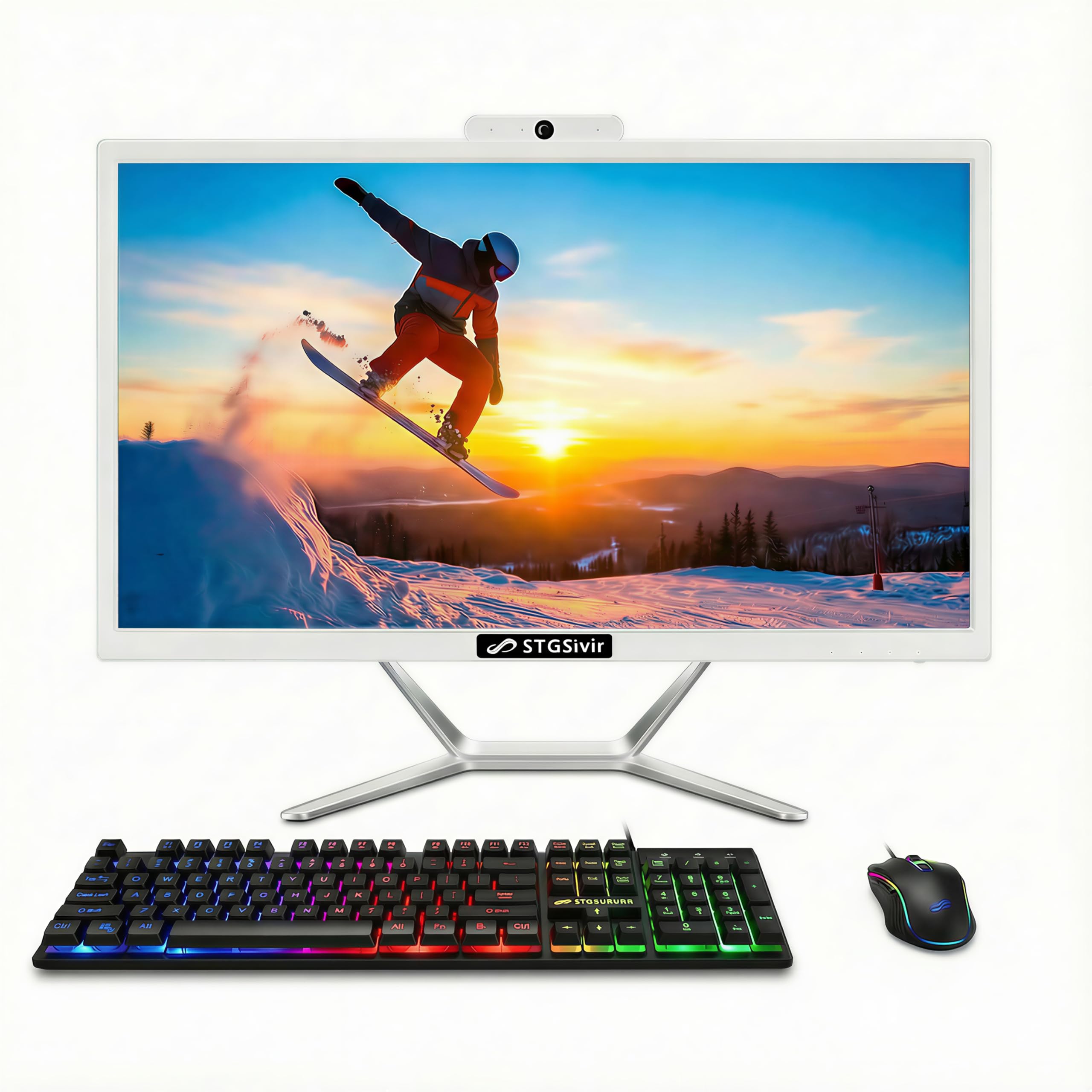
Image: Front view of the STGSivir SIV0123 All-in-One Desktop Computer.
Setup
1. Unboxing
Carefully remove all components from the packaging. Ensure the following items are present:
- STGSivir SIV0123 All-in-One Desktop Computer
- Power Adapter
- RGB Keyboard
- RGB Mouse
- User Manual (this document)
2. Connecting Peripherals
Place the All-in-One computer on a stable, flat surface. Connect the RGB keyboard and mouse to the available USB ports on the side or back of the computer.
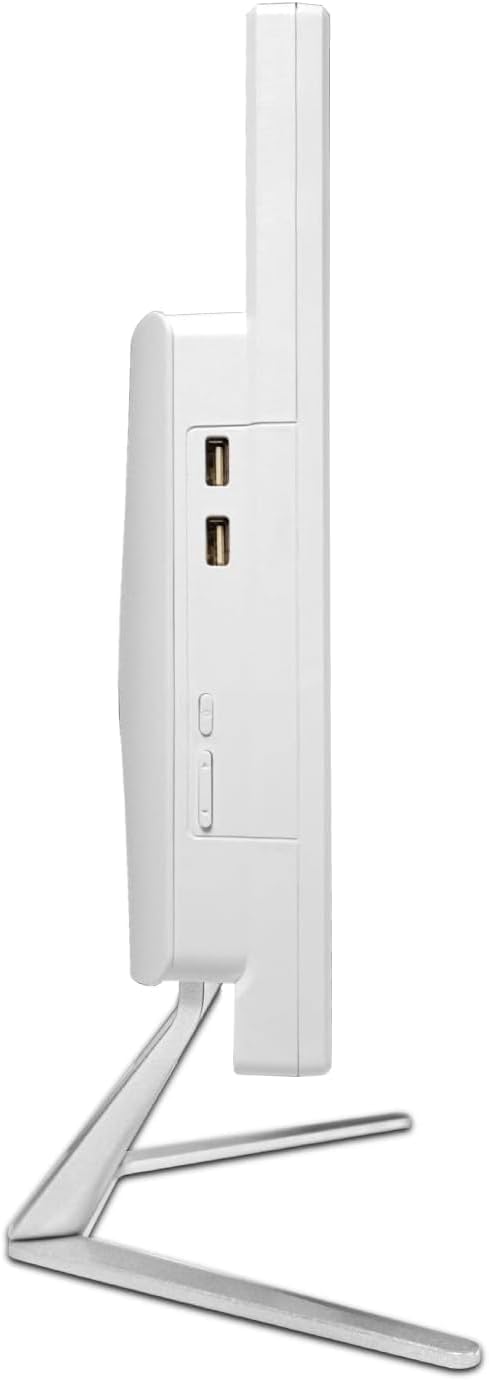
Image: Side view of the computer highlighting USB ports for peripheral connections.

Image: Rear and side view of the computer, showing various ports.
3. Power Connection
Connect the power adapter to the power input port on the back of the computer, then plug the adapter into a wall outlet.
4. Initial Power On
Press the power button, typically located on the side or bottom edge of the display. The computer will boot up and guide you through the Windows 11 Home setup process.
Operating Instructions
1. Windows 11 Home
Your computer comes pre-installed with Windows 11 Home. Follow the on-screen prompts for initial setup, including language, region, network connection, and user account creation.
2. Network Connectivity
- Wi-Fi: To connect to a wireless network, click the Wi-Fi icon in the taskbar, select your network, and enter the password.
- Bluetooth: To pair Bluetooth devices, go to Settings > Bluetooth & devices, and turn on Bluetooth.
- Ethernet: For a wired connection, connect an Ethernet cable to the RJ-45 port on the back of the computer.
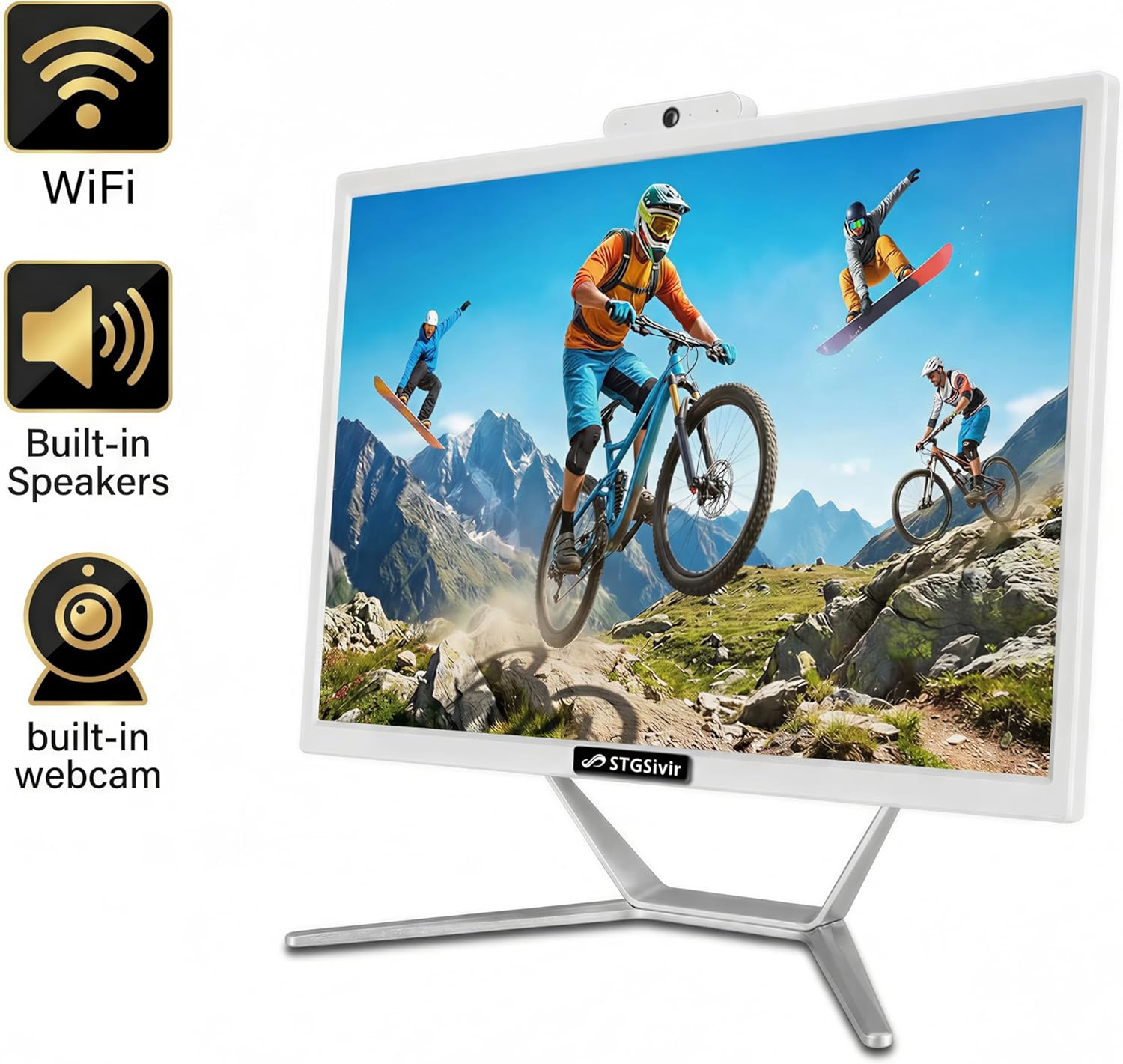
Image: The computer display with icons indicating built-in Wi-Fi, speakers, and webcam features.
3. Using Built-in Features
- Webcam: The integrated webcam is located at the top of the display. It is ready for use with video conferencing applications.
- Speakers: The built-in speakers provide audio output. Volume can be adjusted via the Windows sound settings or keyboard shortcuts.

Image: A user engaged in a video conference call, demonstrating the use of the integrated webcam and display.
4. External Display Connection
The computer supports external displays via HDMI and VGA ports. Connect your external monitor and configure display settings in Windows (right-click on desktop > Display settings).
Maintenance
1. Cleaning
- Screen: Use a soft, lint-free cloth slightly dampened with water or a screen cleaner. Do not spray liquid directly onto the screen.
- Chassis: Wipe with a soft, dry cloth. Avoid abrasive cleaners.
- Ventilation: Ensure ventilation openings are clear of dust and obstructions to prevent overheating.
2. Software Updates
Regularly check for and install Windows updates to ensure system stability, security, and performance. Go to Settings > Windows Update.
3. Storage Management
Periodically clean up unnecessary files and applications to maintain optimal storage space and system speed. Use Windows' built-in Disk Cleanup tool or Storage Sense.
Troubleshooting
This section addresses common issues you might encounter.
No Power
- Ensure the power adapter is securely connected to both the computer and a working electrical outlet.
- Verify the power outlet is functional by plugging in another device.
Display Issues
- If the screen is blank, ensure the computer is powered on.
- Check display settings if an external monitor is connected and not showing an image.
No Internet Connection
- For Wi-Fi, check if the Wi-Fi adapter is enabled and if you are connected to the correct network with the correct password.
- For wired connection, ensure the Ethernet cable is properly connected to both the computer and the router/modem.
- Restart your router/modem.
Peripherals Not Responding
- Ensure the keyboard and mouse are properly connected to the USB ports.
- Try connecting them to different USB ports.
- Restart the computer.
Specifications
| Feature | Specification |
|---|---|
| Model Number | SIV0123 |
| Display | 21.5 Inches, 1920x1080 FHD LED |
| Processor | Intel Core i7 (4th Gen), 3.1 GHz up to 3.9 GHz |
| RAM | 16GB LPDDR3 SODIMM |
| Storage | 512GB Solid State Drive (M.2-NVMe) |
| Operating System | Windows 11 Home 64-bit |
| Graphics | Integrated Intel Graphics |
| Connectivity | Wi-Fi (802.11n), Bluetooth 5.0, 1x RJ-45 |
| Ports | USB 3.0, 1x HDMI, 1x VGA |
| Built-in Features | Webcam, Speakers |
| Included Peripherals | RGB Mouse & Keyboard |
| Dimensions (Item) | 22.5 x 20 x 7.8 inches |
| Weight (Item) | 6.62 Kilograms |

Image: Diagram illustrating the internal components and layout of the All-in-One PC.
Warranty and Support
Warranty Information
The STGSivir SIV0123 All-in-One Desktop Computer comes with a 1-Year parts and labor warranty from the date of purchase. This warranty covers manufacturing defects and workmanship under normal use. It does not cover damage caused by misuse, accidents, unauthorized modifications, or external factors.
Technical Support
Free lifetime technical support is provided for this product. For assistance with setup, operation, troubleshooting, or warranty claims, please contact STGSivir customer service.
Contact Information: Please refer to the permanent metal sticker on the unit or your purchase documentation for specific customer service contact details.