
P7649 MD60817 MD60825 MD60826 MD61046
Generic Laptop Keyboard Instruction Manual
Model: Medion Akoya P7649, MD60817, MD60825, MD60826, MD61046
Introduction
This manual provides essential instructions for the installation, operation, and maintenance of your new Generic Laptop Keyboard. This replacement keyboard is compatible with various Medion Akoya models, including P7649, MD60817, MD60825, MD60826, and MD61046. Please read this manual thoroughly before proceeding with installation to ensure proper function and to avoid damage to your device.
Safety Information
- Always disconnect the laptop's power adapter and remove the battery before beginning any installation or repair work.
- Use appropriate tools for disassembly and reassembly. Avoid excessive force.
- Handle electronic components with care to prevent electrostatic discharge (ESD) damage. Consider using an anti-static wrist strap.
- Keep small parts, such as screws, away from children.
- If you are unsure about any step, seek professional assistance.
Package Contents
Verify that your package contains the following items:
- 1 x Generic Laptop Keyboard (Black with Frame, German GR layout)
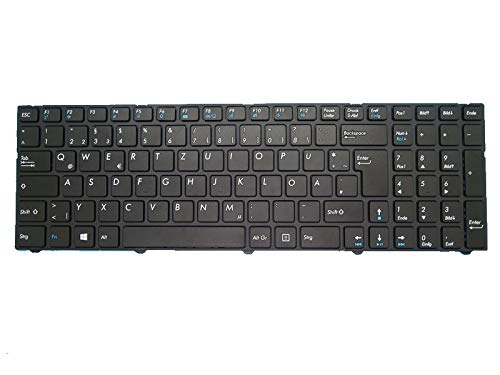
Image: The Generic Laptop Keyboard, featuring a black finish and German (GR) layout, designed for Medion Akoya laptops.
Installation Guide
Important: Laptop disassembly procedures vary significantly by model. The following steps provide general guidance. Refer to your specific laptop's service manual or a reliable disassembly guide for detailed instructions pertaining to your Medion Akoya P7649, MD60817, MD60825, MD60826, or MD61046 model.
1. Preparation
- Power Off: Shut down your laptop completely and disconnect the power adapter.
- Remove Battery: If your laptop has a removable battery, remove it. For internal batteries, disconnect the battery connector from the motherboard after opening the laptop.
- Gather Tools: Prepare a small Phillips head screwdriver, a plastic spudger or pry tool, and an anti-static wrist strap (recommended).
2. Removing the Old Keyboard
- Locate Keyboard Retainers: Depending on your laptop model, the keyboard may be held in place by small clips, screws from the bottom case, or a combination.
- Release Clips/Screws: Carefully release any clips around the keyboard bezel using a plastic spudger. If screws secure the keyboard from the bottom, remove them.
- Lift Keyboard: Gently lift the keyboard from its housing. Be cautious, as it will still be connected by a ribbon cable.
- Disconnect Ribbon Cable: Flip the keyboard over to expose the ribbon cable connector. Carefully open the retaining clip on the connector (usually a small black or brown bar that flips up) and slide the ribbon cable out.
- Remove Old Keyboard: Once disconnected, set the old keyboard aside.
3. Installing the New Keyboard
- Connect Ribbon Cable: With the retaining clip on the motherboard connector open, carefully insert the ribbon cable of the new keyboard into the connector. Ensure it is fully seated and straight. Close the retaining clip to secure it.
- Position Keyboard: Carefully place the new keyboard into its designated slot in the laptop's top case.
- Secure Keyboard: Press down gently around the edges to engage any clips. If applicable, re-insert and tighten the screws from the bottom case that secure the keyboard.
4. Reassembly and Testing
- Reconnect Battery: Reconnect the internal battery connector or re-insert the removable battery.
- Close Laptop: Reassemble any other parts of the laptop that were removed during the process (e.g., bottom cover).
- Power On: Connect the power adapter and power on your laptop.
- Test Functionality: Open a text editor or a browser and test every key on the new keyboard to ensure all keys are working correctly.
Operation
The Generic Laptop Keyboard functions as a standard input device for your Medion Akoya laptop. Once installed and recognized by the operating system, you can use it for typing, navigating, and executing commands. No special drivers are typically required for basic functionality, as standard keyboard drivers are usually sufficient.
- Function Keys (Fn): Many laptops utilize a "Fn" key in combination with other keys (F1-F12) to control features like screen brightness, volume, Wi-Fi, etc. Refer to your laptop's user manual for specific Fn key combinations.
- Language Layout: This keyboard features a German (GR) layout. Ensure your operating system's keyboard language setting matches this layout for correct character input.
Maintenance
- Cleaning: Use a soft, lint-free cloth slightly dampened with water or a mild electronics cleaner to wipe the keycaps and surrounding areas. Avoid spraying liquids directly onto the keyboard.
- Dust Removal: Use compressed air to remove dust and debris from underneath the keycaps. Hold the can upright to prevent propellant discharge.
- Avoid Spills: Protect your keyboard from liquid spills, which can cause permanent damage.
Troubleshooting
| Problem | Possible Cause | Solution |
|---|---|---|
| Keyboard not responding or some keys not working. | Ribbon cable not properly seated or damaged. Incorrect installation. Driver issue. |
|
| Incorrect characters appear when typing. | Operating system keyboard layout mismatch. |
|
| Keyboard backlight not working (if applicable). | Backlight cable not connected or software issue. |
|
Specifications
| Feature | Detail |
|---|---|
| Product Type | Laptop Replacement Keyboard |
| Compatibility | Medion Akoya P7649, MD60817, MD60825, MD60826, MD61046 |
| Layout | German (GR) |
| Color | Black |
| Frame | Included |
| Product Dimensions | 16.93 x 7.09 x 2.76 inches |
| Item Weight | 10.6 ounces |
| Manufacturer | Generic |
| ASIN | B0G3KTY8H3 |
| Date First Available | November 23, 2025 |
Warranty and Support
This Generic Laptop Keyboard comes with a 90-day warranty from the date of purchase. This warranty covers manufacturing defects and ensures the product is free from material and workmanship flaws under normal use.
Warranty Exclusions: This warranty does not cover damage caused by improper installation, accidental damage, liquid spills, unauthorized repairs, or normal wear and tear.
Customer Support: For warranty claims, technical assistance, or further inquiries, please contact your retailer or the seller directly. When contacting support, please provide your purchase details and the product's ASIN (B0G3KTY8H3).