
Introduction
This manual provides detailed instructions for the installation, operation, and maintenance of your WOOCARTY A24 Backup Camera System for RVs. Please read this manual thoroughly before using the product to ensure proper function and safety. Keep this manual for future reference.
Safety Information
Always operate the vehicle safely. The backup camera system is an aid and does not replace the driver's responsibility to check surroundings. Ensure all connections are secure and properly insulated to prevent electrical hazards. Do not attempt to disassemble or modify the system components, as this may void the warranty and cause damage.
Package Contents
- 1x 10.1-inch HD Monitor
- 1x Heavy-Duty Surveillance Camera
- Mounting Hardware (as specified by manufacturer)
- Power Cables
- User Manual
Product Overview
The WOOCARTY A24 system features a 10.1-inch HD touchscreen monitor and a heavy-duty wireless camera designed for RVs. The camera offers IP69K waterproofing, night vision, and an adjustable lens. The system supports various display modes and includes loop recording capabilities.

Figure 1: 10.1-inch HD Touchscreen Monitor. This image displays the monitor with its dual antennas, mounted on a vehicle dashboard, providing a wide view of the road ahead.

Figure 2: Heavy-Duty Surveillance Camera. This image illustrates the camera mounted on the rear of an RV, emphasizing its robust features such as IP69K waterproofing, night vision, 90-degree adjustable lens, and operational temperature range.
Setup and Installation
The WOOCARTY A24 system utilizes a wireless connection for video transmission from the camera to the monitor. However, power supply to the wireless unit and monitor requires wired connections.
Camera Installation
- Mounting: Select a suitable location on the rear of your RV for the camera. Ensure a clear line of sight and secure mounting. The camera is designed for roof mount installation.
- Power Connection:
- For Furrion Pre-wired RVs: Connect the camera's power cable directly to the existing Furrion pre-wired port.
- For Other Vehicles (12-24V DC Power): Connect the camera's power wires to a 12-24V DC power source, typically the vehicle's reverse light circuit for automatic activation, or a constant power source if continuous monitoring is desired. Ensure proper polarity.
Monitor Installation
- Mounting: Attach the monitor to your dashboard or windshield using the provided mounting hardware. Adjust the angle for optimal viewing.
- Power Connection:
- Car Charger: Plug the provided car charger into your vehicle's 12V accessory outlet.
- USB Power Cable: Alternatively, use the USB power cable to connect the monitor to a compatible USB power source.

Figure 3: Installation Diagram. This diagram illustrates the various power connection methods for both the camera and the monitor, suitable for Furrion pre-wired RVs or standard 12-24V DC vehicle power.
Once both the camera and monitor are powered on, they should automatically pair via wireless connection. If pairing does not occur, refer to the troubleshooting section.
Operating Instructions
Monitor Interface
The 10.1-inch HD touchscreen allows for intuitive control. Navigate through menus and settings by swiping and tapping.
Figure 4: Monitor Touchscreen Interface. The image shows the large 10.1-inch display, highlighting its high-definition clarity and touch-enabled functionality for easy interaction.
Adjusting View (Zoom)
To zoom the image in or out, use the progress bar or dedicated zoom controls displayed on the screen. This allows for a closer look at specific areas behind your RV.

Figure 5: Zoom Functionality. This image demonstrates the ability to zoom the camera view in or out using an on-screen control bar, providing a more detailed or wider perspective as needed.
Image Flip and Guide Lines
The system allows you to flip the image horizontally or vertically if needed. You can also toggle parking guide lines ON or OFF directly from the monitor interface to assist with parking maneuvers.
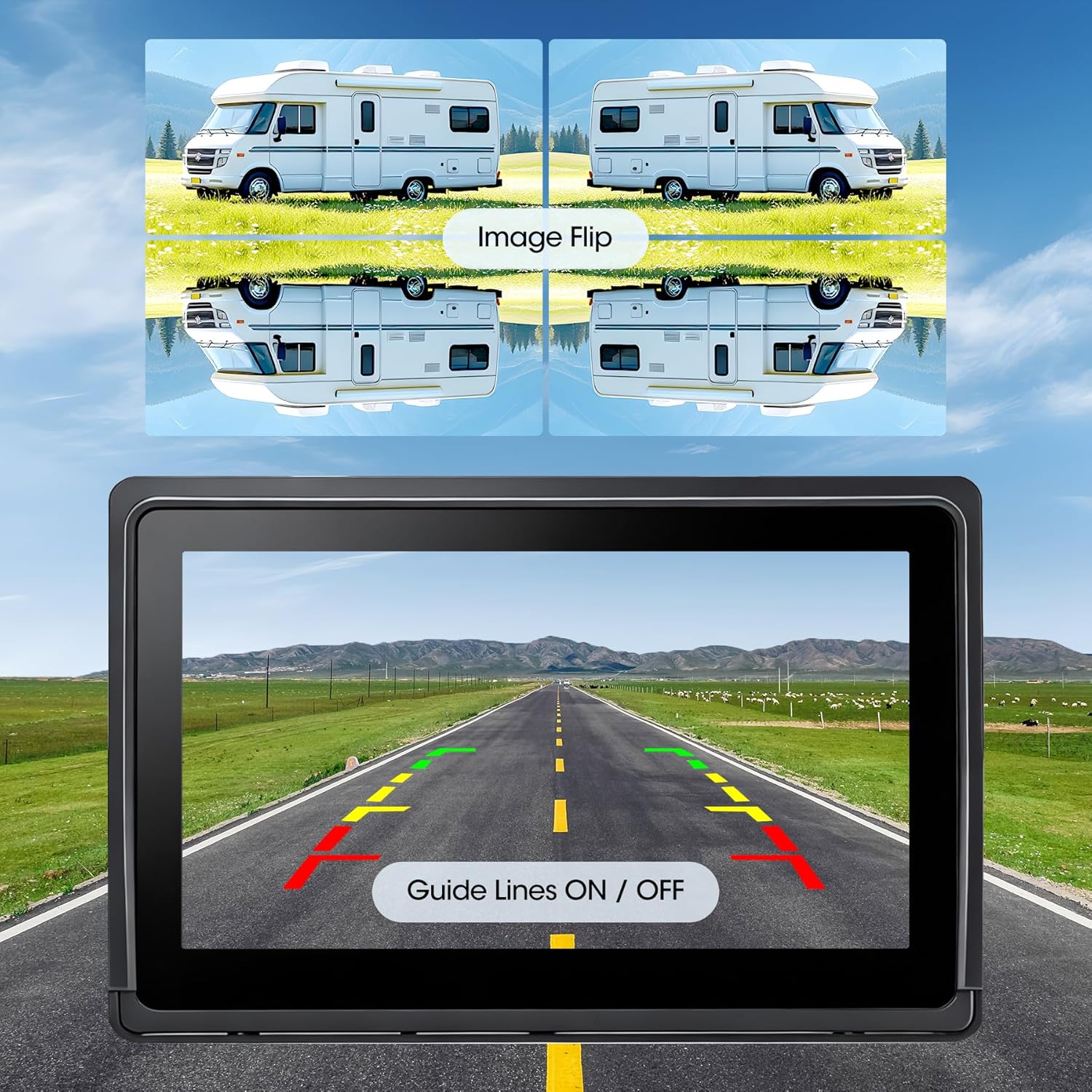
Figure 6: Image Flip and Guide Lines. This image shows the monitor's capability to flip the camera image in various orientations and to activate or deactivate parking guide lines for improved reversing assistance.
Loop Recording and Video Playback
The system includes a built-in Digital Video Recorder (DVR) for loop recording. Insert an SD card (32-128GB, not included) into the designated slot. The system will automatically begin recording when powered on. Recorded footage can be played back directly on the monitor.

Figure 7: Loop Recording and Playback. This image highlights the monitor's video playback screen and the integrated SD card slot, indicating its DVR capabilities for continuous recording and reviewing footage.
Multiple Display Modes (Up to 4 Cameras)
The A24 system supports connecting up to four cameras simultaneously. You can switch between various display modes, including full screen for a single camera, split views (2 or 3 cameras), and quad split view for four cameras.

Figure 8: Multiple Display Modes. This diagram visually explains the different screen layouts available when multiple cameras are connected, such as full screen, split views, and quad view.
To add additional cameras, search for "A11 rear camera" or "A11 side camera" from WOOCARTY, or contact WOOCARTY support for compatibility and purchasing options.
Maintenance
- Cleaning the Monitor: Use a soft, dry cloth to clean the monitor screen. For stubborn smudges, lightly dampen the cloth with water or a screen-safe cleaner. Avoid abrasive materials or harsh chemicals.
- Cleaning the Camera: Periodically check and clean the camera lens to ensure a clear view. Use a soft cloth and mild cleaning solution if necessary. Ensure the camera housing is free from dirt and debris.
- Cable Connections: Regularly inspect all power cable connections for signs of wear or damage. Ensure they remain securely connected.
- Software Updates: Check the WOOCARTY official website for any available firmware updates for your system.
Troubleshooting
| Problem | Possible Cause | Solution |
|---|---|---|
| No image on monitor |
|
|
| Image flickering or poor quality |
|
|
| Recording not working |
|
|
Specifications
| Feature | Detail |
|---|---|
| Brand | WOOCARTY |
| Model | A24 |
| Screen Size | 10.1 Inches |
| Video Capture Resolution | 1080p |
| Lens Type | Wide Angle with Variable Zoom |
| Optical Sensor Technology | CMOS infrared |
| Optical Sensor Size | 1/3 inch |
| Installation Type | Roof Mount |
| Connector Type | Wireless |
| Product Dimensions (Monitor) | Approx. 10.03 x 6.69 inches (25.48 x 16.99 cm) |
| Product Dimensions (Camera) | Approx. 8L x 2.3W x 12H Centimetres |
| Waterproof Rating (Camera) | IP69K |
| Operating Temperature (Camera) | -4°F Minimum to 158°F Maximum |

Figure 9: Monitor Size Comparison. This image illustrates the physical dimensions of the 10.1-inch monitor in comparison to a 7-inch monitor, providing a clear understanding of its size.
Warranty and Support
For warranty information and technical support, please refer to the documentation included with your product or visit the official WOOCARTY website. You may also contact WOOCARTY customer service directly for assistance with product inquiries, troubleshooting, or warranty claims.
Manufacturer: WOOCARTY