
1. Introduction
This manual provides essential information for setting up, operating, and maintaining your ANPCOWER B16 15.6-inch FHD Laptop. Please read this guide thoroughly before using your device to ensure proper function and longevity. Keep this manual for future reference.
2. What's in the Box
Verify that all items are present in the package:
- ANPCOWER B16 Laptop
- DC Power Adapter
- User Manual (this document)
- USB Flash Drive for OS reinstallation
3. Product Overview
The ANPCOWER B16 is a 15.6-inch laptop designed for daily computing tasks, featuring an Intel Pentium 6500Y processor, 8GB RAM, and a 256GB SSD. It comes pre-installed with Windows 11 Pro and offers various connectivity options.
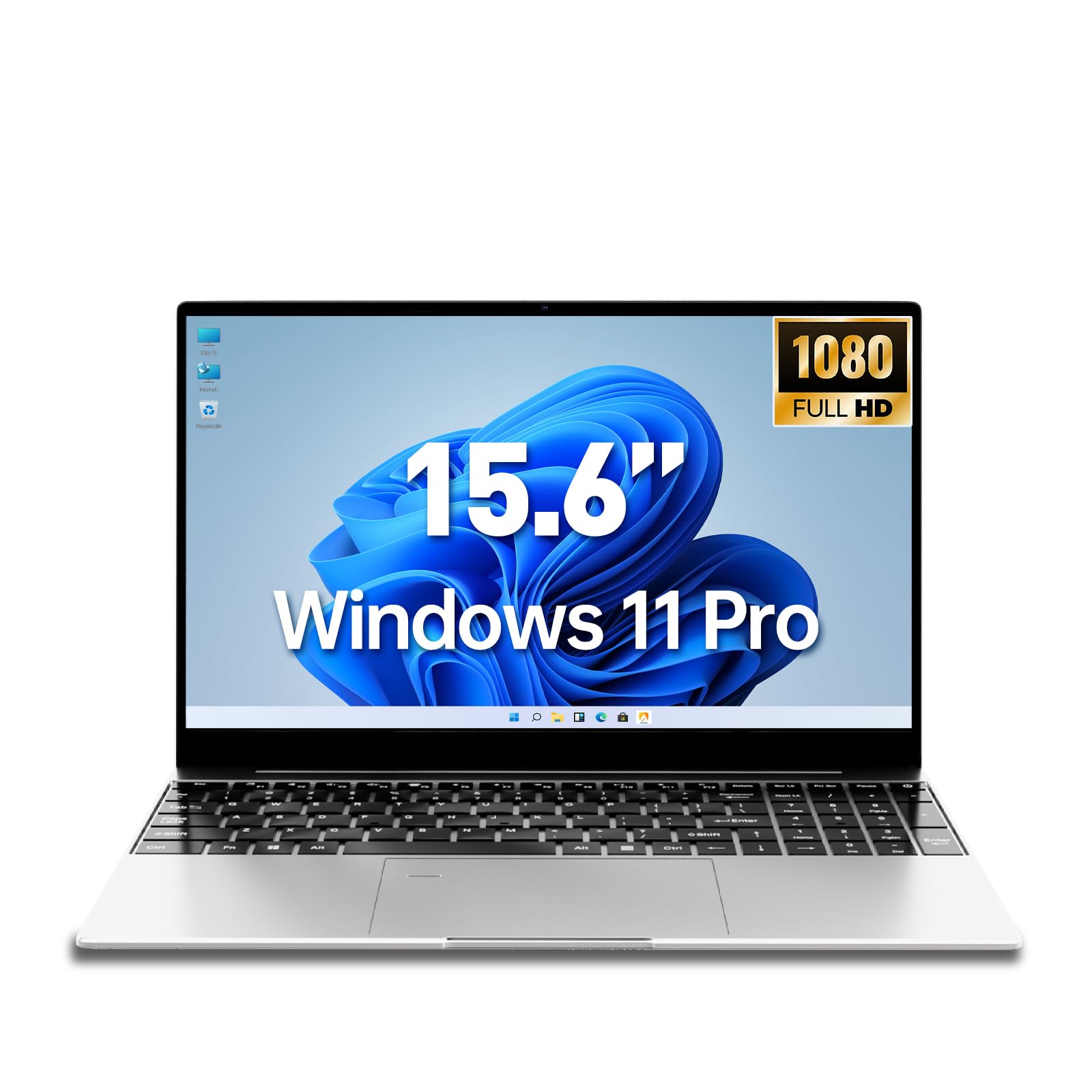
Image: Front view of the ANPCOWER B16 Laptop.
4. Setup
4.1 Initial Charging
- Connect the DC power adapter to the charging port on the laptop.
- Plug the power adapter into a wall outlet.
- Allow the laptop to charge for at least 30 minutes before first use, or until the battery indicator shows sufficient charge.
4.2 Powering On
Press the power button located on the keyboard to turn on the laptop. The power indicator light will illuminate.
4.3 Windows 11 Pro Setup
Upon first boot, you will be guided through the Windows 11 Pro setup process. Follow the on-screen instructions to:
- Select your region and keyboard layout.
- Connect to a Wi-Fi network.
- Accept the license agreement.
- Create or sign in with a Microsoft account.
- Set up a PIN or password.
- Configure privacy settings.
5. Operating Instructions
5.1 Basic Operation
- Power On: Press the power button.
- Sleep Mode: Press the power button briefly or close the lid.
- Shut Down: Click the Start button, then Power > Shut down.
- Restart: Click the Start button, then Power > Restart.
5.2 Keyboard and Touchpad
The laptop features a full-size backlit keyboard and a precision touchpad.
- Backlit Keyboard: Adjust the keyboard backlight brightness by pressing Fn + F9.
- Fingerprint Reader: The integrated fingerprint reader allows for secure login via Windows Hello. Set this up in Windows Settings > Accounts > Sign-in options.

Image: Illustration of the backlit keyboard with brightness settings (Off, Dark, Light).
5.3 Connectivity
The ANPCOWER B16 offers various ports and wireless connectivity options:
- Wi-Fi 5: Connect to wireless networks for internet access. Manage connections via the Windows network settings.
- Bluetooth 4: Pair with Bluetooth-enabled devices such as headphones, mice, or keyboards.
- USB 3.2 Gen 1: Two ports for connecting USB devices and high-speed data transfer.
- Mini-HDMI: Connect to external displays or projectors.
- TF Card Slot: Insert a TF (microSD) card for expanded storage or data transfer.
- Headphone Jack: Connect 3.5mm audio devices.
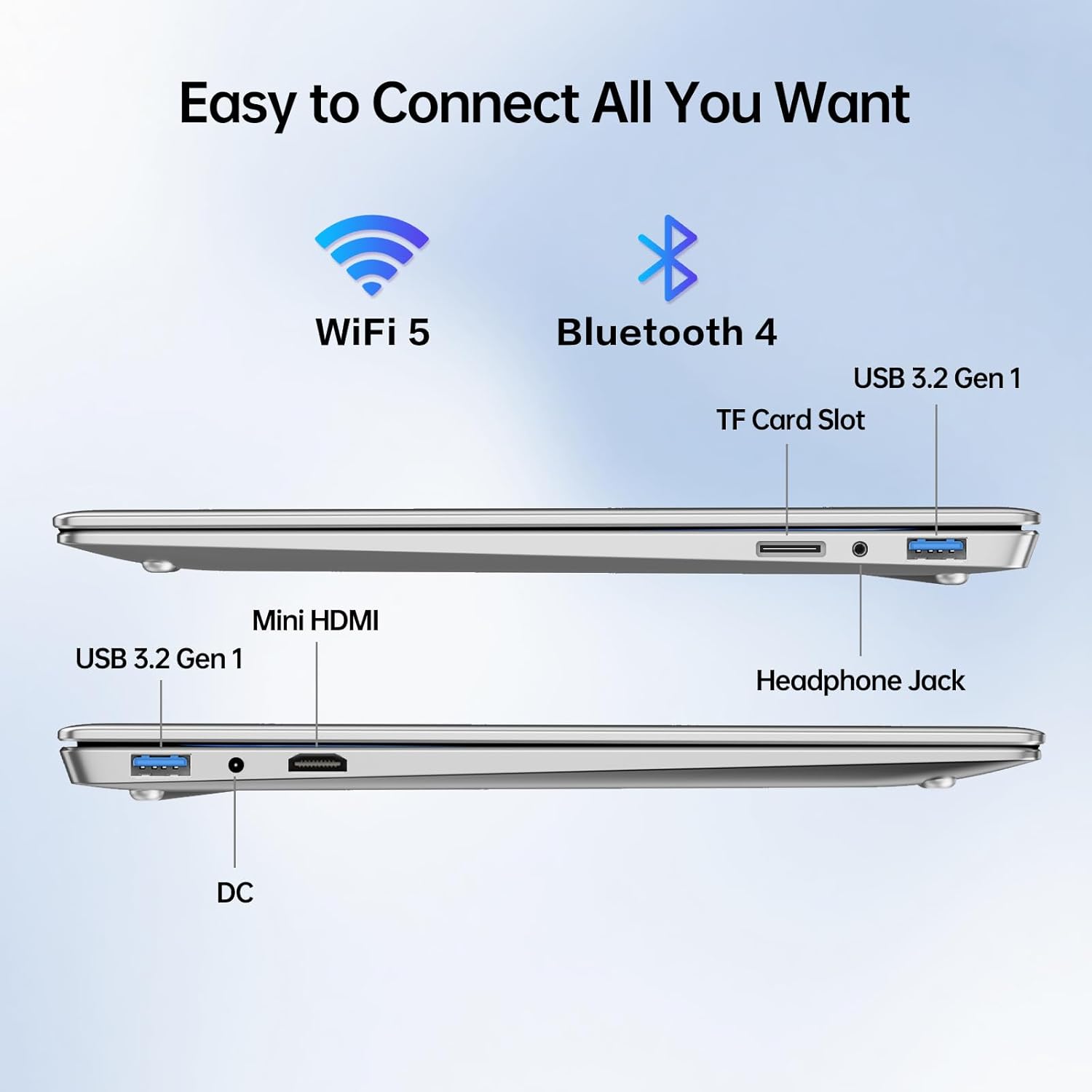
Image: Side view of the laptop highlighting USB 3.2 Gen 1, Mini-HDMI, DC port, TF Card Slot, and Headphone Jack.
5.4 Display
The 15.6-inch Full HD IPS display provides clear visuals and wide viewing angles. Adjust display settings (resolution, brightness, night light) through Windows Display settings.
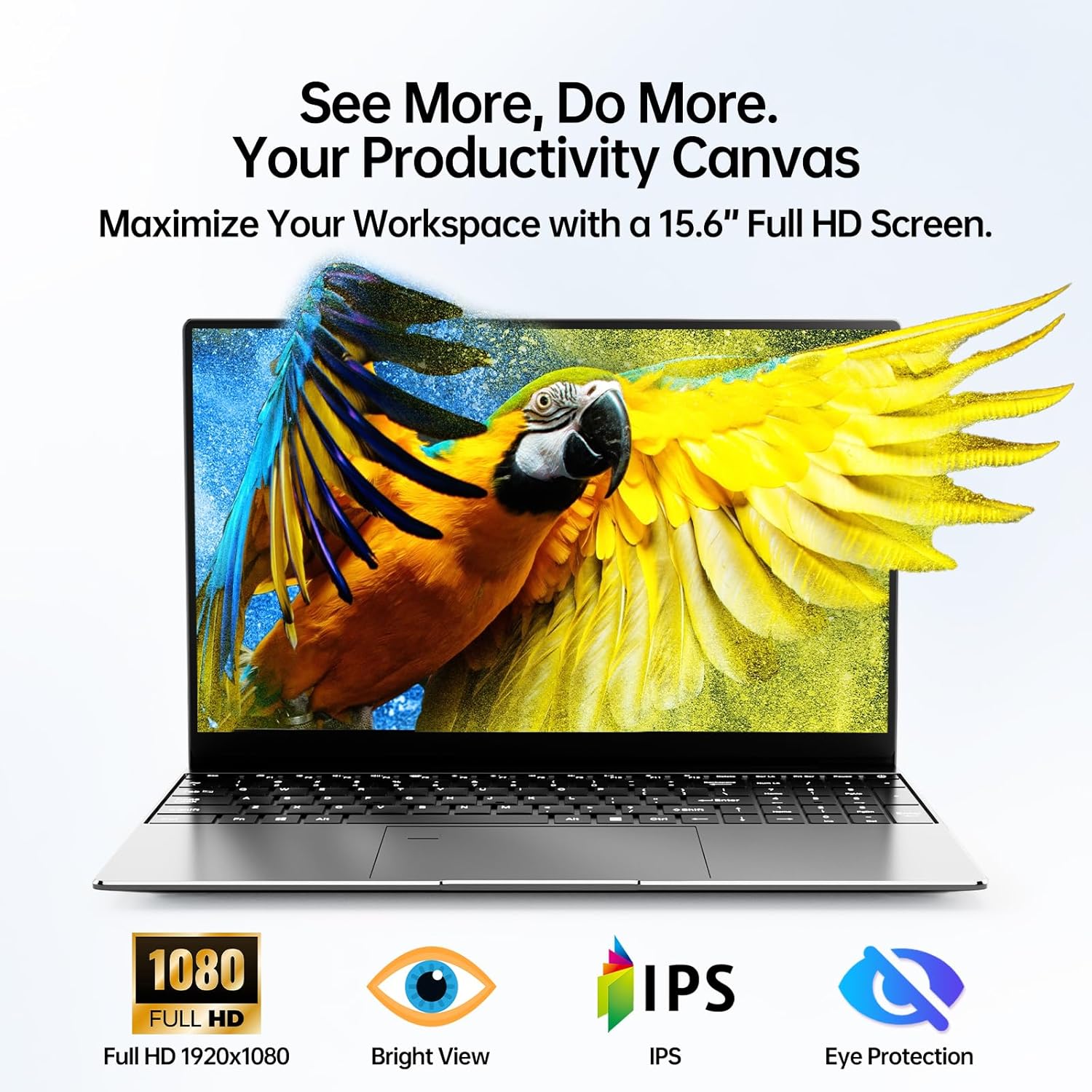
Image: The laptop display showcasing a vibrant image, emphasizing its Full HD IPS capabilities.
6. Maintenance
6.1 Cleaning
- Always power off the laptop and disconnect the power adapter before cleaning.
- Use a soft, lint-free cloth slightly dampened with water or a screen cleaner for the display.
- For the keyboard and chassis, use a soft, dry cloth. Avoid harsh chemicals or abrasive materials.
6.2 Battery Care
The laptop is equipped with a 5000mAh battery. To maximize battery life:
- Avoid extreme temperatures.
- Do not fully discharge the battery frequently.
- If storing the laptop for an extended period, ensure the battery is charged to approximately 50-70%.
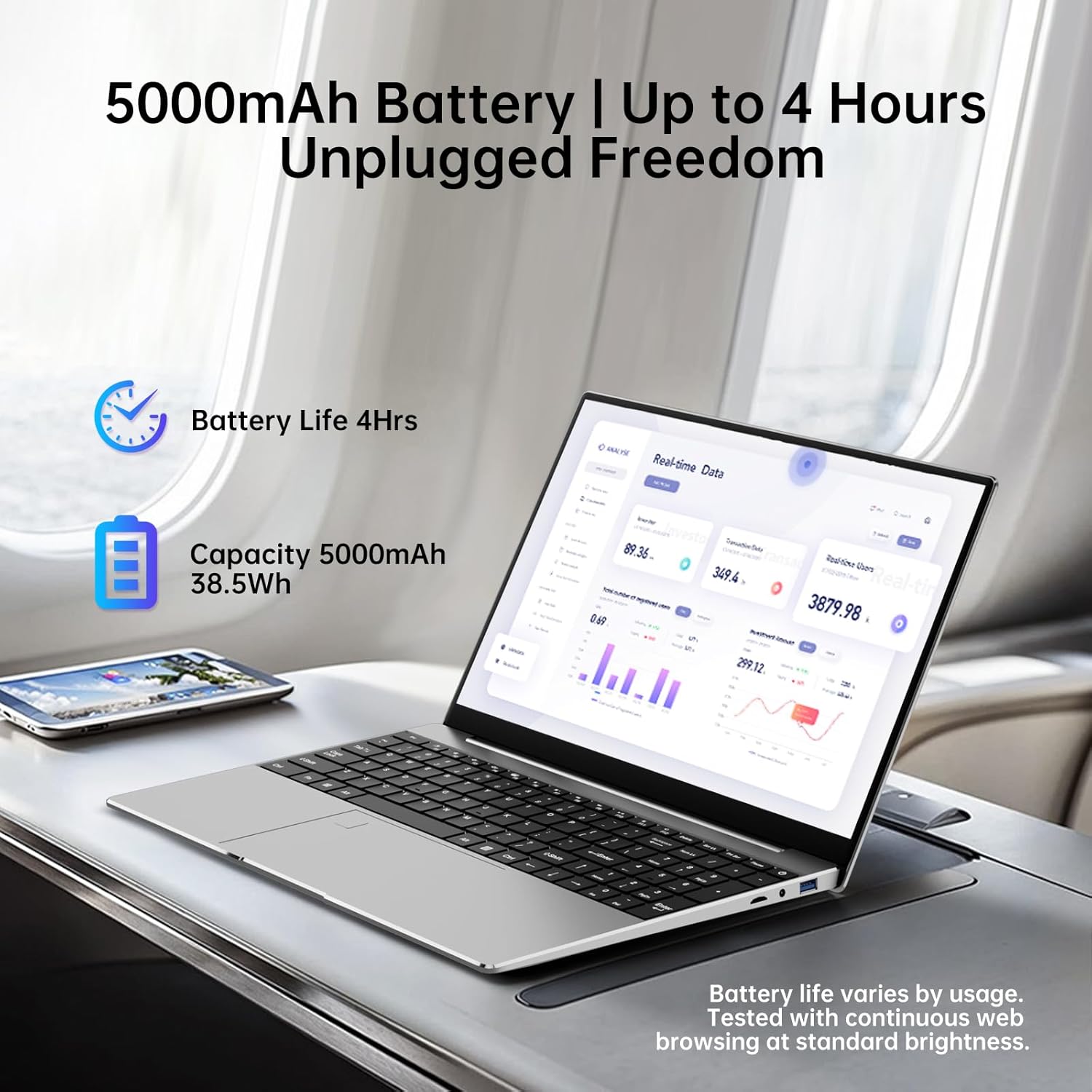
Image: The laptop in use, illustrating its battery capacity and typical usage duration.
6.3 Software Updates
Regularly check for and install Windows updates to ensure system stability, security, and performance. Go to Settings > Windows Update.
7. Troubleshooting
7.1 Laptop Does Not Power On
- Ensure the power adapter is securely connected to both the laptop and a working power outlet.
- Check if the power outlet is functional by plugging in another device.
- If the battery is completely drained, allow it to charge for at least 30 minutes before attempting to power on.
7.2 Display Issues
- If the screen is blank, try pressing Fn + F7 (or the key with a display icon) to toggle display output.
- Adjust screen brightness using the function keys (e.g., Fn + F5/F6).
- If connected to an external monitor, ensure the cable is secure and the correct input is selected on the monitor.
7.3 Wi-Fi or Bluetooth Connectivity Problems
- Ensure Wi-Fi or Bluetooth is enabled in Windows Settings.
- Restart your router/modem for Wi-Fi issues.
- For Bluetooth, ensure the device you are trying to connect to is in pairing mode and within range.
- Run the Windows Network Troubleshooter (Settings > Network & internet > Advanced network settings > Network troubleshooter).
7.4 Slow Performance
- Close unnecessary applications running in the background.
- Check for and install any pending Windows updates.
- Ensure your storage (SSD) is not nearly full.
- Perform a virus scan.
8. Specifications
| Feature | Specification |
|---|---|
| Brand | ANPCOWER |
| Model Name | B16 |
| Operating System | Windows 11 Pro |
| Screen Size | 15.6 Inches |
| Screen Resolution | 1920 x 1200 pixels (FHD) |
| Processor | Intel Pentium 6500Y (Max 3.40GHz) |
| RAM | 8 GB DDR4 |
| Hard Drive | 256 GB Solid State Drive (SSD) |
| Graphics Coprocessor | Intel UHD Graphics |
| Wireless Type | Wi-Fi 5 (802.11a/b/g/n/ac), Bluetooth 4 |
| USB Ports | 2 x USB 3.0 Ports |
| Other Ports | Mini-HDMI, TF Card Slot, Headphone Jack |
| Special Features | Backlit Keyboard, Fingerprint Reader, HD Audio, Numeric Keypad |
| Battery | 5000mAh (Up to 4 hours) |
| Item Weight | 4.97 pounds |
| Product Dimensions | 13.4 x 0.9 x 9 inches |
9. Warranty and Support
For warranty information and technical support, please refer to the documentation provided with your purchase or contact ANPCOWER customer service. Details regarding specific warranty periods and support channels are typically available on the manufacturer's official website or through your retailer.
Please retain your proof of purchase for warranty claims.