
Introduction
This manual provides detailed instructions for the installation, operation, and maintenance of your HEI LIANG Fingerprint Door Lock, Model HL-2. This smart door lock offers multiple convenient unlocking methods and advanced security features, designed for residential and light commercial use.
Please read this manual thoroughly before installation and use to ensure proper function and to maximize the lifespan of your device.
Product Features
- Four Unlocking Methods: Fingerprint, Passcode, Mobile App Control, and Emergency Physical Key.
- Biometric Fingerprint Recognition: Fast 0.3-second fingerprint input for quick access.
- Keypad Entry: Supports up to 20 user codes (4-16 digits) and one-time PIN codes.
- App Control: Manage fingerprints, passcodes, view unlocking records, set automatic locks, and access modes via a dedicated mobile application.
- Anti-Peep Passcode: Enhance security by entering random digits before or after your actual passcode.
- Automatic Locking: Configurable auto-lock feature for enhanced security.
- Durable Construction: Made from sturdy aluminum alloy, tested for operating environment and keypad life.
- Power Management: Visual power display, low power alarm, and Type-C port for emergency charging.
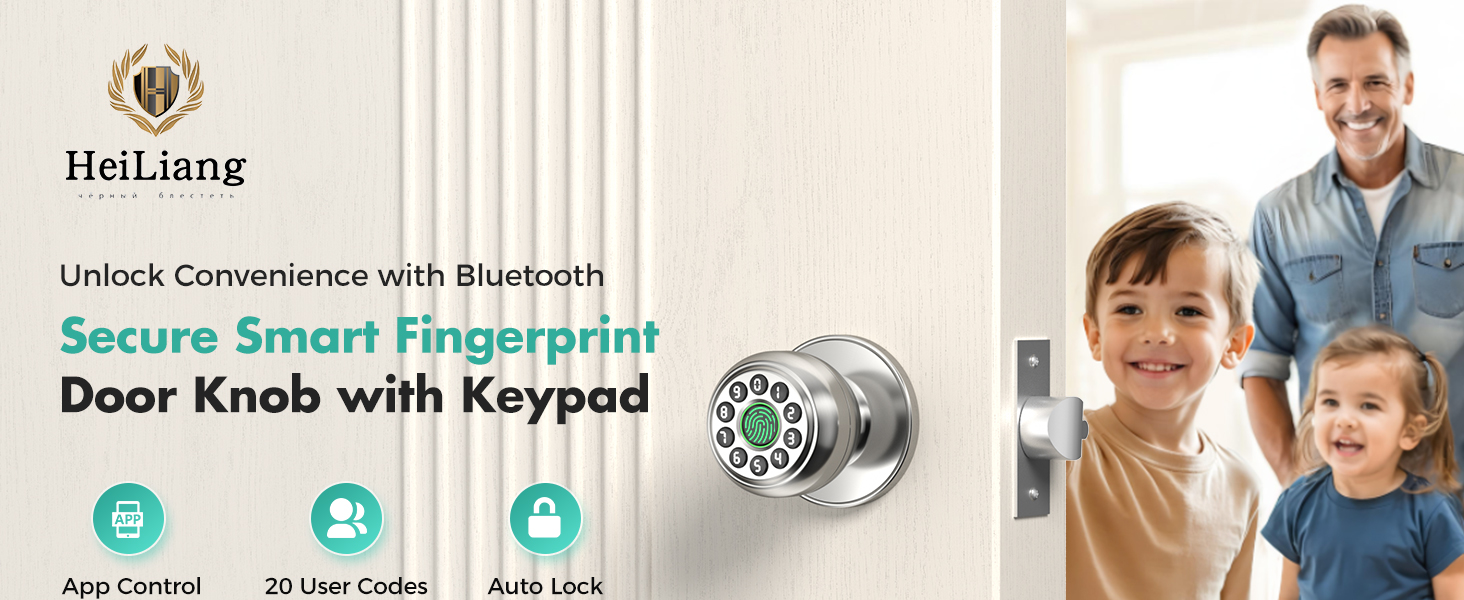
Image: Overview of the HEI LIANG Smart Lock's multi-functional capabilities, including app control, mute mode, fingerprint, key unlock, access schedules, auto lock, password unlock, and easy installation.
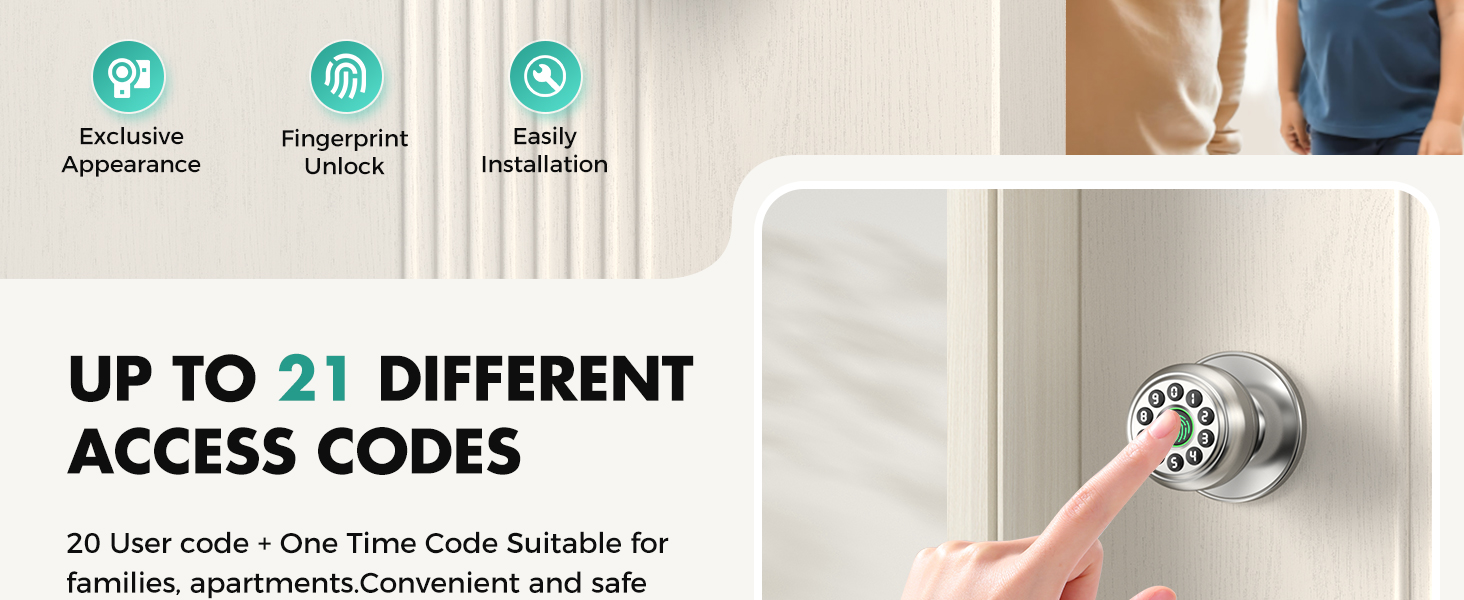
Image: Depiction of the smart lock's sturdy aluminum alloy construction, highlighting its internal components and durability tests for operating environment and keypad life.
Specifications
| Feature | Detail |
|---|---|
| Brand | HEI LIANG |
| Model Number | HL-2 |
| Special Feature | Fingerprint recognition, Keypad, App Control |
| Lock Type | Biometric, Combination Lock, Keypad |
| Material | Nickel (Satin Nickel finish) |
| Item Dimensions (L x W x H) | 9 x 3 x 3 inches |
| Recommended Uses | Home, Bedroom, Office, Apartment, Hotel |
| Door Thickness Compatibility | 30-55mm (approximately 1.18 - 2.17 inches) |
| Power Source | Lithium battery (non-removable), Type-C emergency charging |
| Smart Home Compatibility | Yes (via App Control) |
Installation Guide
The HEI LIANG Fingerprint Door Lock is designed for easy installation. A screwdriver is typically the only tool required. Ensure your door thickness is between 30-55mm.
Step-by-Step Installation:
- Prepare the Door: Ensure your door is compatible and the existing hardware is removed.
- Install the Latch: Insert the latch into the door edge and secure it with screws. Ensure the latch bolt faces the correct direction for your door swing.
- Install the Exterior Knob: Insert the exterior knob assembly through the door, ensuring the spindle rod is in a vertical position. The "UP" sign on the knob should be oriented correctly.
- Install the Interior Knob: Align the interior knob with the exterior assembly. The "UP" sign on the interior knob must also be correctly oriented. Turn the adjustment arrow on the spindle rod with your thumb to point to the center point and the "UP" symbol before inserting it into the mounting base. Apply slight force to fully insert the back lock.
- Secure the Knobs: Fasten the interior and exterior knobs together using the provided screws.
- Test Functionality: After installation, test the mechanical operation of the lock before setting up electronic features.
Tip: When installing the inner knob, ensure both the outer and inner knobs are inserted according to the "UP" sign on the top for proper alignment and secure fitting. The spindle rod should be vertical. Adjust the arrow on the spindle rod to point to the center and the "UP" symbol before inserting it into the mounting base.

Image: Components of the HEI LIANG Smart Lock, illustrating the parts involved in the installation process.
Operating Instructions
1. Unlocking Methods
- Fingerprint Unlocking: Place your registered finger on the fingerprint sensor. The lock will unlock in approximately 0.3 seconds upon successful recognition.
- Passcode Unlocking: Enter your registered passcode on the keypad, then press the '#' key (or equivalent confirmation key).
- App Control Unlocking: Use the dedicated mobile application to remotely unlock the door. Ensure your device is connected via Bluetooth.
- Emergency Key Unlocking: In case of electronic failure or dead battery, use the provided physical key to manually unlock the door.
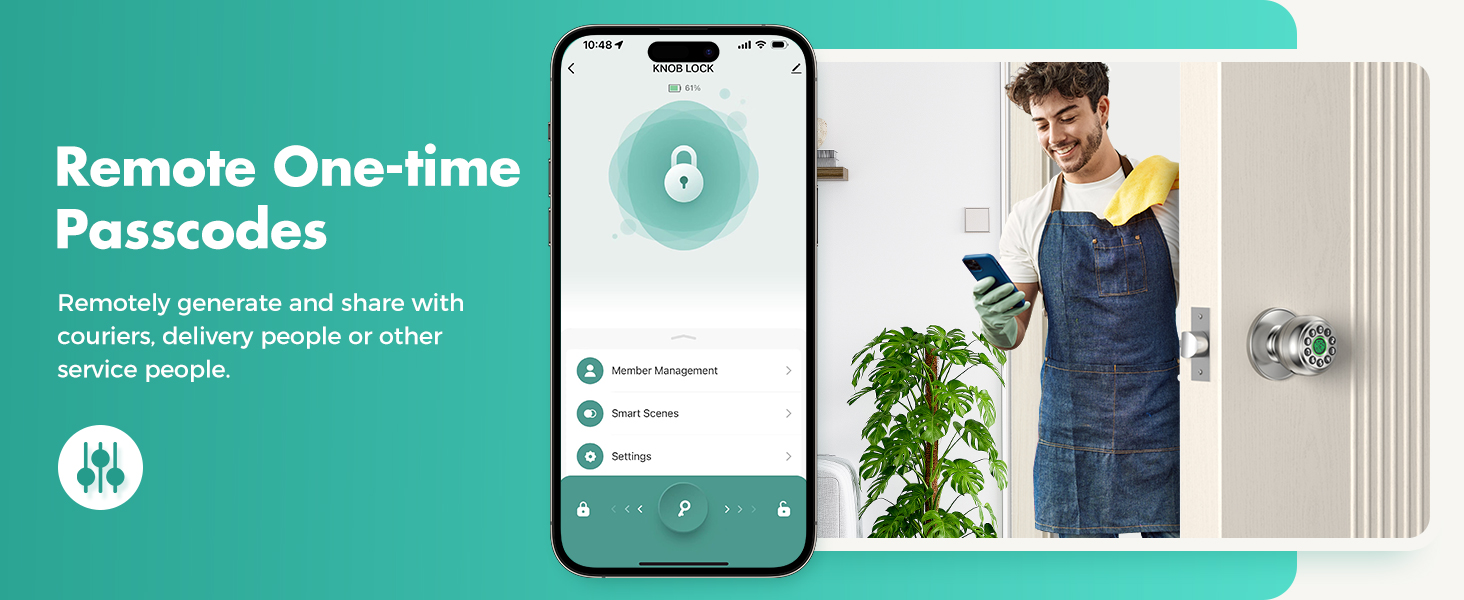
Image: Illustration of the multiple access methods for the HEI LIANG Smart Lock, including app control, passcode, fingerprint, and physical key.
2. App Control and Management
The mobile application allows for comprehensive management of your smart lock:
- Fingerprint/Passcode Management: Add, delete, or modify user fingerprints and passcodes.
- Unlocking Records: View a history of who unlocked the door and when.
- Automatic Lock Settings: Configure the auto-lock delay (e.g., 5-900 seconds).
- Access Modes: Set different modes like Normal, Passage, or Privacy.
- Remote One-time Passcodes: Generate temporary passcodes for guests or service personnel.
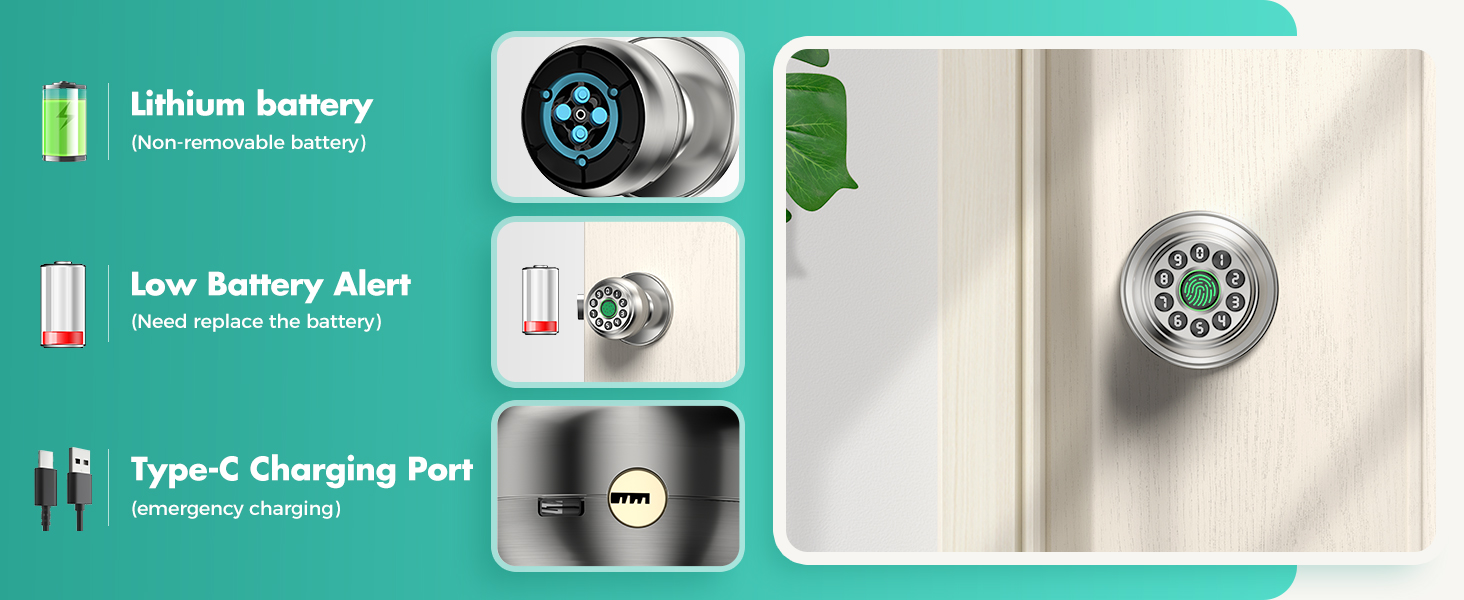
Image: Screenshot of the mobile app interface demonstrating the generation and sharing of remote one-time passcodes for various users.
3. Anti-Peep Passcode
To prevent others from observing your passcode, you can enter random digits before or after your actual passcode. The lock will still recognize the correct sequence within the longer string of numbers.
Example: If your passcode is 123456, you can enter 987123456321. The lock will unlock.
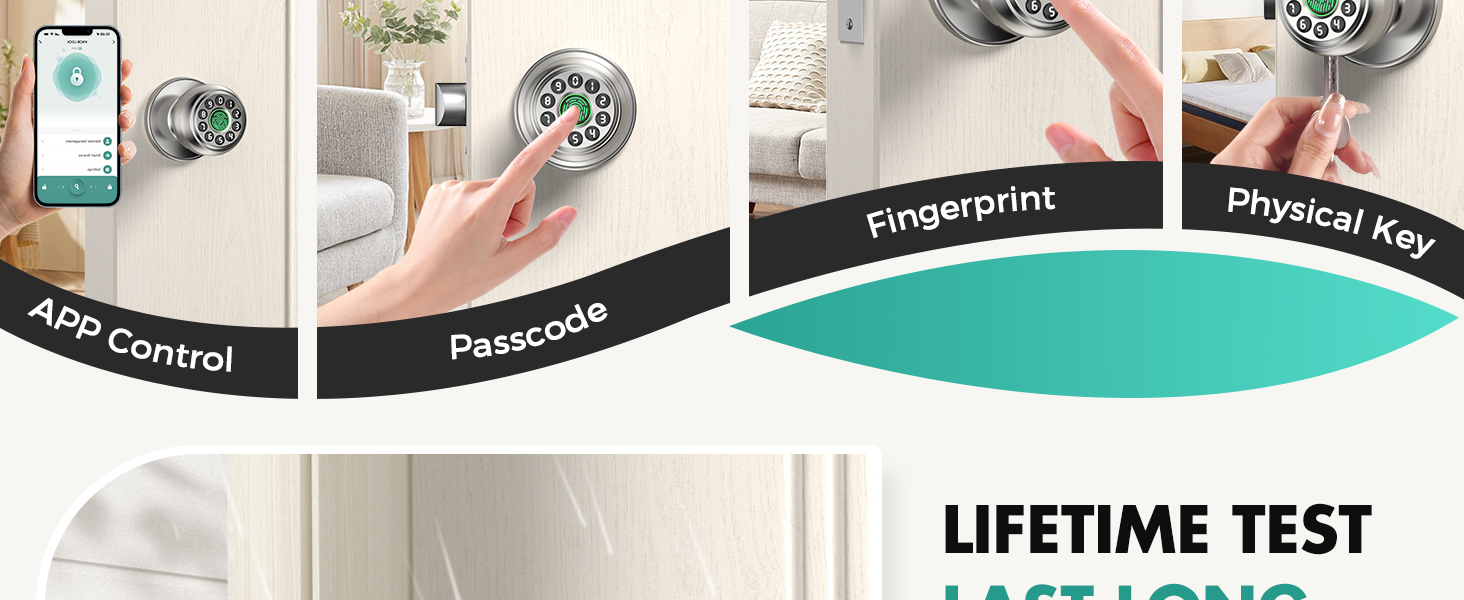
Image: A user demonstrating the anti-peep passcode feature, showing how random digits can be entered before and after the correct password for enhanced security.
4. Automatic Lock Settings
The auto-lock feature ensures your door is always secured after a set period. You can configure the delay time (e.g., 5-900 seconds) through the mobile application.
- Normal Mode: Auto-locks after a set delay (e.g., 5 seconds).
- Passage Mode: Remains unlocked for continuous access.
- Privacy Mode: Authorized unlock only, typically set from inside.

Image: Visual representation of the three operating modes: Normal Mode (auto-lock in 5s), Passage Mode (always unlock), and Privacy Mode (authorized unlock).

Image: A person setting up the automatic lock feature on the HEI LIANG Smart Lock, showing the adjustable auto-lock duration from 5 to 900 seconds.
Maintenance
1. Battery and Charging
The lock is powered by a non-removable lithium battery. It features a visual power display and a low power alarm function.
- Charging: Use the Type-C charging port for emergency charging when the battery is low.
- Important: Disconnect the charger once the battery is charged. Do not leave the lock plugged in for continuous use.
- Low Power Alarm: The lock will alert you when the battery level is critically low, indicating it's time to charge.

Image: Details on the smart lock's power features, including its non-removable lithium battery, low battery alert indicator, and the Type-C port for emergency charging.
2. General Care
- Clean the lock surface with a soft, dry cloth. Avoid abrasive cleaners or solvents.
- Keep the fingerprint sensor and keypad clean and free from dirt or moisture for optimal performance.
- Avoid exposing the lock to extreme temperatures or direct water spray.
Troubleshooting
Common Issues and Solutions:
- Lock not responding: Check battery level. If low, use the Type-C port for emergency charging or the physical key.
- Fingerprint not recognized: Ensure your finger is clean and dry. Try re-registering your fingerprint if the issue persists.
- Passcode not working: Verify the correct passcode is entered. Ensure no random digits are accidentally included if not using the anti-peep feature.
- App connection issues: Ensure Bluetooth is enabled on your phone and the lock is within range. Restart the app or re-pair the device if necessary.
- Lock not auto-locking: Check the auto-lock settings in the mobile application to ensure it is enabled and the delay time is set correctly.
- Difficulty during installation: Refer to the "Installation Guide" section. Pay close attention to the "UP" markings and spindle rod alignment.
If you encounter issues not covered here, please consult the manufacturer's support resources.

