
1. Product Overview
The ZUZZEE MT13W is a comprehensive 10-in-1 air quality monitor designed to provide real-time data on various indoor air pollutants and environmental conditions. This device helps users maintain a healthy living or working environment by tracking key indicators and providing timely alerts.
Key Features:
- 10-in-1 Monitoring: Tracks Carbon Dioxide (CO2), Carbon Monoxide (CO), Formaldehyde (HCHO), Total Volatile Organic Compounds (TVOC), PM2.5, PM1.0, PM10, PM0.3, Temperature, and Humidity.
- 2.8" TFT Display: Provides clear and easy-to-read air quality data.
- Tuya WiFi Compatibility: Integrates with Tuya-compatible systems for continuous and accurate air quality readings.
- Long-Lasting Battery: Approximately 24 hours of continuous operation on a full charge.
- Intuitive Alarm System: Dual-level alarm with color-coded indicator lights for immediate air quality alerts.
- Self-Calibration Function: Ensures measurement accuracy with both automatic and manual calibration options.

Figure 1: Front view of the ZUZZEE MT13W Air Quality Monitor, showing its display with various environmental readings.
2. Setup Guide
2.1 Package Contents
Before proceeding, please verify that all items are present in the package:
- 1 x ZUZZEE MT13W Air Quality Monitor
- 1 x Type-C Charging Cable
- 1 x User Manual (this document)
2.2 Charging the Device
The MT13W monitor is equipped with a rechargeable battery. For optimal performance, fully charge the device before first use.
- Locate the Type-C charging port on the side of the monitor.
- Connect the provided Type-C cable to the monitor and the other end to a 5V DC power adapter (not included) or a USB port.
- The charging indicator will illuminate. A full charge typically provides approximately 24 hours of operation.
2.3 Powering On/Off
- To Power On: Press and hold the power button (usually located on the side or back) for a few seconds until the display illuminates.
- To Power Off: Press and hold the power button again until the display turns off.

Figure 2: Side view of the monitor, illustrating its compact design and potential button location.
2.4 Initial Placement
Place the monitor in a central location within the area you wish to monitor. Avoid placing it near direct heat sources, open windows, or areas with high airflow that might skew readings.

Figure 3: The monitor positioned on a table, demonstrating typical placement for indoor air quality monitoring.
3. Operating Instructions
3.1 Understanding the Display
The 2.8" TFT display provides a clear overview of all monitored parameters. Readings are updated in real-time.
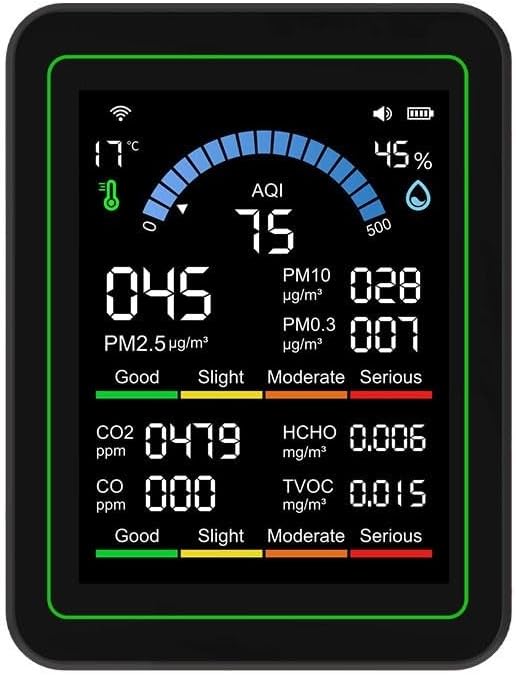
Figure 4: Detailed view of the monitor's display, highlighting the various air quality indicators and their values.
The display typically shows:
- Temperature and Humidity: Current environmental conditions.
- AQI (Air Quality Index): An overall indicator of air quality.
- PM2.5, PM10, PM0.3: Particulate matter concentrations in µg/m³.
- CO2: Carbon Dioxide levels in ppm.
- CO: Carbon Monoxide levels in ppm.
- HCHO: Formaldehyde levels in mg/m³.
- TVOC: Total Volatile Organic Compounds in mg/m³.
- Battery Indicator: Shows current battery level.
- WiFi Status: Indicates connection status.
3.2 Interpreting Readings and Alarm System
The monitor uses color-coded indicators (e.g., Good, Slight, Moderate, Serious) to help interpret air quality levels at a glance. A dual-level alarm system provides visual alerts when pollutant levels exceed predefined thresholds, prompting users to take action such as ventilation.
3.3 Tuya WiFi Integration (Smart App Control)
The MT13W can connect to the Tuya Smart app for remote monitoring and advanced features. Refer to the Tuya Smart app's instructions for pairing the device and accessing its full capabilities, including historical data and custom alerts.
- Download the "Tuya Smart" app from your mobile device's app store.
- Register or log in to your Tuya account.
- Add a new device in the app and follow the on-screen instructions to connect the MT13W to your home WiFi network.
- Once connected, you can view real-time data, set up notifications, and manage settings remotely.
4. Maintenance
4.1 Cleaning
To ensure accurate readings and prolong the device's lifespan, keep the monitor clean.
- Wipe the exterior with a soft, dry cloth.
- Do not use abrasive cleaners, solvents, or immerse the device in water.
- Ensure the ventilation grilles are free from dust and obstructions.
4.2 Calibration
The MT13W features an auto-calibration function for continuous accuracy. Manual calibration options may also be available through the device settings or the Tuya Smart app. Refer to the device's on-screen menu or app for specific calibration procedures if manual adjustment is required.
For best results, perform calibration in a well-ventilated area with known good air quality.
4.3 Battery Care
- Charge the device using only the specified 5V DC Type-C input.
- Avoid fully discharging the battery frequently to extend its life.
- If storing the device for an extended period, charge it to about 50% and recharge every few months.
5. Troubleshooting
| Problem | Possible Cause | Solution |
|---|---|---|
| Device does not power on. | Low battery or power button not pressed correctly. | Charge the device for at least 30 minutes. Press and hold the power button firmly for 3-5 seconds. |
| Inaccurate readings. | Device not calibrated, placed in an unsuitable location, or sensor obstruction. | Perform a manual calibration in fresh air. Relocate the device away from drafts or direct pollutants. Ensure ventilation grilles are clear. |
| Cannot connect to Tuya WiFi. | Incorrect WiFi password, device too far from router, or network issues. | Verify WiFi password. Move the device closer to the router. Ensure your WiFi network is 2.4GHz (5GHz networks are often not supported by smart home devices). Restart your router and the monitor. |
| Battery life is shorter than expected. | Frequent use of high-power features, aging battery, or extreme temperatures. | Ensure the device is fully charged. Avoid operating in extreme temperatures. If the issue persists, contact customer support. |
6. Specifications
| Parameter | Value |
|---|---|
| Model Name | MT13W |
| Brand | ZUZZEE |
| Material | ABS |
| Dimensions (L x W x H) | 89 x 70 x 35 mm (Product); 14 x 10 x 5 cm (Package) |
| Weight | 203 Grams (Product) |
| Color Options | White, Black |
| Power Supply | 5V DC, Type-C USB |
| Battery Life | Approx. 24 hours (on full charge) |
| Measurement Range (CO2) | 400-5000 ppm |
| Measurement Range (HCHO) | 0-1.99 mg/m³ |
| Measurement Range (CO) | 0-9.99 mg/m³ |
| Measurement Range (PM2.5, PM1.0, PM10, PM0.3) | 0-999 µg/m³ |
| Measurement Accuracy (CO2) | 1 ppm |
| Measurement Accuracy (HCHO, CO) | 0.001 mg/m³ |
| Measurement Accuracy (PM) | 1 µg/m³ |
| Connectivity | Tuya WiFi |
| Display | 2.8" TFT Screen |
| Manufacturer Model Number | E1819OEY66D64T8L124OU8M4MN6JY1 |

Figure 5: Physical dimensions of the ZUZZEE MT13W monitor.
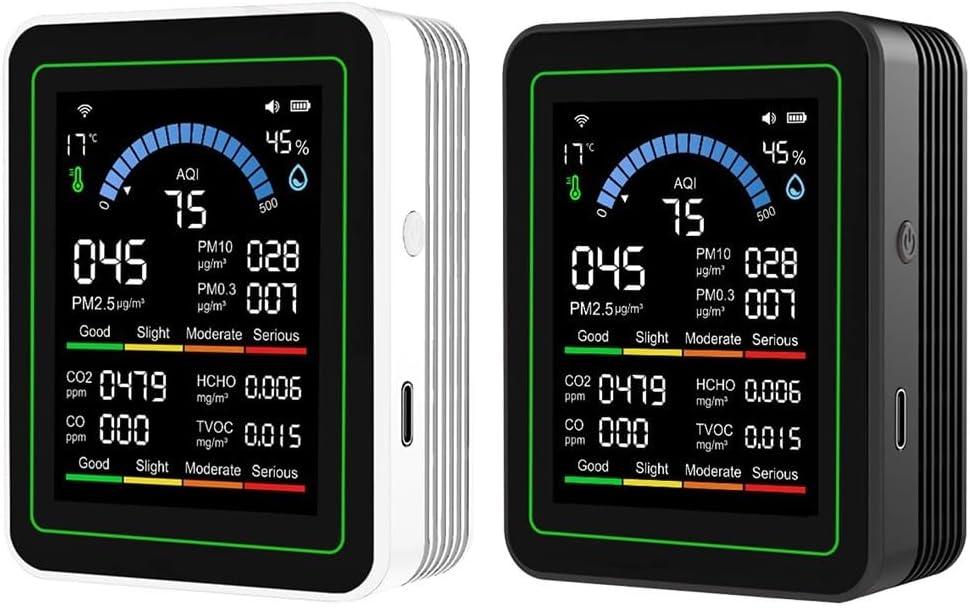
Figure 6: Available color options for the MT13W monitor (White and Black).
7. Warranty and Support
7.1 Warranty Information
This product comes with a standard manufacturer's warranty. Please refer to the retailer's return policy or contact the seller for specific warranty terms and conditions. Keep your purchase receipt as proof of purchase.
7.2 Customer Support
For technical assistance, troubleshooting not covered in this manual, or warranty claims, please contact the retailer or manufacturer directly. Contact information can usually be found on the product packaging or the retailer's website.
Manufacturer: ZUZZEE